
An operation's workflow
Revaluations, impairments and sale offers follow the same workflow:
| Status | What you can do |
|---|---|
| Draft | Edit, Submit for validation, Delete (its number is not reused), Cancel the operation |
| Awaiting validation | Wait for the decision; Cancel the operation |
| Refused | Edit (it becomes a draft again), or Submit for validation again as it is; Cancel the operation |
| Validated | Its effect has taken place: entry, component, asset status |
| Cancelled | Nothing: the reason stays on its record and in the asset's log |
Submit for validation first replays the operation's checks: the What prevents validation box lists what blocks it (a zero difference, a date outside an open financial year, a frozen table, a missing account in the link). Then:
- no workflow applies: the operation is validated by this very action, and its entry is posted;
- a workflow applies: it becomes Awaiting validation, and its effect only happens at the final decision (chapter 15).
The To submit filter of each list gathers drafts and refused operations. The dashboard counts them.
Each validated revaluation or impairment posts an accounting entry in the firm's file, in the open financial year that contains its date, in the accounting link's journal. The operation's page shows the planned entry before validation, then the entry posted.
Revaluation
- Click New revaluation (or Revalue from the asset record, tab Value and disposals).
- Choose the Asset and the Effective date.
- Enter the Revalued amount, the appraisal's: it must exceed the asset's NBV on the effective date.
- Add the Appraiser, the Method (market value, replacement cost), the Remaining life (months) and the Reason.
- Click Create the revaluation, then Submit for validation.
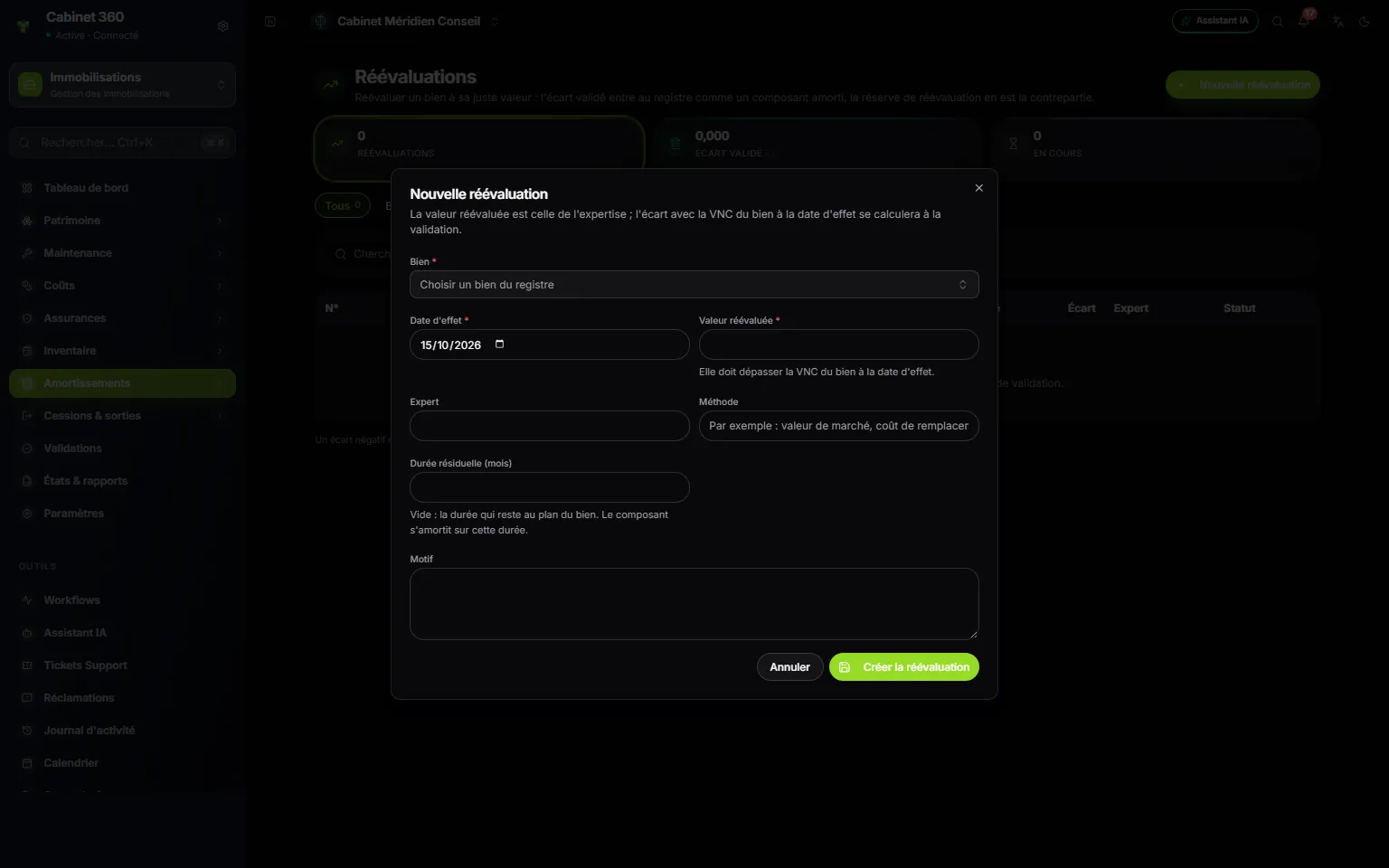
- 1. The asset to revalue.
- 2. The effective date of the revaluation.
- 3. The revalued amount must exceed the asset's NBV on that date.
- 4. The appraiser and the valuation method.
- 5. The remaining life: left empty, the time remaining on the asset's plan.
- 6. Create the revaluation, then submit it.
The difference = revalued amount − the asset's NBV on the effective date (revaluation components already included). It is frozen at validation.
On validation:
- the difference enters the register as a component of the asset, under the asset's code followed by
-R1(then-R2…), dated on the effective day, depreciated straight-line over the remaining life; - the entry is posted: debit the asset's account, credit the special revaluation reserve (144).
The remaining life is proposed: straight-line, the NBV divided by the monthly charge, rounded up to the next month; declining balance, the plan's length minus the months elapsed. If nothing is left of the plan, enter it: without it, submission is refused.
Impairment
- Click New impairment (or Impair from the asset record).
- Choose the Asset and the Date.
- Enter the Recoverable amount: the higher of the net selling price and the value in use. It must stay below the NBV.
- Choose if needed the Provision account (29); left empty, the class-29 account matching the asset's account is proposed (213 → 2913, 2282 → 29282).
- Write the Reason (required: market price drop, technical obsolescence), then click Create the impairment and submit it.
The impairment = NBV on the date − recoverable amount − provision the asset already carries: a provision is topped up, never doubled.
On validation, the entry is posted: debit the impairment provision charge (intangible or tangible), credit the class-29 account. The asset's gross value does not change.
Reversing a provision
On a validated impairment, click Reverse: all or part of the provision that remains, on a date neither in the future nor before the impairment, with a reason. The entry is posted: debit the class-29 account, credit the provision reversal.
When the asset leaves, the remaining provision is reversed in full, on the exit date. Cancelling the exit removes these reversals.
The plan after an impairment
From the day after an impairment (or a reversal), the charge is computed on the asset's net value (gross value − depreciation − provision) and on what remains of the plan:
- straight-line: the net value, spread over the days left until the original end of life. The asset finishes on the same date;
- declining balance: the net value × the declining rate;
- units of production: the net value × units read ÷ units remaining.
An impairment dated on the last day of a financial year does not change that year's charge: it applies to the following years. The indicative plan adds a Provision column.