
The reports
Fifteen reports, arranged by family. Each report states its formats (PDF, Excel, CSV) and reads the same figures as the screens: nothing is recomputed for printing.
| Family | Report | What it gives |
|---|---|---|
| Fixed assets | Fixed asset register | The complete list of the asset base, with values, location and status. |
| Asset sheets | One page per asset: identity, values, location, assignment and history. | |
| Movements of the fiscal year | Additions, moves, changes of assignment and exits. | |
| Assets per staff member | What each assignee holds. | |
| Accounting | Fixed assets and depreciation table | The summary by family for the tax return: opening, additions, exits, closing. |
| Gains and losses on disposal | The result of each exit, matched with its entry. | |
| Depreciation | Depreciation of the fiscal year | By category and by asset, with the pro rata. |
| Forecast depreciation plan | The charges of the next five financial years. | |
| Maintenance | Maintenance costs | By asset, by provider and by type of intervention. |
| Maintenance contracts schedule | Contract ends, renewals, annual costs. | |
| Insurance | Insured and uninsured assets | Each asset's coverage, the insufficient limits. |
| Claims record | Claims, compensation and out-of-pocket costs by policy. | |
| Inventory | Inventory report | The account of a campaign: present, missing, discrepancies. |
| Differences and adjustments | Each discrepancy, its treatment and its status. | |
| Cost analysis | Total cost of ownership | By asset, category, site or cost center. |
Opening, setting, producing a report
- Click a report: it opens on its filters and its preview.
- Set the filters (the Financial year, a site, a category…), the Sort, and with All columns the columns to keep.
- Read the preview. The period names the financial year and the situation date; a note says where the figures come from (the validated depreciation table, or the engine's calculation until it is validated).
- Click Print for the print dialog, or Download for the PDF, Excel or CSV file.
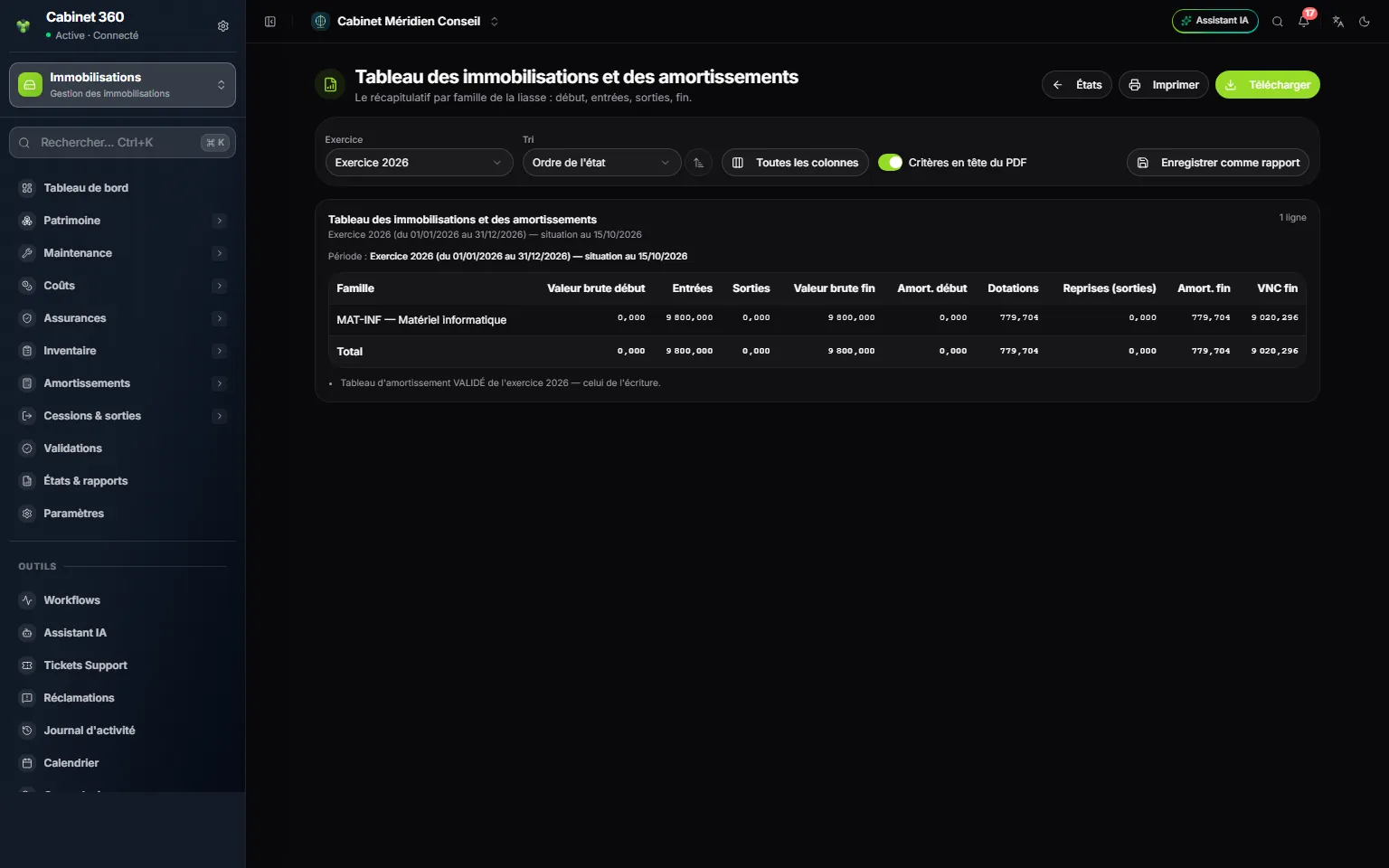
- 1. The financial year of the report.
- 2. All columns: choose the columns to keep.
- 3. Criteria at the top of the PDF: the reminder of the filters, kept or removed.
- 4. Save as report: keep this setting.
- 5. Download as PDF, Excel or CSV.
- 6. The period: the financial year, its dates and the situation date.
- 7. The note: here, the validated table of 2026, the one behind the entry.
- The PDF uses the common layout of IntegraSys reports: the criteria at the top (unless you untick Criteria at the top of the PDF), and totals only for the columns that add up.
- The Excel workbook has a « Critères » (criteria) tab.
- The CSV writes dates in international format and amounts with a point, without thousands separators: it can be read back by another program.
Saved reports
A setting you need every month? Click Save as report, give it a Name, and turn on Share with the firm if the team should read it. The report keeps the filters, the columns, the grouping and the sort.
It reopens from Saved reports, at the top of the page. Shared, the whole firm reads it; only its author and management can edit or delete it.
All the documents printed
| Document | Where to print it | Signatures |
|---|---|---|
Commissioning report (PVMS-…) | Asset record, Print the commissioning report | Received by, the manager, management |
| Handover receipt | Assignments, ⋯ menu, Print the handover receipt | For the firm, the assignee |
| Transfer slip | Transfer page, Transfer slip | Dispatched by, transported by, received by |
| Labels | Inventory › Labels, Download the PDF | — |
| Intervention slip | Work order page, Intervention slip | Requester, technician, receipt of the asset |
| Claim form | Claim page, Claim form | For the firm, for the insurer |
| Sale contract | Contract page, Print the contract | The seller, the buyer |
| Retirement report | Retirement page, Print the retirement report | The committee chair, the members, management |
| The fifteen reports | Reports | — |
The documents are A4 and carry your company's logo (failing that, the one in the firm's settings). The printed documents themselves are written in French. Printing requires only the View right.
Daily alerts
Every morning, the module warns under the bell, and by e-mail when the box is ticked. Two alerts go out on the spot: « Pending approval » and the recording of a claim.
| Alert | When |
|---|---|
| Maintenance contract end date | At 90, 60, 30, 15 and 7 days before it ends. |
| Insurance policy end date | At 90, 60, 30, 15 and 7 days before it ends. |
| Upcoming maintenance | Before the intervention date of a requested or scheduled order (7 days by default). |
| Inventory to carry out | Before the start of a campaign not yet launched (5 days by default). |
| Pending approval | On submission, at each level, and to the requester at the decision. |
| Claim declared | When it is recorded, then for an open claim that has not moved for 30 days. |
| Asset not found | An asset recorded « Missing » when an inventory is closed. |
| Depreciation to close | The closed year's table is not posted. |
| Assets to return | An agent leaves the firm and still holds assets. |
| Asset not inventoried | An asset no inventory has seen for the set delay (24 months by default), one reminder per month. |
For each alert, set the Recipients (failing that, the firm's management; for an inventory, the campaign's manager) and the E-mail box. Also set the delays: maintenance and inventory from 0 to 120 days, asset not inventoried from 1 to 120 months. The « Pending approval » alert has no recipients to set: the request names them. Setting the alerts requires the Edit right.
- An alert is sent only once: an expiry already flagged at 30 days does not come back the next day. A renewed expiry (its end date changed) starts its thresholds again.
- The e-mail only goes out if the alert enables it and the recipient has turned on e-mail notifications in their preferences.
- An alert decides nothing: the dashboard carries the same points, computed when the page opens.