
Requesting a transfer
- Click New transfer (or Transfer in the register's ⋯ menu).
- In Assets to transfer, tick the assets. They all leave from the same site, 50 at most per transfer. An asset with no location must be assigned first: the page says so before sending.
- Choose the Destination and the Reason (the list of reasons is set in Settings › Transfer reasons).
- Choose what happens On arrival (see below), and if needed the Wanted date, the Transport and a Comment.
- Click Send the request.
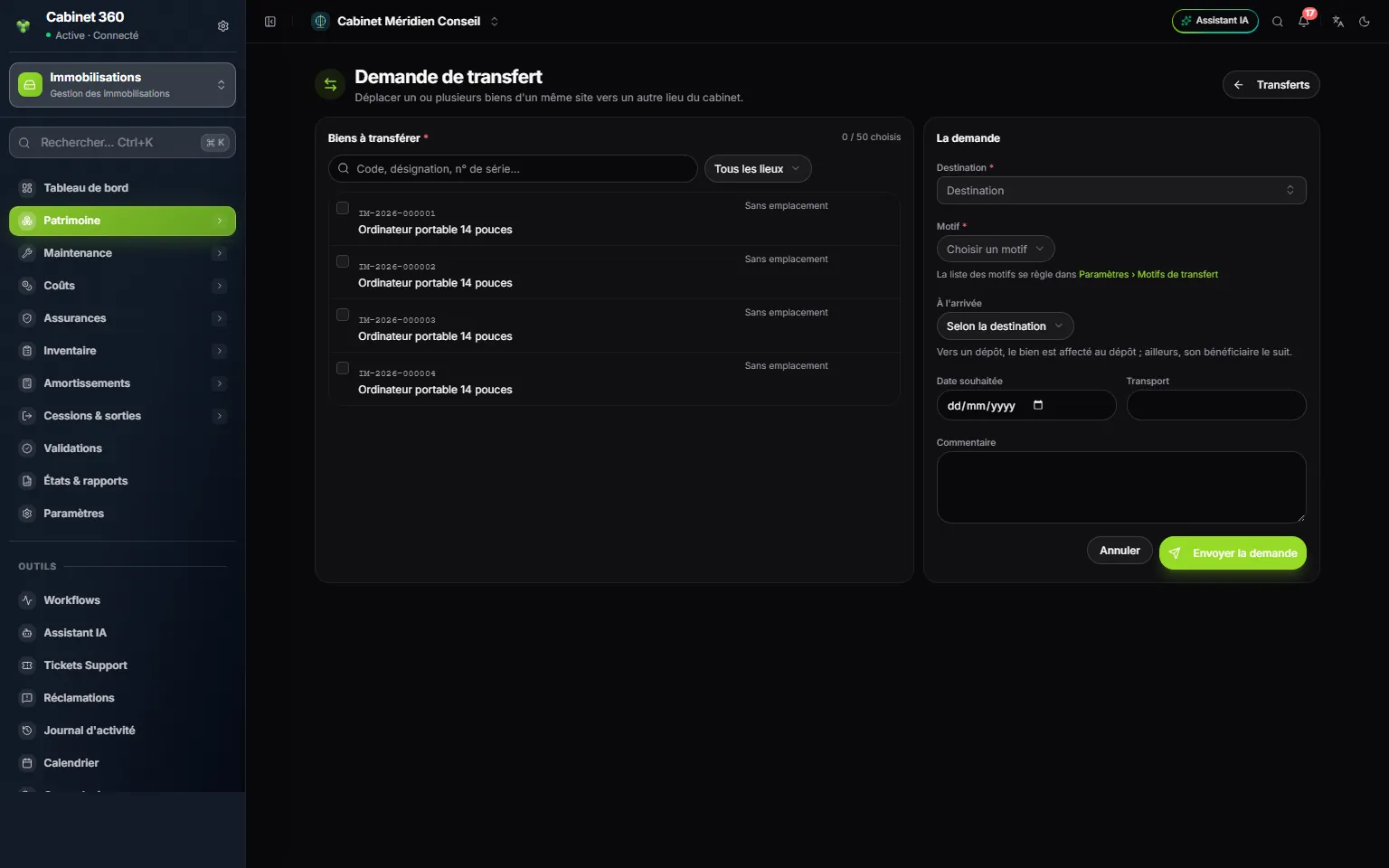
- 1. Assets to transfer: tick the assets, all from the same site.
- 2. The counter: 50 assets at most per transfer.
- 3. The destination: any active location of the firm.
- 4. The reason is chosen from the firm's list.
- 5. On arrival: the assignee follows the asset, or the asset is assigned to the arrival location.
- 6. Send the request.
The type is deduced
You do not choose a transfer's type: it is deduced from the two places.
| Type | When |
|---|---|
| Internal | Departure and arrival in the same site, whatever the places |
| Between sites | From one site to another |
| Site → depot | To a depot of another site |
| Depot → site | From a depot to another site |
| Between depots | From a depot to a depot of another site |
An internal transfer is recorded and closed automatically: the assets change place at once. All the others follow the workflow.
The workflow
| Status | Next action | Who |
|---|---|---|
| Awaiting validation | Validate or Refuse | Management, or the manager of the departure or arrival site |
| Validated | Dispatch | A user with the Edit right |
| In transit | Receive | A user with the Edit right |
| Closed | — | — |
Cancel the transfer remains possible as long as it has not been dispatched, by whoever requested it or by management. In transit, the assets are travelling: they are received.
An asset still held by a work order (in progress or on hold) blocks the dispatch: complete the order before dispatching.
Dispatching and receiving
Dispatch sends the assets off: they become In transfer and the sender notes their Condition at departure.
Receive places them at the destination: they get back their previous status, and the receiver notes their Condition on arrival. Receipt also settles their assignment, according to the choice made in the request:
| On arrival | What happens |
|---|---|
| Depending on the destination | To a depot, the asset is assigned to the depot; elsewhere, its assignee follows it. |
| The assignee follows the asset | The asset keeps its assignee; only its location changes (an asset assigned to a location is always assigned to the arrival location). |
| The asset is assigned to the arrival location | Its current assignment ends; it is entrusted to the arrival location. |
An assignment to another site, created from Assignments, waits for this receipt to take effect (chapter 6).
A transfer's page
It shows the route (origin, destination), the assets with their condition on departure and on arrival, the linked assignments, and the Transfer workflow step by step, read from its log. An internal transfer shows « Closed automatically ».
Transfer slip prints an A4 PDF numbered TR-YYYY-NNNN: the route, the assets and three signatures: dispatched by, transported by and received by.