
The firm's assets, not your clients'
The Fixed Assets module keeps your firm's own assets: its computers, furniture, vehicles, software and fittings. It knows no client: it has no client list.
Your clients' fixed assets are kept elsewhere, in the accounting of their file: their register, their depreciation table and their depreciation entry live there. The book « Comptabilité & États financiers » (Accounting & Financial Statements) describes them.
This choice has three consequences, which you will meet throughout the book:
- Before the first asset, an administrator designates the firm's accounting file in the module's settings (chapter 2).
- Asset categories are that file's fixed-asset families, with their rate and their accounts.
- The module computes no depreciation itself. It reads the file's depreciation table or, until that table is validated, IntegraSys's calculation engine. So the same asset shows the same depreciation on every screen.
What the module adds to the register
Accounting knows the description, the family, the gross value, the acquisition date and the rate. The module adds everything that makes up the asset's life:
| What the module adds | Where to find it |
|---|---|
| Brand, model, serial number, condition, photo, warranty, source document | The asset record (chapter 5) |
| Where the asset is, and who it is entrusted to | Locations, Assignments, Transfers (chapters 6 and 7) |
| Its breakdowns, servicing and maintenance contracts | Maintenance (chapter 8) |
| What it really costs, year after year | Costs (chapter 9) |
| Its insurance policies and claims | Insurance (chapter 10) |
| The physical count of the asset base | Inventory (chapter 11) |
| Its depreciation, revaluations and impairments | Depreciation (chapters 12 and 13) |
| Its sale, scrapping or theft | Disposals & exits (chapter 14) |
| Who decides what, what gets printed, who is notified | Approvals, Reports, alerts (chapters 15 and 16) |
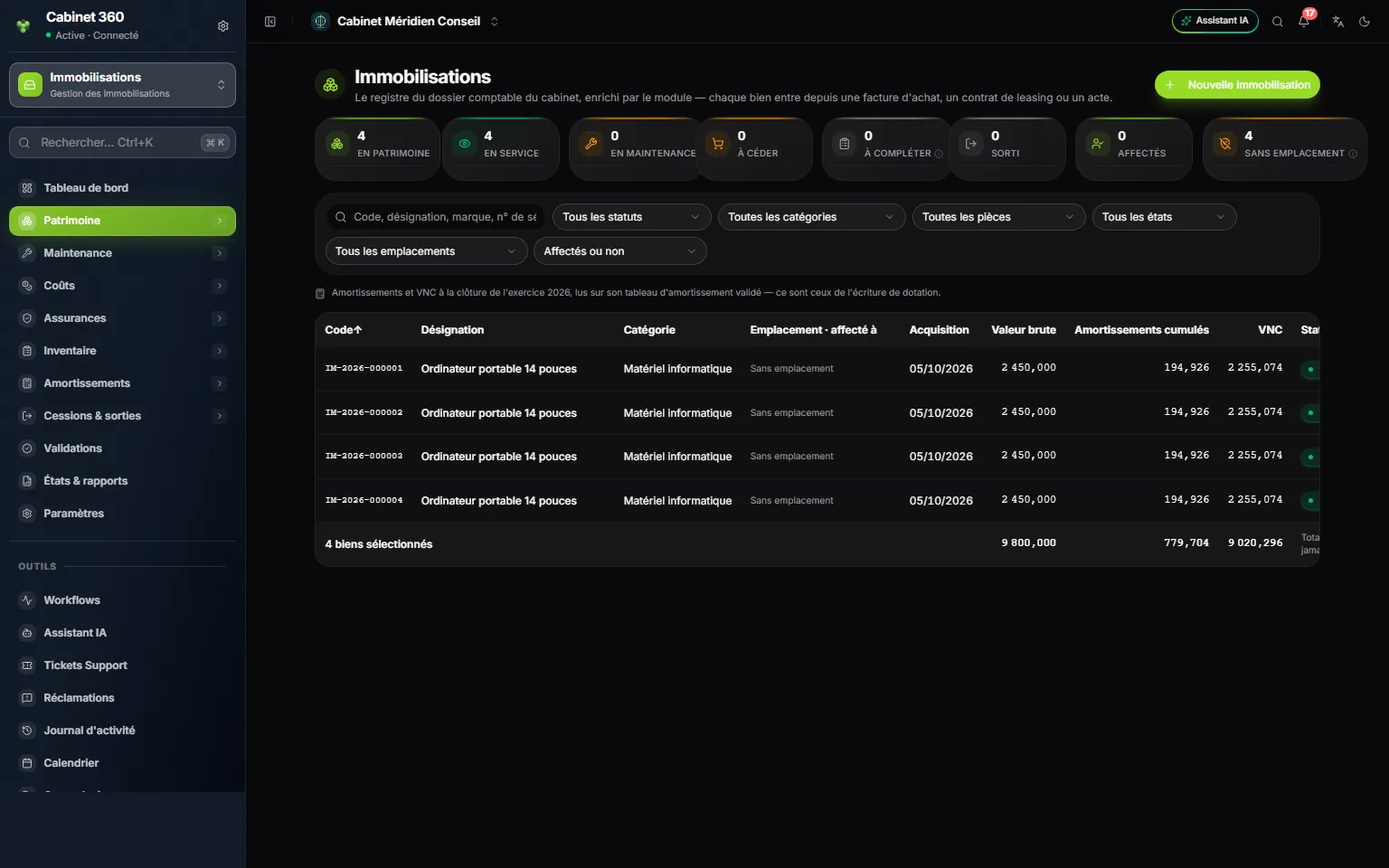
- 1. The Fixed Assets space: the module switcher at the top of the menu opens it.
- 2. The module's menu: eleven entries, from the dashboard to the settings.
- 3. New fixed asset: every asset comes in from its source document.
- 4. The cards count assets by status; a click filters the list.
- 5. Where the depreciation comes from: here, the validated 2026 table.
- 6. The totals cover the whole selection, disposed assets excluded.
The life of an asset
An asset goes through seven steps. Not all of them are compulsory: software needs no label, and a chair never goes into maintenance.
- It enters the register from its source document: a validated purchase invoice, a leasing contract, a deed of acquisition or another document. It receives a code, for example
IM-2026-000001. - It is placed and entrusted: a location (the office, the floor, the depot) and an assignee (a collaborator, a department, a vehicle).
- It moves: within the same site, at once; to another site, through a transfer that follows its workflow.
- It is serviced and repaired: work orders, maintenance contracts, insurance, claims. Every expense enters the cost register.
- It is counted: an inventory campaign reads the labels and brings out the discrepancies.
- It depreciates: each financial year, the depreciation table of the firm's accounting file carries its charge. Its value can also be revalued or impaired.
- It leaves: sold, scrapped, stolen, lost or destroyed. Depreciation stops on the exit date and the result on disposal is computed.
The module's menu
Open the Fixed Assets space with the module switcher at the top of the menu. The menu has eleven entries, in this order:
| Menu entry | What it is for |
|---|---|
| Dashboard | The figures of the asset base and the points to settle. |
| Assets | Fixed assets (the register), Locations, Assignments, Transfers, Documents, History. |
| Maintenance | Work orders, Schedule, Maintenance contracts, Service providers, Spare parts. |
| Costs | Cost register, Total cost of ownership. |
| Insurance | Insurance policies, Coverage, Claims. |
| Inventory | Campaigns, Scanner, Inventory discrepancies, Labels. |
| Depreciation | Depreciation plans, Depreciation charges, Revaluations, Impairments. |
| Disposals & exits | Disposal offers, Sale contracts, Retirements, Exits. |
| Approvals | The requests you have to decide, and those you made. |
| Reports | The module's fifteen reports, to print or download. |
| Settings | Eight tabs: from the accounting file to the alerts. |
This book follows the menu, with one exception: Settings, the last entry, comes first. That is chapter 2.
The subscription and the rights
The subscription. The Fixed Assets module is added to the firm's subscription. A firm without it sees neither the menu nor the module's pages.
The rights. The module has a single rights resource, Fixed Assets, the same as the accounting's fixed-asset register. It is set in the team's roles:
| Right | What it allows in the module |
|---|---|
| View | Read every screen, print the documents and reports. |
| Create | Add an asset, an assignment, a transfer, a campaign, a work order, a policy, a claim, a cost, a disposal operation; generate or post a depreciation table; decide an approval when a workflow names you. |
| Edit | Move a workflow forward (validate, dispatch, receive, end, sign…), submit an operation, validate or unvalidate a table, set the accounting link and the alerts. |
| Delete | Remove an asset, a draft or a document that can still be deleted. |