
Locations: a tree
The firm's locations form a tree. At the root, the sites (the head office, a branch). Inside a site, buildings, floors, zones, offices and depots, each placed in the location that contains it:
| Location type | Placed in |
|---|---|
| Site | The firm's root |
| Building | A site |
| Floor | A site or a building |
| Zone | A site, a building or a floor |
| Office | A site, a building, a floor or a zone |
| Depot | A site, a building or a floor |
- Click New site. Enter a short, unique Code (HQ, BUR-305: it prints on documents), the Name, the Address and the Manager, then save.
- Select the site in the Tree, then click Add a sub-location: choose the Location type and the location that contains it (Placed in).
- Repeat for each floor, office or depot.
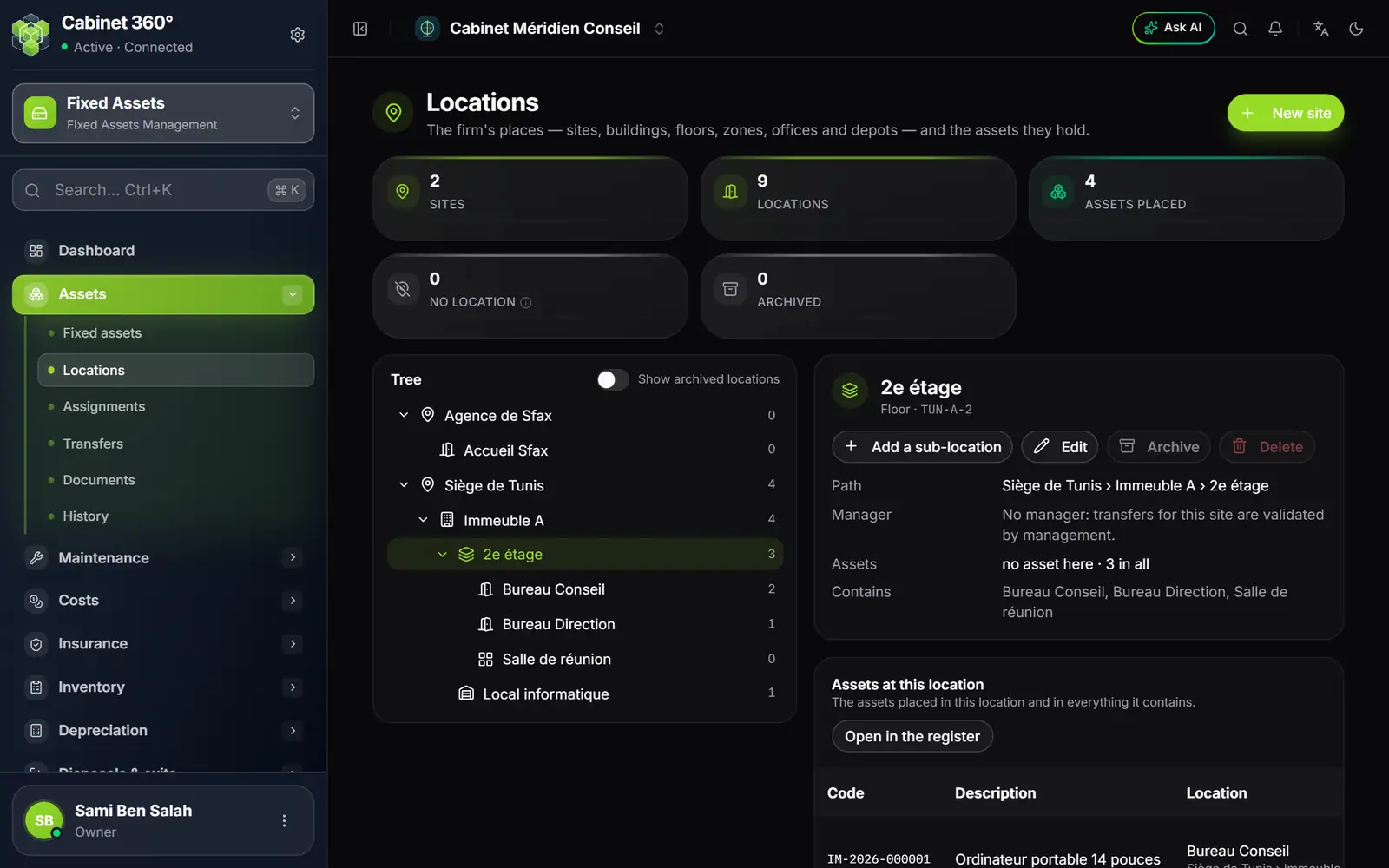
- 1. New site: the firm's first level.
- 2. No location: the assets that have no place yet. Assign them.
- 3. The tree: each location and the number of assets it contains, sub-locations included.
- 4. Show archived locations: an archived location stays readable.
- 5. Add a sub-location in the selected location.
- 6. The manager: without one, the site's transfers are validated by management.
- 7. Assets at this location, and Open in the register for the filtered list.
The site decides
Each location belongs to exactly one site, and the site decides what a move is:
- within the same site, an asset changes place at once;
- to another site, it goes through a transfer and its workflow (chapter 7).
A site's manager validates, together with the firm's management, the transfers leaving or arriving at their site.
Archive rather than delete
A location that never held an asset can be deleted. A location named by history (past assignments, transfers, inventories) cannot be deleted: it is archived. An archived location no longer receives assets and can be reactivated at any time. The location itself says why it cannot be archived or deleted.
Assignments
Assigning an asset means saying who it is entrusted to and where it is. An asset can be entrusted to a Collaborator, a Department, a Service, a Cost center, a Project, a Vehicle (on-board equipment) or a Location.
- Click New assignment (or Assign from the record or the register).
- Choose the Asset, the Assigned to type, then the assignee.
- Read the suggested Asset location, and its reason under the field. Keep it or choose another place.
- Read the announced effect (see below). Adjust if needed the Start date, the Manager, the Reason.
- For a collaborator, leave Have a handover receipt signed ticked. Click Assign.
The suggested place
The assignee suggests a location, according to the asset's mobility (chapter 2):
| Situation | Suggested location |
|---|---|
| A mobile asset entrusted to a collaborator | Their workstation |
| A mobile asset entrusted to a unit | The unit's default location |
| Mobile equipment entrusted to a vehicle | It follows the vehicle |
| A vehicle | It keeps its parking spot |
| A fixed asset (building, fittings) | It keeps its location |
| An asset entrusted to a location | That very location |
The effect of the assignment
Before you click, the window announces what will happen. It is exactly what saving will do:
- first location: the asset receives its first place;
- it stays: the asset does not move;
- same site: the asset changes place at once, through an internal transfer recorded and closed automatically;
- another site: the assignment creates the transfer request and becomes Pending. It only takes effect when the transfer is received; the current assignment stays until then;
- asset already in transfer: the assignment waits for its receipt.
If the assignment is impossible, the window says so and greys Assign out.
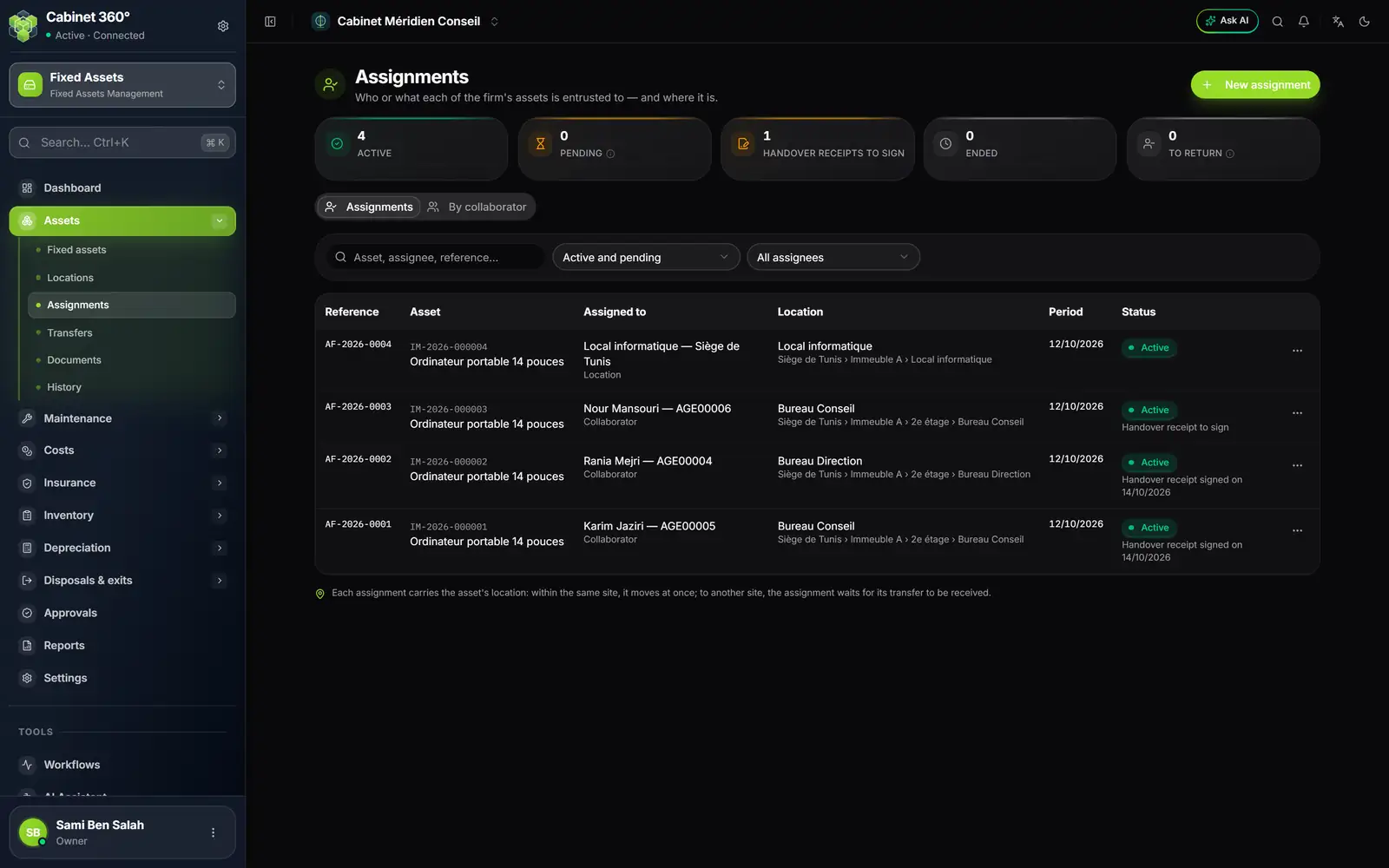
- 1. New assignment: an asset, an assignee, a place.
- 2. Handover receipts to sign: assignments whose receipt has not come back.
- 3. To return: the assets still held by an agent who has left.
- 4. By collaborator: what each one holds, and their workstation.
- 5. Assigned to: the assignee and their type.
- 6. The handover receipt: to sign, or signed on 14/10/2026.
- 7. The ⋯ menu: print the receipt, mark it received, end, cancel.
The handover receipt
For a collaborator, the Have a handover receipt signed box is ticked by default. The handover receipt (« Décharge de remise de matériel ») is an A4 PDF carrying the assignment's number (AF-2026-0003), the asset, the assignee and two signatures: for the firm and for the assignee.
- ⋯ menu of the assignment, Print the handover receipt. Have it signed.
- When it comes back, Signed handover receipt received: enter the day it was signed.
The list then shows « Handover receipt signed on 14/10/2026 ». Until then, the line reads « Handover receipt to sign » and the dashboard counts it.
Ending, cancelling, returning
- End: the asset is entrusted to nobody. It stays at its location.
- Cancel the assignment (a pending assignment, with a reason): it is cancelled together with the transfer it requested. If that transfer is already in transit, it can no longer be cancelled: receive the transfer.
- To return: when an agent leaves the firm (their contract end date has arrived, or they are deactivated) and still holds assets, the To return card counts them and an alert notifies management. Returning the asset means End-ing the assignment.
Assignments are numbered AF-YYYY-NNNN, one series per year.