
Labels
Each label carries, as you choose: the Logo, the Firm name, the Asset code, the Description, the Location, the QR code and the Barcode. At least the code, the QR code or the barcode.
- The QR code carries the address of the module's scan page: a phone that reads it opens the asset record.
- The barcode carries the code alone: it is what the handheld scanner types during the count.
- In Assets to label, search or filter by location, then tick the assets (or Select all).
- In Layout, choose the Format: A4 sheet of 24, A4 sheet of 14, or roll. Tick what prints On each label.
- Set the Copies per asset (3 at most). On a sheet already started, enter the Labels already used: they are skipped.
- For a first test on plain paper, tick Draw the outline.
- Click Download the PDF.
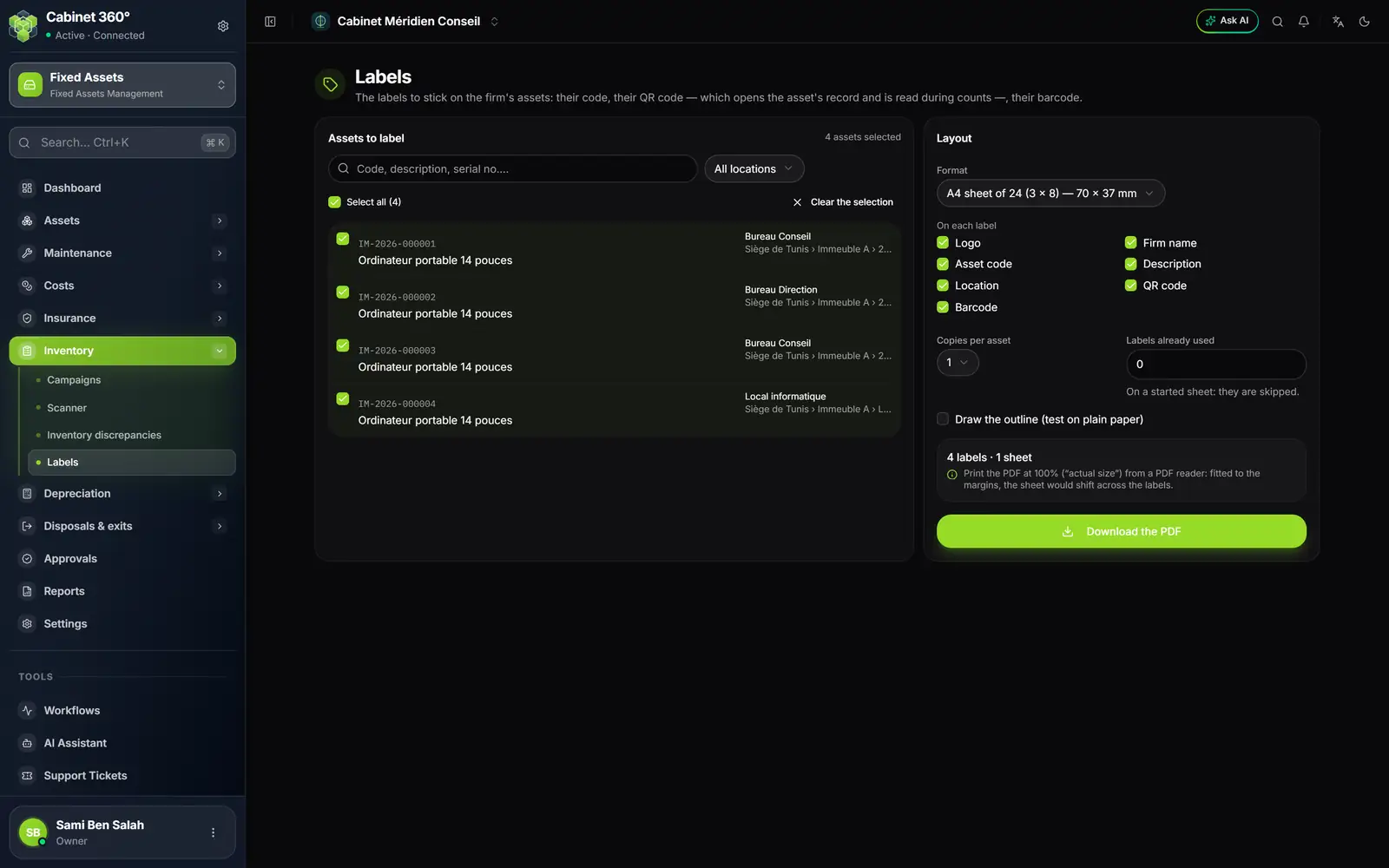
- 1. Search and filter the assets to label, by location.
- 2. Select all the assets shown.
- 3. The format: A4 sheet of 24 (70 × 37 mm), of 14, or roll.
- 4. On each label: logo, code, description, location, QR code, barcode.
- 5. Labels already used: to reuse a sheet already started.
- 6. Draw the outline for a test on plain paper.
- 7. Download the PDF, then print it at 100 %.
Preparing a campaign
- Click New campaign.
- Enter the Label (« Annual inventory 2026 »), the Start, the End and the Manager.
- Tick the locations of the Scope: each location also counts everything it contains (a site, all its buildings).
- Tick the Counting team. With no team named, any authorised operator can count.
- Save. The campaign is In preparation, numbered INV-YYYY-NN: everything can still be changed.
Two campaigns in progress cannot cover the same location.
Launching: the scope is frozen
Click Launch, then confirm. Every asset placed in the scope becomes a line to count, which keeps what the register said on that day: location, assignee, condition, value. That is what the count is compared with. An asset in transit is not expected.
The campaign's manager and the firm's management launch, close or cancel it. Its team does the counting.
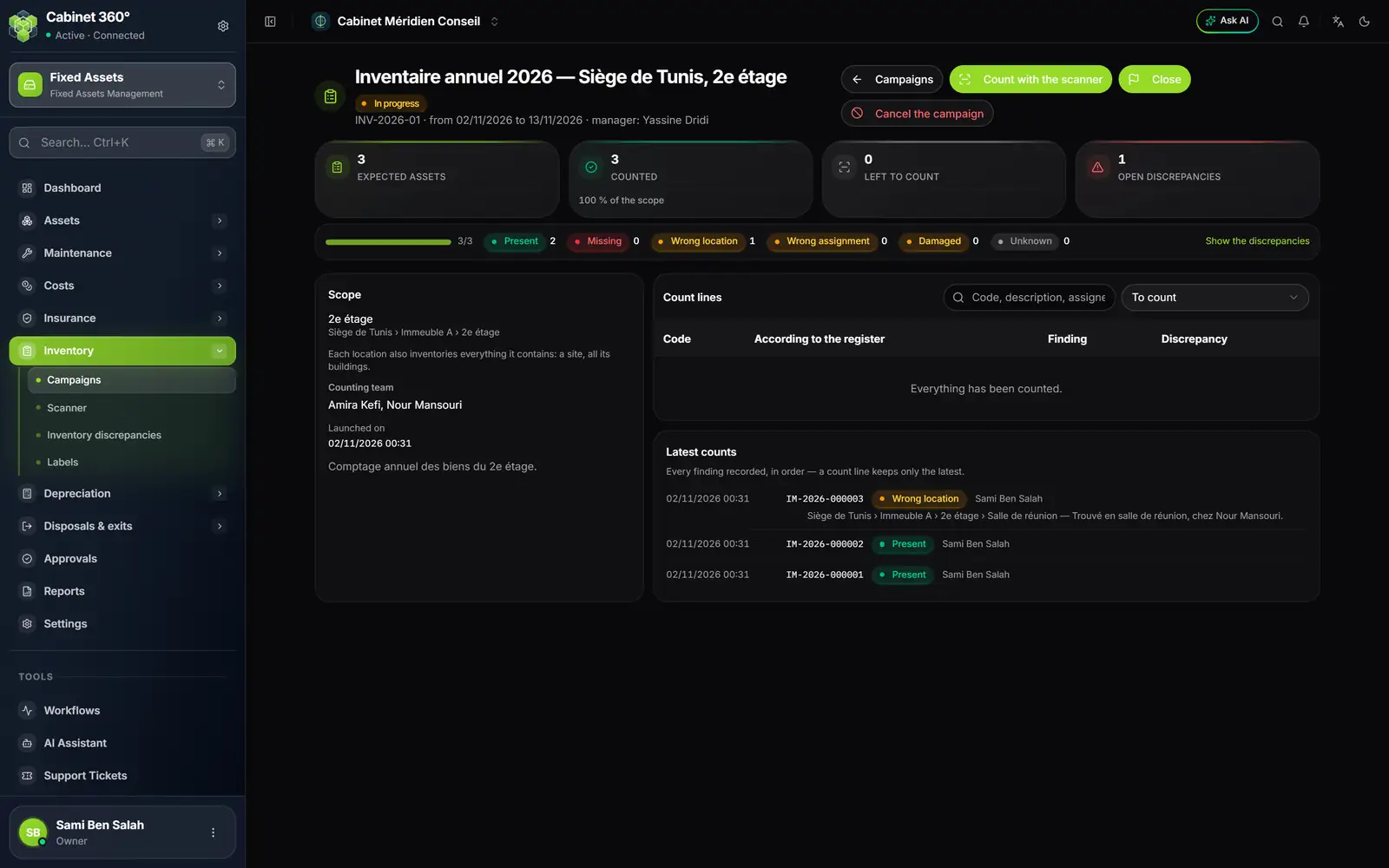
- 1. The campaign: its number, dates, manager and status.
- 2. Count with the scanner opens the count for this campaign.
- 3. Close: assets never counted become « Missing ».
- 4. Open discrepancies: the discrepancies not yet resolved.
- 5. The findings, count by count, and the link to the discrepancies.
- 6. The scope and the counting team.
- 7. The latest readings: here, an asset found in the meeting room.
Counting with the scanner
- Choose the Campaign (or click Count with the scanner from the campaign).
- Read the label with a handheld scanner, or type the code, the QR code's address or the serial number, then click Identify.
- Read what the register says (According to the register), then record the finding: Present, Wrong location (with the place where you find it), Wrong assignment (who holds it), Damaged (the damage), or Unknown (a code no asset carries: describe the item).
- Click Record the finding, then Another code.
Tick Quick count: an expected asset not yet counted is recorded « Present » as soon as it is read. It is the fastest way for an office where everything is in order.
The Scanner screen does not open a phone's camera: it waits for a code typed in, or sent by a handheld scanner (barcode reader).
Closing
Click Close. The confirmation counts what is going to happen: how many expected assets were never counted and will become Missing, how many discrepancies remain to resolve. After closure, findings can no longer be changed.
Cancel the campaign stops the count without closing: no asset becomes « Missing », and the campaign has no discrepancies any more. It is no longer possible once a discrepancy is being processed or resolved: close the campaign instead. A campaign still in preparation is not cancelled, it is deleted.
The Inventory report and the Differences and adjustments report are printed from Reports (chapter 16).
Resolving discrepancies
Every finding other than Present is a discrepancy. It is resolved, never silently. Click Resolve, then:
| Discrepancy | Resolution |
|---|---|
| Wrong location | Attach to the place found: the asset is placed where it was found, through an adjustment transfer closed automatically. |
| Wrong assignment | Assign to its holder: the assignment to the real holder settles the discrepancy. |
| Missing, Damaged, Unknown | Write what was done (3 characters at least): a search started, a repair, a theft report, an exit from the asset base, an asset to capitalise. |
A resolved discrepancy cannot be reopened.
Reading a QR code with a phone
Outside a campaign, to look an asset up, read its QR code with a phone's camera: the asset record opens. If the phone is not signed in to IntegraSys, the sign-in comes first, then the record opens.