
Insurance policies
- Click New policy.
- Enter the Policy no., the Insurer (an IntegraSys supplier: create it first), the Insurance type (Multi-risk, Vehicle fleet, Motor, All-risk IT, Machinery breakdown, Civil liability, Other) and the Subject.
- Enter the Period start and Period end, the Annual premium, the Deductible and the Limit. With no figure for the limit, leave Limit empty and write in Limit without amount what stands for it (« market value »).
- Add the Covers one by one.
- Tick the Covered assets, then click Create the policy.
- The premium is shared in the cost register, equally among the covered assets, for each year started. A policy with no asset (a civil liability policy) enters no asset's cost.
- Expiry: alerts at 90, 60, 30, 15 and 7 days before the end. The policy is To renew from 90 days before expiry to 30 days after.
- A policy that carries a claim cannot be deleted; an asset under an open claim cannot be removed from its policy.
Renewing a policy
Before expiry, open the policy and click Renew. The next period is proposed under the same number, for the same length, with the same covers and the same assets (except those that left the asset base before it starts). Correct the premium, the deductible and the limit, then confirm.
The previous period remains, with its claims and premiums. By default, the list shows the latest period of each policy, and also the one in force when the next is already entered; the All periods filter shows the full history.
Each asset's coverage
For each asset held, the page reads the policies in force today and gives a state:
| State | When |
|---|---|
| Covered | At least one policy in force covers it, with a sufficient limit. |
| Covered — expiring soon | All its policies end within 30 days. |
| Insufficient limit | All its policies set a limit, and the highest stays below 90 % of its gross value (the threshold is set in Settings › Dossier and threshold). |
| Not insured | No policy in force covers it. |
A policy whose limit has no figure (market value) always covers enough. An insufficient limit takes precedence over « expiring soon ».
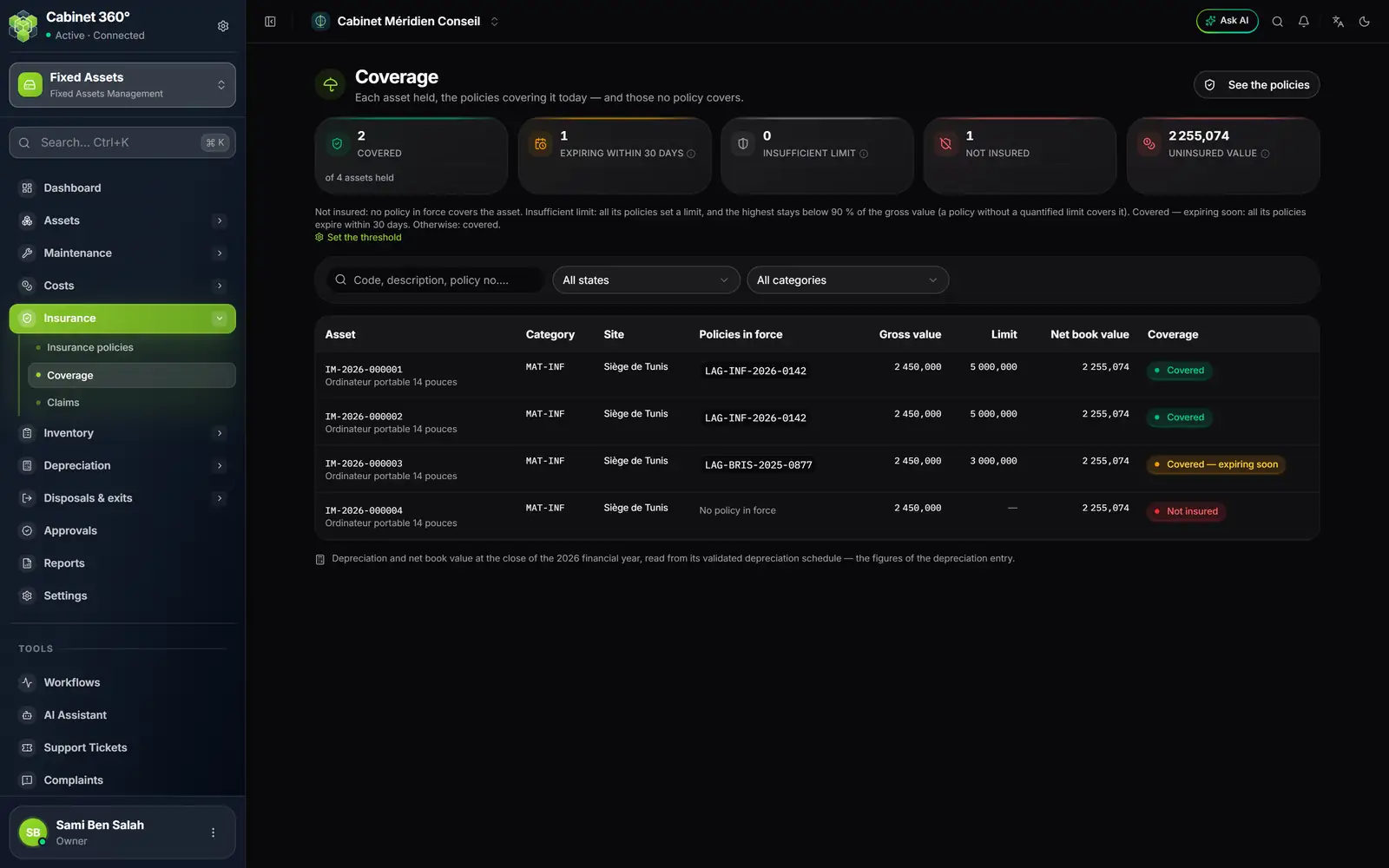
- 1. Covered: out of the assets held.
- 2. Insufficient limit: the highest limit stays below the threshold.
- 3. Uninsured value: the NBV of the assets nothing covers.
- 4. Set the threshold leads to the settings.
- 5. Policies in force: each policy covering the asset today.
- 6. Covered — expiring soon: the policy ends within 30 days.
- 7. Not insured: no policy in force.
Click a card to keep only those assets. See the policies goes back to the insurance policies.
Recording a claim
- Click Record a claim (or Report a claim from the policy, or from the asset record).
- Choose the Damaged asset, the Date of loss (neither in the future, nor after the asset's exit) and the Type of loss: Road accident, Machinery breakdown, Water damage, Fire, Theft, Glass breakage, Electrical damage, Natural disaster, Other.
- Describe the Place, the Circumstances and the Damage observed.
- Enter the Damage estimate: a first evaluation, before any assessment.
- Check the Policy: the one that covered the asset on that day is picked up automatically. If there are several, choose it; if there is none, or if you are not reporting to the insurer, choose No policy.
- Click Record the claim. The claim receives its number SIN-YYYY-NNN, and management is notified (by default; recipients are set in Settings › Alerts).
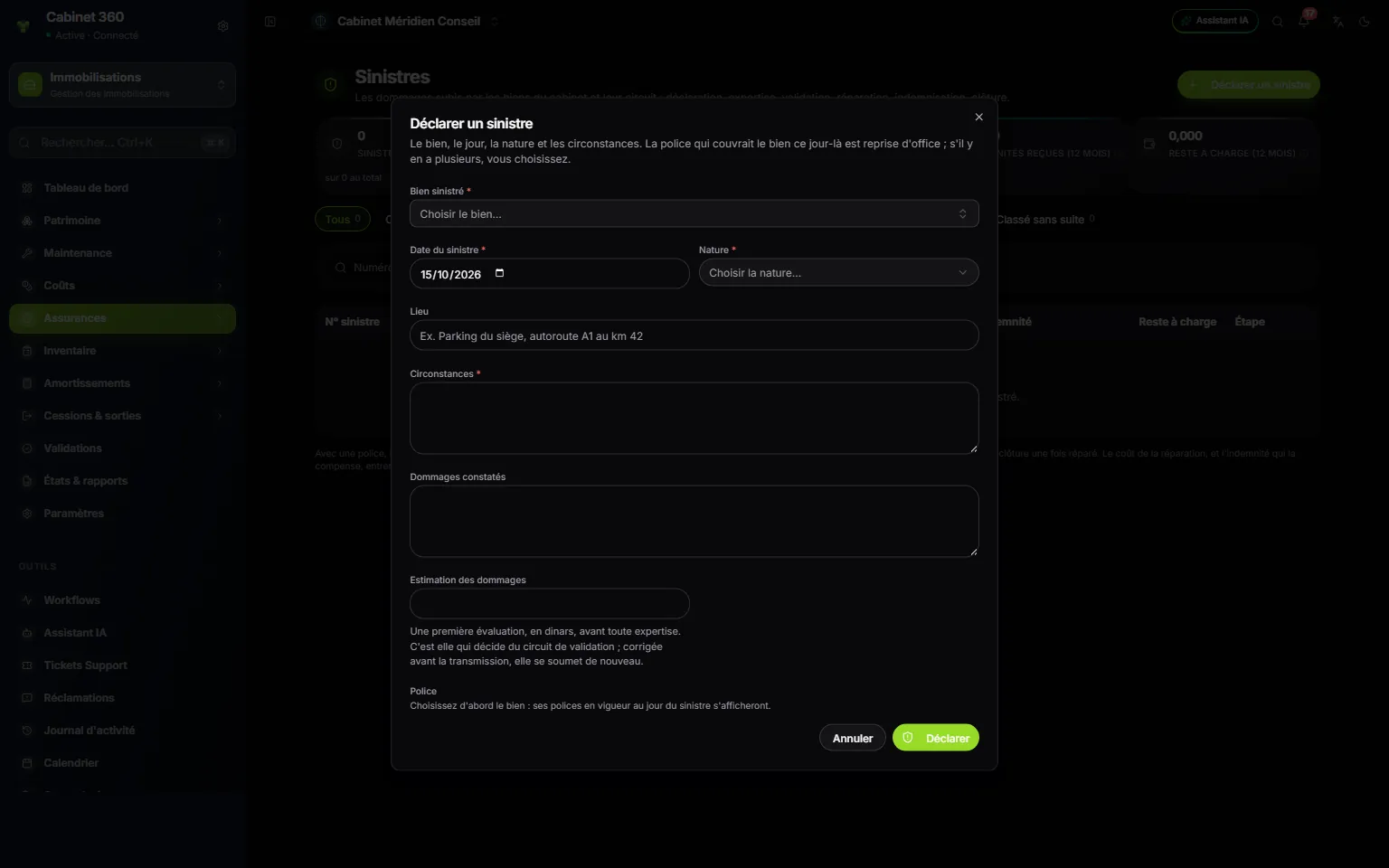
- 1. The damaged asset.
- 2. The type of loss: accident, theft, fire, water damage…
- 3. The circumstances, required.
- 4. The damage estimate decides the validation workflow.
- 5. The policy is proposed once the asset is chosen.
- 6. Record the claim.
A claim's two workflows
On the claim's page, each step has its button. The workflow depends on the policy.
With a policy:
| Action | What it records |
|---|---|
| Send to the insurer | The sending date and the file reference at the insurer. It sends nothing: print the claim form and send it yourself. |
| Record the assessment | The assessor and the amount of damage they accept. |
| Validate the amount | With or without repair (a stolen or destroyed asset is not repaired). |
| Record the repair | The repair done: through a completed work order, or paid outside an order. |
| Record the compensation | The amount received and its date. It closes the claim. |
Without a policy: Handle without insurance, then Record the repair, which closes the claim.
Close with no further action (with a reason) remains possible at any open step.
Cost, deductible and compensation
The Settlement box of the claim's page does the sums:
- Cost of the loss: the actual cost (completed orders and repair outside an order), failing that the amount accepted by the assessor, failing that the estimate.
- Expected compensation: the accepted amount (otherwise the cost), within the policy limit, minus the deductible, never negative. Once received, that is what counts. Without a policy, none.
- Out-of-pocket cost: the cost of the loss minus the compensation.
When the asset is repaired, the compensation received enters the cost register as a deduction from the repair. When it is not (theft, destruction), it offsets the asset's loss: it proposes the price of its exit from the asset base (chapter 14).
Claim form prints a numbered A4 PDF, with the asset, the policy, the circumstances, the amounts and two signatures: for the firm and for the insurer.
Only a claim not yet sent, with no work order, can be deleted. A reminder is sent when an open claim has not moved for 30 days.