
Reading the register
The register lists every asset of the firm's accounting file. Each line gives the Code, the Description, the Category, the Location · assigned to, the Acquisition date, the Gross value, the Accumulated depreciation, the Net book value, the Status and the Source document.
- The cards at the top count the assets Held, In service, Under maintenance, To be disposed of, To complete, Disposed, Assigned and No location. A click on a card filters the list.
- The filters: status, category, source document, condition, location (a place and everything it contains) and assignment. The search reads the code, description, brand, serial number, supplier and document.
- The totals line, at the bottom, adds up the whole selection, not just the page shown. Disposed assets are not included.
- The ⋯ menu of a line: Open the record, Edit, History, Assign, Transfer (when the asset has a location), Label and Delete.
An asset's code
Each asset receives a code shaped IM-YYYY-NNNNNN: the acquisition year, then a number that runs on from one year to the next. IM-2025-000041 can be followed by IM-2026-000042.
- The number is the highest already given plus one, deleted assets included: the code of a deleted asset remains on labels and reports already printed, and is never used twice.
- The form shows the expected code as a preview; the final code is drawn when you save. Two colleagues creating an asset at the same moment never get the same code.
Creating an asset
- In the register, click New fixed asset.
- Identification: the Description and the Category are required. The category brings the rate, the method and the accounts. Add if you wish the Sub-category, Brand, Model, Serial number, Internal number (the old code from a spreadsheet, an asset tag), the Condition and the Details.
- Source document: choose where The asset comes from (see the table below).
- Acquisition: the Acquisition date (never in the future), the Receipt date, the In-service date (never before receipt), the Warranty end, the collaborator it was Received by and the Reception location. Without an invoice, also enter the Purchase price excl. VAT, the VAT rate and the costs.
- Depreciation: the Depreciation rate (%) and the Method come from the category. Change them only for this particular asset. The Number of assets is for lines of several units.
- Check the Summary on the right (expected code, gross value), then click Save. The asset record opens (the register, when several assets are created).
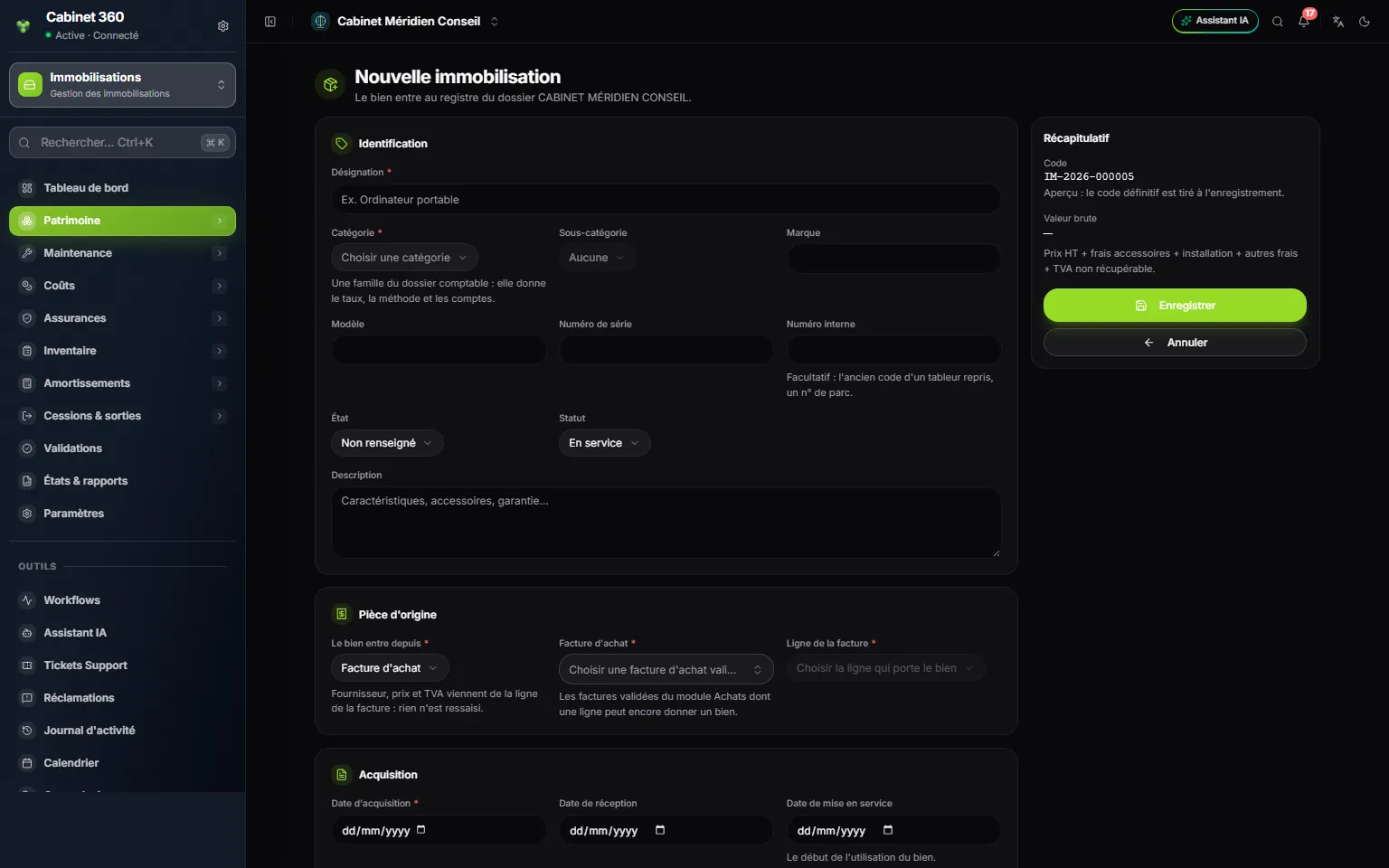
- 1. Identification: the description and the category are required.
- 2. The category is a family of the accounting file: it brings rate, method and accounts.
- 3. The asset comes from: purchase invoice, leasing contract, deed or other document.
- 4. The purchase invoice: only validated invoices with a line that can still give an asset.
- 5. The expected code, a preview; the final one is drawn when saving.
- 6. The gross value is computed as you type.
The four source documents
| The asset comes from | What you choose | What comes on its own |
|---|---|---|
| Purchase invoice | A validated purchase invoice from the Purchases module, then the line that carries the asset | The supplier, the price excl. VAT and the VAT of the line, in dinars at the invoice's rate. They show read-only. |
| Leasing contract | A contract of type « leasing » in Finance › Loans | The supplier: the lessor. |
| Deed of acquisition | The Document reference (required): a notarial deed, a donation, a contribution | Nothing: you pick the supplier if needed. |
| Other document | The Document reference (required): what IntegraSys does not hold, an older invoice | Nothing: you pick the supplier if needed. |
The gross value
The gross value is what the asset cost to come into the firm:
Gross value = price excl. VAT + incidental costs + installation costs + other costs + non-recoverable VAT
- Incidental costs: registration, deed fees, professional fees. Other capitalised costs: transport, customs, assembly.
- Recoverable VAT: Yes — outside the gross value for a computer, whose VAT is deducted and stays out of the cost. No — included in the gross value for a passenger car, whose VAT cannot be recovered: it becomes an acquisition cost.
| Example | Price excl. VAT | VAT | Recoverable VAT | Gross value |
|---|---|---|---|---|
| Laptop | 2 450,000 | 19 %: 465,500 | Yes | 2 450,000 DT |
| Passenger car | 60 000,000 | 19 %: 11 400,000 | No | 71 400,000 DT |
The VAT rate is chosen among the rates in force on the acquisition date. An asset drawn from an invoice keeps its line's rate. A zero acquisition cost is refused.
One invoice line, several assets
A line « 4 laptops » gives four assets, each under its own code, each with its record and its label. The list of lines shows what is left to draw (« 4 assets left »); enter it in Number of assets (1 by default, at most 50 per save), and the button becomes Save the 4 assets.
- A line never gives more assets than its quantity. A deleted asset frees its place.
- A quantity that is not a whole number (« 1.5 package ») gives only one asset.
- The price is shared, and the last asset absorbs the rounding: a 10,000 DT line split into three assets gives 3,333 + 3,333 + 3,334. The assets always add back up to the line.
- All or nothing: if one asset is refused, none is created.
Taking over a register already kept
Your accounting file already held fixed assets before the module (entered by hand or imported)? They show in the register as To complete: they have no record yet.
- At the top of the register, click Take over … fixed assets of the file.
- Confirm: each fixed asset receives its record, In service, under its code, put in service on its acquisition date.
- Then complete each record (brand, serial number, source document, location): the record of an asset without one is also created at its first edit.