
An asset's page
Open an asset from the register (a click on its line, or Open the record in the ⋯ menu). The header carries the code, the status and the description, and four buttons: Accounting register (the same asset as seen by the accounting), Assign, Delete and Edit.
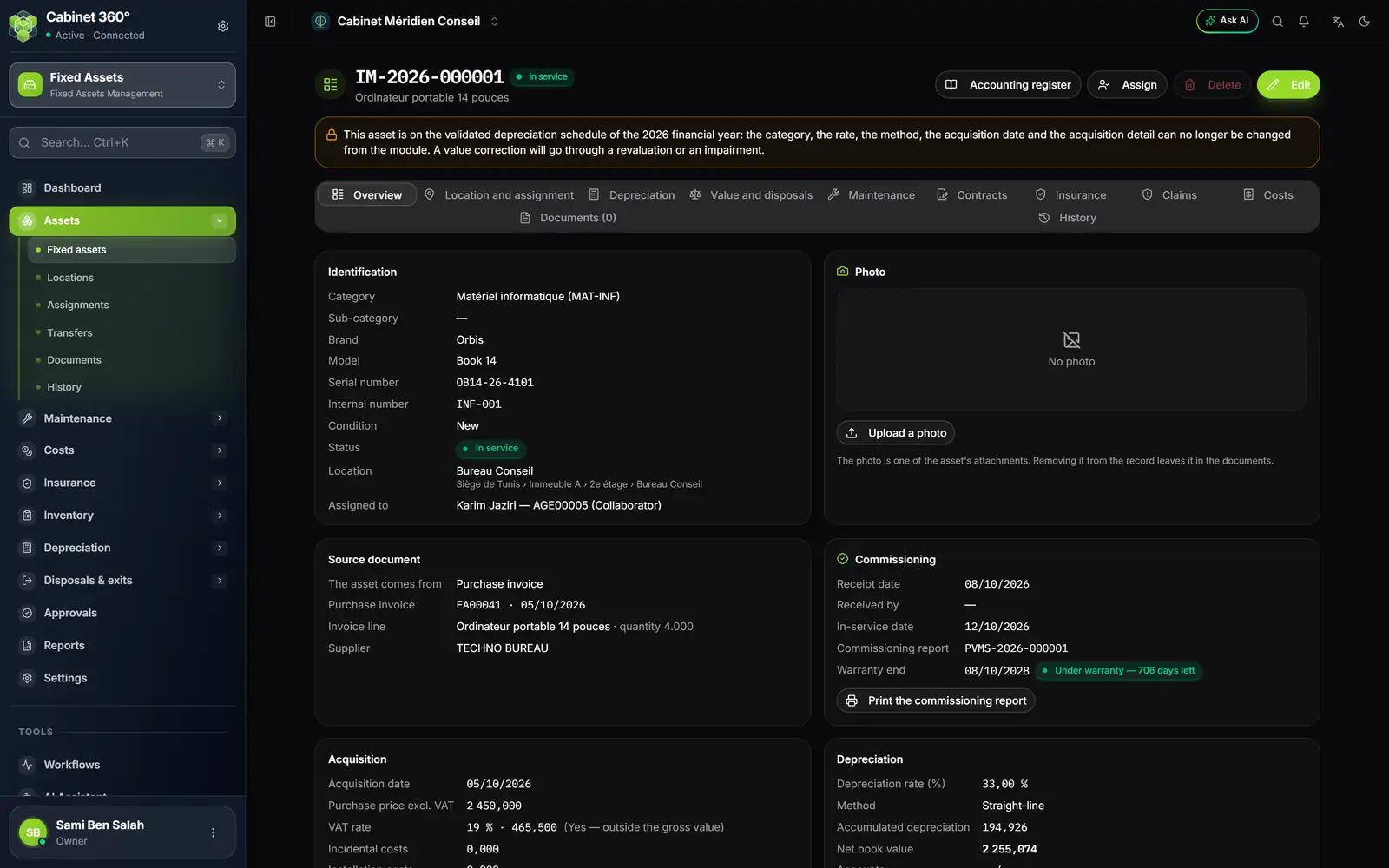
- 1. The code and the status of the asset: here
IM-2026-000001, in service. - 2. Accounting register opens the same asset in the accounting of the firm's file.
- 3. The padlock: a validated depreciation table carries the asset, its acquisition fields are frozen.
- 4. The tabs, from the overview to the history.
- 5. The photo is one of the asset's attachments.
- 6. The source document: invoice FA00041 and its line, the supplier.
- 7. The warranty is recomputed every day: here, 706 days left.
- 8. The commissioning report prints as soon as the in-service date is entered.
The tabs
| Tab | What it shows |
|---|---|
| Overview | Identification, photo, source document, commissioning and warranty, acquisition (with its details), depreciation (rate, method, accumulated, NBV, accounts). |
| Location and assignment | Where the asset is, who it is entrusted to, its mobility, its past assignments, transfers and inventories (chapter 6). |
| Depreciation | Depreciation year by year, the indicative plan, and the meter readings of an asset depreciated by use (chapter 12). |
| Value and disposals | Revaluations, impairments, provision, total NBV, offer, retirement, exit, and five actions: revalue, impair, put up for sale, retire, take out of the estate (chapters 13 and 14). |
| Maintenance | Its work orders, and New work order (chapter 8). |
| Contracts | The maintenance contracts that cover it. |
| Insurance | The policies that cover it and its coverage state (chapter 10). |
| Claims | Its claims, open or closed. |
| Costs | Everything it has cost, line by line, and its total cost of ownership (chapter 9). |
| Documents | Its attachments, with their number in brackets. |
| History | The log of its life: every change, field by field. |
An asset's status
| Status | How it is set |
|---|---|
| In service, In stock, Under maintenance, To be disposed of, Retired | By hand, in Edit. Some are also set automatically: a started work order puts the asset Under maintenance, a validated sale offer puts it To be disposed of, a retirement puts it Retired. |
| In transfer | By a dispatched transfer, until its receipt. It cannot be changed by hand. |
| Disposed | It is deduced from the disposal date entered in the register. It is never set by hand: an asset disposed of in the module and still on the balance sheet would be two truths. |
The totals of the register and of the dashboard leave disposed assets out.
Editing an asset
Click Edit: the form is the creation form. Every change enters the log, field by field (before, after).
- An asset drawn from an invoice keeps the price and VAT of its line. Changing the line recomputes its share.
- The location is not changed here: it only moves through an assignment, a transfer or the resolution of an inventory discrepancy. Only the reception location is chosen at creation.
The validated-table lock
As soon as a validated or posted depreciation table carries the asset, what defines its depreciation is frozen: the category, the rate, the method, the acquisition date and the acquisition details (price, VAT, costs), and for an asset depreciated by use the total capacity and the reading at commissioning. The record shows a padlock and the name of the financial year; the form greys these fields out.
Changing these figures would make the depreciation already posted untrue. To correct:
- a value: a revaluation or an impairment (chapter 13);
- a keying error: unvalidate the table (Depreciation › Depreciation charges), correct the record, then regenerate and validate the table again. A posted table cannot be reopened.
Photo, warranty and commissioning
The photo. Click Upload a photo: a PNG, JPEG or WebP image. It joins the asset's documents, and the record shows it. Choose from the attached images reuses an image already uploaded. Remove from the record takes it off the record but leaves it in the documents.
The warranty. Entered in Warranty end, it shows every day: « Under warranty — 706 days left », then « Warranty expired … days ago ». The badge turns to a warning 30 days before the end. Without a date, the record guesses nothing.
The commissioning report. Print the commissioning report produces a PDF numbered after the asset's code: PVMS-2026-000001 for IM-2026-000001. It names the collaborator who received the asset. The button stays greyed out until the In-service date is entered.
Documents
Documents tab of the record: click Upload to attach the invoice, the delivery note, the warranty, photos. PDF, image, Excel, Word or text, 4 MB at most per upload (documents chosen together go together).
They are the attachments of the fixed asset: the accounting sees them too on its register. Every upload and every removal enters the asset's log.
The Documents page gathers the documents of all assets, and also those of work orders, claims, insurance policies and maintenance contracts, each with its source (« Work order OT-2026-0001 »). Search by document name, asset code or description. The 500 most recent documents are shown.
History
The log of all assets: the date, the asset, the event, the detail and the user. Creation, field-by-field edits, status changes, document uploads, assignments, transfers, inventory findings… It can be read and filtered, never modified, not even by an administrator: a trail that can be rewritten proves nothing.
The asset code and the user's name are kept as they were at the time of the event: a recoded asset or a collaborator who has left stay readable.