
Three doors, one exit
| Door | For | What takes the asset out |
|---|---|---|
| Disposal offer then Sale contract | Selling an asset, to a third party or to an employee | The signature of the contract |
| Retirement | Withdrawing an asset that is out of use | The scrapping |
| Direct exit | A theft, a loss, a destruction, or a sale concluded outside the module | Recording the exit |
An asset has only one operation in progress at a time: an asset for sale cannot be retired, an asset being retired cannot be put up for sale, and an offer in progress refuses a direct exit (the sale goes through its contract).
The asset record, tab Value and disposals, carries five buttons: Revalue, Impair, Put up for sale, Retire, Take out of the estate. Each opens the right list on its entry window, with the asset already chosen; an impossible action stays greyed out with its reason.
Selling an asset
The disposal offer
- Click New offer.
- Choose the Asset, the Offer date and the Proposed price (excl. VAT).
- Enter the Buyer, or tick Disposal to an employee and choose the Employee: the disposal then follows the workflow reserved for employees.
- Add the Terms (collection, payment), then click Create the offer.
- On the offer's page, click Submit for validation.
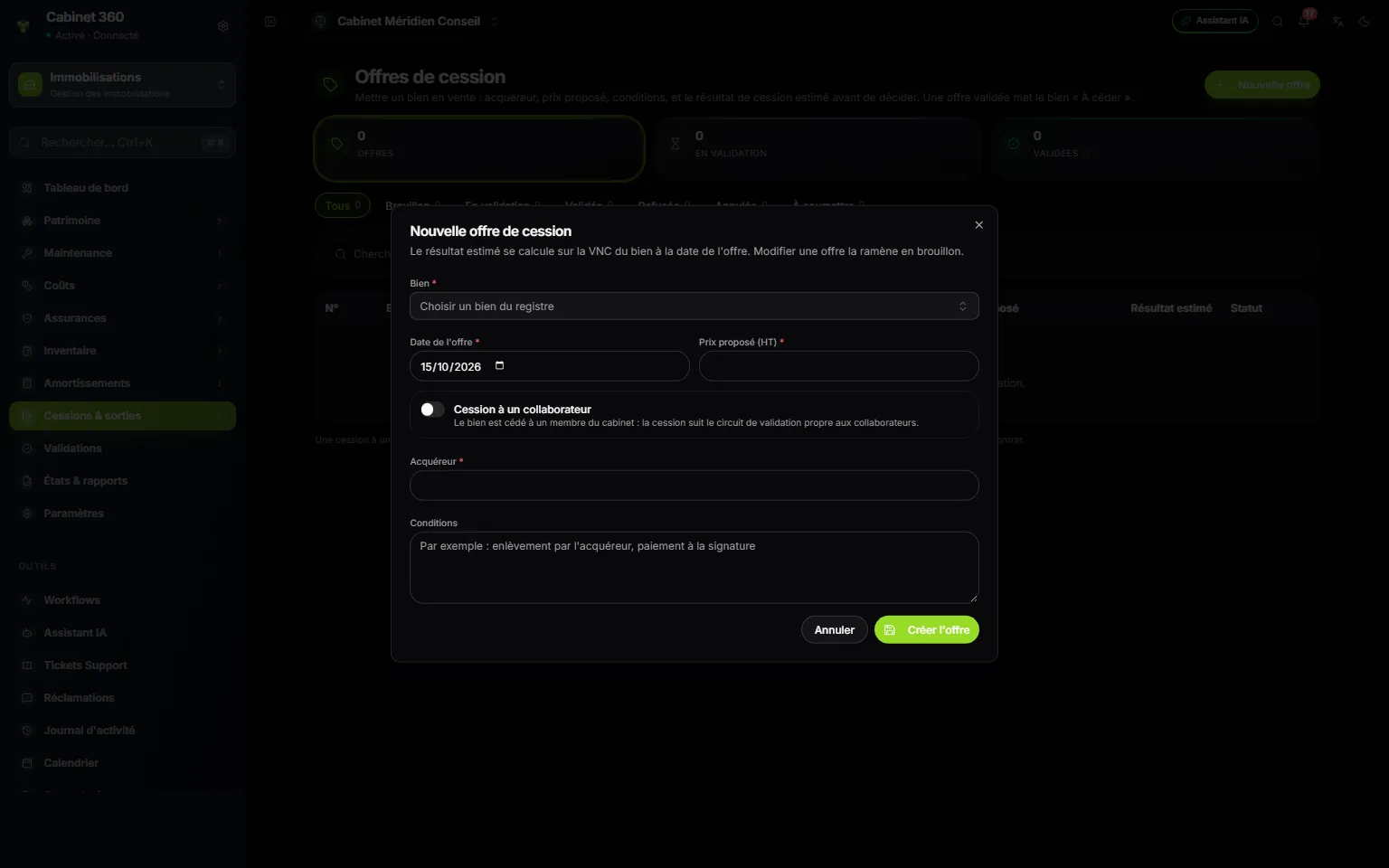
- 1. The asset to sell, chosen from the register.
- 2. The proposed price, excluding VAT.
- 3. Disposal to an employee: a separate validation workflow.
- 4. The buyer.
- 5. Create the offer, then submit it.
The offer shows an Estimated result: the proposed price minus the asset's NBV on the offer date. It is an estimate to help decide; the result that counts is the exit's, on the signing date.
By default, an offer goes through one approval level (« Gestionnaire du patrimoine », the asset manager), two above 5 000,000 DT of NBV; a disposal to an employee, always two. Validated, the offer puts the asset To be disposed of. As long as its contract is not signed, Withdraw the offer cancels it along with its draft contract, and the asset gets back its previous status.
The sale contract
On the validated offer, click Draw up the sale contract. The contract (CV-YYYY-NNN) takes over the offer: the Seller (your firm, as in Settings › Firm profile), the Buyer, the Disposal price (excl. VAT) and the Terms. They can be corrected as long as the contract is not signed.
Print the contract produces the sale contract as a PDF, with two signatures: the seller and the buyer.
The signature takes the asset out
Once the contract is signed on paper, click Sign the contract:
- Enter the Signing date (never in the future, never before the offer).
- Read the exit preview, and the Commitments on the asset to terminate (see below).
- Click Sign and take the asset out.
The contract becomes Signed and the asset leaves the asset base, in one go: an exit of type Disposal, at the contract price, on the signing date.
Retiring and scrapping
A retirement withdraws an asset that is out of use from service. It moves forward in steps:
- New retirement: the Asset, the request date and the Reason (Obsolescence, Irreparable breakdown, Destruction, Unusable, Repair too costly, Other reason).
- Record the appraisal: the Appraiser, the Appraisal date and the Appraiser's opinion.
- Hold the committee: the Committee date, the Committee members and the Committee's opinion. The retirement then goes for approval (by default: « Commission de réforme », the retirement committee, then « Direction », management), or is validated automatically without a workflow.
- Retire the asset: it becomes Retired. It stays in the asset base and keeps depreciating.
- Scrap: the Salvage value (zero if it brings nothing) and the Salvage buyer. The asset leaves the asset base, and the retirement is closed.
Each date follows the previous one, never in the future. Print the retirement report, once the committee has been held, produces the minutes with three signatures: the committee chair, the members and management.
Cancel the retirement (with a reason) gives the asset back its previous status. A retirement whose asset has already been scrapped can no longer be cancelled: it is the exit that is cancelled.
The direct exit
- Click New exit (or Take out of the estate from the asset record).
- Choose the Asset, the Exit type (Disposal, Scrapping, Theft, Loss, Destruction) and the Exit date.
- For a theft, a loss or a destruction, choose the asset's Claim: its compensation (received, failing that expected) proposes the price. Otherwise, enter the price: Disposal price (excl. VAT), Salvage value or Insurance compensation.
- Enter the third party (Buyer), the Document reference and the Reason.
- Read the preview, then click Record the exit.
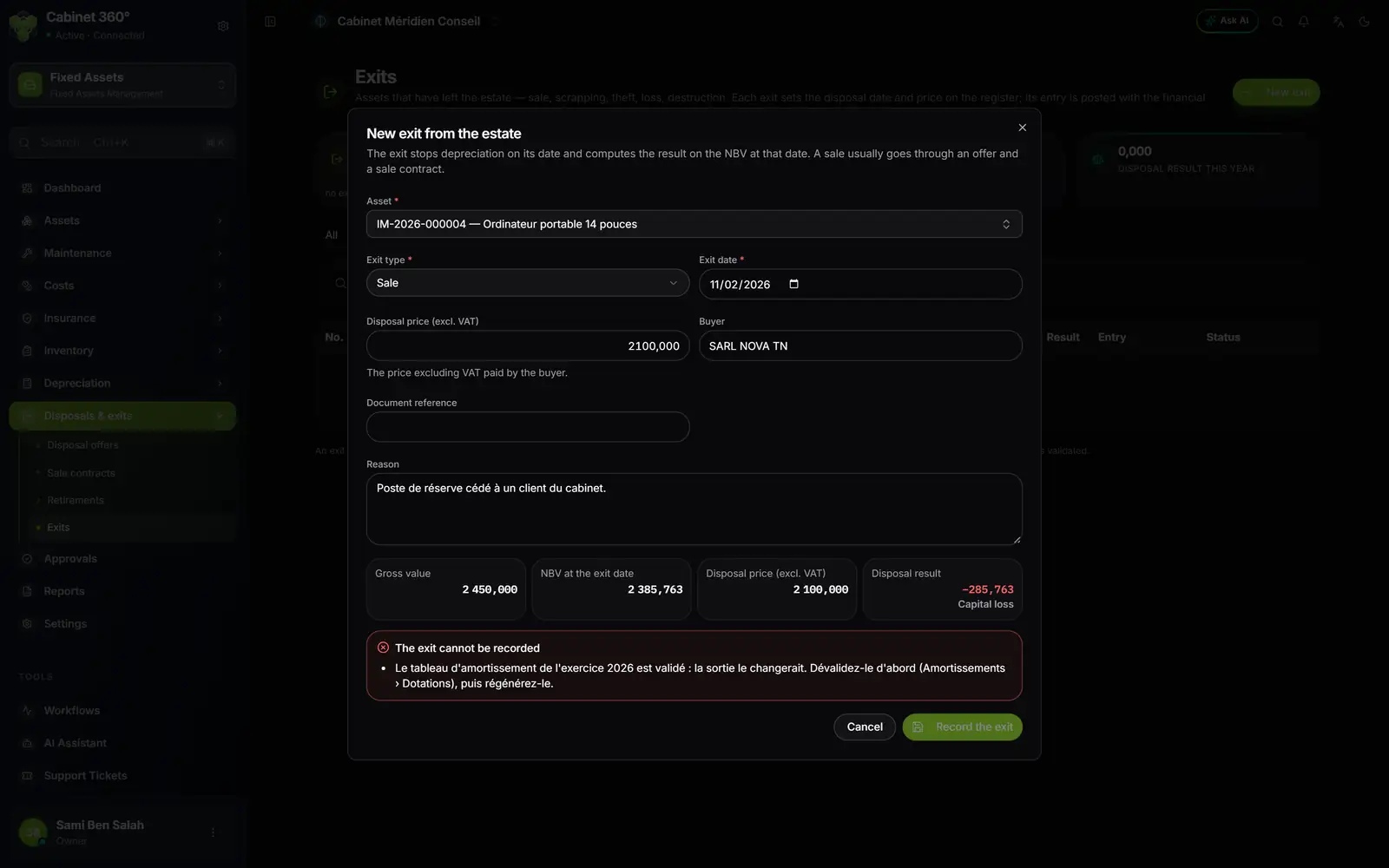
- 1. The asset that leaves.
- 2. The exit type: disposal, scrapping, theft, loss or destruction.
- 3. The disposal price excluding VAT paid by the buyer.
- 4. The NBV at the exit date, read from the depreciation engine.
- 5. The result on disposal: here a capital loss of 285,763.
- 6. What blocks: here, the 2026 table is validated; unvalidate it first.
- 7. Record the exit, greyed out while a reason blocks it.
The exit preview
Before recording, the preview computes without writing anything:
- the Gross value and the NBV at the exit date, revaluation components included;
- the Disposal result = price − NBV: a Capital gain or a Capital loss. Never price − depreciation: a fully depreciated asset sold for 1 000,000 DT yields a 1 000,000 DT capital gain;
- the remaining impairment provision, reversed on the exit date;
- the asset's maintenance contracts and policies, and its claims.
The exit cannot be recorded as long as a reason blocks it: a transfer in progress, an open work order, an inventory campaign in progress that counts the asset, an open claim not attached, an offer or a retirement in progress, a closed financial year, a validated or posted depreciation table, a revaluation component dated after the exit, or a remaining provision that no open financial year allows to reverse on that date.
What an exit does
Once recorded, the exit (SO-YYYY-NNN):
- sets the date and the disposal price on the register's fixed asset (the asset becomes Disposed), and on each of its components, at a zero price;
- stops depreciation on its date;
- reverses the remaining impairment provision;
- ends the current assignment;
- terminates the ticked commitments.
Terminations
The window lists the Commitments on the asset to terminate. Only the maintenance contracts and policies that cover this asset alone can be terminated; they are ticked by default, and you may untick them. A contract or policy that also covers other assets stays in force: this asset leaves it.
- Maintenance contract terminated: its end is brought back to the exit date. Instalment invoices already generated for later dates are flagged: cancel them in Purchases.
- Policy terminated: its end is brought back to the exit date.
The disposals entry
The exit does not post the disposal entry (only the reversal of a remaining provision posts its own entry). The entry for all the year's disposals is posted from the Depreciation charges page, with Post the disposals (chapter 12): it removes the gross value and the depreciation of the disposed assets from the balance sheet, and posts the price (receivables on disposals, 452) and the result (net gains 736, or net losses 636).
Correcting or cancelling an exit
As long as the year's depreciation table is not validated and the disposals entry has not been posted:
- Edit corrects the price, the third party, the reference and the reason. The date and the type cannot be corrected: cancel the exit instead.
- Cancel the exit (with a reason) brings the asset back into the asset base: its disposal date and price are erased from the register, the provision reversal is cancelled, a sale contract goes back to « to sign » and a retirement to « to scrap ».