
Opening the final report
The Final report tab has four sub-tabs: Report, Approval, Versions and Change log.
The report
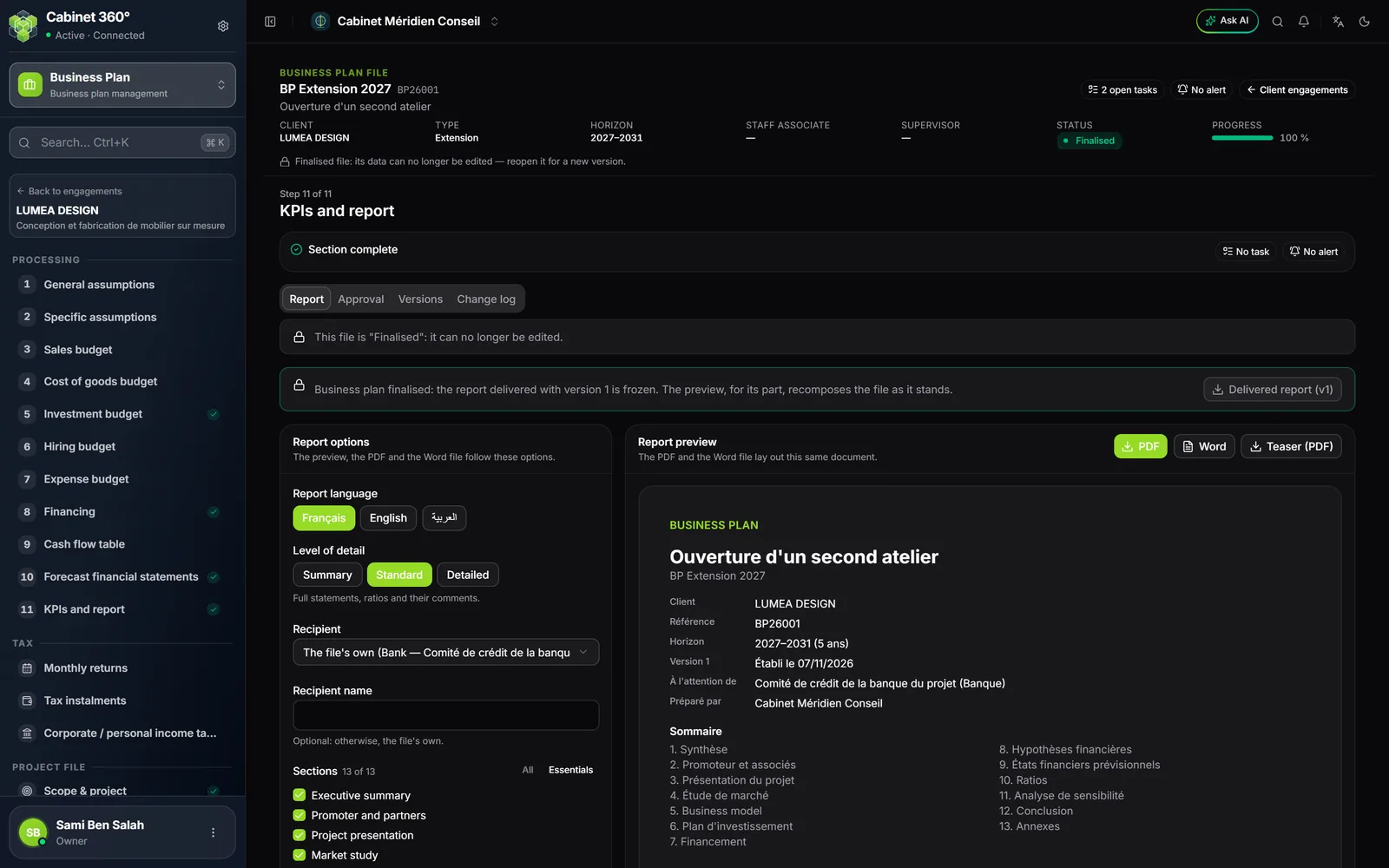
The Report sub-tab has two columns: the Report options on the left, the Report preview on the right. The preview, the PDF and the Word file follow these options: it is one document, laid out three times.
The options
| Option | Choices |
|---|---|
| Report language | Français, English or Arabic. The report language is not the screen language: an Arabic report displays right to left on an English screen. |
| Level of detail | Summary: the statement totals, the key figures. Standard: the full statements, the ratios and their comments. Detailed: everything, line by line, appendices included. |
| Recipient | The file's own (entered at scoping), or another one; and the Recipient name, optional. |
| Sections | Thirteen sections, ticked by default. Essentials keeps only seven; All restores them. A report keeps at least one section. |
The thirteen sections, in report order: Executive summary, Promoter and partners, Project presentation, Market study, Business model, Investment plan, Financing, Financial assumptions, Forecast financial statements, Ratios, Sensitivity analysis, Conclusion, Appendices. Essentials keeps the executive summary, the project presentation, the investment plan, the financing, the statements, the ratios and the conclusion.
The preview tries out your options without storing them, and says so: “Preview under options that are not stored…”. Click Store for finalisation: these are the options finalisation will use. Reset goes back to the stored options.
The firm's texts
Two texts are yours, used as written:
- Executive summary (opening the report): optional; otherwise, the report presents the project and its key figures;
- The firm's opinion (conclusion): it follows the figures-based findings of the conclusion.
Write them in the report language, then click Save. Everything else is composed from the engagement's figures and texts.
The preview
The Report preview recomposes itself a few moments after each change; the previous one stays on screen during the update. Its cover page gives the client, the reference, the horizon, the version, the recipient and the firm that prepared it, then the table of contents.
As long as the engagement is not finalised, the cover page reads “Working document — not approved”.
PDF, Word and teaser
Three buttons above the preview:
| Button | What it downloads | File name |
|---|---|---|
| The report, laid out | Rapport_BP26001_v1_en.pdf | |
| Word | The same report, editable | Rapport_BP26001_v1_en.docx |
| Teaser (PDF) | The short summary to hand to investors before the report: project, promoters, market, offer, key figures, financing | Teaser_BP26001_v1_en.pdf |
The PDF carries the firm's name, and the logo saved for it if it has one; the Word file, its colour. Amounts follow the firm's format (1 234 567,890 by default), in all three languages. A table that is too wide shrinks rather than cutting an amount.
The approval
The workflow
The Approval workflow has four steps: Preparation, Manager review, Partner review, Final report. Each one says who carries it and its state: Done, In progress or Upcoming.
| Engagement status | Action | Who |
|---|---|---|
| In progress | Submit to the manager | The preparer, or any member who can edit |
| Manager review | Approve (manager review) | The manager |
| Partner review | Approve and finalise | The signing partner |
| Manager or partner review | Send back for preparation | The approver of the step, with a reason |
| In progress or in review | Put on hold for the client, then Resume | Any member who can edit |
| Finalised | Open a new version | A senior member of the firm, the engagement's manager or partner, with a reason |
| Any status except Archived | Archive, then Unarchive | Any member who can edit |
The Manager and the Signing partner are named at scoping (chapter 14). If none is named, the manager review falls to a senior member of the firm, and the partner review to the owner or an administrator.
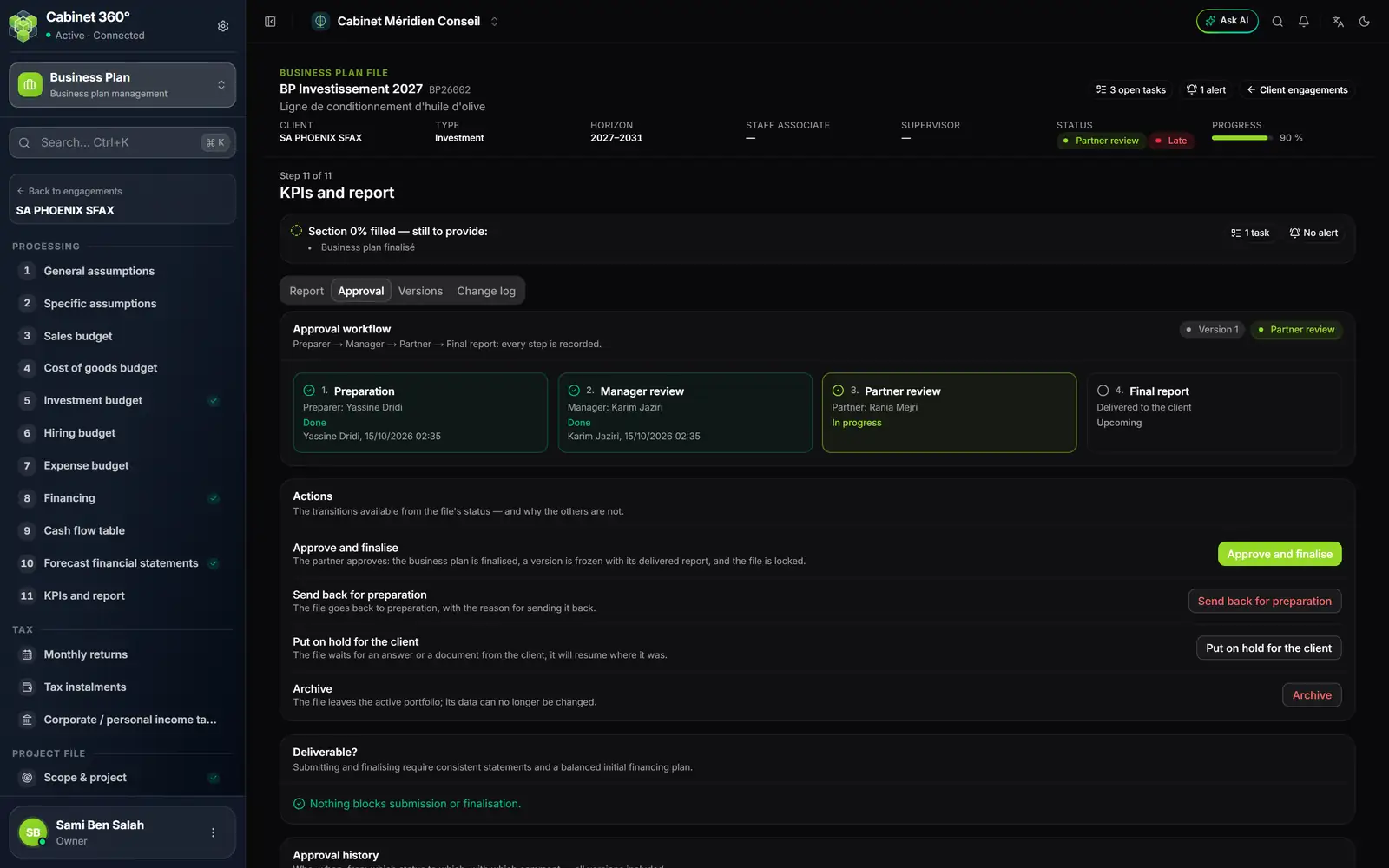
- 1. Four sub-tabs: Report, Approval, Versions, Change log.
- 2. Preparation and Manager review: done, by whom and when.
- 3. Partner review: the current step, and the partner expected.
- 4. Final report: delivered to the client, upcoming.
- 5. Approve and finalise: the partner's action.
- 6. Deliverable? says before the click what would block.
An impossible action is greyed out, and its reason is written beside it, under the action's name and description. Each action opens a window: add a comment (“What the next person needs to know…”), then confirm. Send back for preparation and Open a new version require this comment.
Deliverable?
The Deliverable? card says, before the click, what would prevent submitting, approving or finalising. Only two things block:
- a failed statements consistency check in the central scenario (chapter 10);
- an unbalanced initial financing plan (chapter 8).
“Nothing blocks submission or finalisation.” An ignored alert blocks nothing. At the moment of the action, the server runs the check again: it has the final word.
Finalisation
The Approve and finalise window recalls what will be frozen: “The delivered report will be frozen in English, ‘Standard’ level, 13 sections”. Confirming:
- moves the engagement to Finalised and locks it: no more data entry;
- freezes a version: its data, its statements and the delivered report;
- stores the PDF report of this version. Delivered report (v1) downloads it.
To correct it afterwards, Open a new version reopens the engagement as version 2. Version 1 and its report stay as they are.
Approval history, at the bottom of the tab, lists each step: date, action, status, author, comment and version.
Versions
Finalised versions lists each frozen version: number, finalisation date, author, comment, and the PDF button that downloads that version's report. A new version never overwrites the previous one.
Change log
The Change log records every change to the engagement's data, field by field: who, when, the old and the new value. The Item filter narrows it to one part of the engagement (an assumption, an investment…). The field name is written in French at the time of the change.