
A follow-up that is calculated
Nobody enters the state of an engagement: it is calculated.
- Automatic tasks arise from the workflow and the alerts: one per incomplete step (“Complete the section …”), a review to do, a missing document, an engagement deadline, a calculation check.
- Alerts arise from the engagement's calculation, judged against the rules and thresholds held by IntegraSys: negative cash, insufficient DSCR, unbalanced financing plan, missing required document, target date near or passed…
The follow-up updates itself when an engagement or these lists are opened, and every morning for active engagements: an approaching deadline raises its alert even if nobody has opened the file.
Nothing is created twice, nothing is erased:
- when the cause disappears, the task moves to Completed automatically and the alert still open moves to Resolved;
- a task you have completed stays completed; an alert you have handled or ignored keeps that status.
Tasks & deadlines
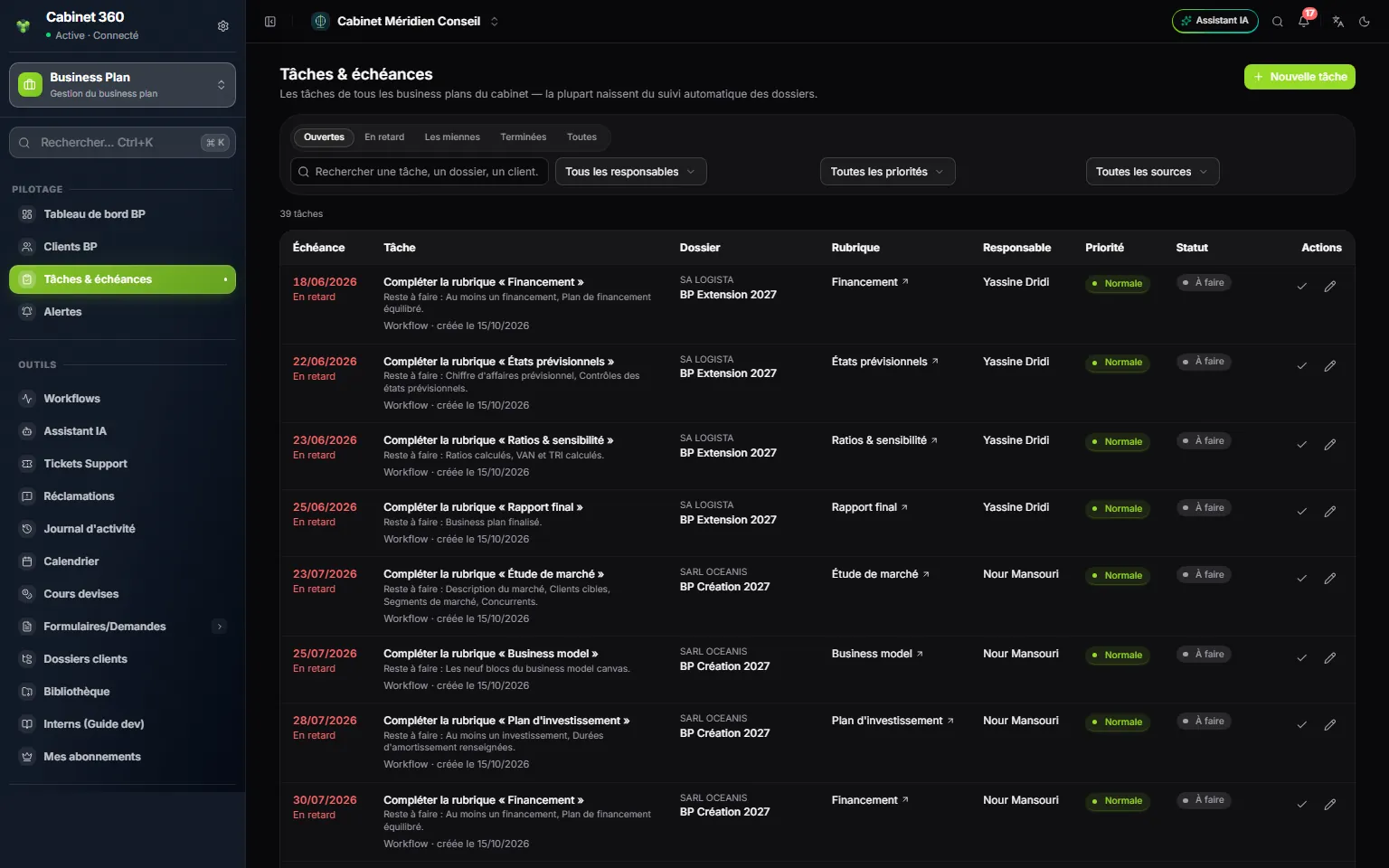
- 1. Five views: Open, Late, Mine, Done, All.
- 2. Search and filters: owner, priority, source.
- 3. The deadline, in red with “Late” once it has passed.
- 4. The task: what remains to be done, its source and its creation date.
- 5. The section: a click opens the step concerned.
- 6. Mark as done and Edit.
The Open view is shown first. Each line gives the Deadline, the Task, the File (client and engagement), the Section, the Owner, the Priority and the Status.
The Source says where a task comes from:
| Source | It arises… |
|---|---|
| Workflow | from an incomplete step, or from a follow-up with the client |
| Approval | from a review to do |
| Missing document | from a missing required document |
| Engagement deadline | from a target date near or passed |
| Automatic check | from a calculation check |
| Manual task or Client request | from you |
Adding a task
- Click New task.
- Choose the Business plan and enter the Title.
- If needed: the Section, the Source, the Owner, the Deadline, the Priority (Low, Normal, High, Critical) and a Comment.
- Click Create the task.
Moving a task forward
- The Mark as done tick closes the task.
- The Edit pencil changes the Status (To do, In progress, Waiting for client, To approve, Done, Cancelled), the owner or the deadline. The title, section and source of an automatic task cannot be edited.
- The bin deletes a manual task. An automatic task cannot be deleted: set it to Cancelled if it does not concern you.
Alerts
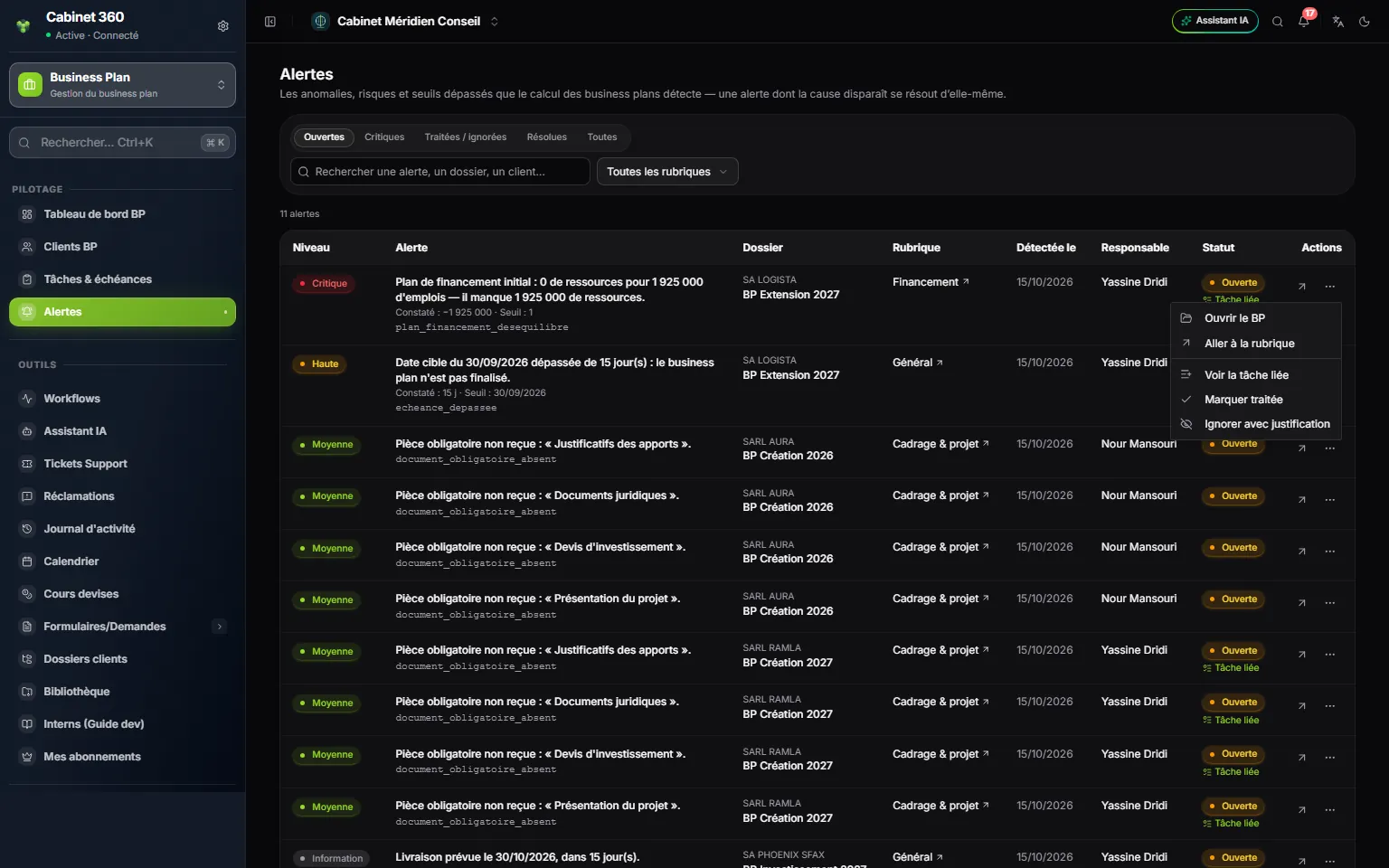
- 1. Five views: Open, Critical, Handled / ignored, Resolved, All.
- 2. The level: Information, Medium, High, Critical.
- 3. The alert: what is observed and the threshold crossed.
- 4. The section to correct.
- 5. The line's menu: open the BP, go to the section, handle, ignore.
Each line gives the Level, the Alert (with “Observed: …” and “Threshold: …”), the File, the Section, the date it was Detected on, the Owner and the Status. The All sections filter narrows the list to one step.
The ⋯ menu of a line offers:
| Action | What it does |
|---|---|
| Open the BP | Opens the engagement |
| Go to the section | Opens the step to correct |
| Create a task | Creates a task to handle the alert, given to the owner of the alert or of the engagement. The “Linked task” link, below the status, then opens the engagement's tasks |
| Mark as handled | With an optional comment: what was done |
| Ignore with justification | The justification is required |
| Reopen | Sets a handled or ignored alert back to Open |
From an engagement
At the top of each page of an engagement, the “3 open tasks” and “2 alerts” pills open these two lists filtered on it. See all tasks (or See all alerts) removes the filter.
Permissions
The View permission is enough to read both lists. New task needs the Create permission; the tick, the pencil and an alert's actions, the Edit permission; the bin, the Delete permission.