
The engagement bar
At the top of every page of an engagement, the Business Plan file bar says which engagement this is.
The left-hand menu names the client, the bar names the engagement. To change engagement, click Client engagements (in the bar) or ← Back to engagements (at the top of the menu).
A step's header
Below the bar, each page says where you are: “Step n of 11” for a Processing step, Project file or Tax for the other pages.
The pages that follow a section (the five pages of the Project file, Investment budget, Financing, Forecast financial statements and KPIs and report) also say:
- what is missing: “Section 60% filled — still to provide:”, followed by the list; or Section complete;
- the open tasks and alerts of that section, with their number.
The other Processing steps and the pages of the Tax menu do not have this box.
At the bottom of the page, two buttons lead to the previous step and to the next one, in menu order.
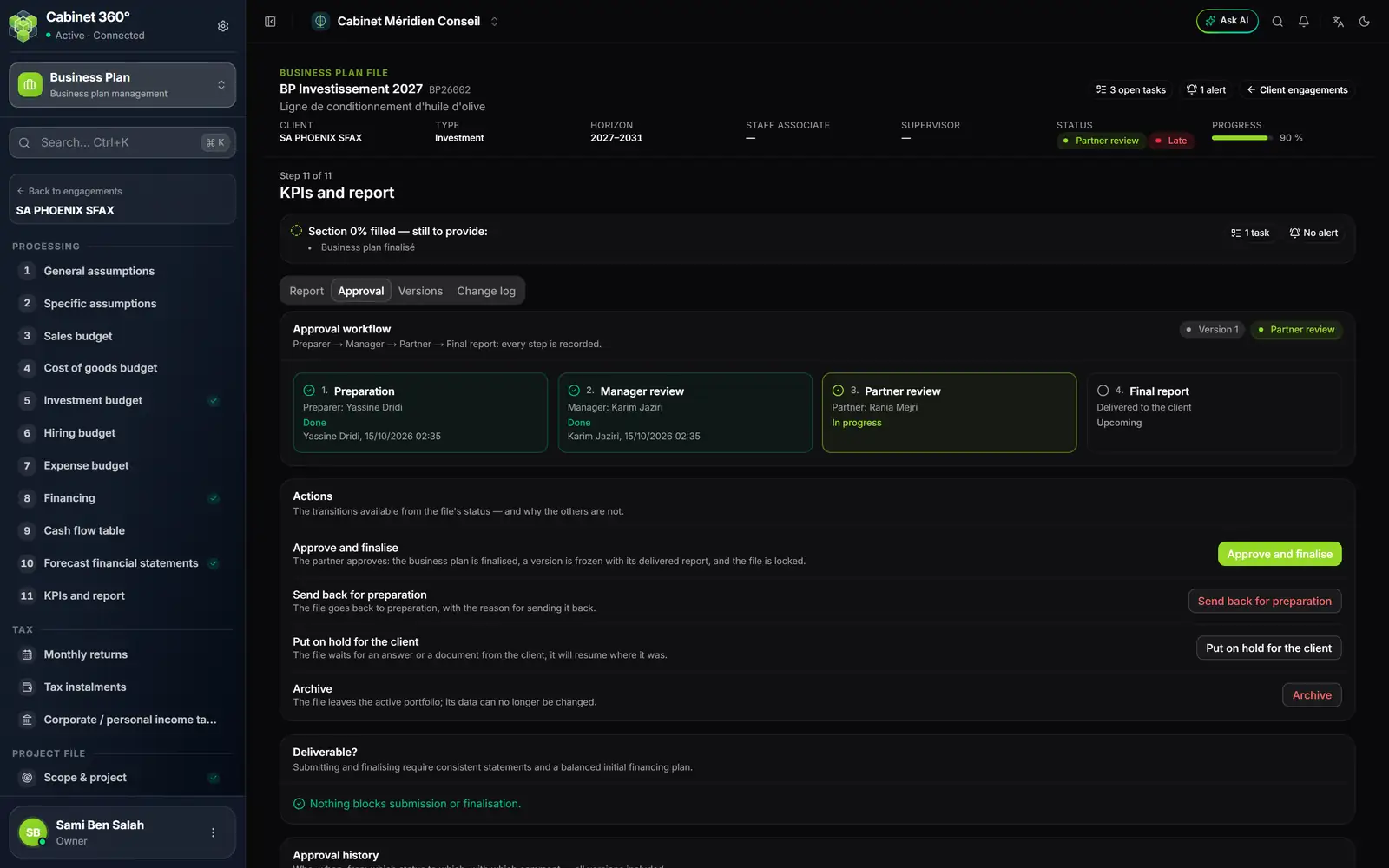
- 1. The engagement: its name, its reference (BP26002) and its project.
- 2. Client, type, horizon, staff associate, supervisor: the engagement's identity.
- 3. The status, and “Late” when the target date has passed.
- 4. The progress of the whole engagement, as a percentage.
- 5. Tasks, alerts, Client engagements: a click opens the lists filtered on the engagement, or takes you back to the client's engagements.
- 6. The step: “Step 11 of 11” and its title.
- 7. What is missing for the section to be complete, spelled out.
Progress, phase and menu check marks
Everything is computed; nothing is entered.
- The progress of an engagement is the average of ten tracking sections, each the average of its criteria: scope, promoters, market study, business model, investments, financing, assumptions, statements, ratios and report.
- The phase is the first of these sections that is not complete, in that order. An engagement under review, finalised or archived has its status as its phase.
- The menu check marks: a check mark marks a complete section, a dot the one the engagement has reached. The five pages of the Project file, Investment budget, Financing, Forecast financial statements and KPIs and report carry them; the other Processing steps do not.
Opening an engagement from a list takes you to its phase: the page of the first section to finish (Scope & project for a new engagement), or the final report for an engagement under review, finalised or archived.
Entering data in an engagement
The entry pages follow four rules.
Amounts. Type them as you read them: “1 250,5” is understood. An unreadable entry is flagged under its field, before sending.
Years. A grid carries one column per year of the plan: A1, A2… up to the horizon, with the calendar year above. An empty cell takes the value of the year before, written in grey: you only enter what changes.
Save. Each page has its Save button. Only the fields you changed are sent: the engagement's log records each changed field, with its old and new value.
The calculation. There is no “Calculate” button. Saving marks the engagement for recalculation; the next page that reads the figures runs the calculation again. Its date is written at the bottom of the statements: “Computed on …”.
A read-only engagement
A Finalised or Archived engagement refuses all data entry. The bar says so (“Finalised file: its data can no longer be edited — reopen it for a new version”), each page carries a banner “This file is ‘Finalised’: it can no longer be edited”, and the Save buttons are greyed.
To correct a finalised engagement, you open a new version from the Approval tab of the final report (chapter 12). The finalised version and its report stay as they are.