
Opening the plan
View results, on a session's review, opens the plan on its Results page. A completed session opens directly on it from Recent sessions. The viewer is in no menu: it is reached through the session.
The plan carries its reference, from the same numbering series as the engagements: BP26010, for example.
The tabs
At the top, the plan's bar gives its reference, its client, Project settings and its status. Below it, a tab bar:
| Group | Tabs |
|---|---|
| Overview | Overview: the plan's dashboard |
| Identity | Promoters |
| Financial plan | Investments, Financing, HR, Revenue, Expenses, Working Capital (and Fleet for transport) |
| Market & strategy | Market study, Strategy, SWOT, Technical, Summary |
| Steering | Scenarios, Milestones |
| Results & deliverables | Results, Versions, Export |
On a large screen, the tabs form a single bar; the groups are used by the drop-down menu on a phone.
Each tab can be read and corrected: add a line, change an amount, rewrite a text. The texts written by the AI (summary, market study, SWOT) can be read there in full.
Project settings
The Project settings button opens the data of the plan itself: project identity, location, projection, tax regime, template. These are the plan's settings, not the client's: a start-up plan proposes a legal form and a share capital that the company does not have yet. The sector, for its part, comes from the client record (the Configure dialog of BP clients) and is only displayed. A missing required field is named; the share capital must be strictly positive.
The results
Results gathers the plan's statements: Income statement, Projected balance sheet, Cash flow plan, Depreciation, Loan schedule, Break-even point and Financial indicators.
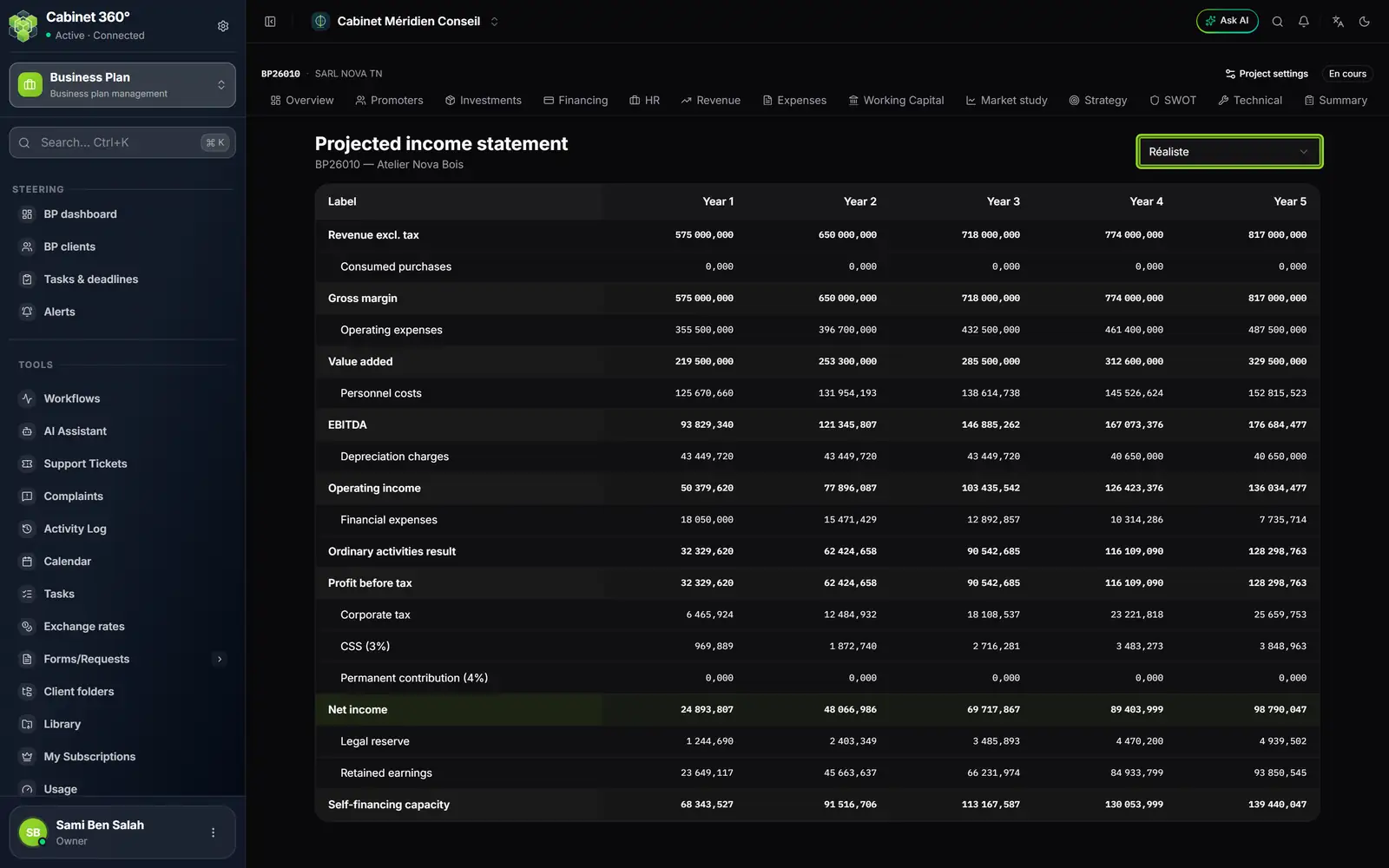
- 1. The plan's tabs, from Overview to Summary and beyond.
- 2. Project settings, and the plan's status.
- 3. The scenario shown: one at a time.
- 4. From revenue excl. tax…
- 5. … to EBITDA, operating income and net income…
- 6. … down to Self-financing capacity.
Income statement, balance sheet and cash flow plan show one scenario at a time: the plan's base as long as you do not choose another one. A negative amount stays in brackets; an unreadable amount is written “—”.
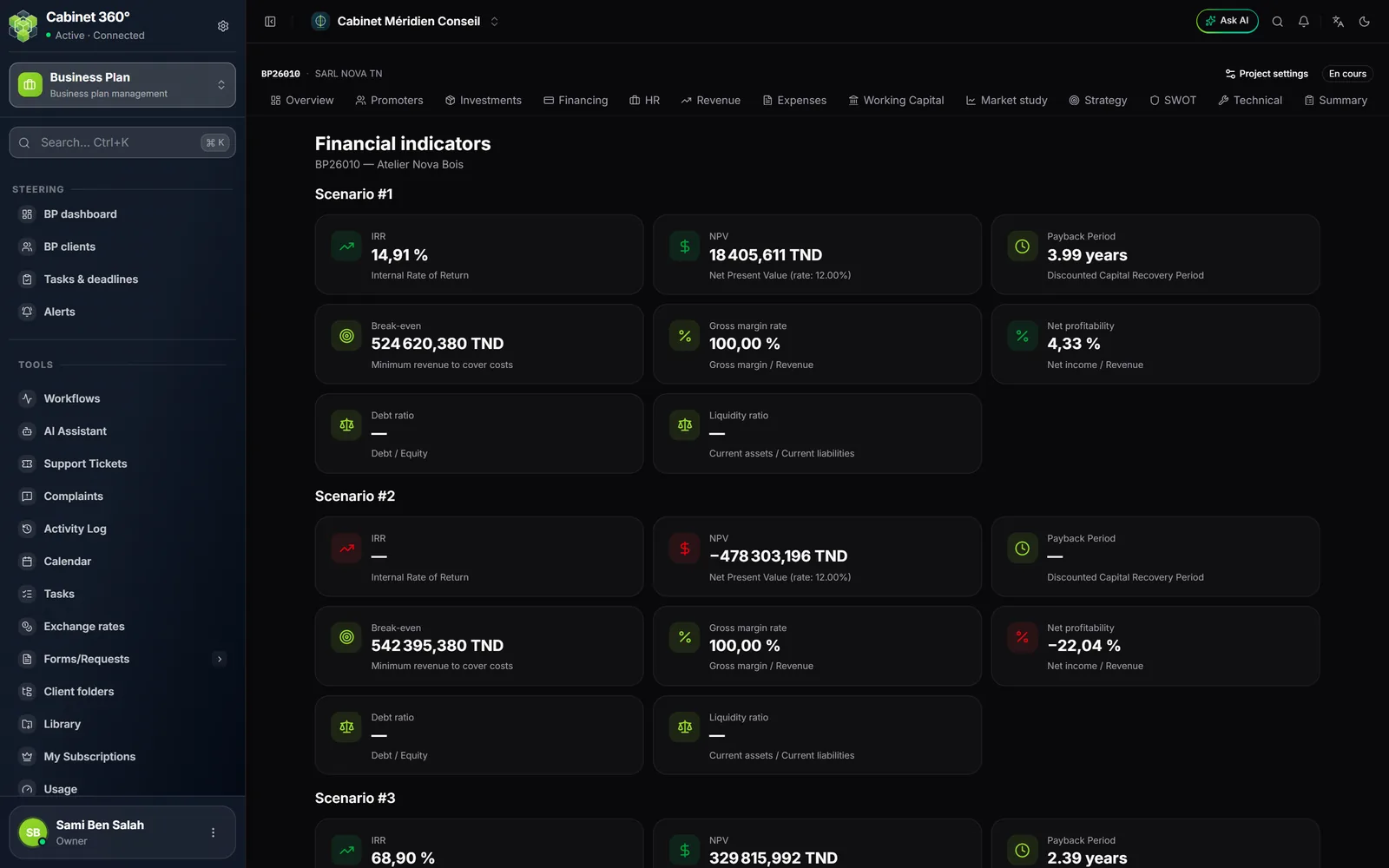
Financial indicators gives, per scenario, the IRR, the NPV (at the plan's discount rate), the payback period of the invested capital (DRCI), the break-even point, the gross margin rate, the net profitability, the debt ratio and the liquidity ratio. An IRR that cannot be computed is written “—”.
The scenarios
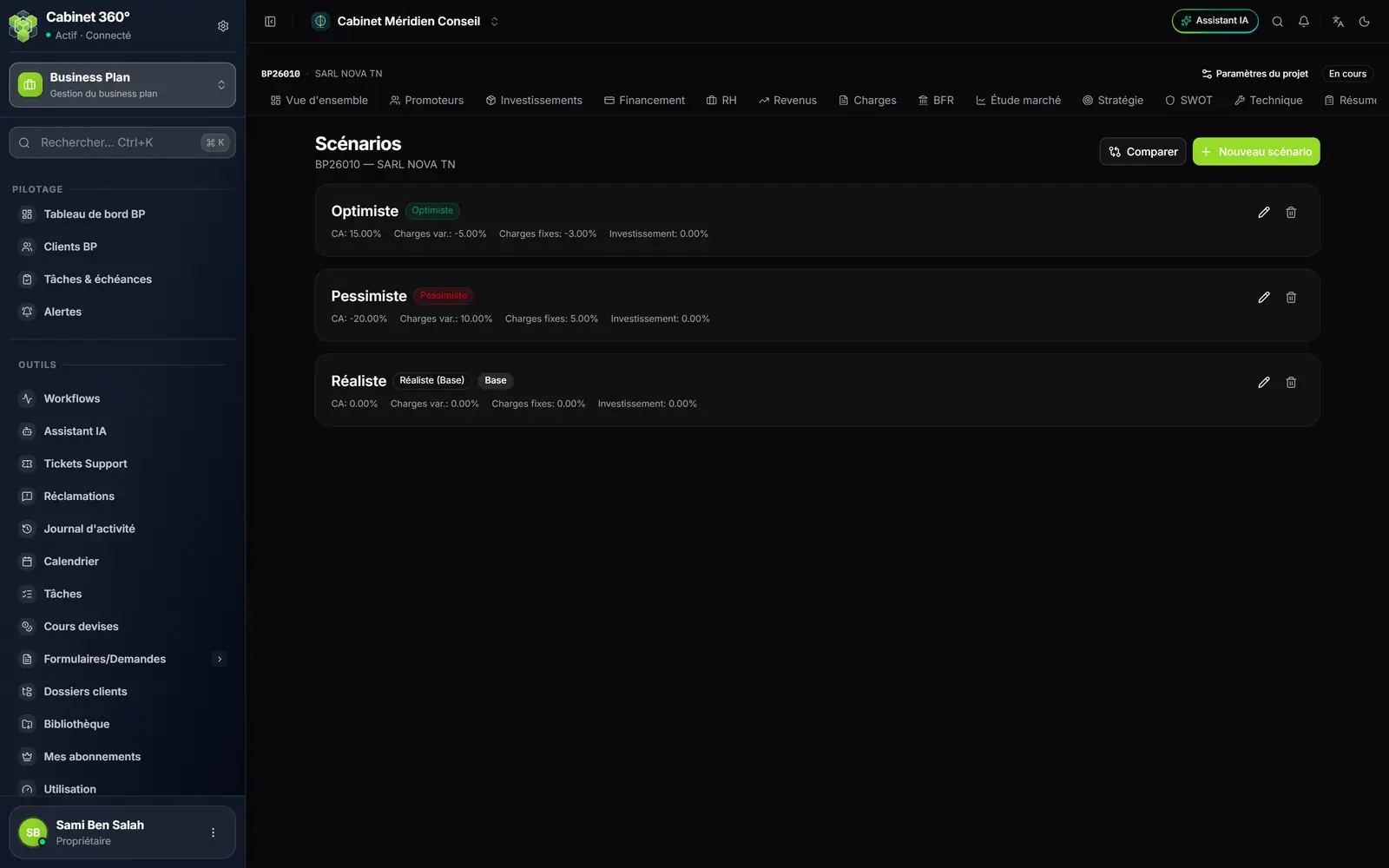
- 1. Compare the scenarios, or create a New scenario.
- 2. Optimistic: its revenue, expense and investment variations.
- 3. Realistic, marked Base: the plan as entered.
- 4. Edit or Delete a scenario.
Each scenario applies variations to the plan: revenue, variable expenses, fixed expenses, investment, customer and supplier payment terms. Compare puts them side by side.
The export
Export offers three documents:
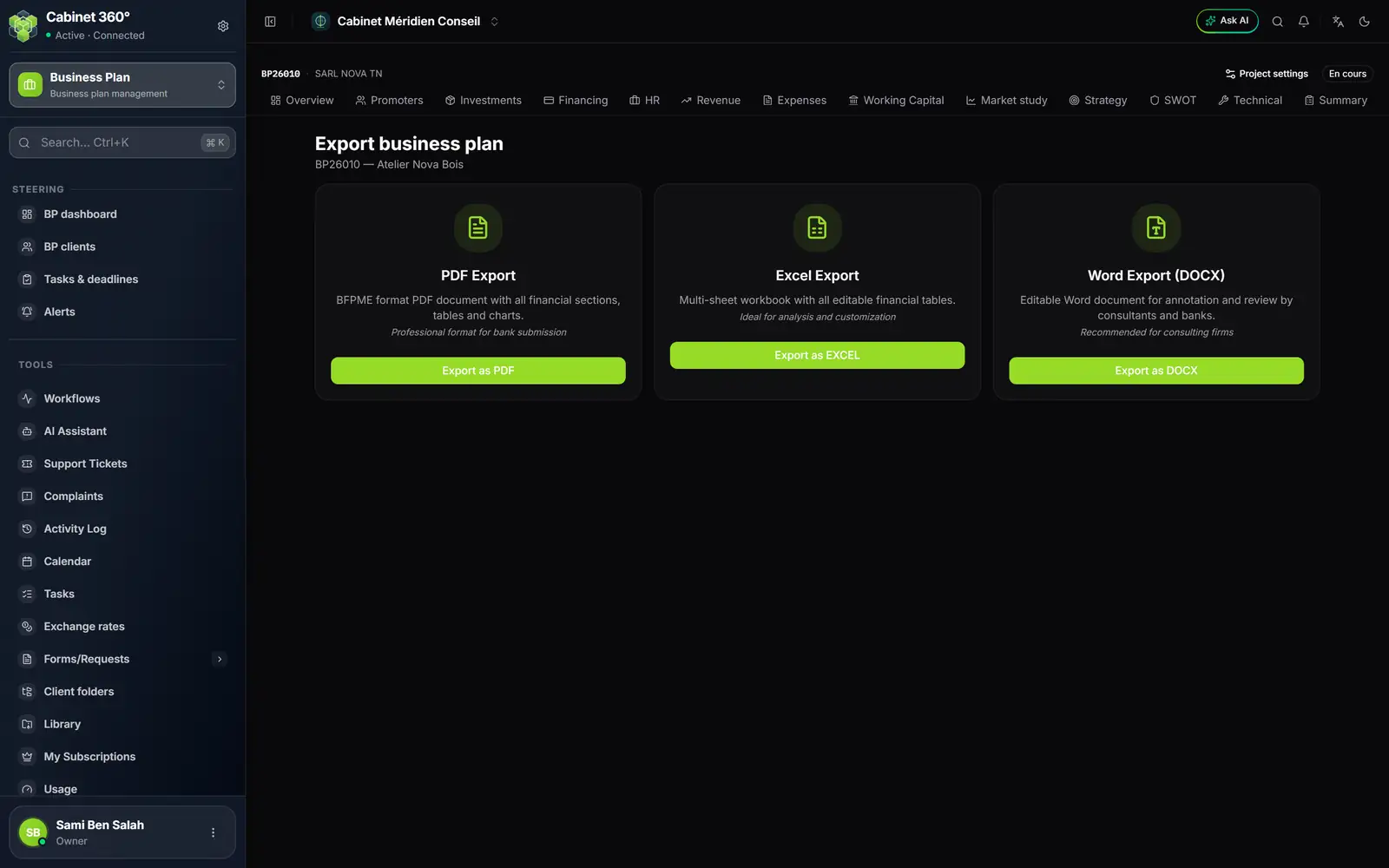
- 1. PDF Export: the complete document, in a format for bank submission.
- 2. Excel Export: a multi-sheet workbook, all the financial tables.
- 3. Word Export (DOCX): an editable document, for annotation and review.
The file downloads at once.
What the previous module keeps
Before the current engagements, the Business Plan module worked differently: a client's engagements shared a single plan, entered in the viewer. Engagements replaced it in October 2026. From the previous module, there remain:
- the key events of the client (chapter 3);
- the business sector reference list, held by IntegraSys, and the Configure window (chapter 3);
- the viewer, for the plans produced by AI Business Plan;
- the plans entered by hand before engagements: they can still be viewed, from the “plans from the previous module” card of the dashboard (chapter 2). They are not converted into engagements.
The module's old addresses (new plan, clients, items, families, suppliers, fixed assets) redirect to BP clients or to the dashboard.