
The BP clients list
The list shows the firm's clients whose record ticks the Business plan service. An inactive client does not appear in it, unless it already carries an engagement that is not archived: such a client stays in the list, even when inactive or with its service unticked. Work in progress does not disappear.
The columns: Client, Status, Tax ID, Sector, Currency, Business plans, Last activity and Actions. Next to the search, the All account managers list narrows the list to one account manager's clients, or to those with no account manager.
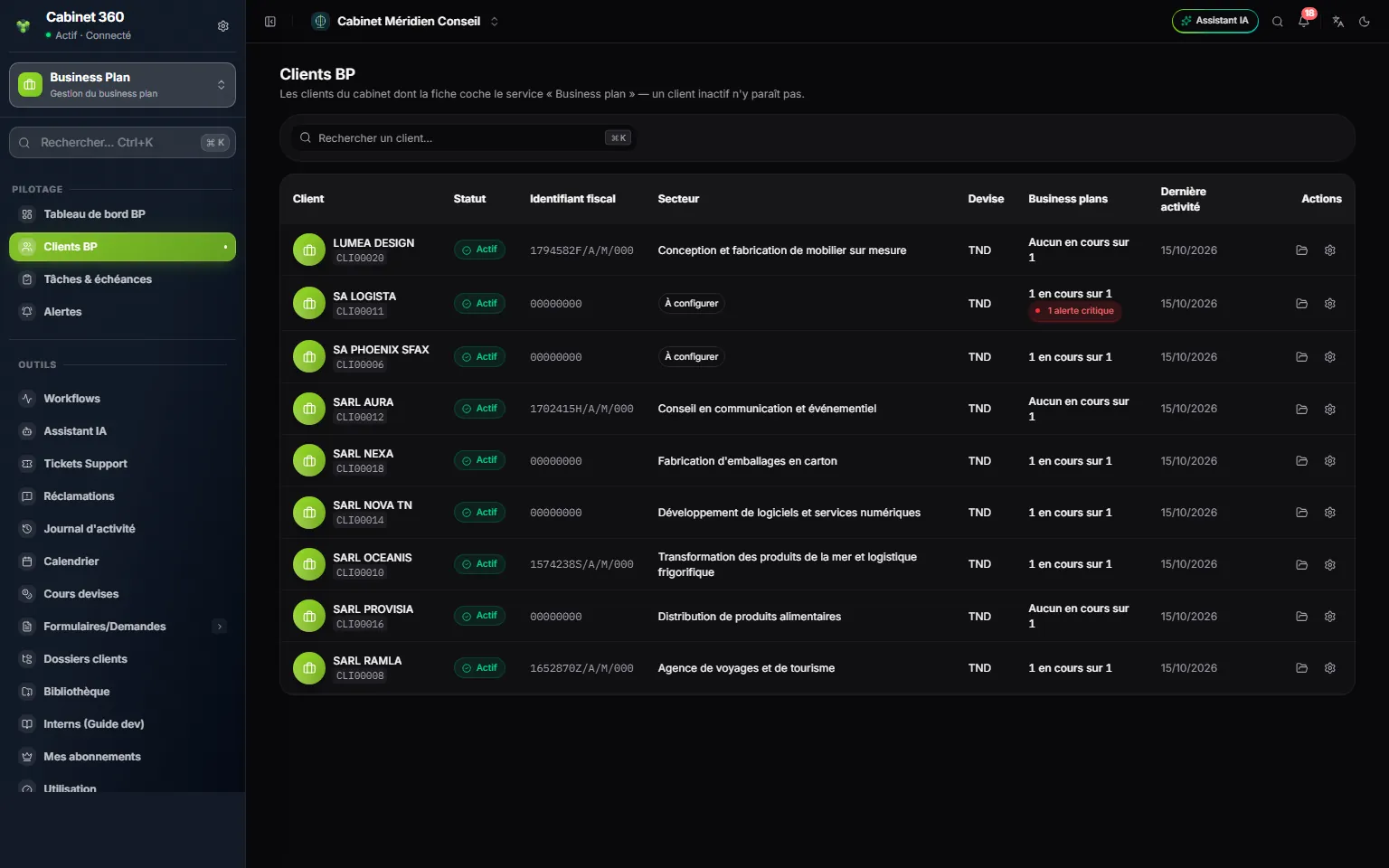
- 1. Search a client by name or code.
- 2. Sector: the sector's line, or To configure while it is missing.
- 3. Business plans (“1 in progress of 1”, critical alerts in red) and Last activity.
- 4. Two icons: open the engagements, Configure the client.
Configure a client
The business plan needs four things about the client. They are set in the Configure window, opened by the row's icon or by the button of the same name on the client's page. You need the right to edit clients; changing the template also requires the right to edit business plans.
| Field | What it decides |
|---|---|
| Business sector | The client's family and activity. On the left, the families and their number of activities; on the right, the activities of the open family. A search filters both. |
| Client type (required) | The plan's income tax: Legal entity = corporate income tax and CSS; Individual = personal income tax (IRPP) on the progressive scale and the individuals' CSS; Association = neither corporate tax nor IRPP. |
| Sector template | The assumption model of its new engagements. With no choice: Proposed from the sector. |
| Currency | Shown only: it comes from the client's record and is changed in Operations. |
- Click Configure.
- Choose the family, then the activity. The selection is written in full under the list.
- Choose the Client type.
- If needed, choose a Sector template.
- Click Save.
The sector and the type are written on the client's record: Operations sees them too. Each new engagement of the client takes over this sector, this template and this currency. An existing engagement keeps its own.
A client's page
A click on the row opens the client's page. Its header recalls the sector (or Sector to configure), the legal form, the currency and the template. Pills count its engagements: in progress, finalised, critical alerts.
At the top right: Key events, Configure and New Business Plan.
The list of engagements is filtered with All, In progress, Finalised and Archived, and searched by engagement or project. Its columns: Engagement, Project, Type, Horizon, Staff associate, Progress, Status and Actions. An engagement whose target date has passed carries “Late (target: dd/mm/yyyy)”.
Three icons per row:
- Open leads to the engagement's phase, the first incomplete tracking section (Scope & project for a new engagement), or to the final report for an engagement under review, finalised or archived;
- Edit (the pencil) reopens the engagement's form, filled in;
- Delete removes the engagement after confirmation.
Create an engagement
- On the client's page, click New Business Plan.
- The form opens empty. A box recalls what comes from the client: template and currency.
- Block The engagement: enter the Engagement name (for example “BP Création 2027”), the Project name, and choose the Engagement type: Start-up, Extension, Investment, Financing or Restructuring.
- Block Follow-up: choose the Staff associate (required) and the Supervisor (optional), then the Start date, the Target date (optional) and the Horizon, from 3 to 10 years. The help text under the horizon writes the years it covers.
- Click Create the business plan.
A missing field is named: “To fix before creating: …”. The target date cannot precede the start date.
The engagement opens on General assumptions. It already carries:
- its reference, for example BP26001;
- the general assumptions proposed by IntegraSys, and those of the sector template;
- three scenarios: Cautious, Central and Optimistic;
- the list of documents to collect;
- the company's identity, the taxes and duties and the social contribution rates taken from the client's record.
The New Business Plan button is greyed when your role does not allow creating, or when the client is no longer in the module (service unticked, client inactive). Hover over it: the tooltip says why.
Edit an engagement
The pencil reopens Edit business plan, with the same fields. Correct, then click Save: you stay on the list.
- The client never changes: an engagement does not move from one client to another.
- Changing the start date realigns the deadlines.
- Shortening the horizon deletes the values entered for the removed years. The form announces it before saving: “The horizon goes from 7 to 5 years: the values entered for the removed years will be deleted.”
- A finalised or archived engagement can no longer be edited: the pencil is greyed.
Delete an engagement
The bin opens “Delete this business plan?”. Confirming permanently deletes the engagement and all its data: assumptions, investments, financing, documents, tasks. Only an engagement that was never finalised can be deleted: a finalised or archived engagement, or one that has moved to version 2, is refused; archive it.
Key events
Key events keep the company's history: incorporation, capital increases, appointments, financing, stock market listing. They belong to the client, not to an engagement: all its business plans tell the same story.
- On the client's page, click Key events.
- Click Add an event.
- Enter the Date and the Key event, then click Add.
Future dates are accepted: a planned stock market listing has its place. The page reads the events in two ways:
- a table, from the most recent to the oldest, where they are edited and deleted;
- a timeline, in time order, which groups them by year.
Each event carries the icon of its nature, recognised in its label: incorporation, capital, appointment, stock market, financing, premises, activity, certification or partnership. Nothing to tick: write “Capital increase to 500 000 DT” and the icon follows.