
Scope & project
Scoping says what the engagement is, who it is for and who runs it. It has three blocks, then the list of documents.
| Block | Fields |
|---|---|
| Project identification | Client (read-only), Engagement name, Project name, Engagement type, Business sector, Activity, Sector model, Location, Business start date, Projection horizon, Currency |
| Business plan objectives | Main objective (bank financing, fundraising, grant, administrative file, internal steering, other), Recipient (bank, investor, public body, partners, management, other), Recipient name, Financing body, Amount sought, Project description |
| Engagement organisation | Staff associate, Supervisor, Manager (reviews the file before it is approved), Signing partner, Priority, Engagement start date, Target delivery date, Budget (hours), Fees |
Click Save, at the bottom of the page. A missing field is named: “To fix before saving: …”.
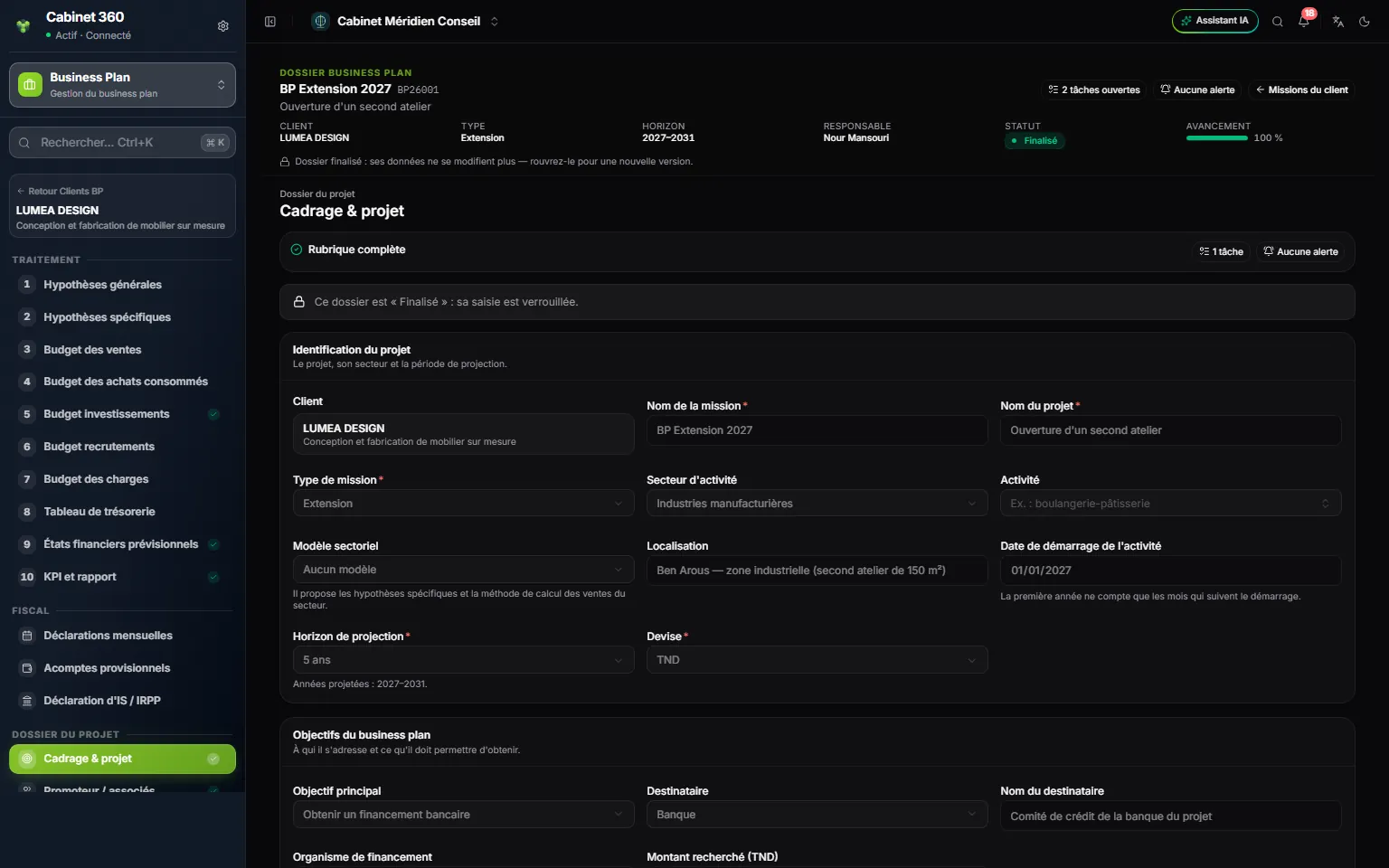
- 1. Project file: a page without a number, outside Processing.
- 2. The client, read-only: an engagement does not change client.
- 3. The sector and the activity of the engagement.
- 4. The sector model: it suggests the sector's assumptions and the sales method.
- 5. The start date: the first year only counts the months that follow.
- 6. Business plan objectives: who it is for, what it must obtain.
The file documents
File documents is the list of documents to gather, proposed by IntegraSys when the engagement is created. For each document: set it to Received or Not applicable, or upload its file (it then moves to Received). A document on the list cannot be deleted: mark it Not applicable. To add a document to this engagement's list, name it (“supplier quote, certificate, lease…”) then click Add the document.
Files are limited to 4 MB for now: a heavier file is refused before it is sent. The required documents received count towards a complete scoping.
Promoter / partners
Add a promoter opens a person's record: Full name, Position, Education, Years of experience, Cash contribution, In-kind contribution, Share of capital (%), Availability (full time, part time, occasional), Role in the project, Experience, Skills.
Tick Main promoter for one person only. Their Background and Qualitative analysis appear below the table, and the report takes them up. The table ends with Total contributions.
Add partners opens the partners of the client record: those already entered in Operations or Legal appear automatically. Add or edit them, then click Save (the button reads Bring into the business plan when the list has not changed): the partners missing from the engagement become promoters.
Market study
The study has seven tabs: Market, Segments, Target customers, Competition, Prices, SWOT and Sources. The record is saved in one go for all tabs with Save; segments, competitors and sources are saved line by line, in their own window (Add a segment, Add a competitor, Add a source).
Draft with AI
Draft with AI, at the top of the page, proposes a first draft:
- the texts still empty: market, geographical area, target customers, competition, prices, SWOT;
- the market figures still empty: size, growth, target shares, average price and its trend, number of competitors. These are estimates, to be checked;
- if the Segments and Competitors tables are empty, three to five typical lines, never a real company.
Nothing is saved: the proposals are placed in the form, you reread them, correct them, then click Save. Only the typical lines added to the tables are saved at once, and they stay editable. The AI never replaces a typed text, even one typed while it is drafting: empty a field to have it rewritten.
From segments to sales
In the Segments tab, the “Carry … over to sales” icon opens “Carry this segment over to sales?”; Create the sales line creates a “volume × price” line, pre-filled from the segment's size, target share and acceptable price. A target volume or an acceptable price is needed: without them, the icon is greyed out and says why. Then complete the line in the Sales budget.
Business model
The nine blocks: Key partners, Key activities, Key resources, Value proposition, Customer relationships, Channels, Customer segments, Cost structure, Revenue streams. Fill them in by hand or with Draft with AI, which fills the empty blocks, then click Save.
When empty, Customer segments and Revenue streams offer Import the market study segments and Import the sales lines.
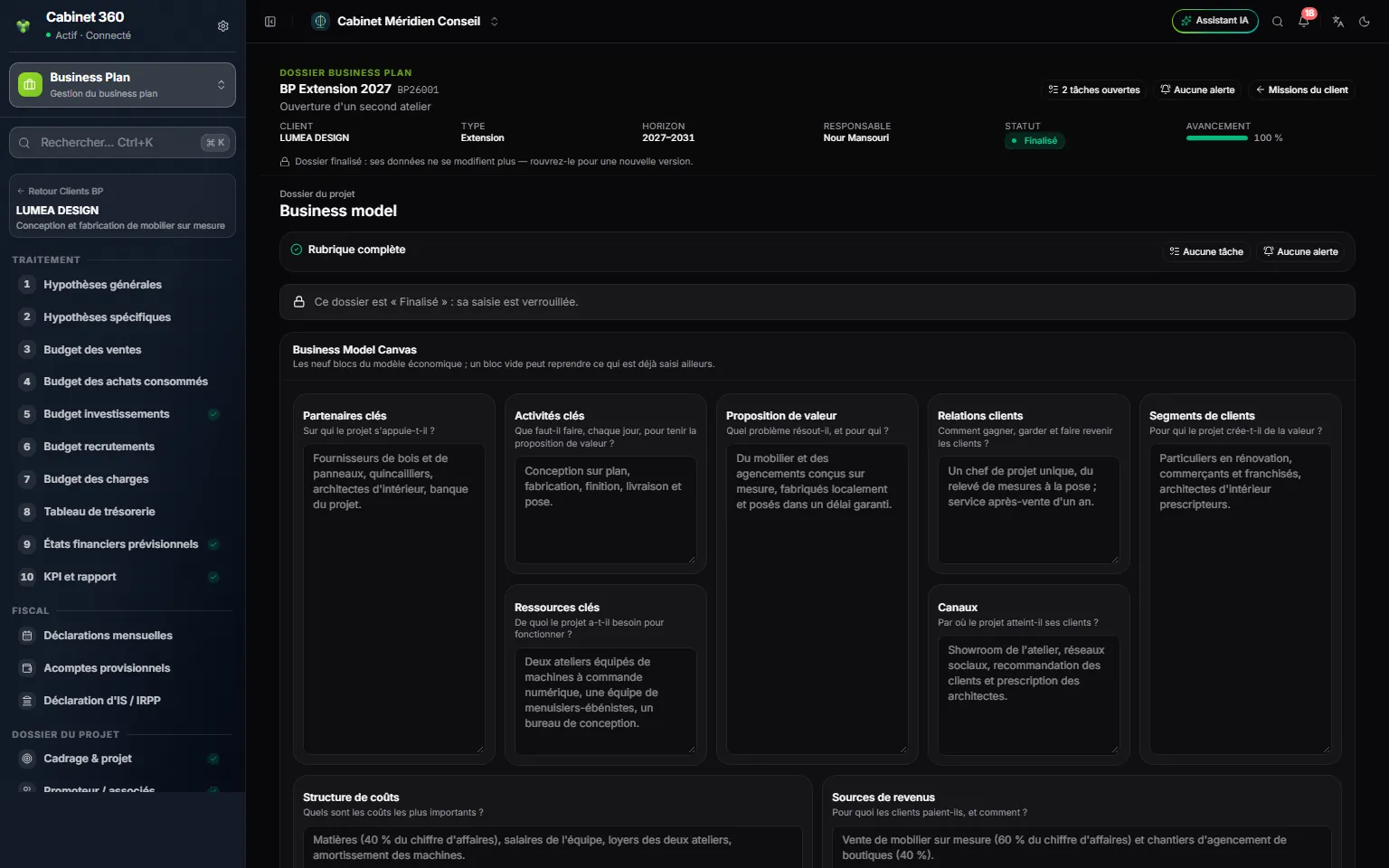
- 1. Business Model Canvas: the nine blocks of the business model.
- 2. Each block asks its question: “Who does the project rely on?”
- 3. Value proposition: what problem the project solves, and for whom.
- 4. Customer segments: for whom it creates value.
- 5. Revenue streams: what customers pay for, and how.
Below the canvas, Revenue model shows what each activity brings in, read from the calculation, for the year chosen in its selector (“2027 · A1”). It is read-only: Enter sales leads to the sales.
Financial assumptions
The financial assumptions gather, in seven tabs, everything that drives the calculation. Several are also offered in Processing: it is the same data, entered here or there.
| Tab | What it sets | Also in |
|---|---|---|
| General | Inflation, price indexation, salary growth, social charges, tax, minimum cash, discount rate | Processing 2 (tax) |
| Sector-specific | The sector model's assumptions | Processing 2 |
| Sales | The sales lines | Processing 3 |
| External costs | Fixed, variable and periodic expenses | Processing 7 |
| Staff | Positions, headcount and costs year by year (added to the hiring budget) | — |
| Working capital | Payment terms and stock levels, in days or as a % of revenue | — |
| Opening position | The opening balance sheet of a company that already exists; a start-up project starts from zero | — |
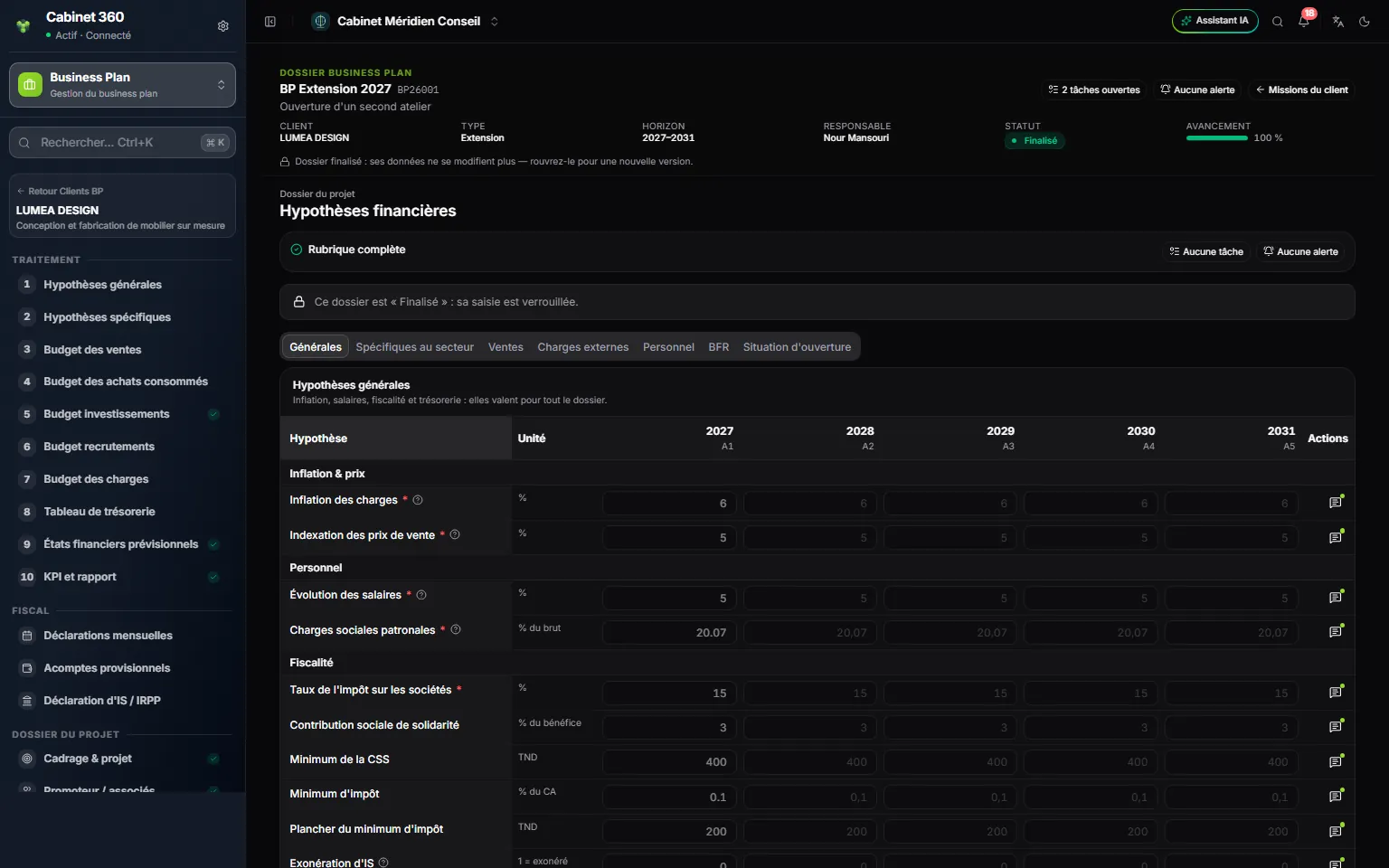
- 1. Seven tabs, from General to Opening position.
- 2. One assumption per line; the asterisk marks a required assumption.
- 3. Its unit: %, % of gross, days, TND…
- 4. A1 entered; the following years, left empty, take the value in grey.
- 5. Source and comment for the value.
An empty box takes the previous year's value, written in grey; for a general assumption, an empty box in A1 shows the value proposed by IntegraSys. The comment icon records the source of the value and a comment: useful when a bank asks where a figure comes from. Click Save: a refused line carries its reason, the others are saved.