
The module
AI Business Plan is a separate module of the subscription. It has its own workspace and a single menu: AI Generator. It also requires the Business Plan module's permissions.
The page opens on two cards, New company (a project or a startup) and Existing company (a company already in business), then the Recent sessions list.
Sessions are private: each person sees their own; the owner and the administrators see all those of the firm. A session is resumed with one click, and opens on the page of its mode; the bin deletes it.
Opening a session
- Click New company or Existing company. The Configure session window opens.
- Choose the Associated client. It is required: the plan is saved for this client, and without it Start session stays greyed out.
- Choose the Interaction mode: AI Chat, AI Form or Hybrid.
- Set the Projection years (from 3 to 10, 5 at first) and, for an existing company, the Historical years (from 1 to 5, 3 at first).
- Set the Growth rates per year: one rate per projection year, 5 % at first.
- Click Start session.
The client list is the Business Plan module's: the clients whose record ticks the Business plan service. If none has it, the window says to tick this service on the client record, in Operations.
AI Chat
The conversation opens on “Welcome to the AI assistant”. Describe the project, then answer the questions. Enter sends; Shift + Enter starts a new line. The square button stops an answer: what is already saved stays.
The Phases follow the order of a business plan: Identity, Promoters, Investments, Financing, Human Resources, Revenue, Expenses, Working Capital, Summary, Market Study, SWOT Analysis. For an existing company, the assistant also collects the historical financial statements, just after the promoters; they have no line in this list, but the badge of the current phase names them.
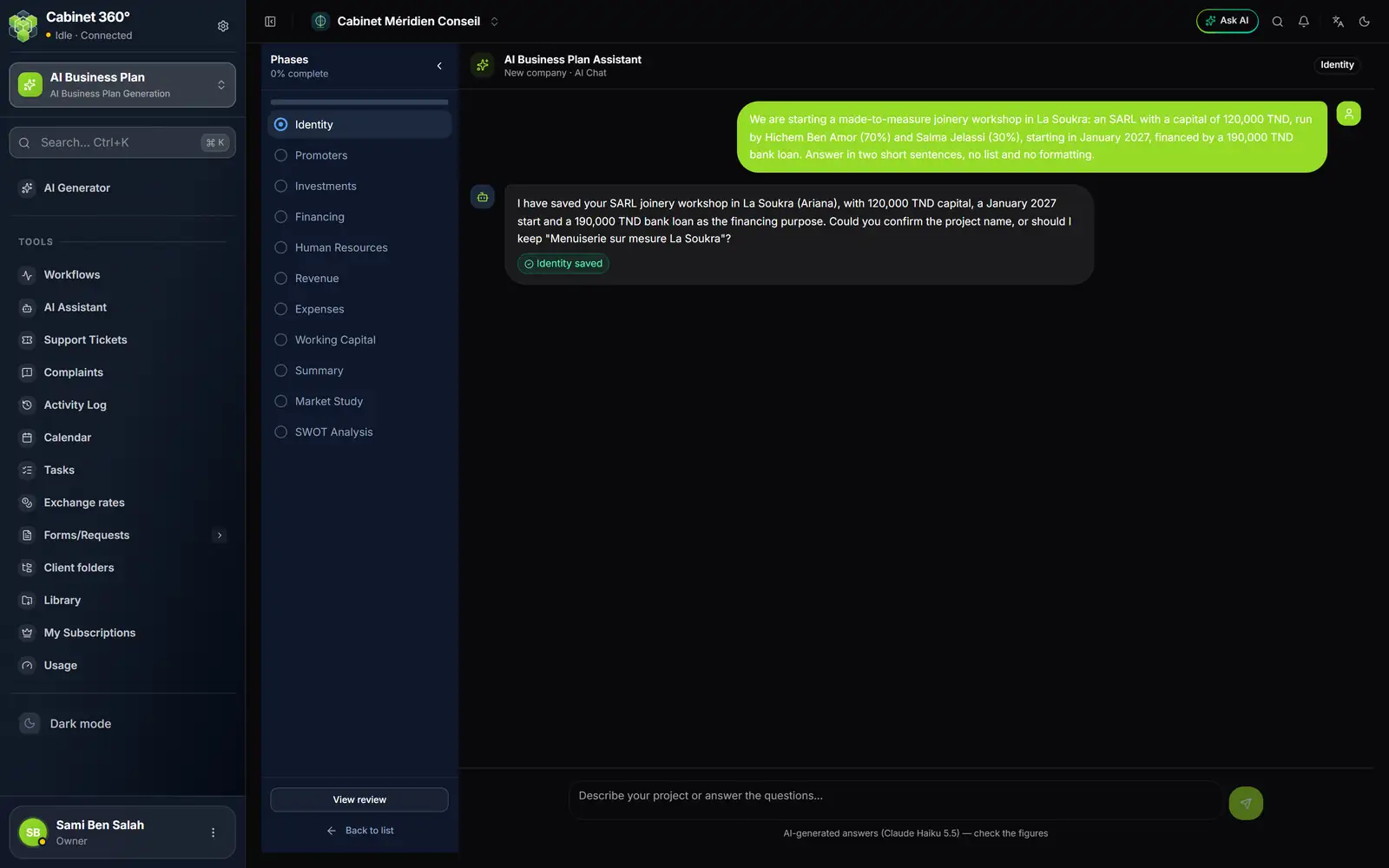
- 1. Phases: the progress of the interview, from Identity to SWOT Analysis.
- 2. Your message: describe the project in plain words.
- 3. The assistant's answer, and its next question.
- 4. What it saved to the plan, one pill per line.
- 5. The current phase.
- 6. The input box; below it, the reminder that answers are AI-generated.
- 7. View review of what has been collected.
What the assistant saves
The assistant writes to the plan during the conversation. You can see it:
- the badge at the top says what it is doing: Thinking…, Saving to the plan…, Computing the projections…;
- one pill per line written, below its answer: “Investment saved — CNC machine — 12 345,000 TND”, with the computed amount;
- a click on a pill opens the form step where you can reread the line.
AI Form
The AI Form runs through eight steps: Identity, Promoters, Investments, Financing, Human Resources, Revenue, Expenses and Working Capital. Each step has its fields or its table (“Add item”, “Add promoter”, “Add product”, “Add expense”).
Next saves the step, and the reopened session shows it filled in. The step's lines replace those of the plan: a line removed from the table is removed from the plan. An unreadable value is refused and named, and nothing is written.
Ask AI opens the AI suggestions panel: ask a question about the field or the step (“Over how many years should the van be depreciated?”). The panel is a conversation with the assistant, like AI Chat: it answers, and it too can save lines to the plan, with their pills. Reread the step after it. At the last step, Finish and review leads to the review.
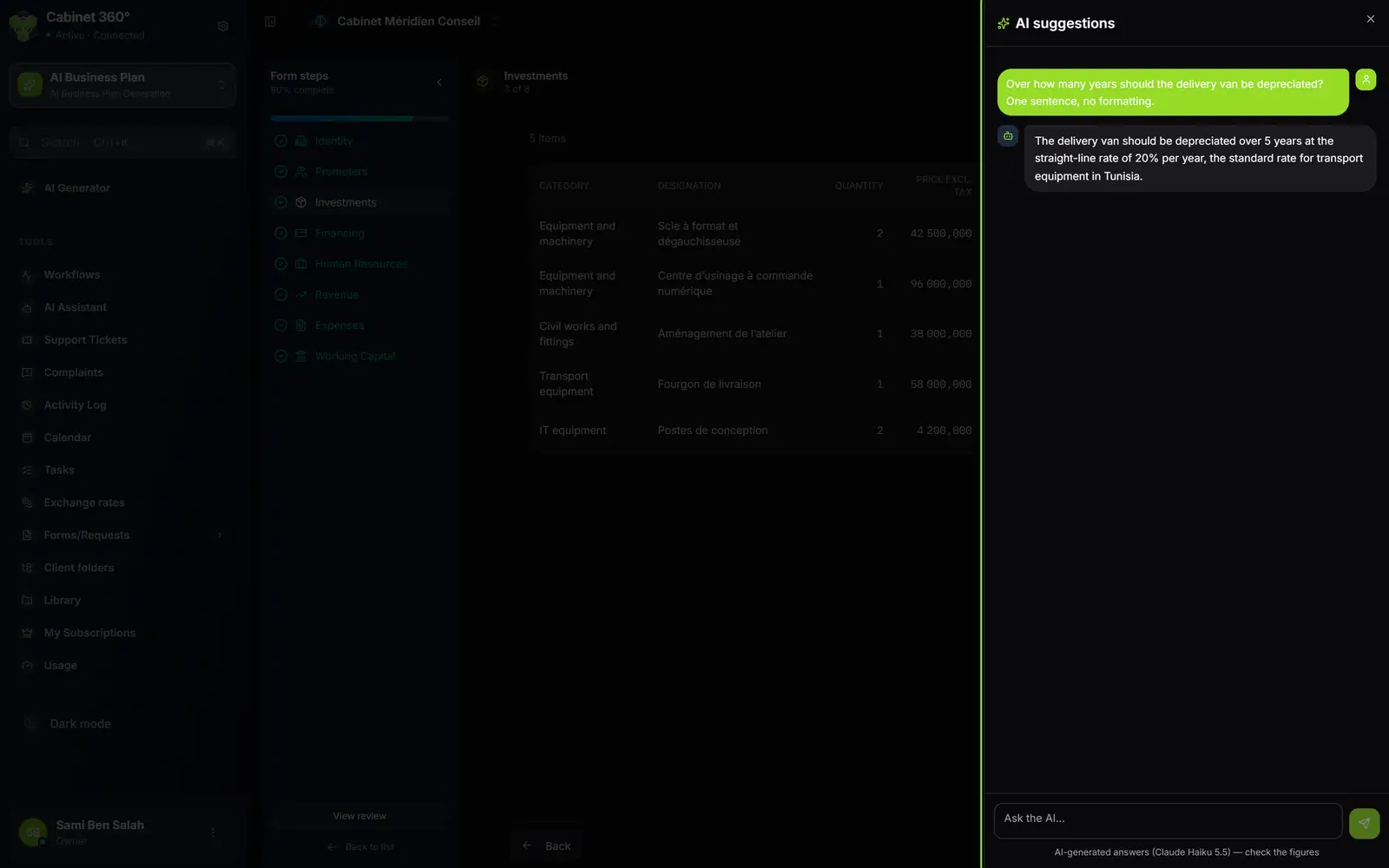
- 1. The form steps, and their progress.
- 2. AI suggestions: a panel opened by Ask AI.
- 3. Your question about the current step.
- 4. The answer from the AI about the step.
- 5. Ask the AI…: the question box.
Hybrid
Hybrid mode starts with the conversation, then opens the form for the figures.
The form unlocks once Identity and Promoters have been collected by the conversation. While the form is open, the assistant can still add a line: only a line that the screen showed and that you removed disappears from the plan.
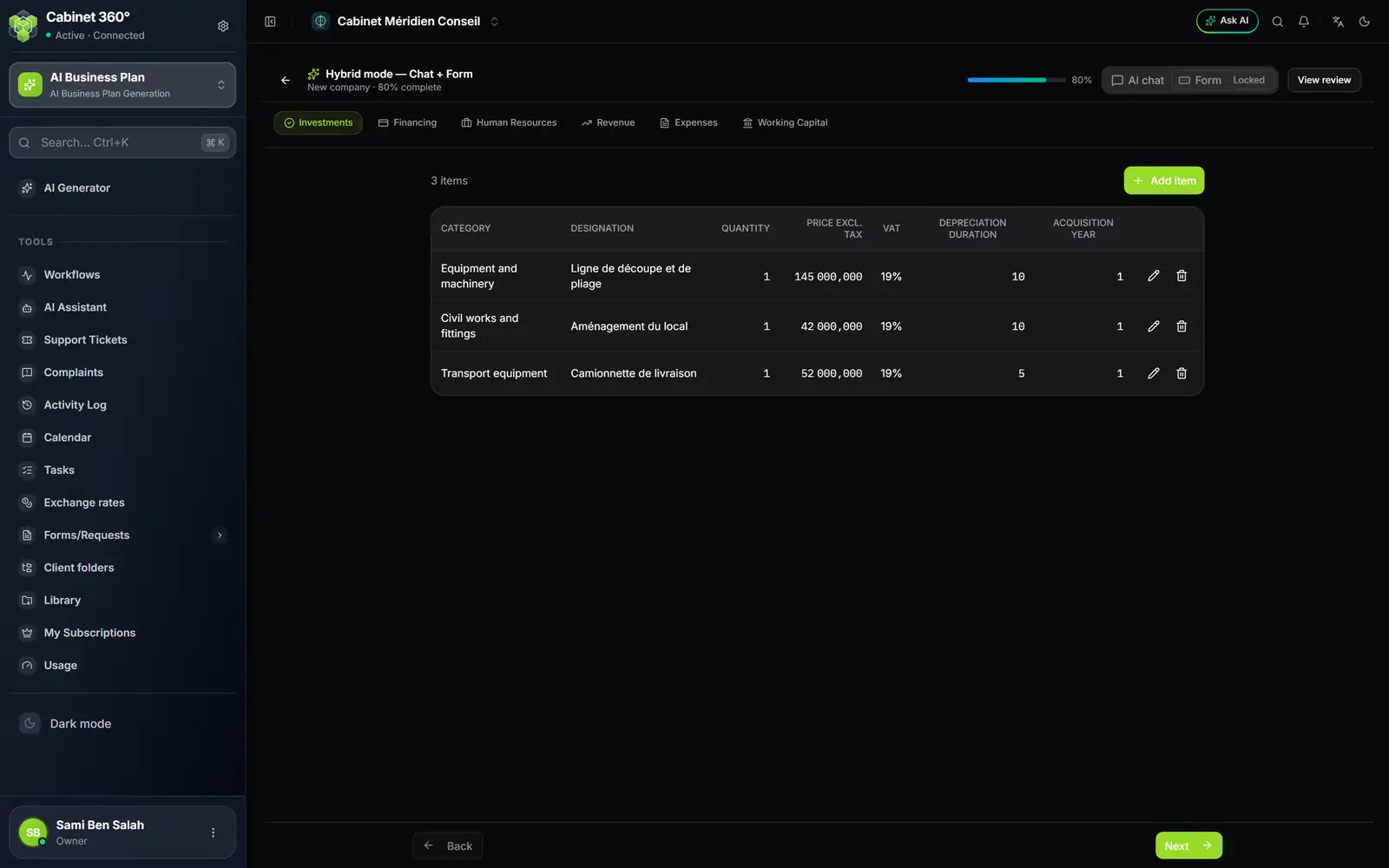
- 1. Hybrid mode — Chat + Form, and the progress.
- 2. AI chat or Form: switch at any time.
- 3. The figure steps, from Investments to Working Capital.
- 4. The step's table: each line can be edited or deleted.
- 5. Add item.
- 6. Next saves the step.
The review
View review opens Collected data review.
- Project identity and Working Capital take up the form fields, each choice written in full words (“SARL”, “Ariana”, “General regime (ordinary law)”).
- Promoters, Investments, Financing, Human Resources, Revenue and Expenses state their number of items.
- A phase not yet filled in shows “No data collected yet”.
- Executive Summary, Market Study and SWOT Analysis show the beginning of the written texts, or “Not written yet”. Read and edit the text opens the plan tab that shows it in full.
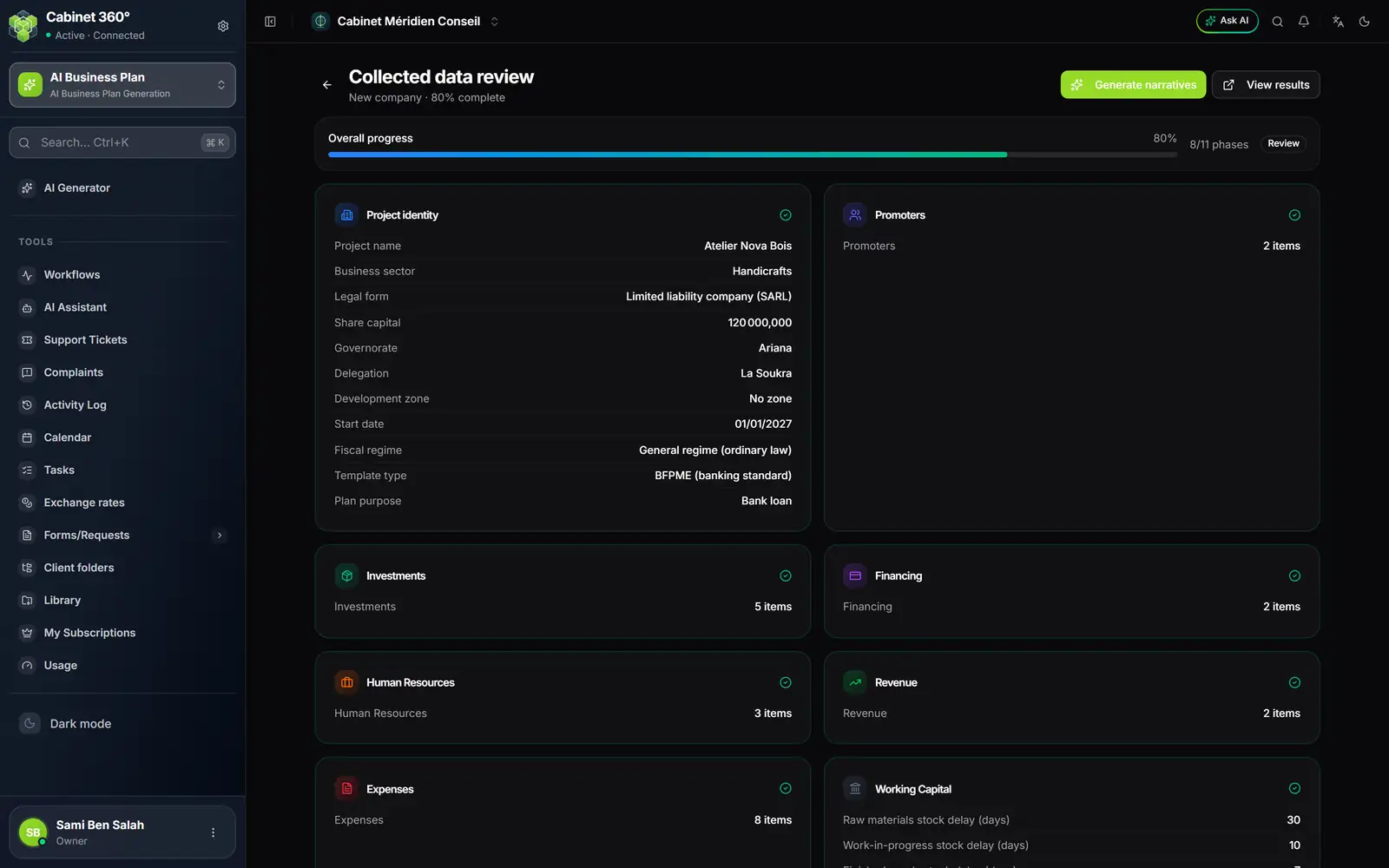
- 1. Collected data review, the company type and the progress.
- 2. Generate narratives: writing the plan's texts.
- 3. View results: the plan produced.
- 4. Overall progress, the number of phases done and the status.
- 5. Project identity: each choice written in full words.
- 6. One card per phase: its number of items.
Back to chat resumes the interview.
Generating the narratives
When every step is done, the session moves to Review. Click Generate narratives: the texts are written in the background (“Narrative generation started…”) and appear in the cards as they come, without reloading the page. When all of them are written, the session becomes Completed. Otherwise, click again: only the missing texts are written. A text cut off midway is never saved as finished.
A session's statuses
Initial setup, Data collection, Review, Generating, Completed, Abandoned.
Credits and incidents
| What you see | What to do |
|---|---|
| “No credits remaining…” | The firm's AI credits are used up: each message sent uses some. |
| “Answer cut off…” | The connection was lost. What is saved is kept: send a new message. |
| “This session was opened without a client…” | An old session cannot save anything. New session takes you back to the generator: start again by choosing the client. |
| “The server does not save the form yet…” | Nothing was saved: the server needs to be updated. Continue in AI Chat. |