
Step 6: Hiring budget
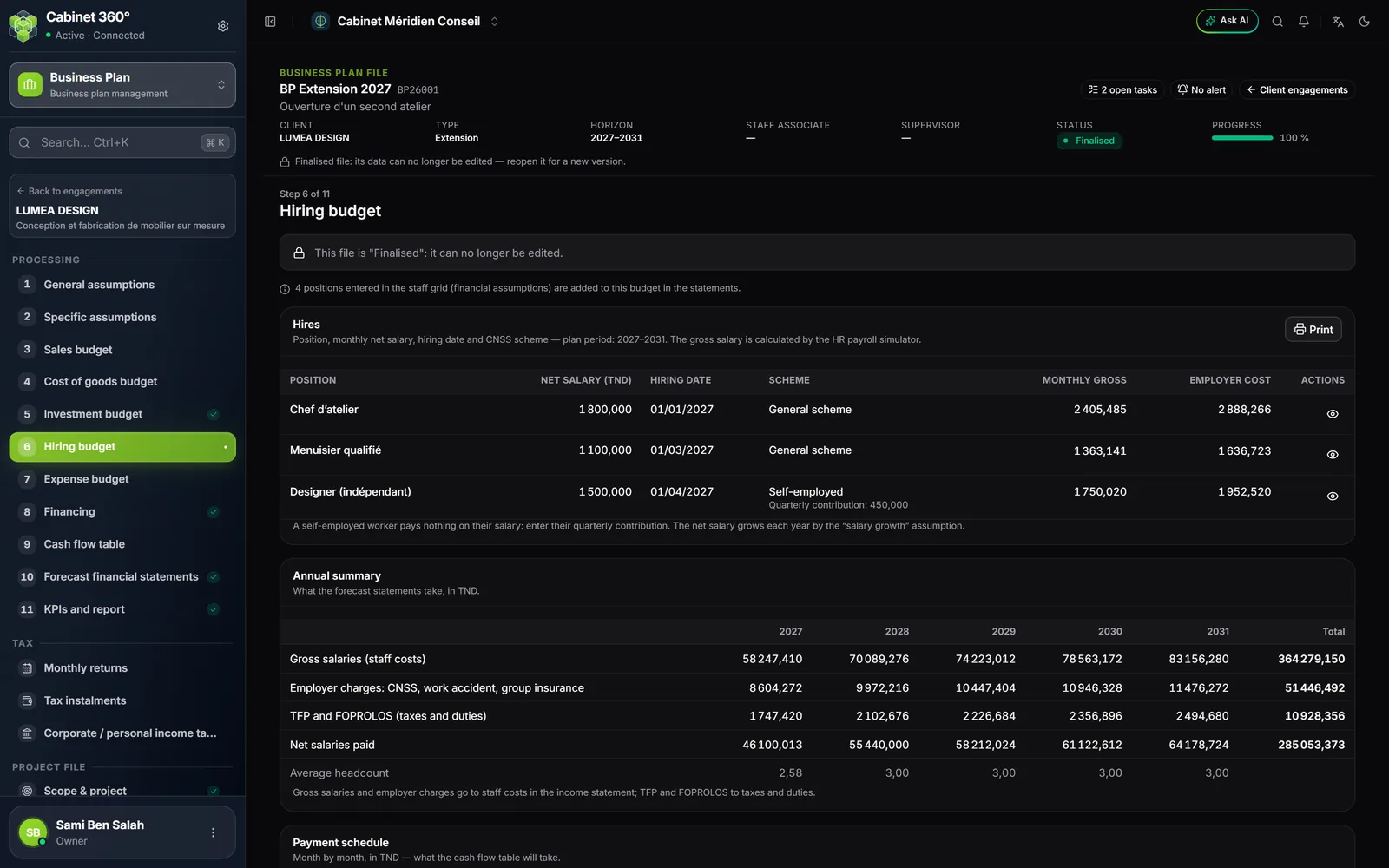
The Hires grid asks, for each hire: the Position, the monthly Net salary, the Hiring date and the CNSS Scheme. The gross salary is computed by the HR module's payroll simulator, at the engagement's social contribution rates (step 2) and the projected year's scale.
Fill in the grid
The grid works in two stages.
- Click Edit: every line becomes editable. An empty grid opens straight in edit mode.
- Click Add a line for each position.
- Enter the position (for example “Accountant”), the net salary, the hiring date, and choose the scheme: General scheme, KARAMA, Self-employed or Startup Act.
- For a Self-employed person, enter their Quarterly contribution: required for them, cleared for the other schemes.
- Click Save. Cancel discards the changes.
Nothing is sent while a line is faulty. The lines are then sent one after another: if the server refuses one, sending stops, its reason is written under it, and the lines sent before it remain saved.
Once saved, each line shows the computed Monthly gross and Employer cost.
| Rule | Effect |
|---|---|
| The net salary is the input | It grows each year, from A2, by the “Salary growth” assumption. The gross salary is recomputed from it. |
| A month in post counts in full | The hiring day is not read: hired on 20/03, the employee counts for March. |
| Hire before the start | The employee counts from the plan's first month. |
| Hire after the end | Refused when saving: “The hiring date falls after the business plan period.” is written under the date. A saved line that no longer has any month in the period (after a shortened horizon) carries “After the period”. |
The calculation preview
A line's Calculation preview icon opens the position's Calculation sheet: the same sheet as the HR module's payroll simulator, with the same calculation. Its header gives the scheme, the scale applied and the hiring date. For a self-employed person, it recalls that nothing is withheld from the salary and gives the contribution entered.
The annual summary
Under the grid, the Annual summary gives, by year, what the statements take over:
| Line | Where it goes |
|---|---|
| Gross salaries (staff costs) | Staff costs in the income statement |
| Employer charges: CNSS, work accident, group insurance | Staff costs (with a self-employed person's contribution) |
| TFP and FOPROLOS (taxes and duties) | Taxes and duties |
| Net salaries paid | What the employees receive |
| Average headcount | The average number of employees over the year |
The payment schedule
The Payment schedule gives, month by month, what the cash flow table will take over:
- Salary payments (net), in the same month;
- Social declarations (quarterly CNSS), on the 15th of the month after the quarter;
- Tax declarations (IRPP, CSS, TFP, FOPROLOS), with the following month's return.
What falls after December of the last year is given separately: “Still to pay after the period: …”.
Print produces a PDF: the parameters (12 months of pay, the salary growth from A2 to the last year), then, for each position, the net salary, the hiring date, the gross salary of its first month and the scheme, then the annual summary.
Step 7: Expense budget
The page shows the External costs grid: rent, professional fees, energy, insurance… It is the same grid as the External costs tab of the financial assumptions.
- Click Add a cost. The New external cost window opens.
- Enter the Label, choose the Category and, if needed, the Supplier.
- Choose the cost's Nature, then fill in the fields it asks for.
- Choose the VAT rate (or No VAT) and, if there is one, the Withholding tax (%).
- Click Save.
Three natures:
| Nature | What you enter | What the calculation does with it |
|---|---|---|
| Periodic (excl. VAT amount per instalment) | The Amount excl. VAT per instalment, the Frequency (monthly, quarterly, half-yearly, annual), the Yearly increase (%) and its Anniversary date of the increase | The sum of the year's instalments. The increase applies to each instalment from the anniversary date (empty: the start), then every year. |
| Fixed (yearly amount) | The Annual amount, year by year, and Indexed to inflation | An empty year takes the previous one, increased by inflation if the cost is indexed. |
| Variable (% of revenue) | The Rate (% of revenue) | The rate applied to each year's revenue. |
A new cost is Periodic by default: that is how most invoices arrive (a monthly rent, a yearly insurance premium).
The Withholding tax is computed on the amount including VAT: it is paid to the State and deducted from the payment to the supplier. VAT and withholding tax apply to any cost, whatever its nature. They are found in Tax › Monthly returns and in the cash flow table.
The categories offered: non-stocked purchases (water, energy, supplies), rent and rental charges, maintenance and repairs, insurance, professional fees, advertising and marketing, transport and travel, telecommunications, subcontracting, bank charges, and others.