
Step 1: General assumptions
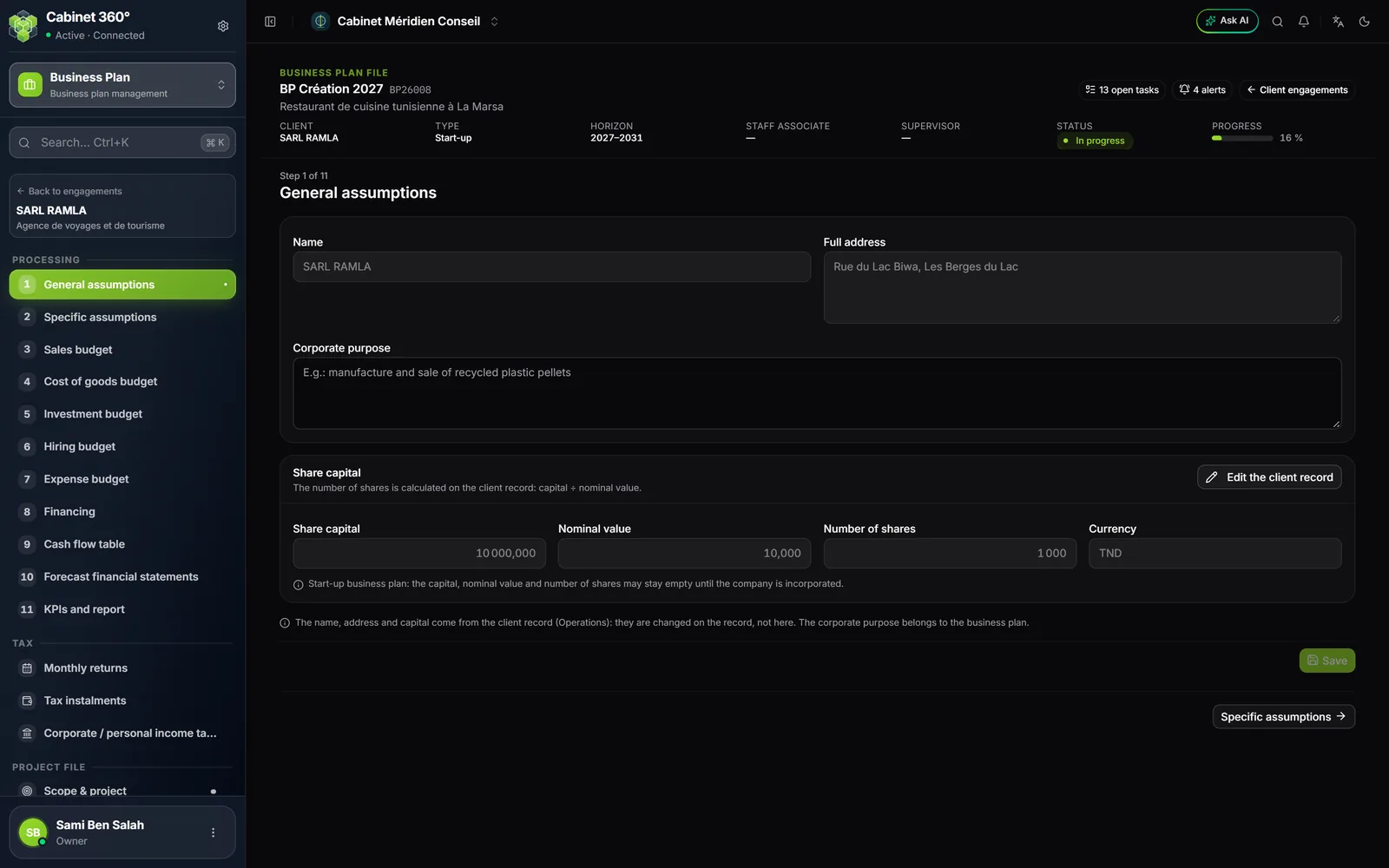
A newly created engagement opens here. The page shows the project's company as the client's record describes it: Name, Full address, Share capital, Nominal value, Number of shares and Currency.
These fields are greyed: they are read from the client's record each time the page opens, and they are changed on the record, in Operations. The Edit the client record button leads there. The number of shares is computed there: capital ÷ nominal value.
Only one field is entered here: the Corporate purpose, specific to the business plan. Enter it, then click Save.
Step 2: Specific assumptions
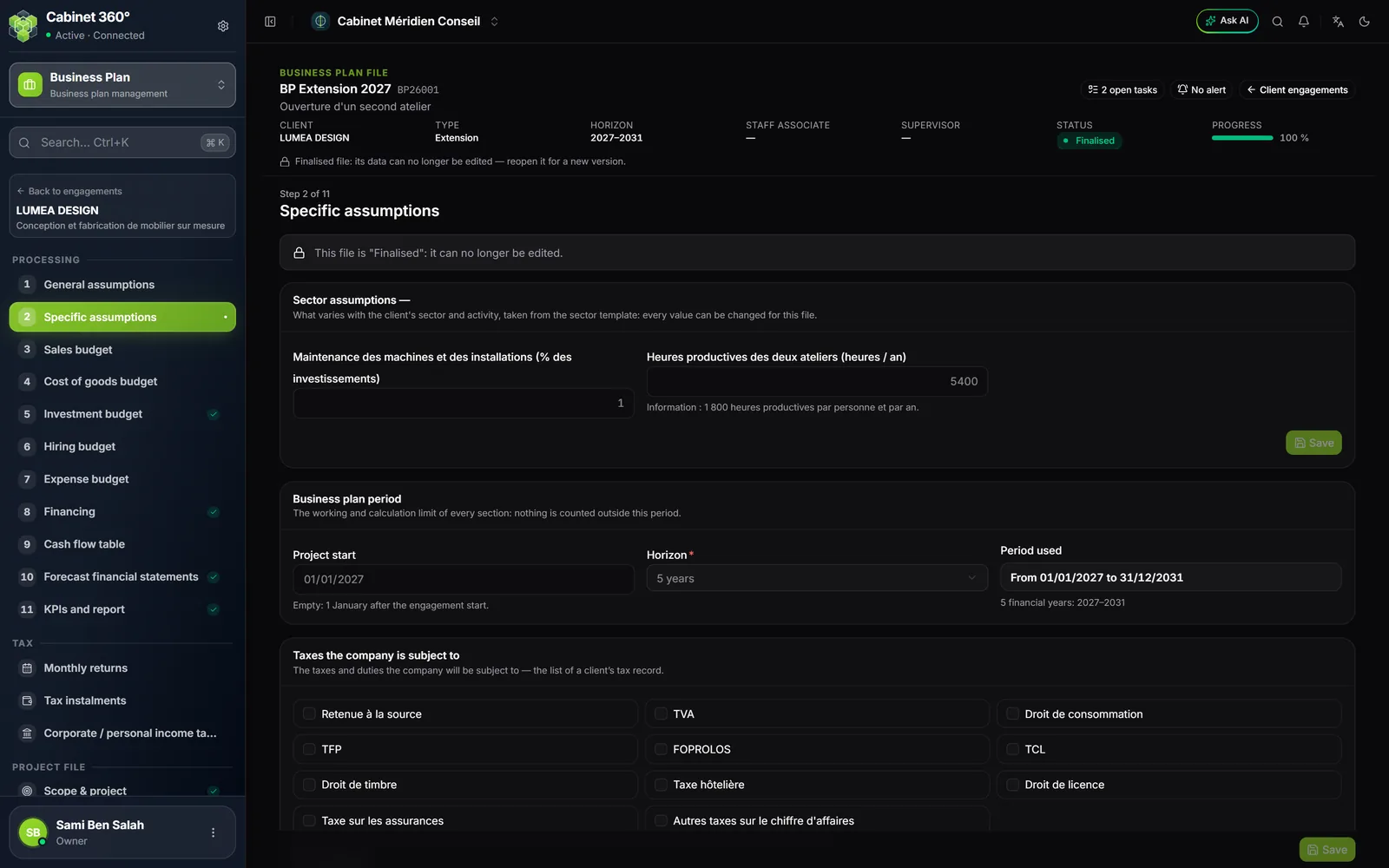
The page gathers what is specific to this plan. It has five blocks.
Sector assumptions. At the top, the assumptions of the engagement's sector model: what varies with the sector and the activity. Each value can be corrected for this engagement.
Business plan period. The limit of the whole calculation: nothing is counted outside this period.
| Field | What it does |
|---|---|
| Project start | The date the activity begins. Empty: 1 January after the engagement start. |
| Horizon | The number of years of the plan. |
| Period used | Computed: “From 01/01/2027 to 31/12/2031” and the number of financial years. |
Shortening the horizon opens “Shorten the horizon?”: confirming erases the values entered beyond the new last year, in every grid. Lengthening the horizon afterwards does not bring them back.
Taxes the company is subject to. The taxes and duties the company will be subject to, ticked in the same list as a client's tax record. When the engagement is created, it takes over those of the client's tax record. No box ticked means “not yet decided”: the payroll simulator's TFP and FOPROLOS apply. A ticked list applies only what it names. The Tax incentives field describes an exemption or a bonus in plain words.
Social contribution rates. Employer and employee CNSS, work accident, TFP and FOPROLOS: these are the rates the hiring budget passes to the payroll simulator. An empty cell takes the simulator's rate and shows it: “Empty: 17,07%”. Group insurance is switched on with its Group insurance switch, which opens its two rates, employer and employee.
Corporate income tax. Last, a grid, year by year: corporate tax rate, CSS, CSS minimum, minimum tax and its floor, exemption years (1 = exempt), and Recoverable VAT on investments (0 for an activity that does not recover VAT). An empty cell shows in grey the value it will take.
Sector models
A sector model (the “template”) serves what changes from one sector to another: specific assumptions, a sales budget, a cost of goods budget. It is chosen for the client in Configure; failing that, the software proposes the model aimed at its activity, then at its family, then a generic model.
When the engagement is created, it copies its model's assumptions. From then on, they live in the engagement: a model corrected later does not change the engagements already open.
The École primaire (primary school) model shows what a model can do. It computes a school's revenue by itself from the number of classes, pupils per class, tuition fees, canteen, clubs and enrolment fees. The school year runs from the month school starts to the month it ends, and the holidays follow from it: you do not enter them.
Step 3: Sales budget
The page depends on the engagement's model.
With an ordinary model, it shows the Sales forecast: one line per activity, with its calculation method and its values year by year. These are the same lines as the Sales tab of the Financial assumptions (chapter 14): enter them here or there, it is the same data.
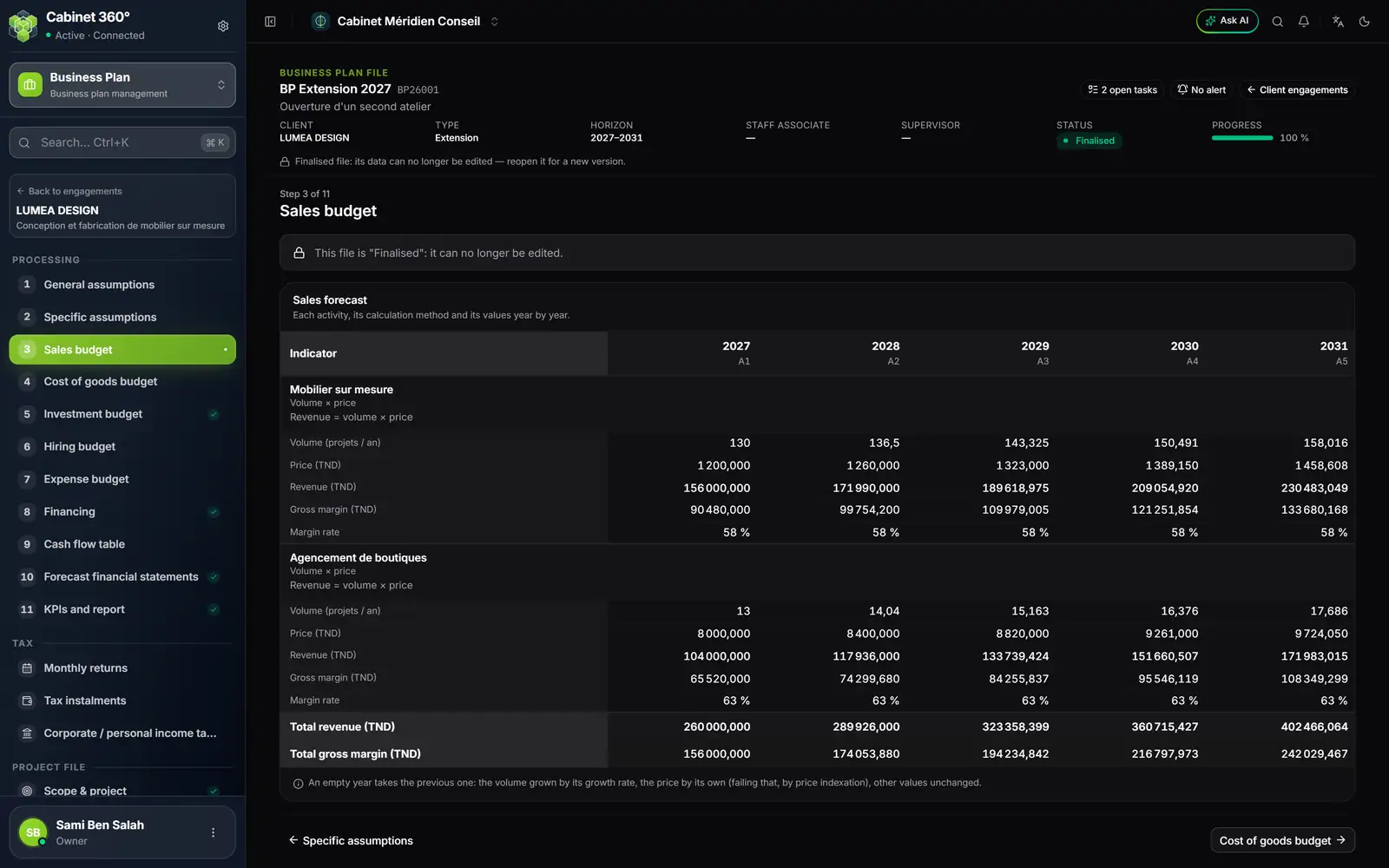
- 1. An activity: its label, its method (“Volume × price”) and its formula.
- 2. Its values: volume, price, revenue, gross margin and margin rate.
- 3. One column per year: the calendar year and its rank, A1 to A5.
- 4. The totals of revenue and gross margin.
- 5. The empty-year rule, recalled under the table.
Add a sales line opens New sales line, in three blocks:
| Block | Fields |
|---|---|
| The activity | Label, ERP Item (optional: it fills in the label, unit, family and A1 price left empty), Family, Unit, Calculation method |
| Values year by year | The values the method asks for, Volume growth (% per year), Price growth (% per year), Sales VAT rate |
| Cost of sales | As a % of revenue, or Unit cost, year by year; Purchase VAT rate |
The calculation methods:
| Method | Formula |
|---|---|
| Volume × price | Revenue = volume × price |
| Industry — capacity | Revenue = capacity × utilisation rate × yield × (1 − scrap) × price |
| Retail — footfall | Revenue = footfall × conversion × average basket |
| Services — billable headcount | Revenue = headcount × available days × billable rate × daily rate |
| Restaurant / café — covers | Revenue = covers/day × opening days × average ticket |
| Hospitality — rooms | Revenue = rooms × occupancy rate × opening days × ADR |
| Agriculture — area | Revenue = area × yield × cycles × (1 − losses) × price |
| SaaS — subscriptions | MRR = active customers × ARPU; revenue = 12 × MRR |
| Construction — projects | Revenue = projects × progress × average value |
| Annual amount | Revenue = amount entered |
An empty year takes the previous one: the volume increased by its growth, the price by its own (failing that, by the selling price indexation), the other values unchanged. Tick Link to specific assumptions so that a value left empty on the whole line is taken from the sector assumption with the same role (capacity, occupancy rate…).
With a model that computes its own sales, such as École primaire, the page asks for its Budget inputs year by year (the number of classes), then shows the Enrolment (classes, pupils) and the Turnover it derives from them, active months and enrolment fees included.
Step 4: Cost of goods budget
The page is read, not entered. It shows the cost of sales, line by line and year by year, excluding VAT, as the calculation derives it from each sales line (a % of revenue or a unit cost) or from the sector model. A line without a cost does not appear.
The Purchase VAT column gives each line's purchase rate; the last line, Input VAT on cost of goods, gives its amount per year. This VAT goes into the VAT table of Tax › Monthly returns, in the months of the sales.
The Set up button leads to where the cost is set: the Sales tab of the financial assumptions, or the specific assumptions for a model such as the school.