
Before you start
- You need the Activity Log module. Without it, the entry is missing from the menu and the screen shows "Module not available".
- The owner and the administrators open it by default. Another member needs a role that ticks the Activity Log screen: a member without a custom role does not open it.
- With this right, a member reads the log, the alerts and the alert rules. The actions that change things stay with the owner and the administrators: the Sessions tab, the response to alerts, Acknowledge, Triage, and any change to an alert rule. Others see a "Read only" line at the top of the Alerts tab.
- Asking the log a question (Ask) also needs the Create right on the Activity Log screen.
The log screen
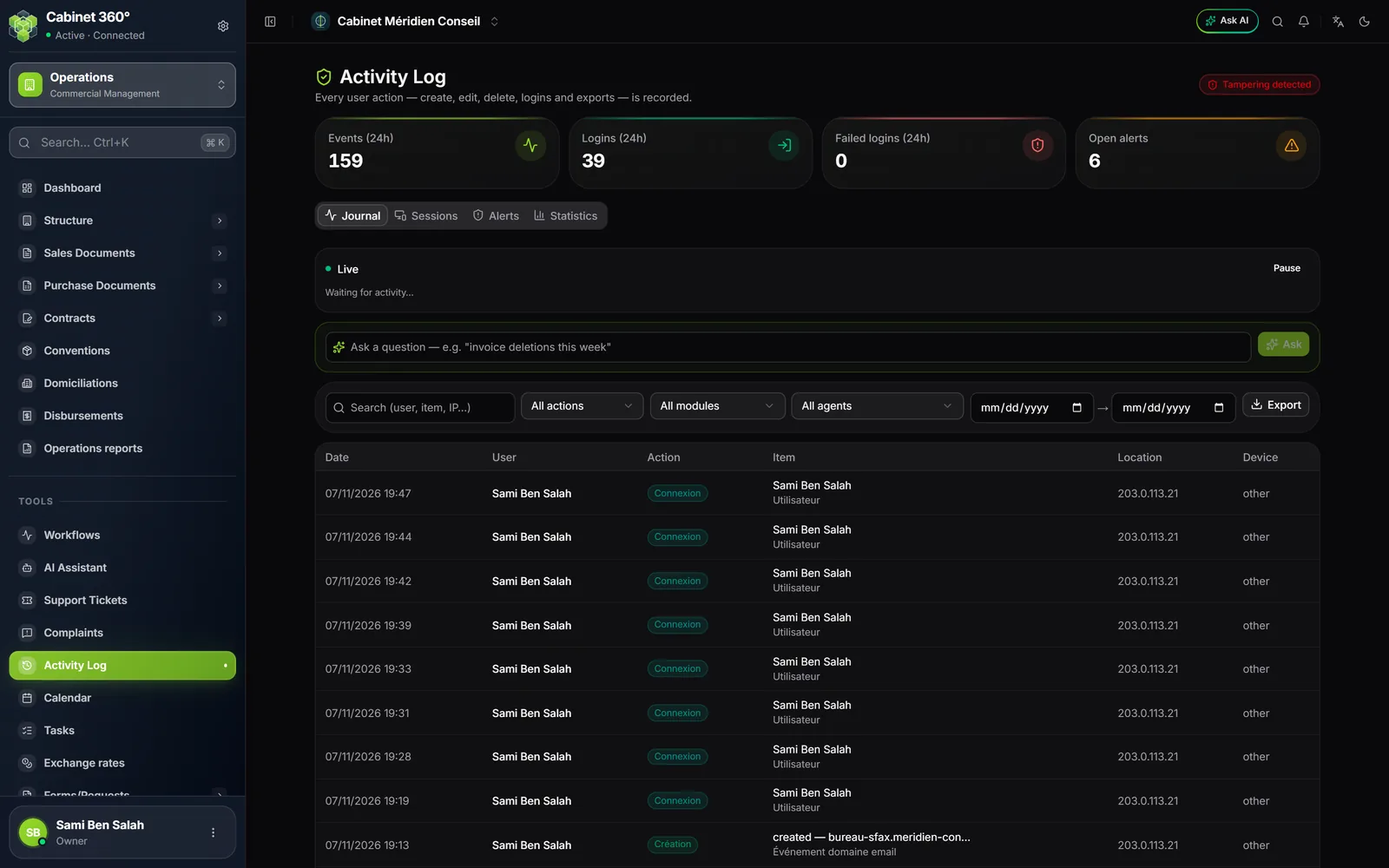
- The integrity badge: Integrity verified, or Verified (recent) when only the latest events have been checked.
- The counters: Events (24h), Logins (24h), Failed logins (24h) and Open alerts.
- The tabs: Journal, Sessions, Alerts, Statistics.
- The list, most recent first: date, user, action, item, location, device.
The Live block, below the tabs, shows new actions as they happen; Pause stops it, Resume starts it again.
Look for an action
Two ways to search, to combine if needed.
- With the filters: type in Search (user, item, IP…), then narrow with All actions, All modules, All agents and the two dates. In All modules, each kind of record carries its name: Lead, Client, Invoice…
- With a question: write for example "invoice deletions this week", then click Ask. Below the bar, a box says what the AI searched for ("Searched: …") and how many events match, then lists the first 30. If the question fails, a red line below the bar gives the reason: AI credits used up, too many questions in a row, AI switched off for the firm, a question with no usable filter, an impossible date.
Read an event's detail
Click a row: the Event detail window opens.
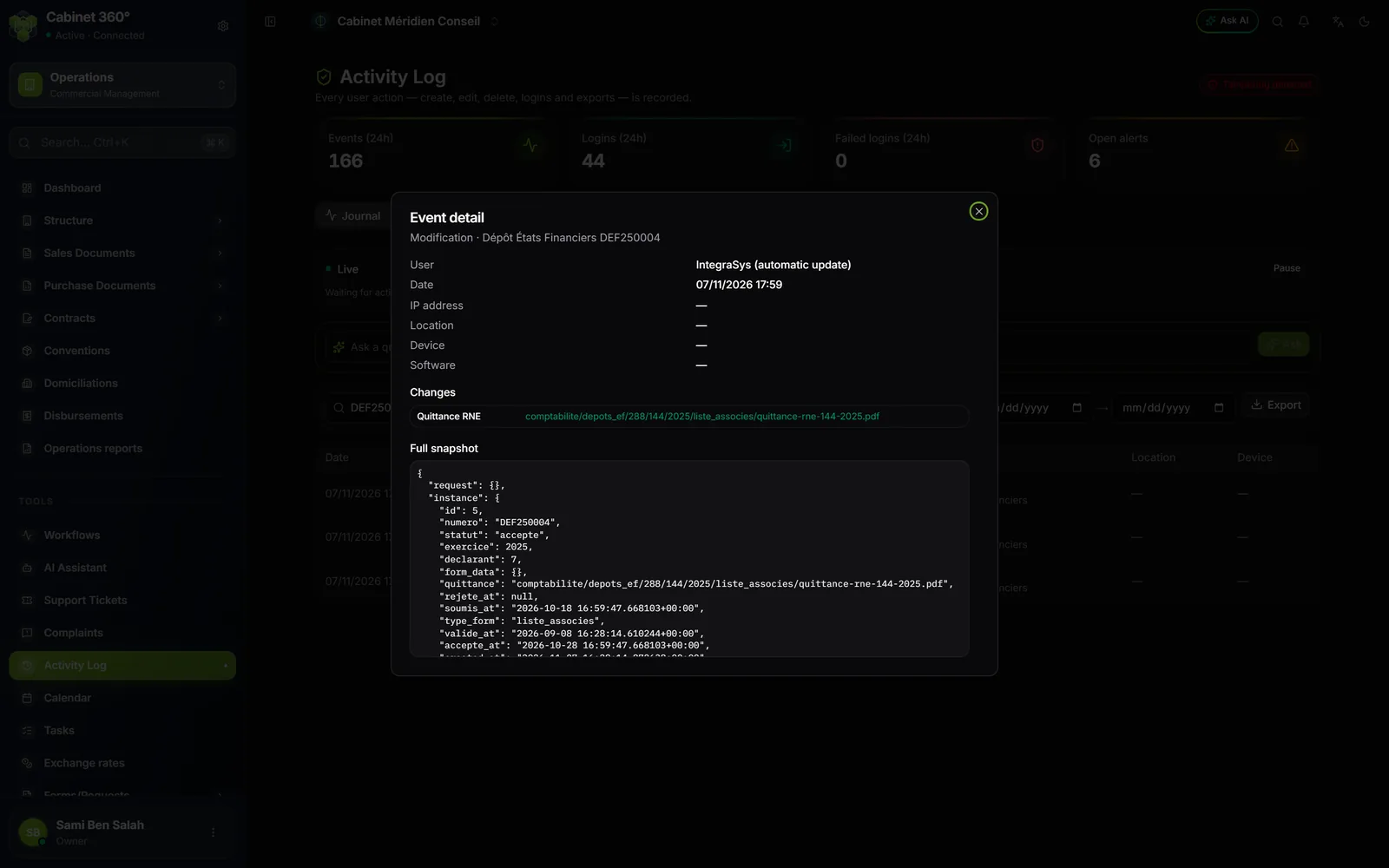
- The action and the item: for example, the change of a lead.
- Who, when, from where: user, date, IP address, location, device.
- The changes, under each field's name: the old value struck through, the new one in green.
- The full snapshot of the record at the moment of the action.
The full snapshot is erased after one year: the window then shows "snapshot purged". The log line and its field-by-field changes remain.
Export the log
Click Export, then CSV, Excel or PDF. The file follows the current filters; dates are written in the firm's time, dd/mm/yyyy hh:mm:ss in CSV and Excel, dd/mm/yyyy hh:mm in PDF.
An export is itself an action: it enters the log.
Sessions
The Sessions tab, kept for the owner and the administrators, shows member by member the sessions used in this firm. A session opened only for another firm does not appear.
- Click a card for Session replay: its actions are read again in order.
- The red bin Revokes the session, after confirmation: the user is signed out of that device on their next request.
Alerts and rules
The Alerts tab flags, among other things, a new device, an impossible journey or a burst of failed logins. The owner and the administrators:
- click Acknowledge, or Triage to choose the status (Open, Investigating, Resolved, Dismissed), the person in charge — a member of the firm's team — and a note;
- create the firm's alert rules, switch them on, change them; a rule's bin deletes it after confirmation;
- set the response to alerts: a firm can choose that a critical alert closes the sessions of the account concerned.
The login of a staff member who works for several firms enters the log of each of them, with its alerts.
The Statistics tab shows the activity of the last 30 days.
A record's history
To follow a single invoice, a single client, a single convention, open its record: the History card, at the bottom, lists each creation and change, with the old and the new value. It only appears for those who can view the log, in a firm that has the module.
Frequently asked questions
Do my staff know their actions are recorded?
Yes. On the first visit, on each browser, a banner reminds them, and everyone clicks Got it.
Can I erase a line of the log?
No, nobody can, not even the owner. This is what gives it its value as evidence.
The Sessions tab does not appear.
It is kept for the owner and the administrators, even for a role that ticks the log.