
Create a task
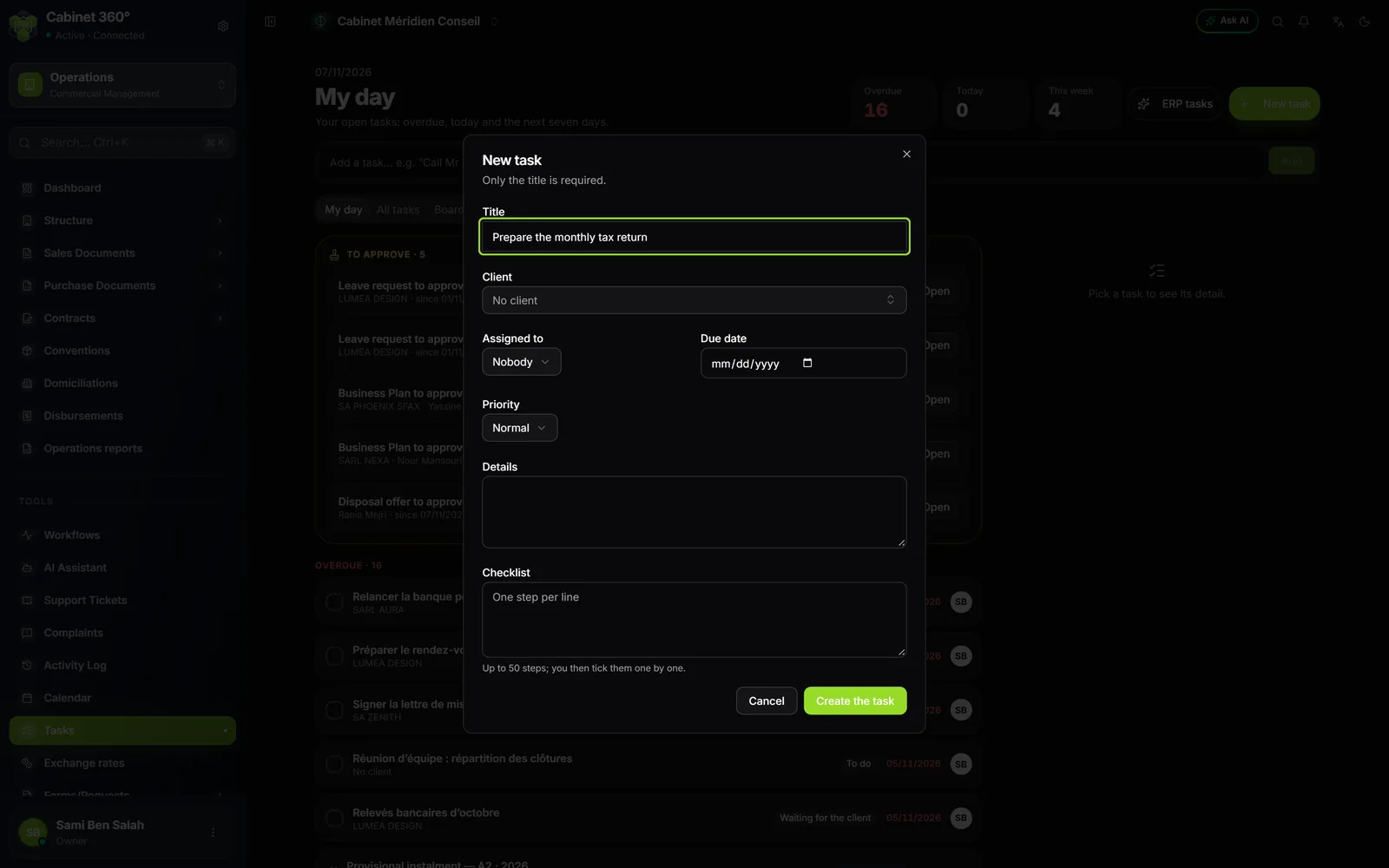
- In Tools › Tasks, click New task.
- Enter the Title.
- If needed, choose the Client, the person under Assigned to, the Due date and the Priority (Low, Normal or High).
- Write the Details, then, in Checklist, one step per line: up to 50.
- Click Create the task. The message "Task created" appears, and the task's record opens.
A task's record
The record opens to the right of the list, or on its own page when you arrive through a notification link; Back to tasks returns to the list.
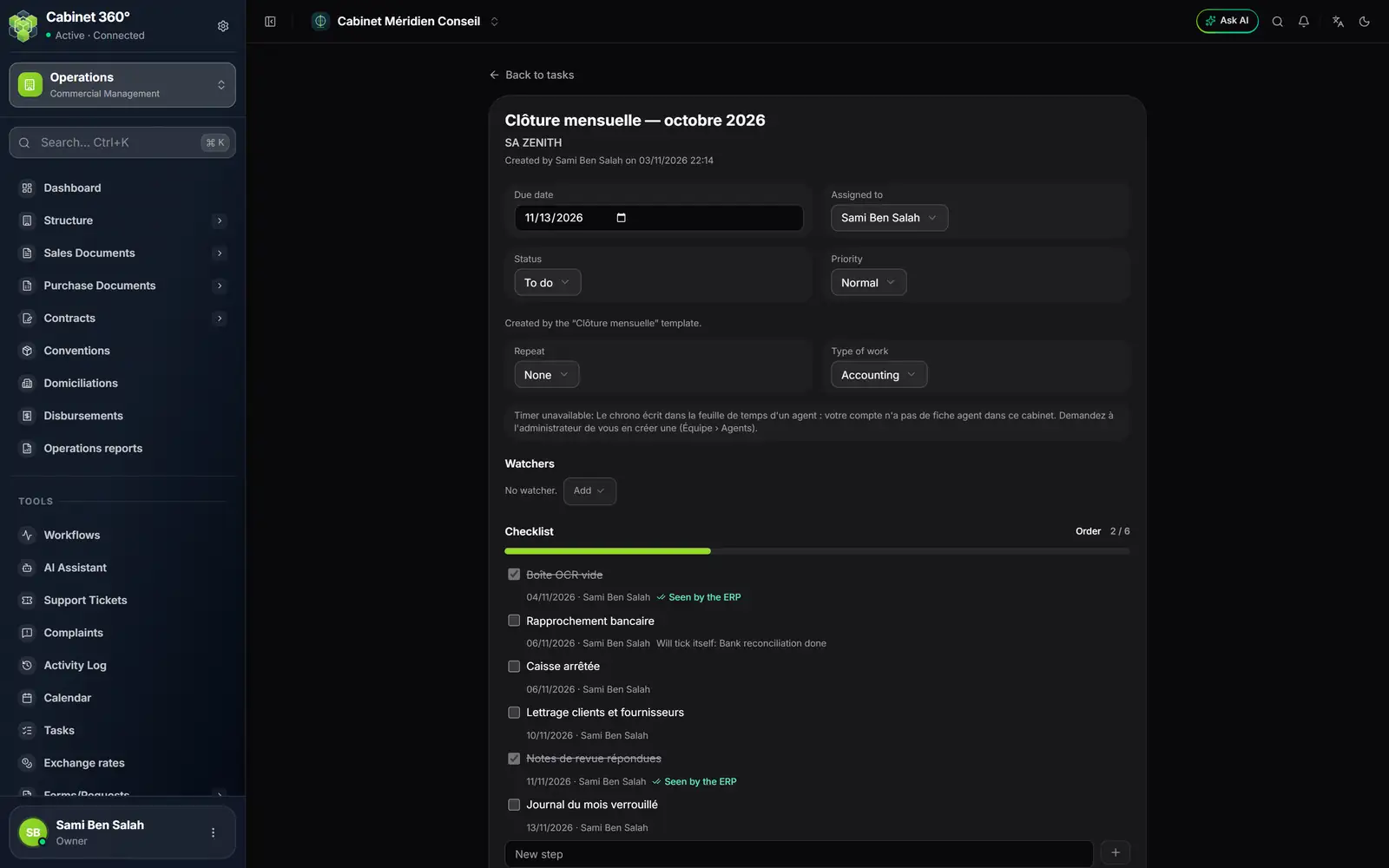
- 1. The title, the client, and who created it, when.
- 2. Due date and Assigned to: changed here, saved at once.
- 3. Status and Priority.
- 4. Created by the template: the task comes from a checklist template.
- 5. Repeat and Type of work.
- 6. The timer, or the reason it is unavailable (chapter 13).
- 7. Watchers: Add lets a colleague follow the task.
- 8. Checklist: the progress "2 / 6", and Order.
- 9. A step seen by the ERP: ticked by itself (chapter 11).
Due date, Assigned to, Status and Priority change directly: there is no save button. The four statuses are To do, In progress, Waiting for the client and Done.
The checklist
- Tick a step that is done: the progress bar and the "1 / 3" count follow.
- New step, at the bottom of the list, adds one.
- To impose an order, click Order, then choose under each step the one that must come first. A step stays greyed out until its prerequisite is done.
A step whose prerequisite is not ticked is refused: "Cette étape vient après « … » : cochez d'abord celle-ci." Conversely, you cannot untick a step that a ticked step depends on.
Comment and mention
Under Comments, write your message, then click Send. With Mention, choose a colleague: they are notified in the bell and become a watcher of the task — which is what lets them open it. You can only mention someone who sees the task's client.
Attach a file
Under Attachments, click Attach. A file is 4 MB at most, and programs (executable files) are refused. The file name keeps its accents on screen. Clicking the name downloads it.
Complete a task, and make it come back
Set the Status to Done, or click the round box of its row in the list. The record then shows "Done by … on …". If the task goes back to another status, this line disappears.
A task that comes back is set under Repeat: None, Every week, Every month, Every quarter or Every year. When it is done, the next one is created, only once, one period later: the due date moves by one period (31 January plus one month gives the end of February), and the checklist is copied, unticked.
Archive and restore
Click Archive, then confirm. The task leaves My day and the list, and moves to the Archived tab, where Restore brings it back. Nothing is erased.
- Archiving needs the Delete right on the Tasks screen; restoring needs the Edit right.
- An archived task can no longer be changed, nor its steps, comments or attachments: "Cette tâche est archivée : restaurez-la avant de la modifier."
A task linked to an ERP screen
A task can carry the link of an ERP screen: the invoice, the lead or the agreement that gave rise to it. Its record then shows Open the linked screen. This is the case for tasks created by a CRM automation, which point to the record that triggered them (chapter 13). Such a link always leads to an IntegraSys screen, never to an outside website.
A client's tasks, on their record
On a client's record, the Tasks tab gathers the work in progress.
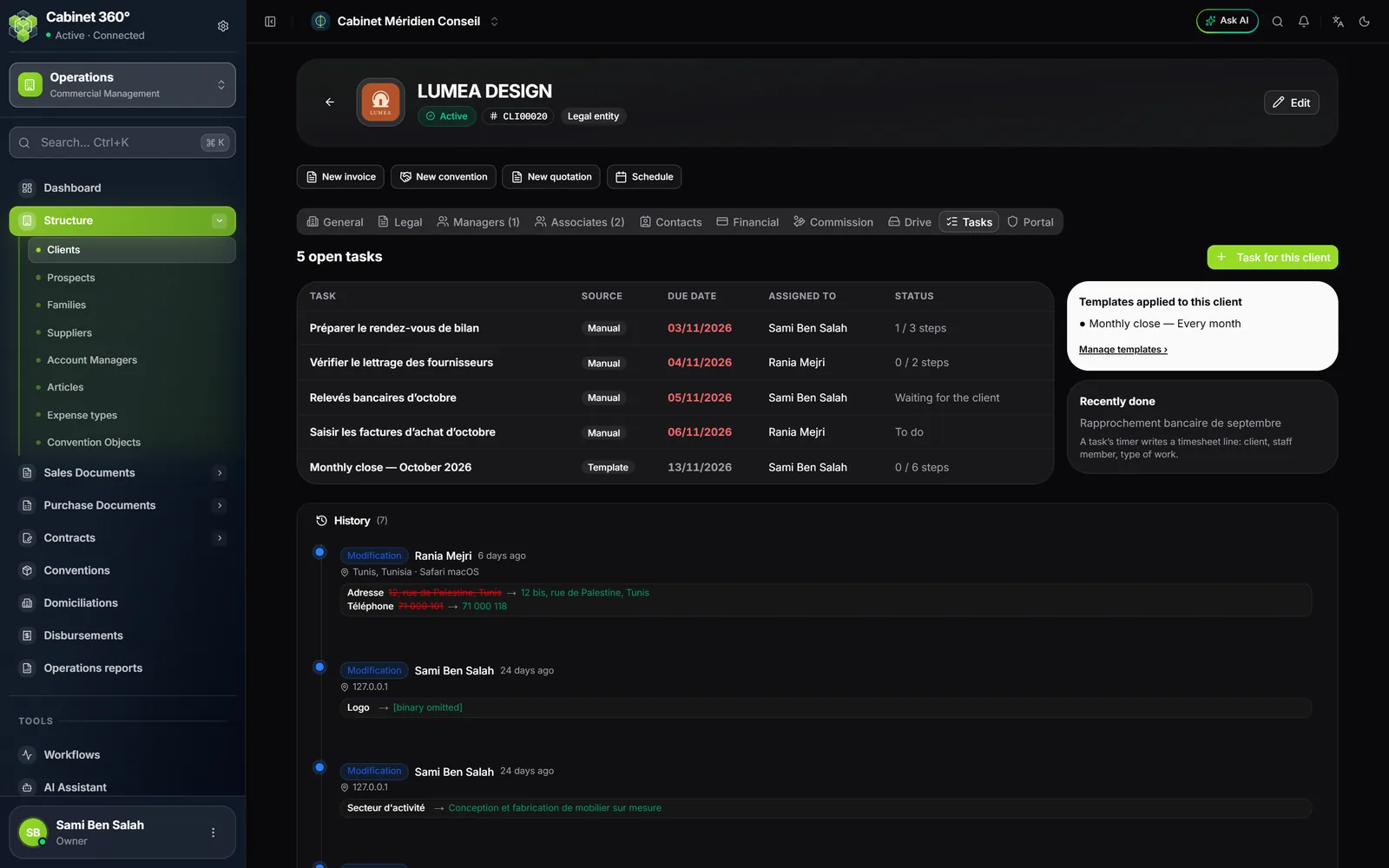
- Task for this client opens the window with the client already chosen.
- The open tasks show their source (template or manual), due date, person and steps done.
- Templates applied to this client, with Manage templates ›, and Recently done.
The tab shows at most 50 open tasks and the last 10 done. Applied templates appear only for those who see the client.
Frequently asked questions
The Archive button does not appear.
You need the Delete right on the Tasks screen. A member without a custom role does not have it: ask your administrator.
"Task not found: it does not exist, or you have no access to it."
You are neither the assignee, nor a watcher, nor the author, and you do not see its client's file. Ask a colleague to add you as a watcher.
Can I give a task to a portal client?
No. A task is given to a member of the firm's team. To ask for more on a document the client uploaded on their portal, make the request for additional documents from the OCR inbox: until the client replies, it appears in My day under Requests to the client (chapter 12).