
What a ticket is for
Tickets are for the requests of your own clients: a question, an intervention, a consultation. The client can open it themselves from their portal, if the firm has the Client portal module, or you open it for them. To write to the IntegraSys team, use another page: Complaints (chapter 5).
The list of tickets
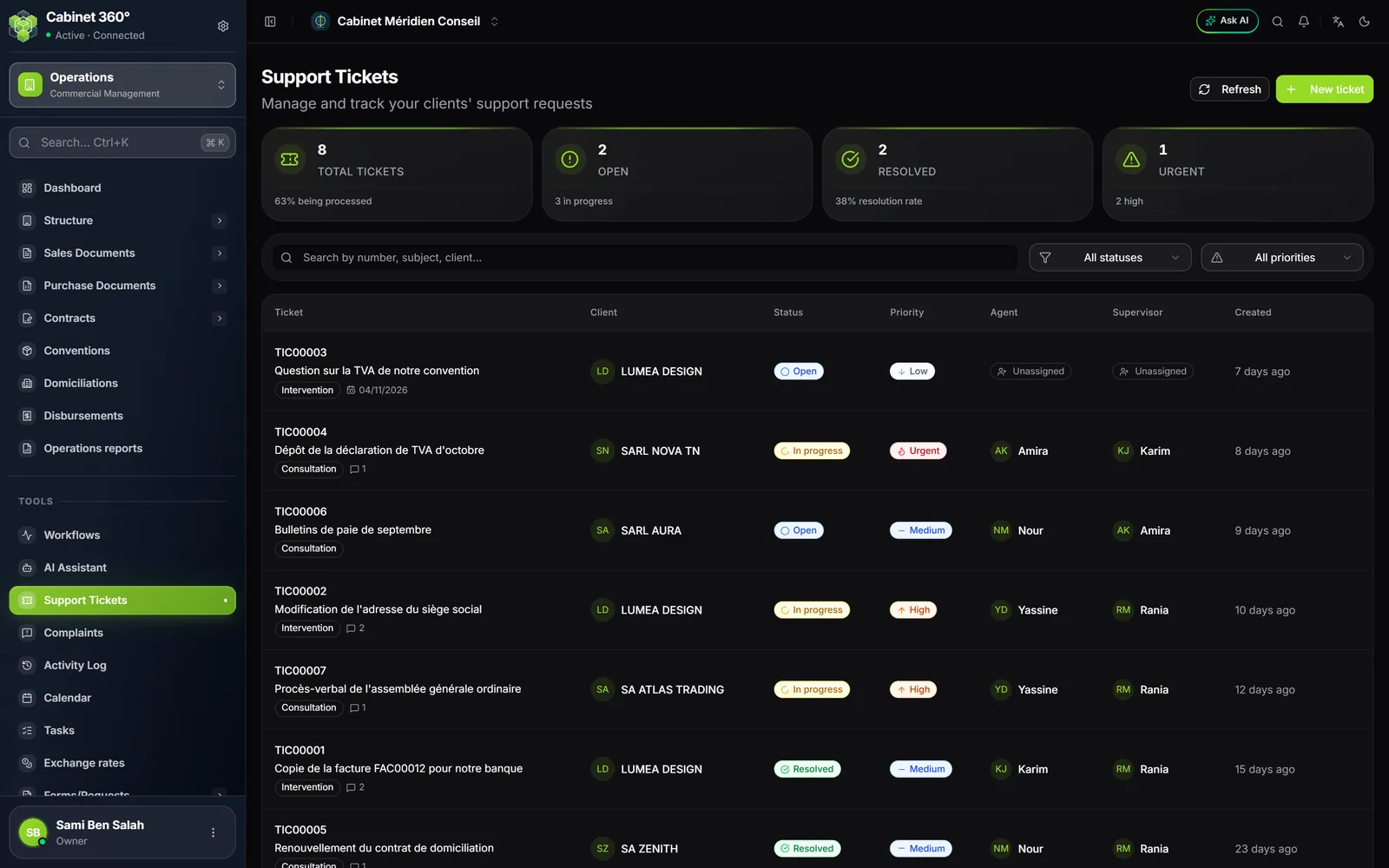
- New ticket opens the form; Refresh reloads the list.
- The search covers the number, the subject, the client and the description; the filters cover status and priority.
- A click on a ticket's status badge changes it; a click on the Agent or Supervisor cell assigns them.
The four counters cover all of the firm's tickets, whatever the search and the filters:
| Counter | What it counts | Its second line |
|---|---|---|
| Total tickets | all tickets | the share of tickets Open or In progress |
| Open | tickets with the status Open | the number of tickets In progress |
| Resolved | tickets with the status Resolved | the resolution rate, which also counts Closed tickets |
| Urgent | tickets with Urgent priority, closed ones included | the number of High priority tickets |
The list shows 20 tickets per page. A row gives the number, the subject, the type, a Quote badge when a quotation is linked, the number of comments and the deadline. A click on the row opens the ticket; the ⋯ menu offers View details and Edit.
Create a ticket
- Click New ticket.
- In Client & Quote, choose the Client. Only active clients are offered. Once the client is chosen, Associated quote (optional) lists their quotations: choose one if the request calls for one.
- In Ticket details, enter the Subject and the Description, then choose the Intervention type: Intervention, Consultation, Assistance, Maintenance or Other. With Other, Specify the type becomes required.
- If needed, add the Location and the Deadline.
- On the right, set the Priority: Low, Medium (at first), High or Urgent. Under Assignment, choose the Responsible agent and the Supervisor, among the active agent records.
- Click Create ticket. A message confirms the creation with the ticket's number, and the ticket opens.
A new ticket is always Open. Its number comes from the firm's ticket numbering series: if you never set one up, IntegraSys creates it with the prefix TIC (TIC00001, TIC00002…). Tickets opened from the portal follow the same series.
A ticket's page
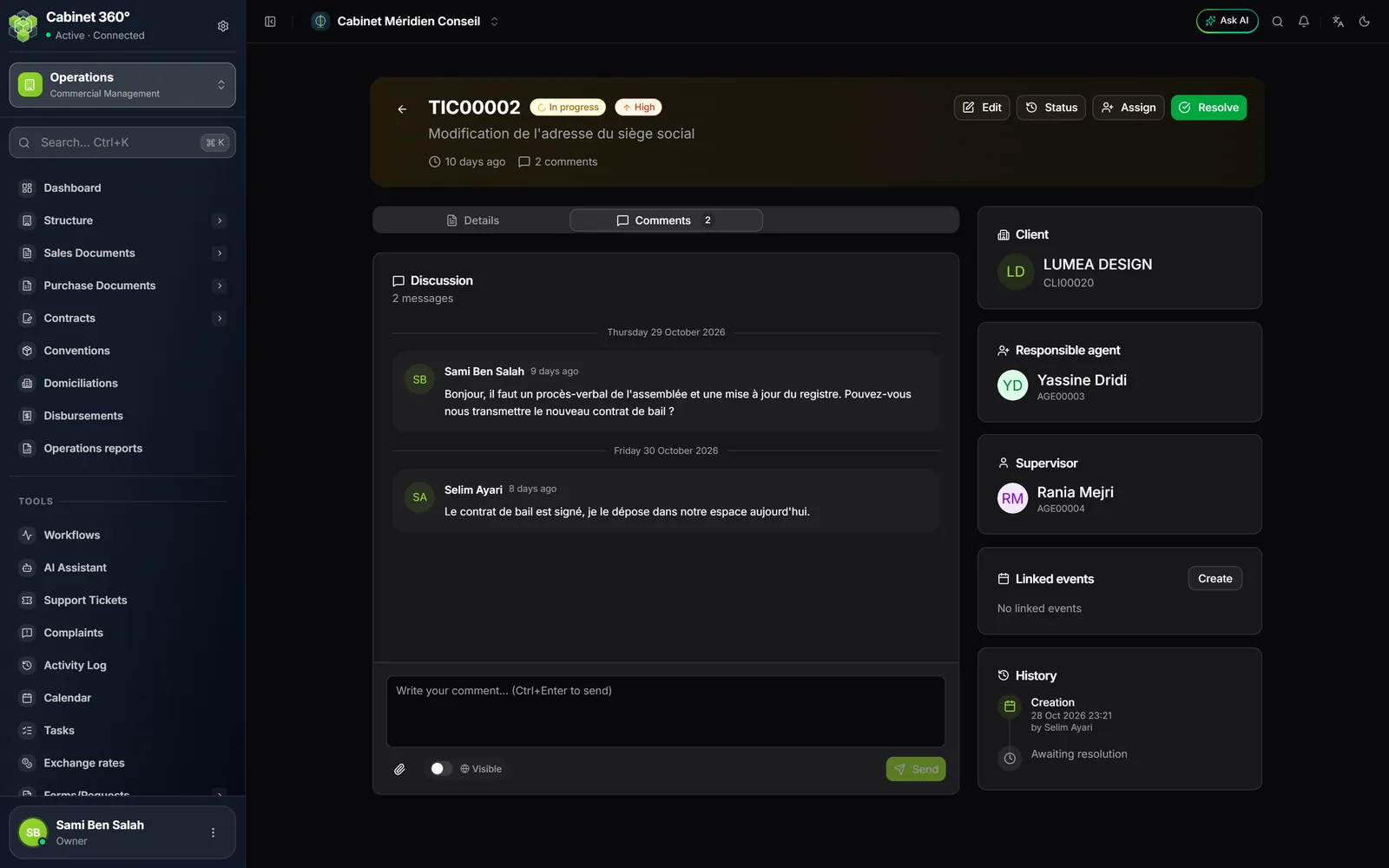
The header gives the number, the status, the priority, the subject, the deadline, the location and the number of comments. The buttons depend on the status:
| Ticket status | Buttons |
|---|---|
| neither Resolved nor Closed | Edit, Status, Assign, Resolve |
| Resolved | Edit, Reopen, Close |
| Closed | Edit, Reopen |
- Status opens the Change status window: choose the new status among the six (Open, In progress, Pending client, On hold, Resolved, Closed), then confirm.
- Resolve opens a window: write the resolution notes if needed (optional), then click Mark as resolved. The resolution date is recorded.
- Reopen puts the ticket back to Open and clears the resolution date.
Three tabs: Details (the description, the type and, once resolved, the resolution notes), Comments, and Quote when a quotation is linked — it then opens first. On the side, the cards Client, Responsible agent, Supervisor, Associated quote, Linked events and History (creation, then resolution or "Awaiting resolution").
Comment: for the client or internally
The Discussion card gathers the exchanges. Below the text box, a switch chooses who reads it:
- Visible: the client reads the comment in their portal;
- Internal note: only the firm sees it, with the Internal badge on an amber background.
The switch goes back to Visible after each send: check it before each internal note. Attach a file adds an attachment (PDF, Word, Excel or image, 4 MB at most), which follows its comment's choice. A text is always required, even with a file. Click Send, or press Ctrl + Enter.
Correct the ticket
Edit opens the edit page: subject, description, type, location, deadline, then, on the side, status and priority, and the assignment (with buttons to remove the agent and the supervisor). The resolution notes appear there only once the ticket is resolved or closed. The save button stays greyed out while nothing has changed. On this page, in English, the type, status and priority are still shown in French.
The ticket's quotation
When a quotation is linked, the Quote tab lets you complete it without leaving the ticket: Add an article (article, quantity, unit price excluding tax, VAT rate), correct a designation or a quantity, read the totals excluding tax, VAT, Stamp duty if there is one, and including tax. The save button appears as soon as a line changes.
Each line added takes the VAT rate of its article's record, and the totals are those of the server.
The deadline in the calendar
As soon as a ticket has a Deadline, IntegraSys puts a one-day event in the calendar, titled « Échéance: » followed by the subject (in French). Its colour follows the priority (red for urgent, orange for high, blue for medium, green for low). It moves with the date, and disappears if you remove the deadline.
In the calendar, the ticket deadlines switch also shows tickets' deadlines in red; a click opens the ticket (chapter 7). To plan something else around the ticket — an appointment, a hearing —, click Create in the Linked events card: the calendar form opens with the client and the ticket already chosen.
The client and their portal
From their portal, the client opens a ticket with a subject, a description, a category (legal, tax, social, accounting, administrative or other) and a priority. The ticket arrives in your list, Open, with no agent.
- The client sees their tickets, their description, their deadline and the visible comments, with their files. They see neither the internal notes, nor the agent, nor the supervisor.
- They reply and attach files as long as the ticket is neither Resolved nor Closed. After that, their portal tells them they can no longer reply.
- When they reply, the firm's bell shows « Réponse du client : TIC… — » followed by the subject (in French), and a ticket Pending client goes back to In progress. As long as this notification is unread, their next replies on the same ticket add no other.
A portal account opens at most 20 tickets an hour, and sends at most 60 comments or files an hour.
Who is notified
- A new ticket shows « Nouveau ticket: » followed by the subject in the bell of the firm's members, or « Ticket urgent: » if it is urgent (these notifications are written in French).
- An urgent ticket saved again repeats the « Ticket urgent » alert, at most once every 24 hours.
- Assigning an agent notifies nobody: tell the agent, or rely on My day. With the Tasks module, an open ticket where you are the responsible agent appears there, read-only (chapter 12).
Rights
| Action | Right on the Support Tickets screen |
|---|---|
| Read the list and the tickets | View |
| Create a ticket, change its status, resolve it, close it, reopen it, comment, attach a file | Create |
| Save the Edit page, assign the agent or the supervisor | Edit |
| Save the ticket's quotation | Create, plus Invoices › Edit |
No screen deletes or archives a ticket: a finished ticket is Closed.
Frequently asked questions
Saving the quotation is refused.
You lack the Edit right on invoices, or the quotation is no longer Draft. The server's message says which.
I can no longer find a ticket.
Check the status and priority filters, and clear them. The search covers the number, the subject, the client and the description.
The client says they do not see my reply.
It was probably sent as an Internal note: its Internal badge shows it. Write again with the switch on Visible.