
Before you start
- The Workflows entry and its management figures need the Dashboards right (chapter 2). The owner and the administrators have it by default.
- The page's lists read the modules they sum up: you need to be able to view invoices, quotations and pre-invoices to see them.
- A member who reaches the page without the Dashboards right reads a message that says so: they keep the Needs Attention and Pipeline tabs, and the wizard, without counters or anomalies.
The counters
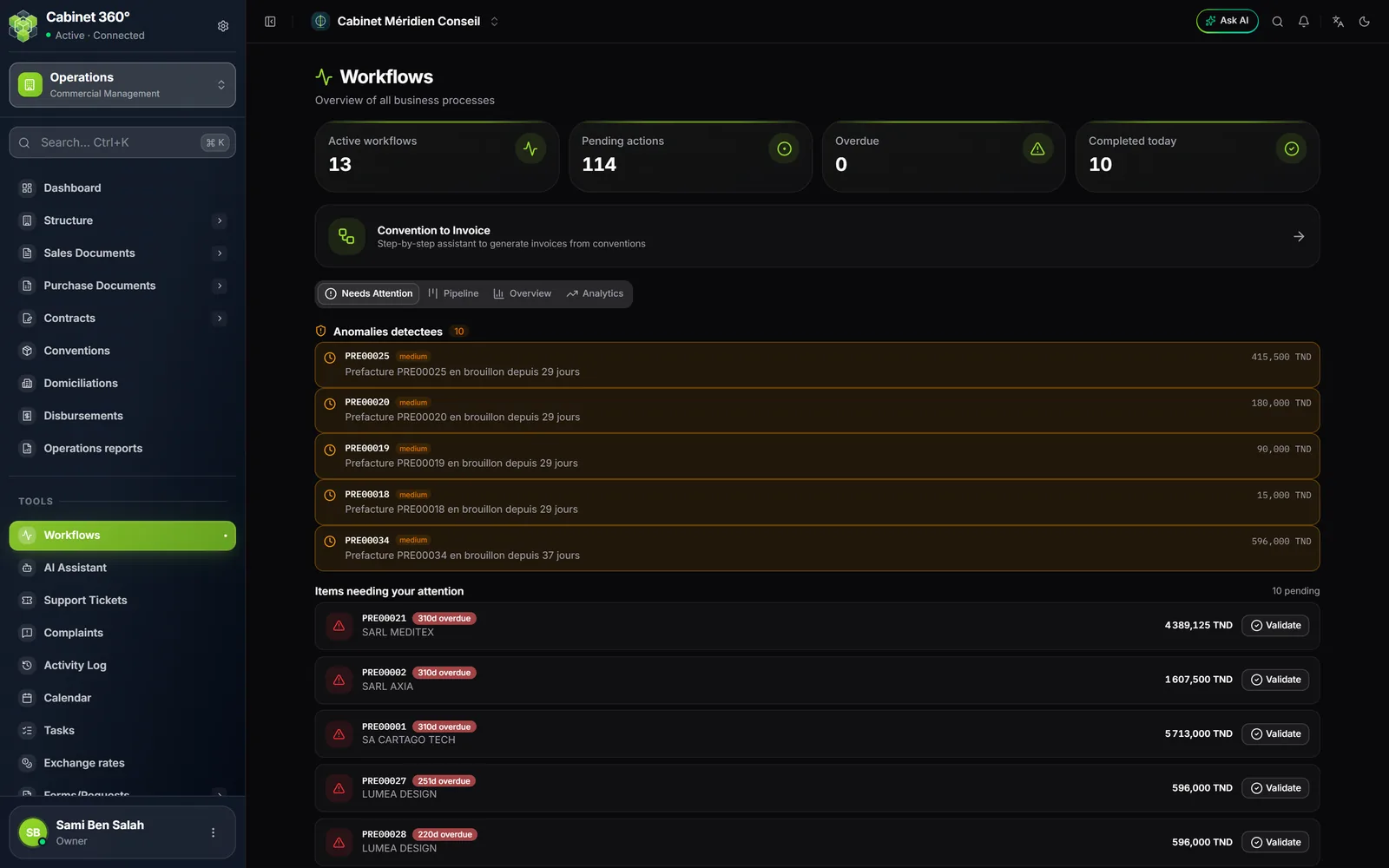
At the top of the page, four counters refresh every minute.
| Counter | What it counts |
|---|---|
| Active workflows | the number of processes followed: 13 |
| Pending actions | the sum of what is waiting in each process: draft or overdue invoices, draft or validated quotations and pre-invoices, conventions in progress (those expiring within 30 days count twice), draft purchases, open cash sessions, low or out-of-stock items and inventories in progress, minutes in draft or in progress, subscriptions expiring within 7 days or on trial, your unread notifications. Tickets are not counted (defect reported) |
| Overdue | Validated, Sent or Partially paid invoices whose due date has passed |
| Completed today | despite its name, the number of paid invoices, whatever their date |
Three kinds of anomalies
Below the counters, a block flags anomalies, each with a link to its document:
- an invoice more than 30 days past its due date;
- a pre-invoice still in draft whose date is more than 15 days old;
- a convention in progress that expires within 30 days.
The badge counts the anomalies found, at most ten of each kind; the first five are shown. The block's texts are written in French only.
Needs Attention: what is waiting for action
The Needs Attention tab, open by default, lists at most ten items, from the most overdue to the least:
- the five Validated invoices not yet sent with the nearest due dates;
- draft pre-invoices, starting with those whose date has passed.
An overdue row carries a "{days}d overdue" badge, counted in days since the invoice's due date or the pre-invoice's date.
- On a pre-invoice, Validate moves it from draft to validated.
- On an invoice, Send moves it to the status Sent.
When nothing is waiting, the tab shows "All caught up!".
Pipeline: documents by status
The Pipeline tab sorts documents into columns, for three sub-tabs:
| Sub-tab | Columns |
|---|---|
| Invoices | Draft, Validated, Sent, Partial, Paid |
| Quotations | Draft, Validated, Converted |
| Pre-invoices | Draft, Validated, Invoiced |
Each column shows its number of documents and loads the first 50; its total in dinars only covers those 50.
Click a card: a panel gives the client, the amount including tax, the date, the due date and the amount left to pay, with the buttons its status allows.
| Document and status | Buttons |
|---|---|
| Draft invoice, quotation or pre-invoice | Validate, Cancel |
| Validated invoice or quotation | Send, Cancel |
| Validated pre-invoice | Cancel |
| Sent or partially paid invoice | Mark as paid |
- Validate gives an invoice its number and today's date; a quotation or a pre-invoice keeps the number it received when saved.
- Cancel an invoice is only possible while no payment is recorded.
- Mark as paid records no payment: it is refused while something is left to pay (« Enregistrez les paiements d'abord », a French server message). Payments are entered on the invoice or in the cash register.
To validate several documents, tick their cards: a bar counts the selection, and Validate all validates them one by one after confirmation. Then check each column: a refused document simply stays where it was.
These actions need the Create right on the document's screen (invoices, quotations or pre-invoices).
Overview: the thirteen processes
The Overview tab shows one card per process: Invoices, Quotations, Pre-invoices, Conventions, Purchases, Cash, Stock, Clients, Attendance, Legal, Support, Subscriptions and Notifications. Each card gives the number of items pending, its steps with their count (for invoices, for example: Draft, Validated, Partial, Paid) and a Progress bar. View details opens the module; View diagram opens the process diagram. The Support card currently shows zero everywhere, whatever your tickets (defect reported): follow them in Support Tickets.
A process diagram
The diagram draws the process from Start to End, step by step, with each step's count. In the process steps, a step that has a filter opens the module's list already filtered, for example draft invoices. The Previous and Next buttons, or the ← and → keys, move from one process to another. For invoices, pre-invoices and conventions, Start wizard opens the wizard below.
Analytics
The Analytics tab gives four indicators (amount invoiced, collection rate, use of conventions, total unpaid), the aged receivables by 30-day band, a bar of the revenue pipeline (conventions, pre-invoices, invoices, collected, remaining) and a 90-day cash forecast, week by week. Its labels are in French only.
The Convention to Invoice wizard
The wizard takes a convention all the way to its invoice, in four steps. It opens from the link at the top of the page, or through Start wizard. It does not need the Dashboards right, but the Pre-invoice and Invoice numbering series must exist: otherwise a reminder appears and the button concerned stays greyed out.
- Select a convention: only conventions in progress (shown as active) are offered. Search by number or client.
- Generate pre-invoices: IntegraSys creates one draft pre-invoice per period of the convention, and the convention moves to Pre-invoiced. It needs the Edit right on conventions, and signatories filled in on the convention. While the wizard stays open, the regenerate button deletes the pre-invoices still in draft and makes a new set, after confirmation.
- Validate pre-invoices: Validate on each row, or Validate all, which stops at the first refusal.
- Convert to invoices: confirm with Yes, convert, then IntegraSys creates one invoice, as a draft, grouping all the validated pre-invoices, with at most one stamp duty (none if the client is exempt). The pre-invoices move to Invoiced.
Frequently asked questions
The Workflows entry is not in my menu.
You lack the Dashboards right. Ask your administrator to tick the Workflows screen in your role.
A sent quotation disappeared from the Pipeline.
The quotations pipeline has no Sent column: a sent quotation no longer appears there. Find it in the Operations list of quotations.
Needs Attention shows "All caught up!" although invoices are overdue.
The tab only lists Validated invoices not yet sent, and draft pre-invoices. Overdue invoices that were sent are counted in Overdue, and in the anomalies beyond 30 days late.