
Nothing is copied
An ERP task is never a copy: it is worked out again each time My day is read, from the module that holds it. When a colleague files the return in the tax module, it leaves everyone's day, without anyone having to tick it. The module remains the only place where the work is done.
You only see the tasks of modules the firm has and that you are allowed to open. A firm that only has accounting sees the documents to check and the review notes, not the tax deadlines.
What the ERP watches
| Kind of task | What creates it | It closes by itself when |
|---|---|---|
| Tax deadlines | the tax follow-up returns to file, at their due date moved to a working day | the return is filed, or marked not applicable |
| Tax office | a letter from the tax office waiting for your reply, with its deadline | the reply is attached to the letter, or the case closed |
| Legal | a notice of meeting to send before the meeting, minutes to draw up after it | the notice is sent, or the minutes drawn up |
| Agreements | an agreement expiring within 30 days without renewal | it is renewed, terminated or archived |
| Domiciliations | a domiciliation expiring within 30 days without automatic renewal | it is renewed, terminated or archived |
| Review notes | the open notes of a file whose team you are on, one row per file | all the file's notes are dealt with |
| Audit | the internal control sections of an engagement to check or review | each section is checked, or reviewed |
| OCR inbox | the documents read by OCR that wait for your check | the file's inbox has nothing left to check |
| Client portal uploads | the documents the client has uploaded on their portal | each document is posted, set aside or replaced |
| Requests to the client | requests for additional documents already made, waiting for the client's reply | the client replies, or the request is withdrawn |
| Loans | a loan instalment of a file coming up, or past without follow-up | the instalment is followed up as "paid" |
| CRM | your open CRM activities | the activity is completed in the CRM |
| Tickets | your open tickets, where you are the agent | the ticket is resolved or closed |
A tax, loan, CRM or ticket deadline only appears 30 days before its date, and no longer shows once it is more than 60 days late. An overdue tax office letter stays on screen as long as the reply is missing. Tasks without a date (OCR inbox, uploads, review notes, audit) stay as long as the work is waiting. For a Request to the client, the "requested by" date you gave the client serves as the due date: once passed, the task is overdue.
Who an ERP task goes to
- To the person the module names, if they are still on the team: whoever created the notice of meeting, whoever made the request to the client.
- Otherwise, to the team of the client's accounting file.
- A client without a team goes back to management — owner, administrators and managers — and to staff whose grade opens every file (supervisor, manager, partner), so that nothing falls through the cracks.
Read an ERP task
In My day, click a row that carries the name of a module: its detail opens on the right.
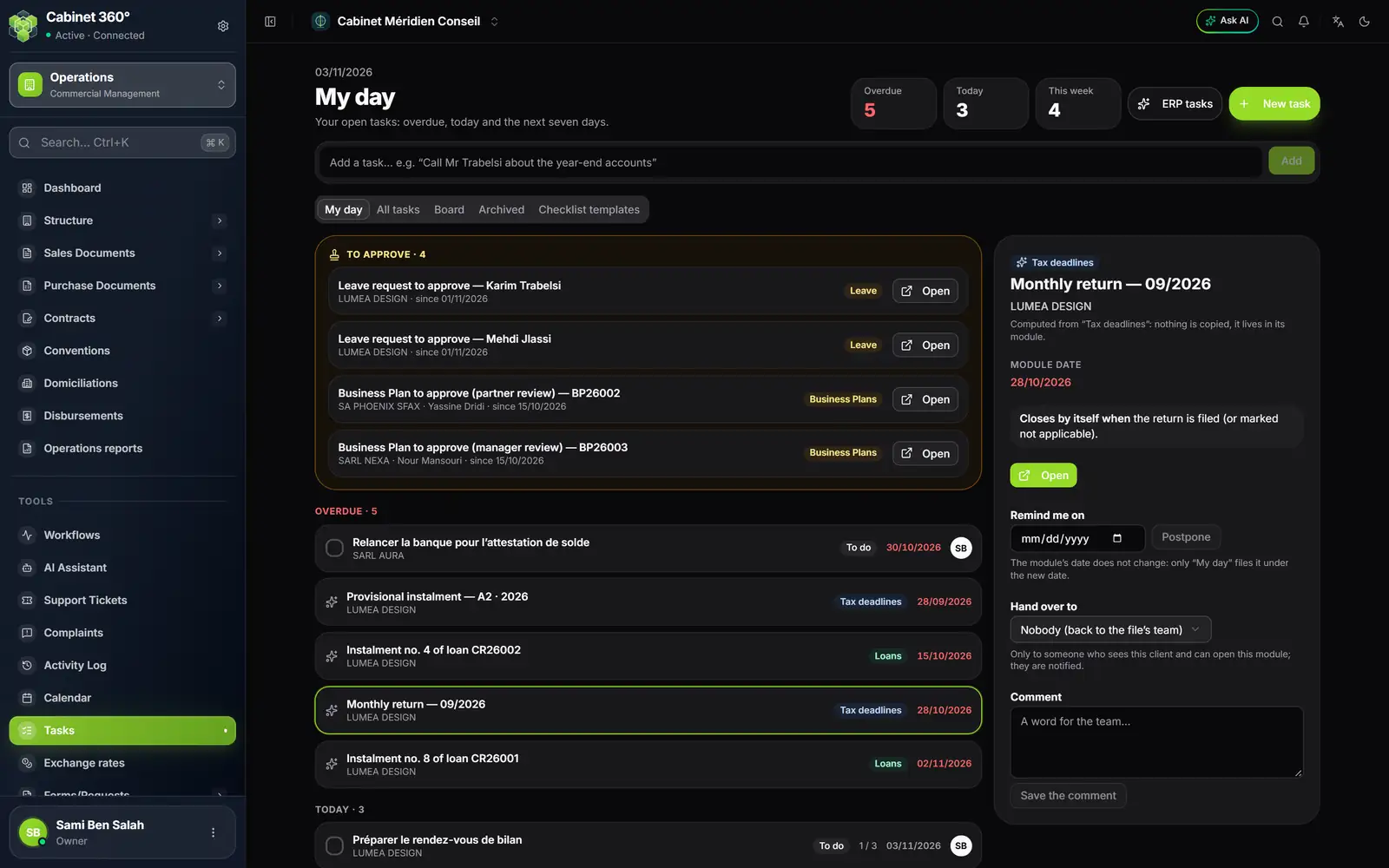
- 1. Where it comes from: here, Tax deadlines.
- 2. Module date: the due date as the module holds it.
- 3. Closes by itself when: what will make it disappear.
- 4. Open: the module screen that does the work.
- 5. Remind me on, then Postpone.
- 6. Hand over to: a colleague who sees this client.
- 7. Comment, then Save the comment.
- 8. The chosen row, with its module and date.
Act on an ERP task
- Open: you land on the module's screen. Once the work is done, the row disappears from My day.
- Remind me on: choose a date, today or later, then Postpone. The module's date does not change: only My day files the task under the new date. Cancel the postponement puts it back.
- Hand over to: choose a colleague. Only someone who sees this client and can open this module can receive it, and they are notified in the bell. Nobody (back to the file’s team) cancels that choice.
- Comment: a word for the team, then Save the comment.
The To approve block
At the top of My day, the To approve block gathers the requests waiting for your decision:
| Kind | What it gathers |
|---|---|
| Leave | leave requests of your HR files, to approve |
| Portal payroll entries | payroll entries sent through the client portal, to approve |
| Fixed assets | the approval requests you can decide now |
| Business Plans | the business plans submitted for your review |
Click Open to decide in the module. These rows have no date: they are not deadlines. An HR request goes to the team of the HR file that can decide, and failing that to the administrators.
Switch a kind of task off
- Click ERP tasks, at the top of the page. The Tasks created by the ERP window explains each kind of task.
- Switch a kind off to remove it from My day, across the whole firm. The module itself is not changed.
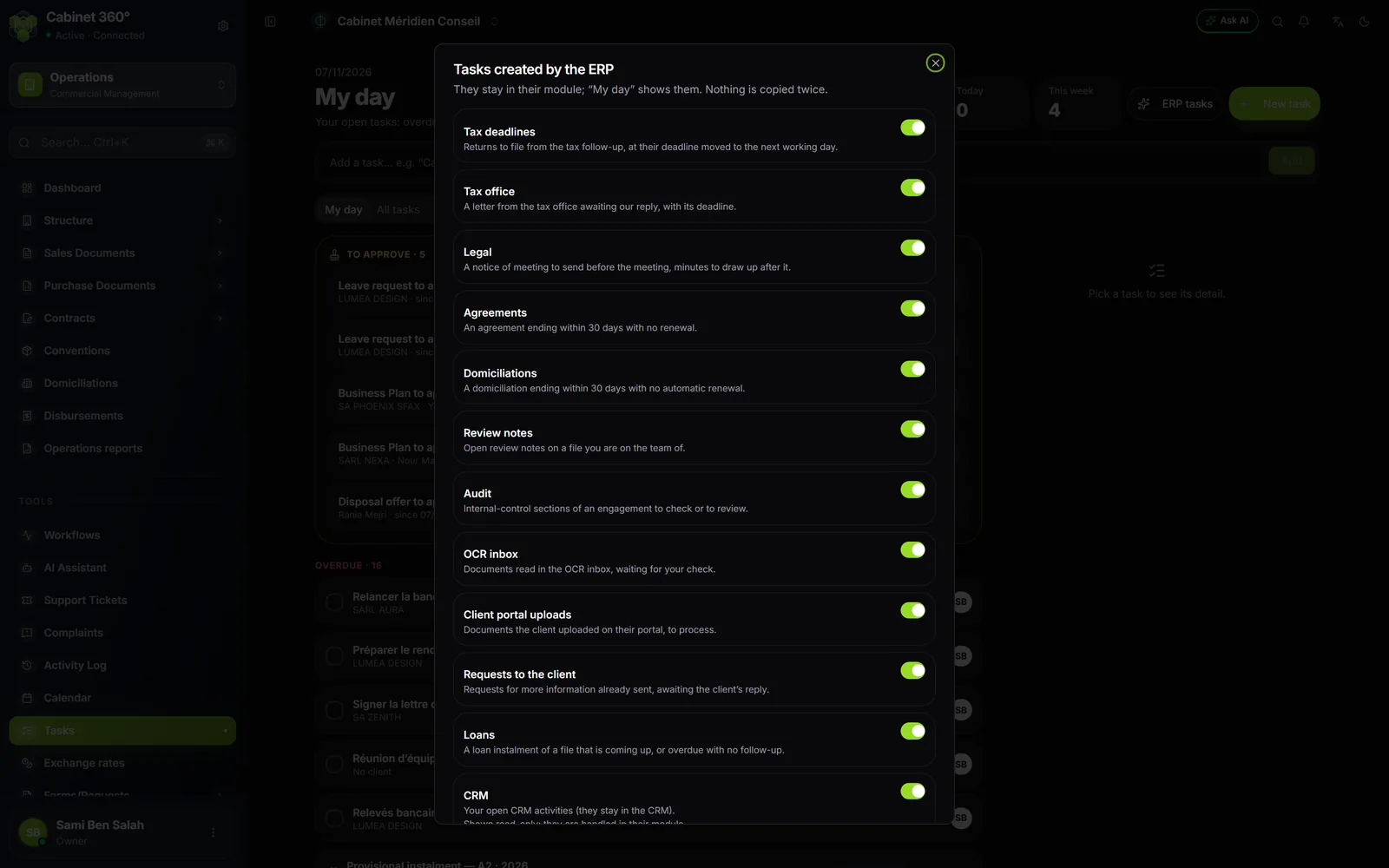
Only the owner and the administrators can switch a kind off or on again. For another member, the switches are greyed out and the window says so: "Only the firm’s owner and administrators change these settings." A kind you cannot open shows "You cannot open this module: these tasks do not appear in your day."
Frequently asked questions
An ERP task disappeared although nobody touched it.
Check in the module: a colleague may have done the work there. A tax, loan, CRM or ticket deadline may also be more than 60 days late.
The page says "These ERP tasks could not be read right now".
A module did not answer. It is named in the message, and the rest of the day displays normally. Reopen the page a little later.
I cannot see a module's tasks.
You lack the View right on that module's screen, or the kind is switched off in ERP tasks. Ask your administrator.