
Before you start
- You need the Tasks module and the View right on the Tasks screen.
- If Tasks is not in your menu, the firm does not have the module, or your role does not tick the screen (chapter 2).
The My day screen
The page opens on the My day tab, dated today.
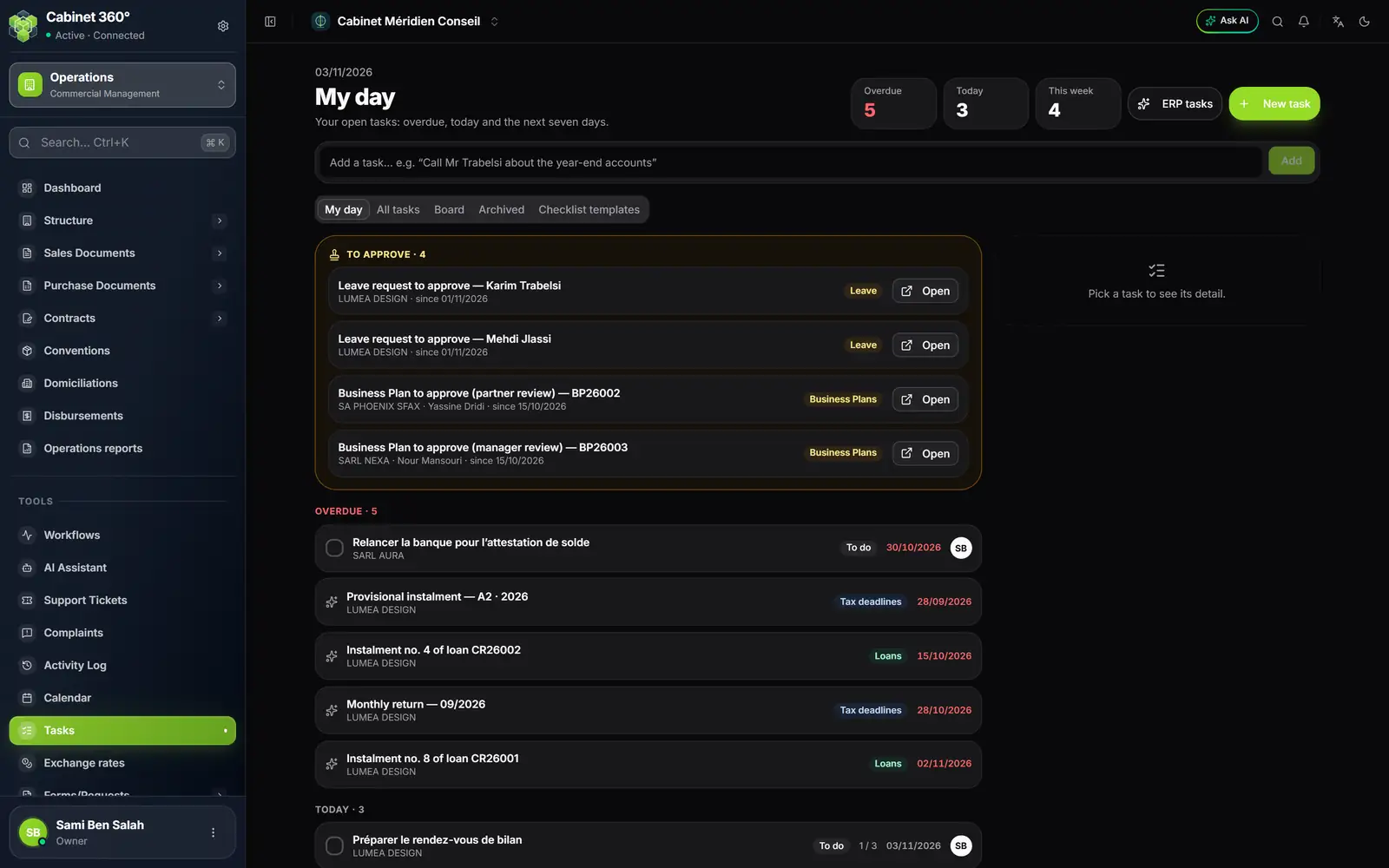
- 1. The counters: Overdue, Today, This week.
- 2. ERP tasks: the kinds of tasks the ERP brings (chapter 12).
- 3. New task: the full form (chapter 9).
- 4. Quick add: one line, then Add.
- 5. The tabs: My day, All tasks, Board, Archived, Checklist templates.
- 6. To approve: requests waiting for your decision.
- 7. A written task: a round tick box, its status, its date, its initials.
- 8. An ERP task: a sparkle icon and the name of the module that brings it.
- 9. The detail of the chosen task opens here.
Read the day from top to bottom
- To approve gathers the requests waiting for your decision: leave, payroll entries from the portal, fixed assets, business plans. Open takes you to the screen where the decision is made.
- Overdue: the due date has passed.
- Today: the due date is today.
- This week: the next seven days.
- Later, then No due date.
An empty group does not appear. Days are the firm's days.
Two kinds of rows
| The row | Where it comes from | How it closes |
|---|---|---|
| A round tick box, a status, initials | a task written by a person, by hand or by a template | when someone completes it |
| A sparkle icon and the name of a module, such as Tax deadlines or Loans | a task the ERP works out from your files | by itself, when the work is done in the module |
Click a row: its detail opens on the right. On a phone, it opens below the list and the page scrolls down to it.
Complete a written task
Click the round box at the start of its row. The task moves to Done and leaves My day; it stays in All tasks, where the same box reopens it.
Note a task in one line
Type in the Add a task… bar, for example "Call Mr Trabelsi about the year-end accounts", then click Add. The task is yours; it lands under No due date, and its detail opens on the right so you can give it a date, a client or a person.
The other tabs
- All tasks: every task you are allowed to see, 25 per page. Search by task or client in Search a task or a client, and filter by status (All statuses, To do, In progress, Waiting for the client, Done).
- Board: tasks in columns by status (chapter 10).
- Archived: archived tasks; Restore brings one back.
- Checklist templates: the firm's standard lists (chapter 11).
Who sees a task
A task is seen by:
- the assignee, the watchers and whoever created it;
- anyone who sees the file of the task's client (the team of its accounting file);
- management — owner, administrators, managers — and staff whose grade opens every file (supervisor, manager, partner).
When you are notified
The bell tells you when a task is given to you, when you are mentioned in a comment, and each morning for a task that has become overdue. The overdue alert goes out once per due date: if the due date changes and is missed again, it goes out again. You are never notified of what you do yourself.
To receive My day by e-mail every morning, see chapter 13.
Frequently asked questions
A group shows "And 3 more: see “All tasks”."
A group shows at most 100 rows; its count stays exact. The following written tasks are in All tasks. ERP tasks have their own limit, and their own message, "And N more ERP tasks.": they are not in All tasks, which only lists written tasks.
A task in "All tasks" is not in my day.
It is assigned to someone else, or it is done, or it is assigned to nobody and was created by a colleague — the case of a template task whose person was set aside.
The day is empty: "Nothing to do today… for now".
No open task is waiting for you. Type one in the bar, or open New task.