
Before you start
- Timesheets are part of the Operations module.
- The menu has four screens: Dashboard and Reports are view-only; Attendance and Time Entry also need Create to save, and, for time entry, Edit to correct and Delete to archive.
- Every staff member who enters their time needs an agent record linked to their account (chapter 2).
The space is chosen in the module switcher, at the top of the menu: Timesheets — Time Management.
Who sees whose time
| You are | You see and enter |
|---|---|
| Owner, administrator or manager | the time and attendance of every agent, yours included, even if you have your own agent record |
| Staff member linked to their agent record | your own time and attendance only: the agent is already chosen and greyed out |
| Member without an agent record | the whole firm, for reading and entry |
The rule holds on all four screens, and the server applies it too: a staff member who tries to save a colleague's time is refused.
Record the week's attendance
Attendance keeps each agent's presence, day after day: present, absent, on leave, sick or working remotely, with arrival and departure times.
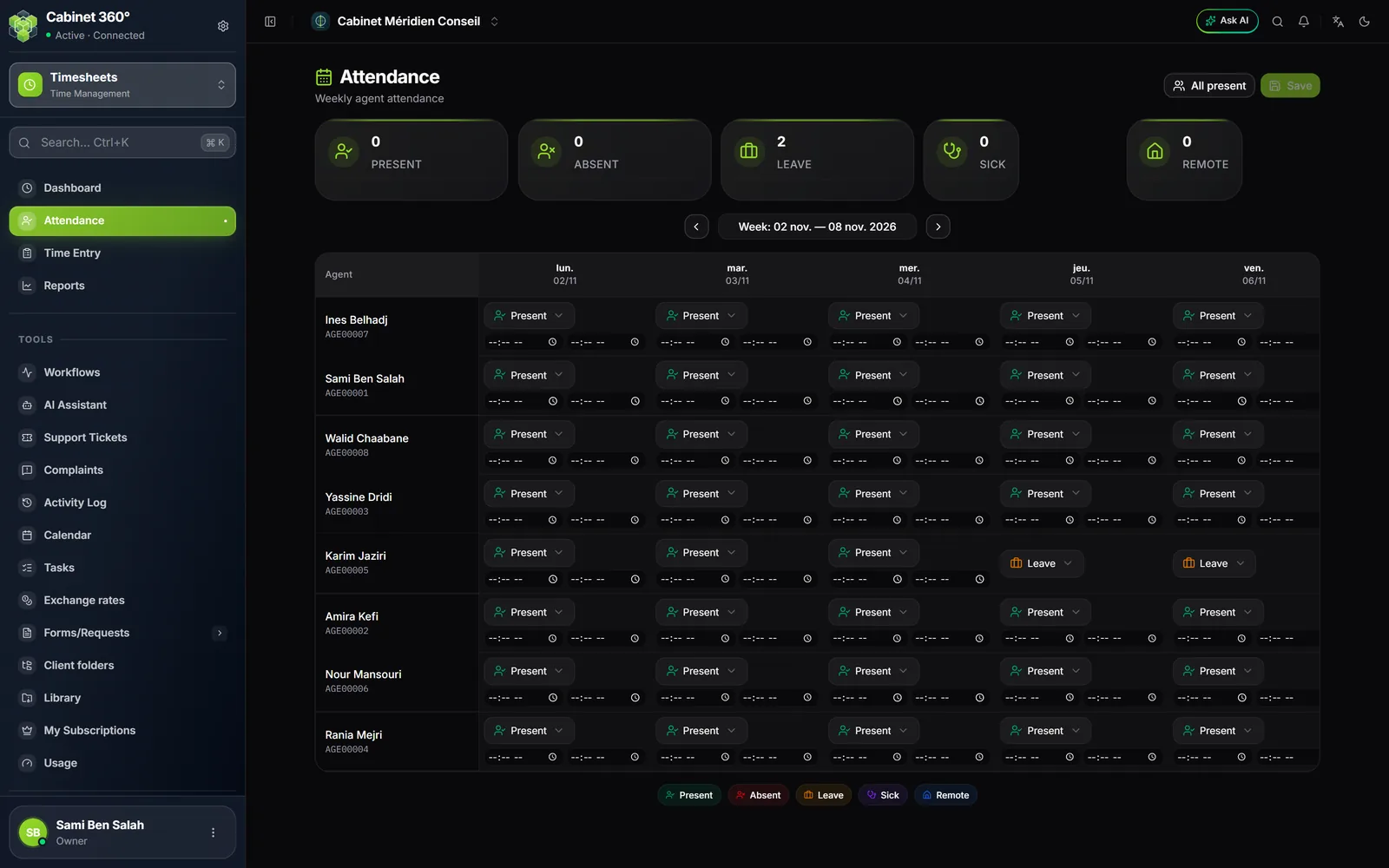
- Open Attendance. The grid has one row per active agent and one column per day, Monday to Sunday.
- Choose the week with the arrows.
- In an agent's cell, choose the status: Present, Absent, Leave, Sick or Remote. With Present or Remote, two times appear: arrival, then departure.
- To go faster, click All present: each working-day cell without attendance becomes Present, from 09:00 to 17:00. Saturday, Sunday and public holidays stay empty, and attendance already saved does not move.
- Correct the cells that differ: a cell set to Absent, Leave or Sick loses its times.
- Click the save button. The message announces, for example, "15 created, 0 updated", and the cards are recalculated.
Attendance does not say what the agent did: it is not used for billing. Its leave and sick days are also used by the task board, which warns when an absent colleague has tasks due (chapter 10).
Enter your time by client
Each entry says who worked, for which client, on which type of work, and from what time to what time.
- Open Time Entry. The Recent Entries list shows the current month, up to today.
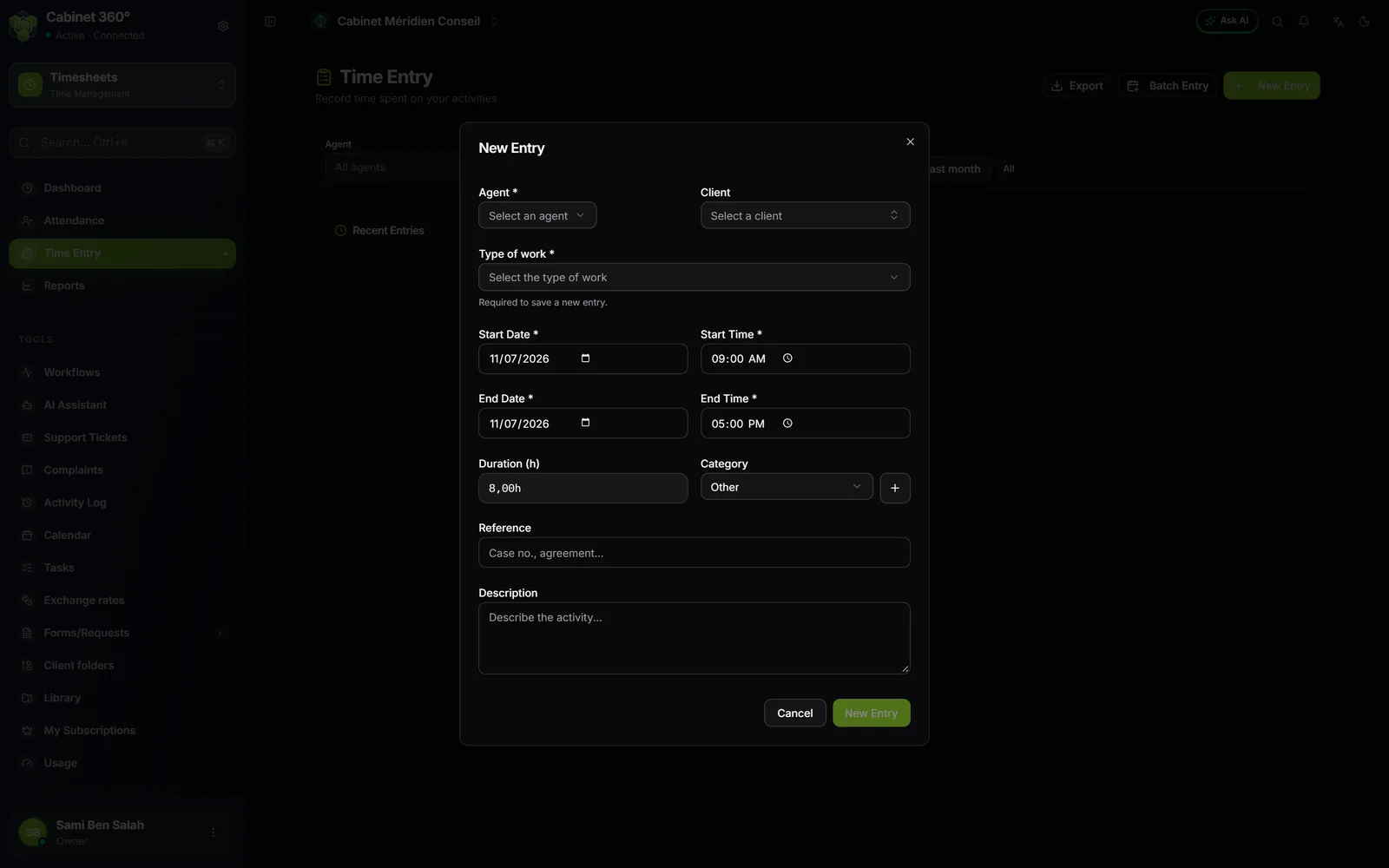
- Click New Entry.
- Agent: a staff member linked to their record does not have to choose it. Management chooses the agent, themselves included.
- Client: search among active clients, or take No client. Below the field, the month's total for this client appears.
- Type of work: Accounting, Audit, Tax, Human resources, Legal, Finance, Valuation or Fixed assets. It is required: while it is missing, "Required to save a new entry." shows and the button stays greyed out.
- Set the start date and time and the end date and time (at first today, from 09:00 to 17:00). Duration (h) is calculated by itself: 1,50h means 1 h 30.
- Choose the Category, which describes the activity; the + next to it creates one (code, label). The reference and the description are optional.
- Click New Entry, at the bottom of the window. A confirmation message appears.
Several days at once
For the same hours on several days, click Batch Entry: choose the agent, the client, the type of work, the times and the category, then tick the days you want — or Mon-Fri, or all of them — and click the create button (it counts the days ticked). The date field gives the first of the seven days offered; Mon-Fri ticks the days from Monday to Friday among them.
Correct an entry
On its row:
- the pencil reopens it;
- Duplicate opens a new pre-filled entry, dated today;
- the bin archives it, after confirmation: it leaves the list and the reports.
Archive selected archives the ticked rows. The bin and the boxes only appear with the Delete right.
An overlap warning only warns you: another entry of the same agent overlaps these hours. You can save.
The dashboard
The Dashboard shows the state of the week, Monday to Sunday; the arrows change week.
- Four cards: Attendance Rate ("n present / total"), Hours (week), Hours (month), which always gives the current month, and Absences ("n leave · n sick").
- A banner warns while the week has fewer than 35 hours recorded.
- Weekly Summary: click Select an agent to see their seven days, then the Week total.
- Management sees the whole team; My Timesheet shows them their own time only.
The reports
Reports adds up hours over the period of your choice.
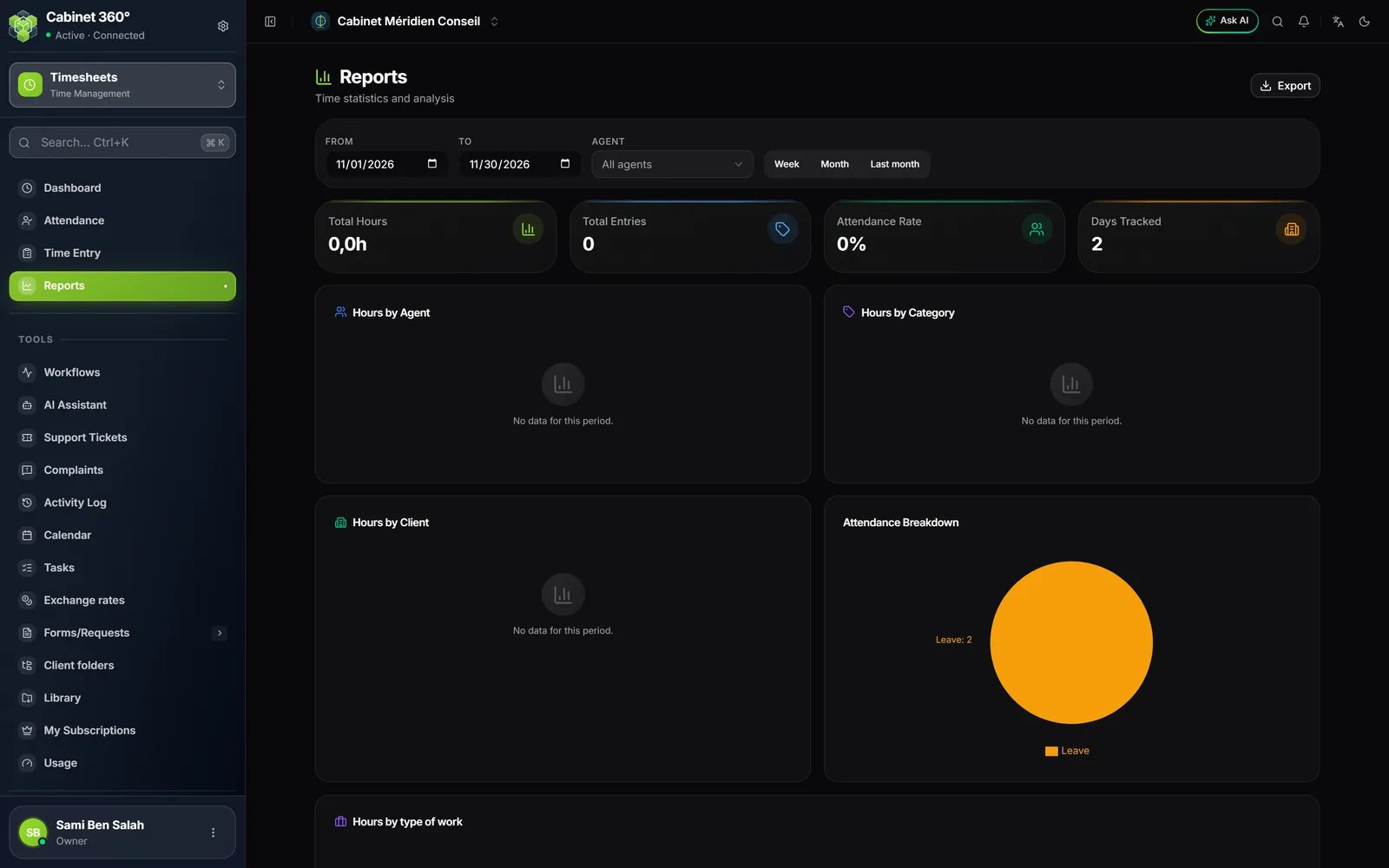
- Set the dates, choose an agent or all of them, or use the week, month (the whole month) or previous-month shortcuts. The agent chosen filters the hours and the entries, not attendance: Attendance Rate, Days Tracked and Attendance Breakdown always count the whole team you see.
- Read the cards Total Hours, Total Entries, Attendance Rate and Days Tracked, then the charts Hours by Agent, Hours by Category, Hours by Client, Attendance Breakdown and Hours by type of work, where the Not specified bar gathers entries made before that field.
Export
- In Time Entry, the export button outputs every entry of the current filters (dates, agent), all pages included, as CSV, Excel or PDF.
- In Reports, the export button outputs, line by line, the entries of the period and agent shown, in the same formats.
Frequently asked questions
The report totals do not match the Time Entry list.
Compare the dates: the Time Entry list stops at today, while Reports goes to the end of the month. Compare the agent too.
My entry does not appear in the list.
Check the dates and the agent of the filters: the entry's date must fall between the two dates. The button that clears the filters only empties the two dates; the agent stays.
The attendance grid shows that no active agent was found.
The firm has no active agent, or your role does not allow you to view the list of agents.