
Before you start
- The library is part of the Operations module.
- You need a role that opens the Library screen: Create to add a text, upload and create a folder, Edit to rename and move, Delete to move to the trash and delete permanently. As in client folders, restoring, emptying the trash and deleting several files at once need Create.
- Anyone who opens the screen sees all the documents: the library has no rights per folder.
The page has two tabs: Regulations, open by default, and Firm documents.
The Regulations tab
It gathers Tunisian codes, laws, decrees, orders, circulars, common notes and standards, filed in eight domains: Accounting, Tax, Legal, Labour and payroll, Audit and profession, Investment and exchange, Sector regulations and Regulatory monitoring.
Two collections sit side by side:
- the IntegraSys collection, loaded and kept up to date by the IntegraSys team, readable in every firm;
- the firm additions: your own folders and texts, seen only by your members.
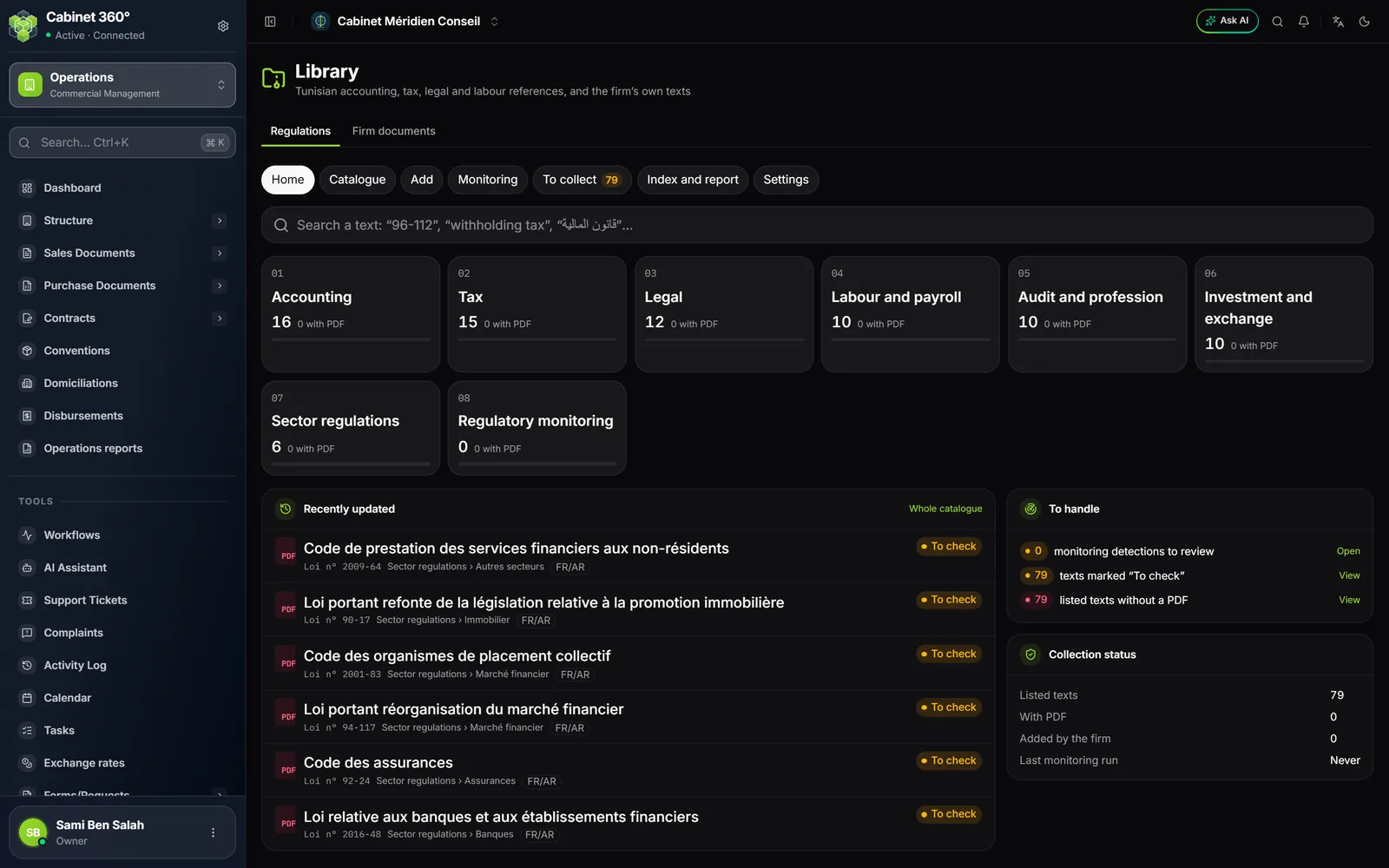
Seven views are chosen at the top of the tab: Home, Catalogue, Add, Monitoring, To collect, Index and report and Settings.
Find a text
- On Home, type a number ("96-112") or words ("retenue à la source") in the search. Home also shows the texts Recently updated, what is left To handle and the Collection status.
- In the Catalogue, the Folders tree on the left sorts texts by domain and sub-folder. The filters cover the collection (IntegraSys collection or Firm additions), the nature, the language (French, Arabic), the status and whether a PDF exists.
A text opens on its page: PDF preview, versions, related texts. Its status says where it stands: In force, In force, amended, Repealed, or To check while the IntegraSys team has not confirmed it.
Add a text to the firm
- Open the Add view, then drop a PDF (4 MB at most from the browser).
- Read the Checks: readable PDF, no duplicate, reference read in the PDF. A file already in the library, the common collection included, is not added a second time.
- Read the Proposed filing again: exact title, nature, number, date of the text, language, regulatory status, domain and sub-folder. A scanned document cannot be read: check each field.
- Choose whether it is A new text or a new version of an existing text: in that case the old version goes to the archives, without being erased.
- Click File in the firm library.
A heavier text is added from the page of a text in the firm's library — never from a text of the common collection —, through the official-website option: the server downloads the PDF itself, and only from official websites.
Monitoring
The Monitoring view presents new texts spotted on official websites: New, Replaces a text or Incomplete, with the proposed filing. The IntegraSys team approves them for the common collection; without waiting, you can add a detection to your library through Add to my firm. Nothing is filed without someone acting. The automatic weekly check is not yet in service: the Settings view says so.
The three other views
- To collect lists the texts referenced without a PDF, with the reason: an official PDF to look for, protected content of which only the reference is kept, or a web page whose link is kept.
- Index and report counts the documents by domain, with or without a PDF, and the index export produces the file INDEX_DOCUMENTAIRE.xlsx: one line per text, one sheet per domain, and the list of texts to collect.
- Settings shows the automatic monitoring — a check every Monday morning, when it is in service — and the sources followed. For a firm, the screen says so: the IntegraSys team sets the monitoring and its sources for all firms.
The Firm documents tab
This is the firm's own file space: letter templates, internal procedures, administrative papers. Unlike client folders, it is attached to no client, and it starts empty.
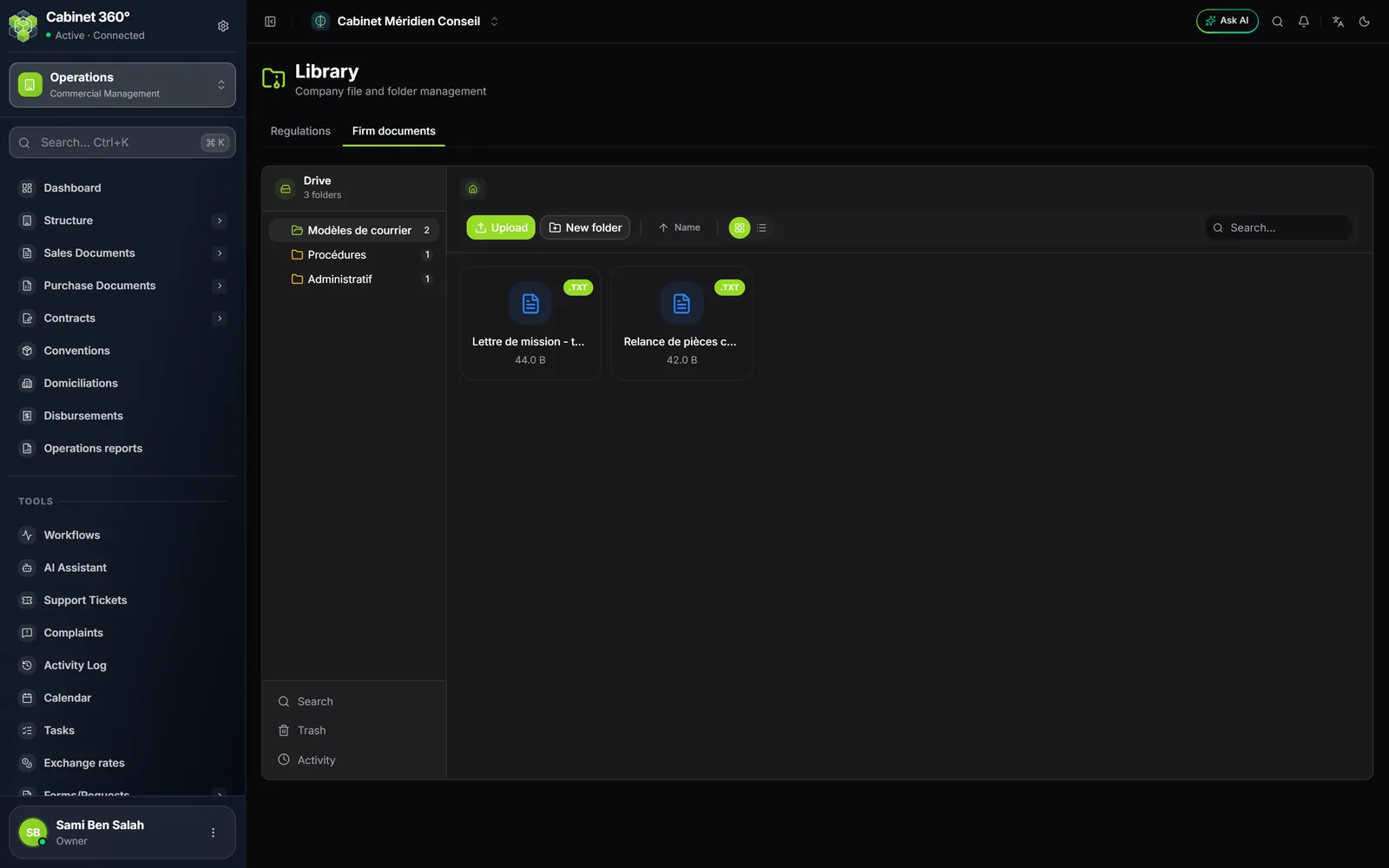
- First create a folder: New folder, its name, then Create. The first folder becomes the root; each new folder is created in the open folder, up to five levels deep.
- Open a folder, then click Upload. Without an open folder, the button stays greyed out and the window explains that a library file is always filed in a folder.
- Drag your files, then click the upload button. When everything went through, the window closes; if a file carries a message (duplicate, refusal and its reason), it stays open.
The rest works like client folders (chapter 15): a file's ⋮ menu (Preview, Download, Rename, Move, Delete), a folder's (Open, Rename, Move, Delete), the Search across the whole library from two characters, sorting by Name, Date or Size, Grid view or List view, the Trash and the Activity. Each file is 4 MB at most.
Library or client folders?
| Client folders | Library | |
|---|---|---|
| Sorted by | client, then module | however you decide |
| At first | nine module folders | empty |
| Visible to the client | yes, in their portal | no |
| For | a client's documents | regulatory texts and the firm's documents |