
Before you start
- The calendar is part of the Operations module.
- Every member who views the calendar sees everyone's events. Planning an event, moving it forward and correcting its fields are currently kept for the owner, the administrators and members without a custom role; deleting it, for the owner and the administrators. The Create, Edit and Delete boxes of a role's Calendar screen do not yet grant these actions (defect reported).
The calendar screen
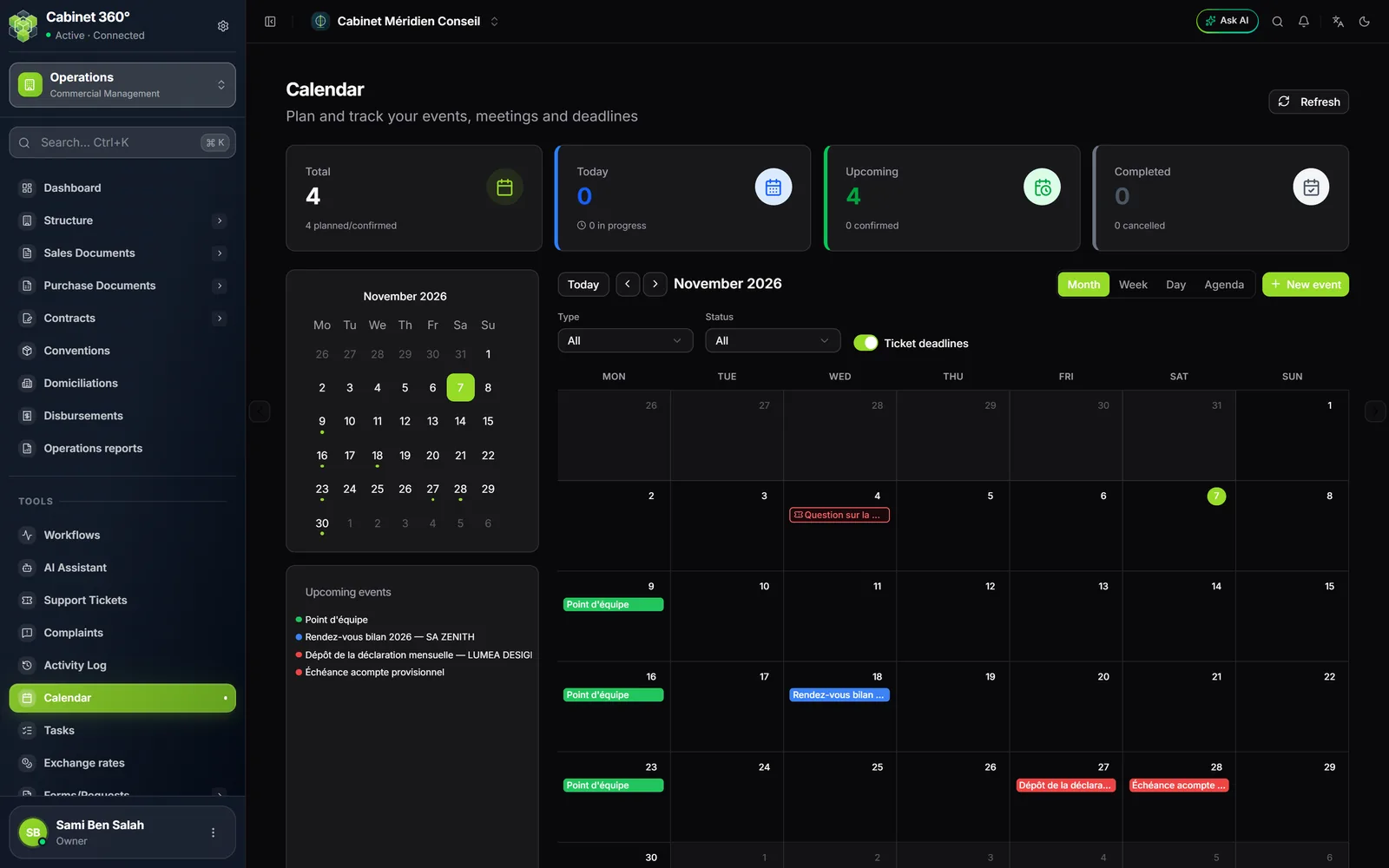
- The counters: Total, Today, Upcoming, Completed.
- Today and the arrows change period; Month, Week, Day or Agenda change the view.
- New event, at the top right of the grid.
- Type and Status filter the grid; Ticket deadlines shows tickets that have a deadline, in red.
- Upcoming events: the list of the next ones. A click on an event opens it.
The page opens on today, in the last view chosen (Month the first time); Ticket deadlines also keeps its last setting. The Agenda lists the period's events, day by day. Refresh, at the top right, reloads the grid when a colleague has just added an event; your own saves show at once.
Plan an event
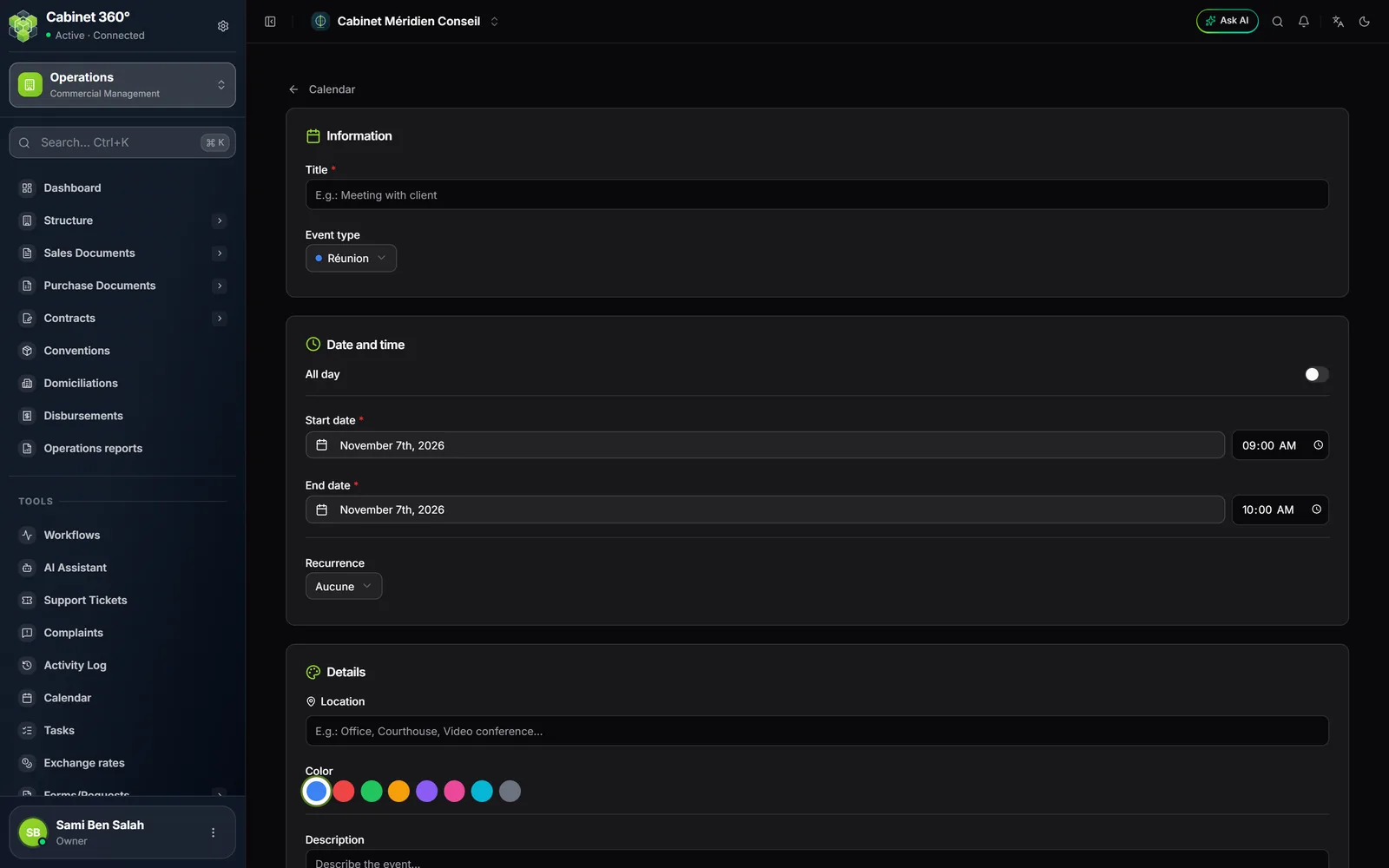
- Click New event.
- Enter the Title, the only field to fill in (the dates already are), and choose the Event type: meeting, deadline, reminder, hearing, appointment, filing or other.
- In Date and time, set the start and the end, or switch on All day. The date offered is the day shown in the calendar.
- For an event that comes back, choose the Recurrence (every day, every week or every month) and, if it stops, the End of recurrence.
- In Details, fill in if needed the Location, the Color, the Description, the Notes and the Reminder (from 5 minutes to 1 day before).
- In Links, attach the event to a Client and a Ticket: choosing the ticket fills in the client.
- Click Create event. Its page opens, with its number and the status Planned.
Move an event forward
On the event's page, the ⋯ menu offers:
- Confirm: the event moves to Confirmed;
- Postpone: a window offers the current dates; choose the new start, the new end follows with the same length, then click Postpone. The event moves to Postponed, at its new date. An end placed before the start is refused;
- Complete: the event moves to Completed;
- Cancel: the event moves to Cancelled.
Edit changes its fields. The red bin deletes it, after confirmation.
Repeated events
A recurring event shows in the grid on each of its dates, at the same time and for the same length. A monthly event keeps its day of the month: one on the 31st moves to the last day of shorter months.
- A click on a date opens the event: changing it changes the whole series.
- Upcoming events shows it only once, at its next date.
- The counters count it only once: Upcoming while the series goes on, Today if it has a date that day.
Reminders
The reminder arrives in the bell, at the chosen time before the start: « Rappel : » followed by the title, and a click opens the event.
- It goes to whoever created the event; for a ticket's deadline, to the organiser the ticket designates (chapter 4). Only members of the firm's team receive it, never a portal client.
- A recurring event is reminded before each of its dates; a postponed event gets a new reminder.
- No reminder goes out for an event already started, completed or cancelled, and none goes by e-mail.
- To see the reminder, you must be able to view the calendar: a colleague without that right sees neither the event nor its reminder.
Ticket deadlines
A ticket with a deadline puts its own « Échéance: … » event in the calendar, and updates it when the deadline changes (chapter 4). The Ticket deadlines switch, on by default, adds tickets with a deadline to the grid, in red; a click opens the ticket.
Frequently asked questions
My new event does not appear in the grid.
Check the Type and Status filters: they hide the other events.
An « Échéance: … » event appeared without me creating it.
It comes from a ticket that has a deadline. It changes with the ticket: change the ticket's deadline rather than the event.