
Before you start
- Only management — owner, administrators and managers — creates, edits and applies templates. Other members read them, and the screen tells them so.
- An Every financial year template needs an accounting file for each client it is applied to.
The templates screen
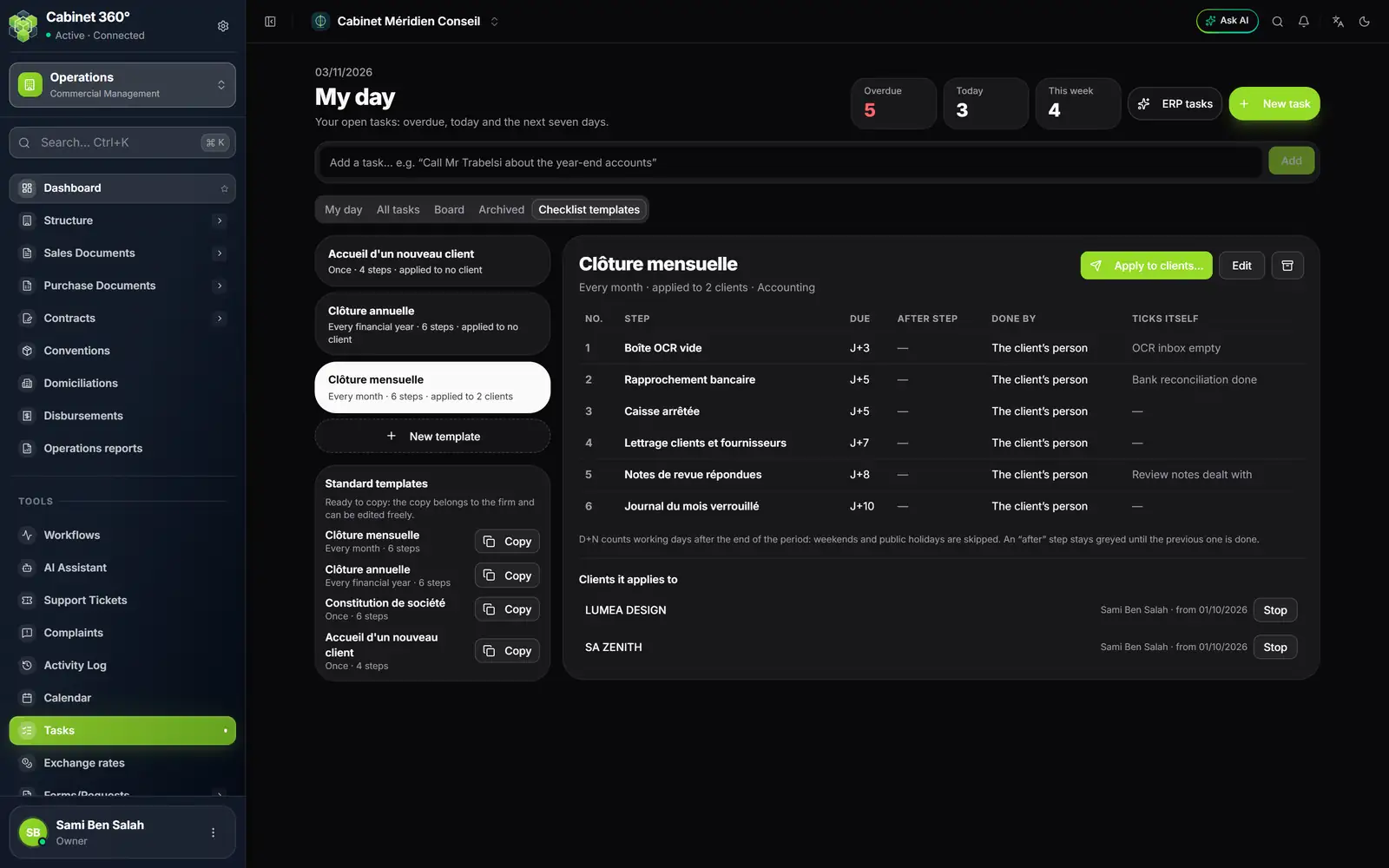
- 1. The firm's templates: rhythm, number of steps, number of clients.
- 2. Standard templates: Copy makes a copy for the firm.
- 3. Apply to clients…
- 4. Edit, then the archive icon.
- 5. Due of each step: D+N.
- 6. Ticks itself: what the ERP watches.
- 7. Clients it applies to, with Stop.
The four standard templates
IntegraSys offers four ready-to-copy templates. Their names and steps are written in French, as on screen. The copy belongs to the firm and can be changed freely; the standard template itself is never applied as it is.
| Template | Rhythm | Steps and D+N |
|---|---|---|
| Clôture mensuelle (month-end closing) | Every month | Boîte OCR vide (D+3), Rapprochement bancaire (D+5), Caisse arrêtée (D+5), Lettrage clients et fournisseurs (D+7), Notes de revue répondues (D+8), Journal du mois verrouillé (D+10) |
| Clôture annuelle (year-end closing) | Every financial year | Inventaire et stock (D+15), Amortissements passés (D+30), États financiers générés (D+60), Décompte fiscal et liasse (D+75), AGO d'approbation des comptes (D+120), Dépôt des états financiers (no date) |
| Constitution de société (setting up a company) | Once | Formulaire de société rempli (D+0), Dénomination réservée (D+2), Statuts générés et signés (D+5), Enregistrement (D+7), Immatriculation au registre (D+10), Publication (D+15) |
| Accueil d'un nouveau client (welcoming a new client) | Once | Fiche client complète (RIB, identifiant fiscal) (D+0), Convention signée (D+3), Accès au portail envoyé (D+3), Premiers documents reçus (D+10) |
In Clôture annuelle, each step from the tax computation onwards waits for the previous one, and the annual general meeting (AGO) is at D+120: it falls a few days before the six months that follow the year-end, whatever the legal form. You can change this date on your copy. In Constitution de société, each step waits for the previous one.
Copy and adapt a template
- Under Standard templates, click Copy next to the template you want. The message "Template copied: adapt it, then apply it." appears. You can also start from scratch with New template.
- Click the copied template, then Edit.
- Set the Name, the Rhythm (Every month, Every quarter, Every year, Every financial year or Once) and the Type of work (for the timer): the timer of its tasks will reuse it (chapter 13).
- For each step, set its label, its D+N, its prerequisite step, the person who does it and, if needed, Ticks itself. Add a step adds one.
- Click Save. The message "Template saved" appears.
Tasks already created keep their version of the template: only the following ones take the new one.
A step's D+N
D+N is a number of working days after the end of the period. Saturdays, Sundays and Tunisian public holidays are skipped. The steps table writes it as « J+N », the French form.
- D+0 falls on the last day of the period, or on the first working day after it.
- An empty box means: no automatic date (this is the case for filing the financial statements).
- The task's due date is the latest due date of its dated steps.
- For a Once template, D+N counts from the Starting from date of the application.
- For Every financial year, the period is the financial year of the client's accounting file.
The prerequisite step
A step that has a prerequisite stays greyed out in the task until its prerequisite is ticked. A step can only come after an earlier step of the same template.
Done by
By default, a step goes to The client’s person, the one chosen when applying. Choose someone else for a given step: they become a watcher of the task, so that they can open it.
Apply a template to clients
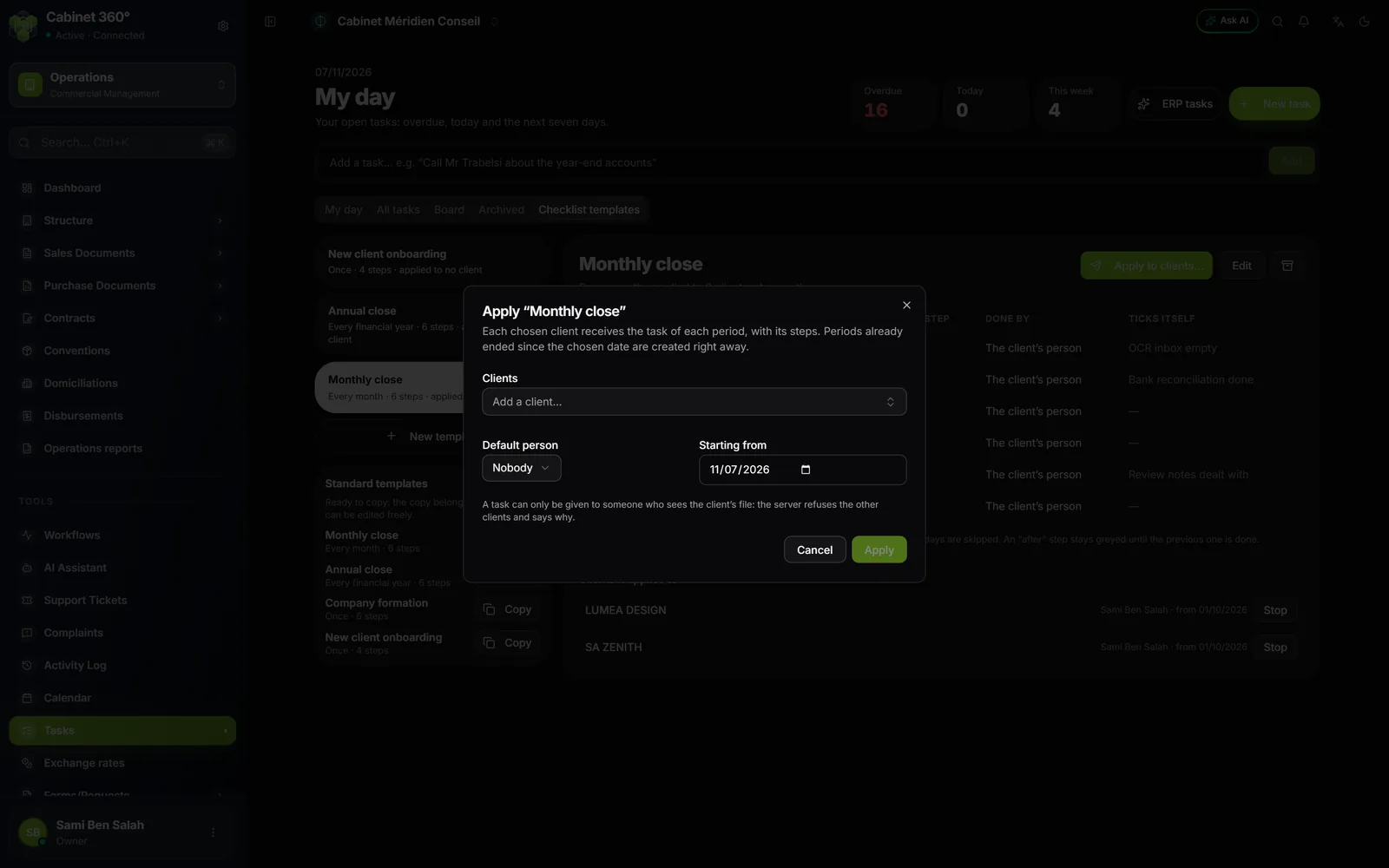
- Click Apply to clients….
- Add the Clients one by one.
- Choose the Default person, the one who will receive the tasks.
- Set the Starting from date.
- Click Apply to 1 client (the button counts the clients chosen).
The result appears, for example "Applied to 1 client · 2 tasks created.":
- the last two periods already ended since the chosen date are created at once, no more, so as not to flood My day;
- after that, each task is created on the day its period ends, every morning;
- the task's person receives a single notification per run, not one per task. You receive none when you apply the template to yourself, and the person chosen for a single step receives none.
A client that could not be included is named under Not applied:, with its reason: inactive client, no accounting file for an Every financial year template, or a person who does not see that client. Fix it, then apply again: clients already included are not duplicated. Applying them again replaces their person and their start date, and restarts a stopped client.
Stop, resume, archive
- Stop, in Clients it applies to, suspends the template for one client; Resume restarts it, without redoing the periods already created.
- The archive icon, next to Edit, archives the template after confirmation: it no longer creates any task, and those it already created remain.
Steps that tick themselves
With Ticks itself, the ERP ticks the step when it sees the thing done in the module, for the task's client and, depending on the check, for its period. Review notes dealt with looks at all of the file's open notes, whatever the month; OCR inbox empty, at the documents received up to the end of the period. Seven checks exist:
| Check | The module that judges it |
|---|---|
| OCR inbox empty | the accounting OCR inbox |
| Review notes dealt with | the file's review notes |
| Bank reconciliation done | accounting's bank reconciliation |
| Return filed | tax follow-up |
| Minutes signed | legal |
| Agreement signed | agreements |
| Documents received from the client | client portal uploads |
Clôture mensuelle comes with three checks already chosen (OCR inbox, reconciliation, review notes), Accueil d'un nouveau client with two (agreement, documents received). The list only offers the checks of modules you can open.
In the task:
- a step ticked by the ERP shows Seen by the ERP; a step still waiting shows "Will tick itself: …";
- the ERP judges when the task is opened, and every morning for the others;
- if the thing is undone — a new review note arrives —, the ERP removes its tick, as long as the task is neither done nor archived: a done task keeps its last state;
- it never removes a tick made by a person: you can always tick yourself what it does not see;
- if it cannot judge (the client has no accounting file, for example), the step is ticked by hand.
Frequently asked questions
I can neither copy nor edit a template.
The screen says so: only management (owner, administrator, manager) creates, edits and applies templates.
Older periods are missing.
When applying, the ERP only creates the last two ended periods. For an older period, create the task by hand.
A template task did not arrive this morning.
It is created on the day its period ends: the October task is born on 31 October. Also check that the client is not stopped in Clients it applies to, and that the template is active.