
Before you start
- You need the Operations module and a role that opens the Client folders screen: without it, the entry is missing from the menu.
- On this screen, Create lets you upload and create a folder, Edit lets you rename and move, Delete lets you move an item to the trash and delete it permanently. Restore, Empty trash and deleting several files at once need, for their part, the Create right.
- The client must exist: their folder is born with their record.
The folders screen
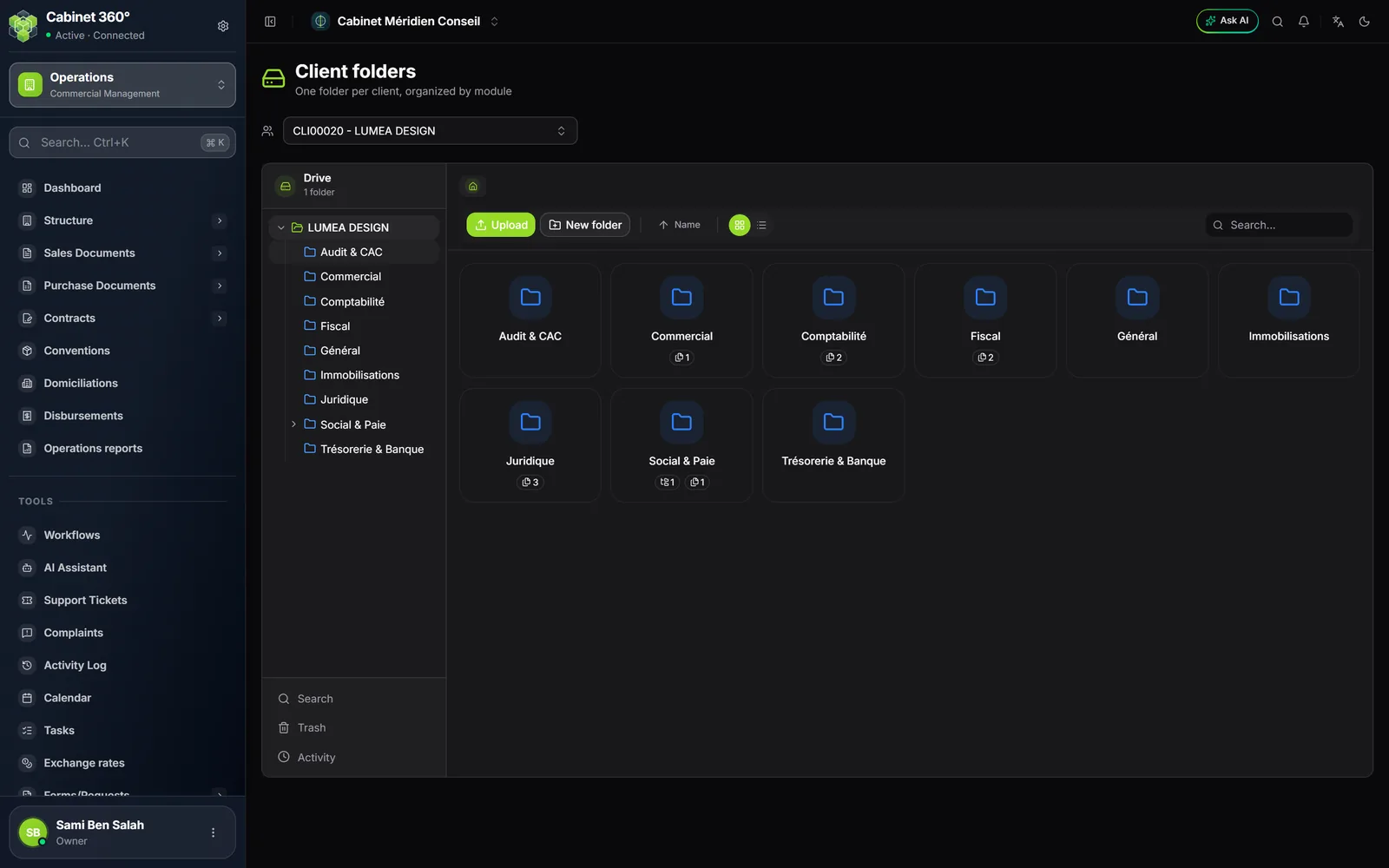
Click Select a client..., type a name or a number, then click the client. Their folder is already organised in nine module folders, named in French: Audit & CAC, Commercial, Comptabilité, Fiscal, Général, Immobilisations, Juridique, Social & Paie and Trésorerie & Banque.
Open a folder by clicking it in the list, or by double-clicking its tile. The path shown above takes you back.
File documents
- Open the destination folder. For a sub-folder, click New folder, enter its name, then Create: it is created in the open folder.
- Click Upload, drag the files into the window or click to choose them, then click the upload button (it counts the files).
- Read the result: when everything went through, a message confirms the files uploaded and the window closes.
The window stays open when a file carries a message: an identical file already in the folder (the file is added anyway, and its line names the duplicate), or a refused file, with its reason. Read it, then click Close. A new upload only takes up the files still waiting.
A file's menu
A file's ⋮ menu offers Preview, Download, Rename, Move and Delete. In grid view, double-clicking its tile opens the preview, from which you can also print it. For Move, choose the destination folder, then click Move here.
A refusal always says its reason: a missing right, a file already removed by a colleague, a name refused.
Find a file
- Search..., at the top right, searches the open folder.
- Search, at the bottom of the list, searches all of the client's folders, from two characters; Go to folder takes you there.
- Activity lists the latest actions on the client's folders.
Delete, restore: the trash
Delete sends the item to the Trash. For several items, select them (files and folders), then click Delete in the top bar, or press the Del key.
Open the Trash to:
- Restore an item: it returns to its folder;
- Delete permanently;
- Empty trash.
The client's folder and its nine module folders (in blue) cannot be renamed, moved or deleted: selected with other items, they stay in place, and a message says so. The folders you create can.
What IntegraSys files by itself in Social & Paie
For a client followed in payroll, Social & Paie fills itself:
- Dossiers personnels (personal files): one folder per employee, named after their employee number, surname and first name. It holds the photo and the identity document uploaded on the employee's record, the files of its Documents block, family, life insurance and savings justifications, and signed copies of their contracts. A new photo or document replaces the old one, which goes to the trash.
- Liasses de paie mensuelle (monthly payroll packs): one folder per financial year; when each payroll month is closed, its pack is filed there (« Liasse de paie 03-2026 »).
- Déclarations sociales (social returns): one folder per financial year; each return that becomes validated is filed there (« CNSS Régime Général T1-2026 »).
These three folders cannot be renamed or deleted. The book « HR & Payroll » describes the documents that fill them.
Frequently asked questions
I deleted a file by mistake.
Open Trash, then click Restore: the file returns to its folder.
The Delete button is greyed out on a folder.
It is a default folder (the client's folder or a module folder): it cannot be deleted.