
The subscription's modules
Each Tools screen depends on a module. Without the module, the menu entry does not appear, or the screen shows "Module not available".
| Screen | Module needed |
|---|---|
| Tasks | Tasks, a separate module, included in the Premium pack |
| Calendar, Timesheets, Client folders, Library | Operations |
| Activity Log | Activity Log, a separate module |
| Support Tickets, Complaints | none: they are part of every subscription (a client only opens a ticket from their portal if the firm has the Client portal module) |
| Workflows | none of its own: it sums up the invoices, quotations, agreements, purchases and other documents of the firm's modules |
A module is added from the Pricing page. My Subscriptions, in the TOOLS group, shows what the firm already has: the book « Firm settings » describes both pages.
Rights per screen
Rights are set in the firm's roles. Only the owner and the administrators create and change a role.
On each ticked screen, View is included; Create, Edit and Delete are ticked on top. Here is what each right opens in the Tools.
| Screen | View | Create | Edit | Delete |
|---|---|---|---|---|
| Tasks | see one's tasks, the day, the board, the templates | create a task, add a step, comment, attach a file, start the timer | change status, due date, person; tick a step; move on the board; restore | archive |
| Calendar | see the calendar and its reminders | see the box below | see the box | see the box |
| Support Tickets | the list and the tickets | create a ticket, comment, change its status, resolve it | save the Edit page, assign the agent | — |
| Time Entry | the list of entries | enter one's time | correct an entry | archive an entry |
| Attendance | the grid | record the week's attendance, and correct an attendance record | — | — |
| Client folders, Library | open the folders | upload, create a folder; restore, empty the trash, delete several files at once | rename, move | move to the trash, delete permanently |
Two screens with reserved rights
- Activity Log: the owner and the administrators open it by default. Another member needs a role that ticks the Activity Log screen of the Tools module. Even with this right, they only read: sessions and the response to alerts stay with the owner and the administrators (chapter 6).
- Workflows: the menu entry and the management figures (counters, anomalies, revenue, cash) need the Dashboards right. The owner and the administrators have it by default; a role gives it by ticking the Workflows screen of the Tools module, or the Operations Dashboard screen (chapter 3).
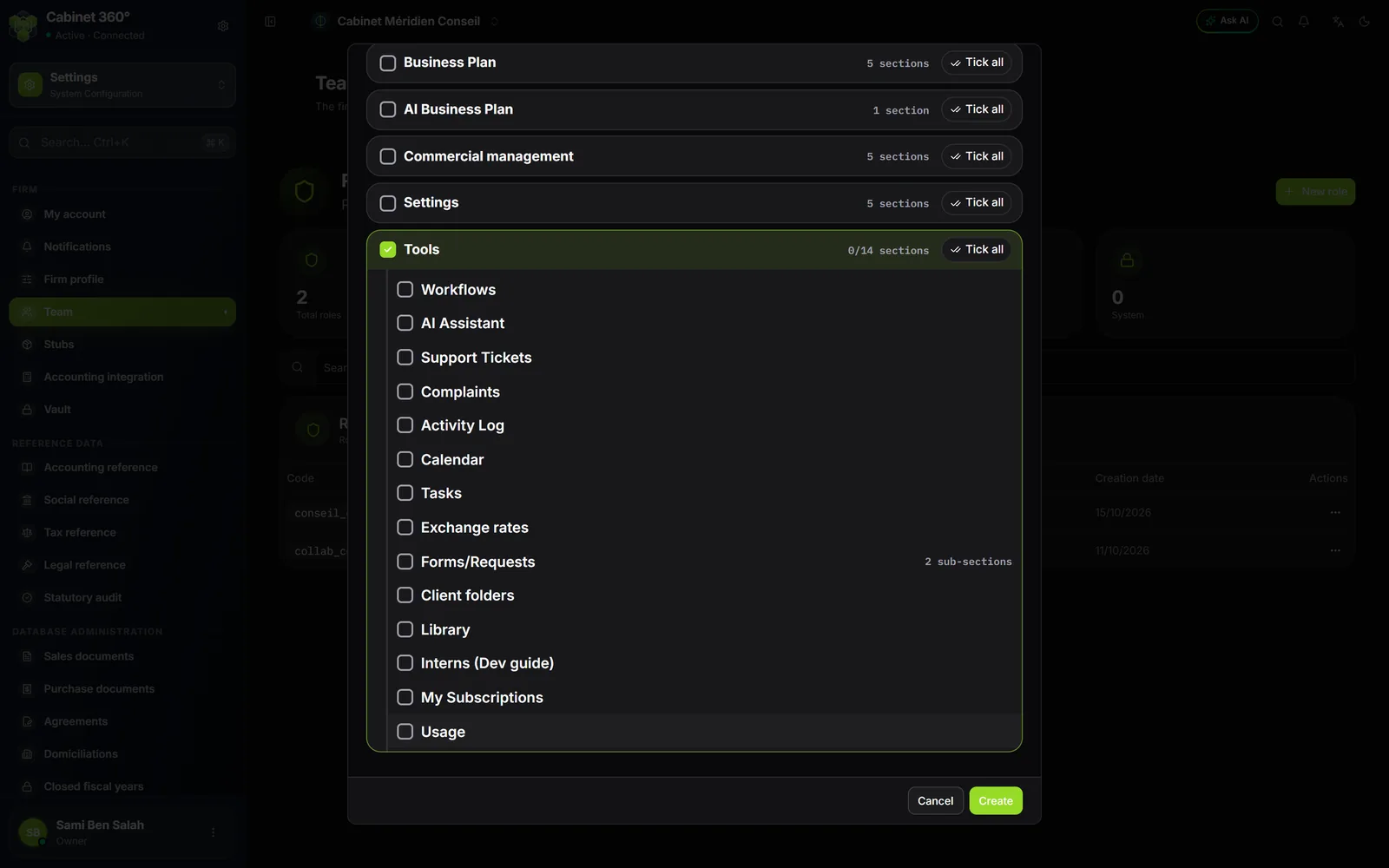
What stays with management, whatever the rights
In this book, management means the firm's owner, administrators and managers. Some actions are kept for them, even for a role that ticks everything:
- creating, editing and applying checklist templates (chapter 11);
- seeing all of the firm's tasks (which agents graded supervisor, manager or partner also see), and recording attendance or time for every agent (chapters 8 and 14).
Switching off a kind of task brought by the ERP, for the whole firm, is narrower still: the owner and the administrators only (chapter 12).
Link each staff member to their agent record
The timesheet belongs to the staff member's agent record, not to their account. A staff member without an agent record in this firm can neither start a task's timer nor enter their own time.
- Open Team › Agents and check that the staff member has their record, with an active status.
- If the record exists without an account, invite the staff member from their record: the account and the record are linked at the invitation. If the staff member is already a member of the firm, the owner or an administrator links their record to their account, without a new invitation.
- Once linked, the staff member sees their name already chosen in Time Entry, and the timer is offered in their tasks.
The book « Firm settings » details the invitation and the agent record.
A file's team: who sees which clients
A staff member does not see all of the firm's accounting files: they see those whose team they belong to, as supervisor or as staff. This assignment bounds accounting, tax and ratios — the Operations client list stays open to whoever can view it —, and it also counts in Tasks:
- a client's task can only be given to someone who sees that client;
- the tasks the ERP works out for a client go to its file's team;
- a client without a team goes back to management and to the agents who see every file, so that nothing is lost.
The assignment is set from both sides, on the same link: in the Team block of the accounting file, or in the Accounting files block of the agent record.
Notifications
The Tools let you know through the bell at the top of the screen: a task given to you, a mention, an overdue task, an event reminder, a client's reply on a ticket. Each person sets their e-mails for themselves, in My account › Notifications (chapter 13).