
Before you start
- You need the View right on the Tasks screen, and Edit to move or reassign.
- The board follows the list's rule: your tasks, those of the files assigned to you, and the whole firm for management.
The board screen
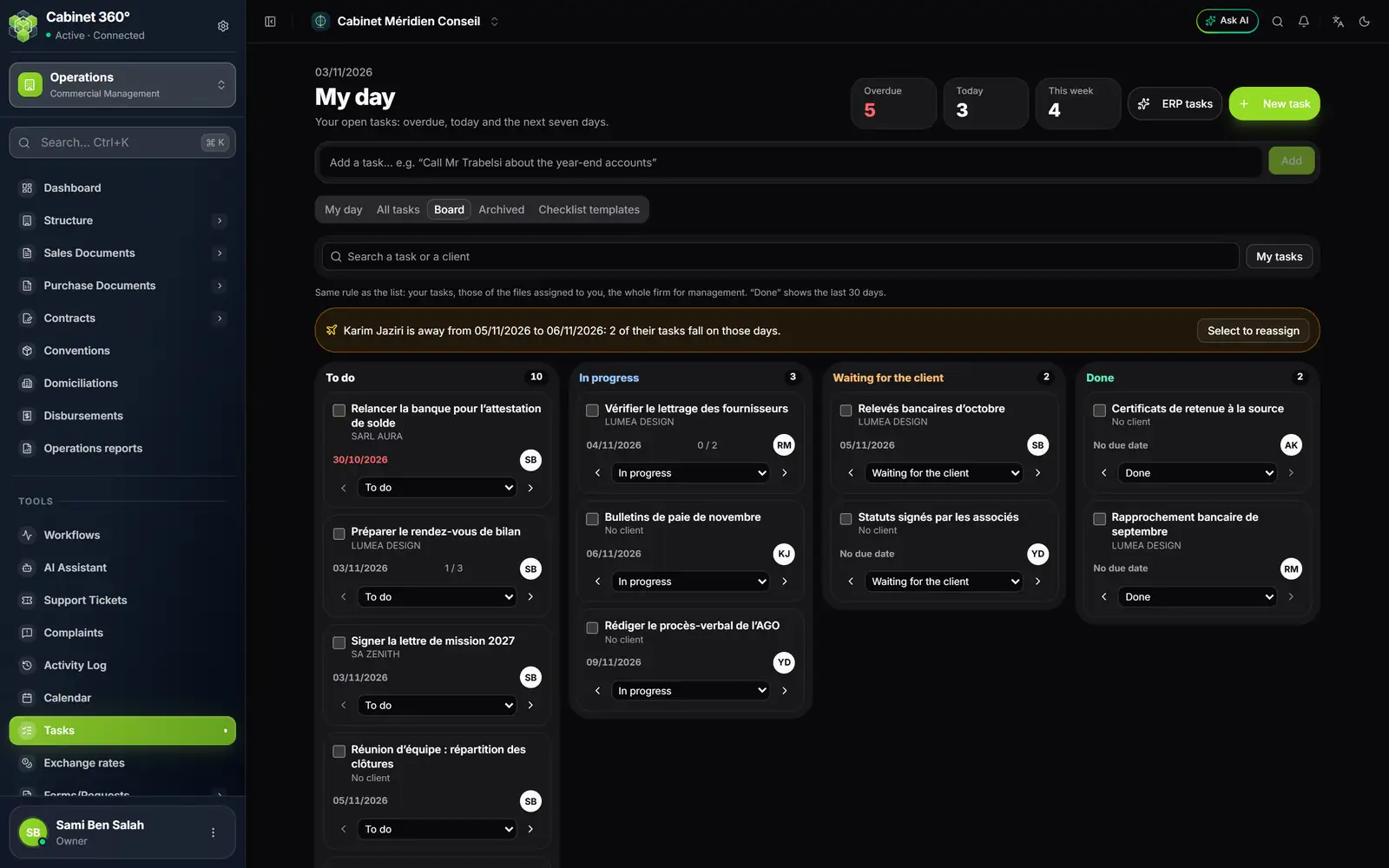
- 1. The search: a task or a client.
- 2. My tasks: keep only yours.
- 3. Team absences: an absent colleague with tasks falling on those days.
- 4. Select to reassign ticks the tasks concerned.
- 5. Each column shows its exact count.
- 6. The card's box, for bulk actions.
- 7. The arrows and the status list: move without dragging.
- 8. The initials of the assignee.
The four columns are the statuses: To do, In progress, Waiting for the client and Done. A card gives the title, the client, the due date (in red when it has passed), the steps done and the person.
Move a card
- With the mouse: drag the card into another column.
- With the keyboard or a finger: use the card's arrows, or its status list.
The result is the same: the task changes status, and a message says so, for example "“Vérifier le lettrage” moved to “In progress”." Click a card's title to open its record, below the board.
If the move is refused, the card returns to its place and the message says so: "… could not move to “…”: it stayed where it was." Check your Edit right, and that the task was not changed or archived in the meantime.
Act on several tasks
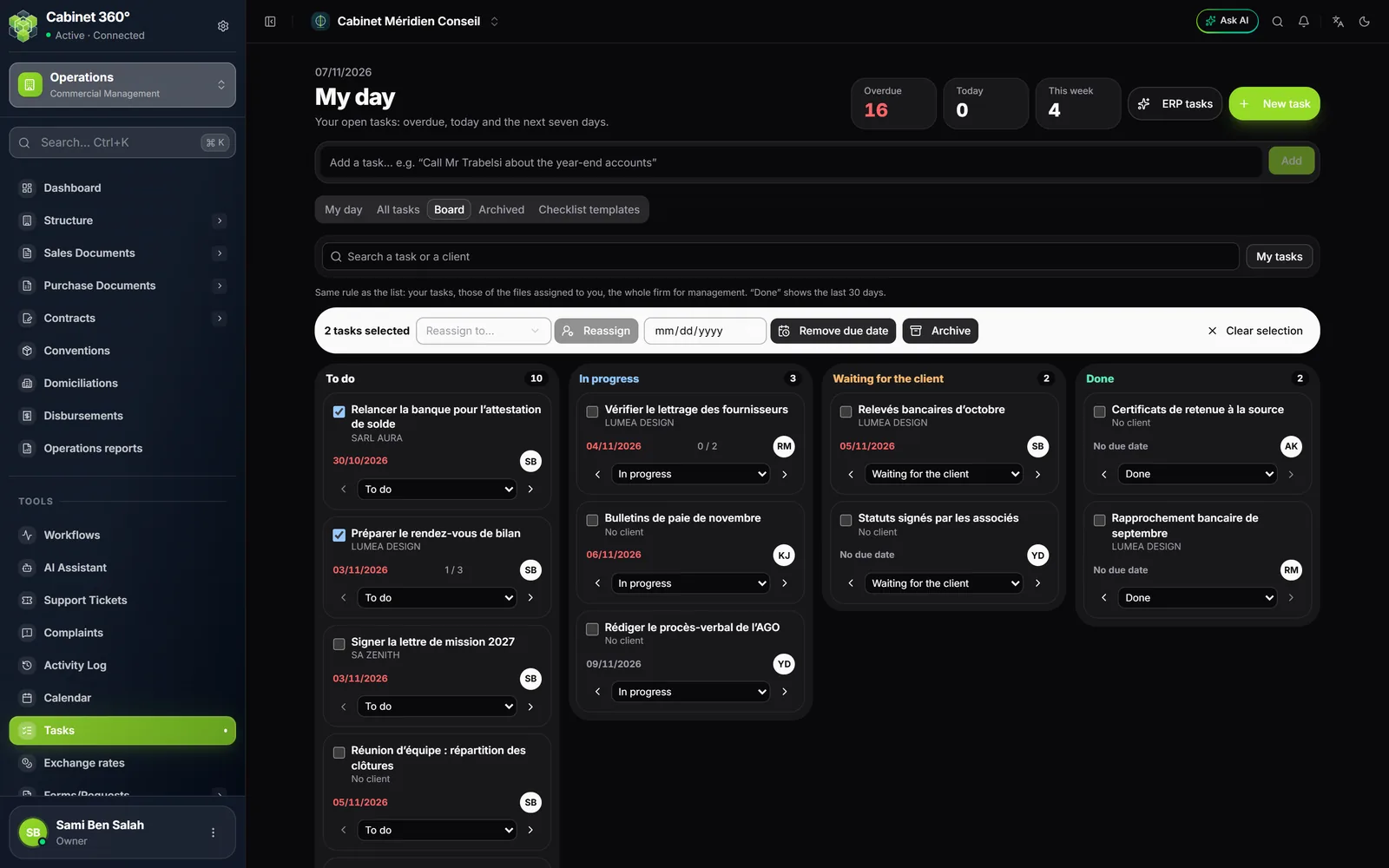
- Tick the box of each card concerned. A bar appears and counts the tasks selected.
- Choose the action, on 200 tasks at most:
- Reassign to…, a person, then Reassign;
- a date, then Change due date, or Remove due date;
- Archive, then confirm.
- Read the message: it says how many tasks were changed, and names each refused task with its reason.
- Clear selection empties the selection.
Each task is judged by the rules of a single task: a client's task can only be given to someone who sees that client, an archived task can no longer be changed. A reassignment sends a single notification per person, for all the tasks received. Archiving in bulk erases nothing: the tasks are restored from Archived. Archiving also needs the Delete right.
When a colleague is away
The Team absences banner warns you when a colleague's tasks fall during their absence: "Karim Jaziri is away from … to …: 2 of their tasks fall on those days." Select to reassign ticks the tasks concerned: all that is left is to choose who takes them over.
The ERP reads absences for the next 60 days, in two places:
- an approved leave request in the HR module, when the employee has the same e-mail address as the colleague's account;
- the team's Attendance, with the status Leave or Sick (chapter 14).