
The HR file's accounting setup
The client must have a file in Accounting: otherwise, a box invites you to create it. The journal and the accounts are chosen from that file's journals and chart of accounts.
- Choose the Payroll journal.
- For each pay item, choose its account. The number of items without an account shows next to the journal.
- Click Save the accounting setup. An account missing from the file's chart is refused.
| Kind of pay item | Accounts to give | Side |
|---|---|---|
| Earnings (base salary, bonuses, allowances…) | The item's account | Debit |
| Deductions (advances, loans, garnishments…) and IRPP, CSS | The item's account | Credit |
| Contributions with an employer share (CNSS) | The item's account for the employee share, plus the Employer expense (debit) and its Counterpart (credit) | Credit, and the employer share in debit / credit |
| Employer-only contributions (TFP, FOPROLOS, work accident…) | Employer expense (debit) and Counterpart (credit) | Debit / credit |
| Net pay | The item's account | Credit |
For a contribution with an employee share (CNSS), a counterpart left empty takes the item's account. For an employer-only contribution, give the expense and the counterpart: otherwise the item stays without an account.
Accounts per employee category
To isolate the payroll of the manager or of a scheme (CIVP, Karama, Startup…), for instance to reconcile the CNSS declarations, click By category next to a pay item: one row per category present in the HR file opens, with its own accounts.
- The Gérant (manager) is the employee whose record has Manager (corporate officer) switched on.
- The other categories come from the record's CNSS scheme; the general scheme keeps the item's accounts.
- A box left on Same as the item takes the item's account.
The line label then names the category, for example "Paie 01/2026 — Associés, comptes courants (Gérant)"; the entry keeps the label "Paie 01/2026".
Posting a month
In Payroll months, a Closed month has the Post button. You need the right to create entries, and an open accounting year that covers the date.
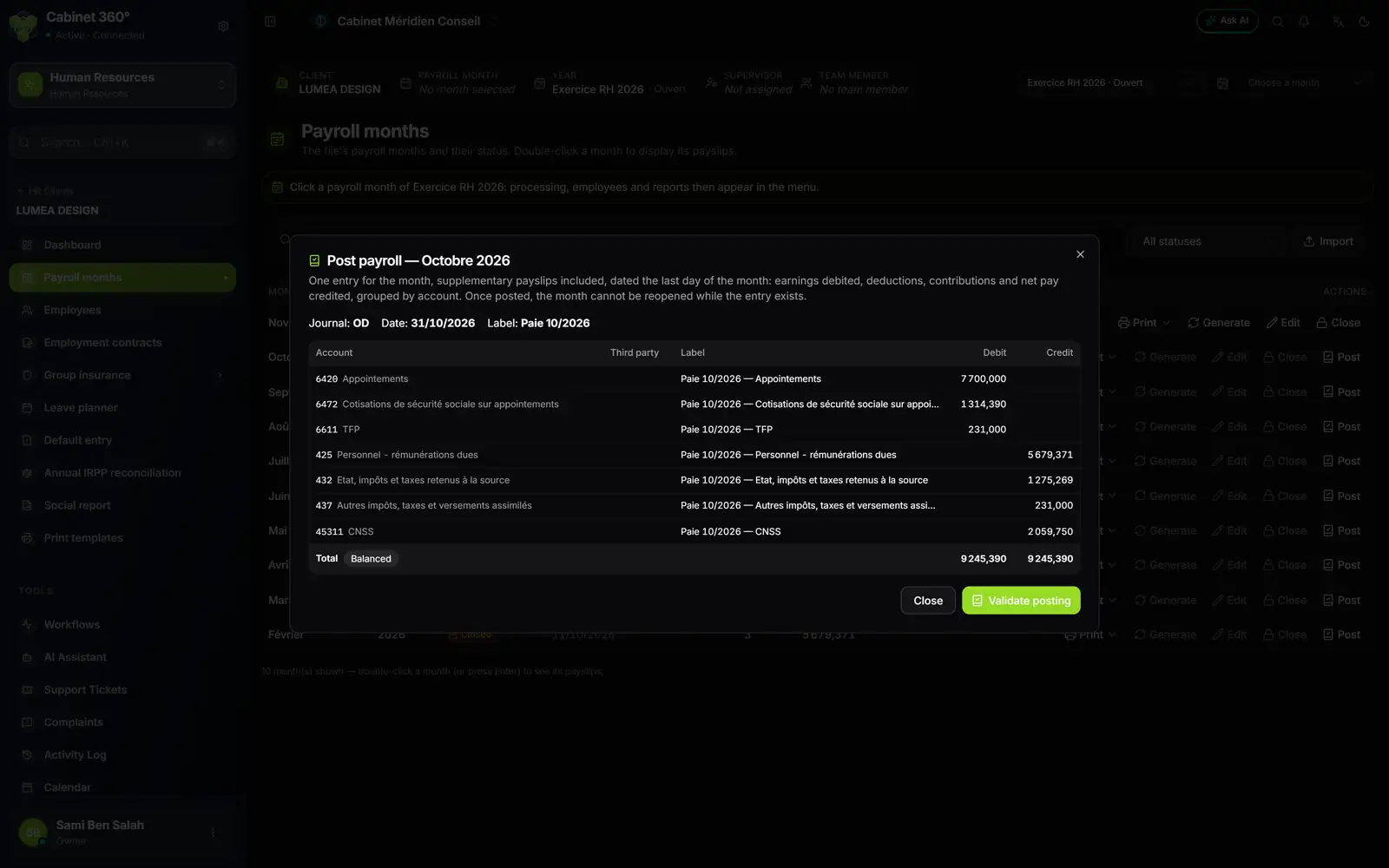
- 1. Journal, date and label: one entry per month, dated the last day of the month.
- 2. Earnings and employer charges on the debit side, grouped by account.
- 3. Deductions, contributions and net pay on the credit side.
- 4. Balanced: total debits equal total credits.
- 5. Validate posting.
The Post payroll window shows the month's entry, supplementary payslips included, one line per account. What prevents the entry is listed at the top: missing payroll journal, pay item used without an account, account missing from the chart, employee without an employee ID when the net account requires a third party, unbalanced entry. The third parties that will be created are named. A missing or closed accounting year is refused at Validate posting.
Click Validate posting: the entry is saved, validated, in the payroll journal of the accounting file. The month's row shows Posted with the journal and the entry number, and the button becomes Payroll entry, which reopens the window. A month is posted only once.
Cancelling a posting
A posted month cannot be reopened while its entry exists. To correct it: Payroll entry, then Cancel posting and Confirm cancellation. You need the right to delete entries. The entry is deleted from the client's accounting, unless its accounting year is closed or its lines are matched. The month can then be reopened, corrected, closed and posted again.