
What the module does
The Human Resources module keeps the payroll of the firm's clients. Each client has their HR file: their payroll settings, their employees, their payroll years and months. Everything that comes out of the file (payslips, payroll register, transfer order, certificates, declarations) is issued in the employer's name, your client, not in the firm's name.
IntegraSys does the calculation: CNSS, work accident, TFP, FOPROLOS, CAVIS, group insurance, IRPP and CSS. The legal rates and the IRPP scale are kept up to date by IntegraSys; the client's own settings (activity sector, negotiated rates, collective agreement) are set on their file.
The cycle of a month
- Once per client: open the HR file, set its rates and pay items, create the employees and their contracts.
- Every month: choose the payroll month, enter the month's items in Processing (absences, leave, bonuses, advances…).
- Generate the payslips, check them, validate them, print them.
- Close the month: it no longer changes, and the next month opens by itself.
- Post the closed month: a payroll entry in the client's accounting file.
- Every quarter: the CNSS, CAVIS and group insurance declarations, prepared from the closed months.
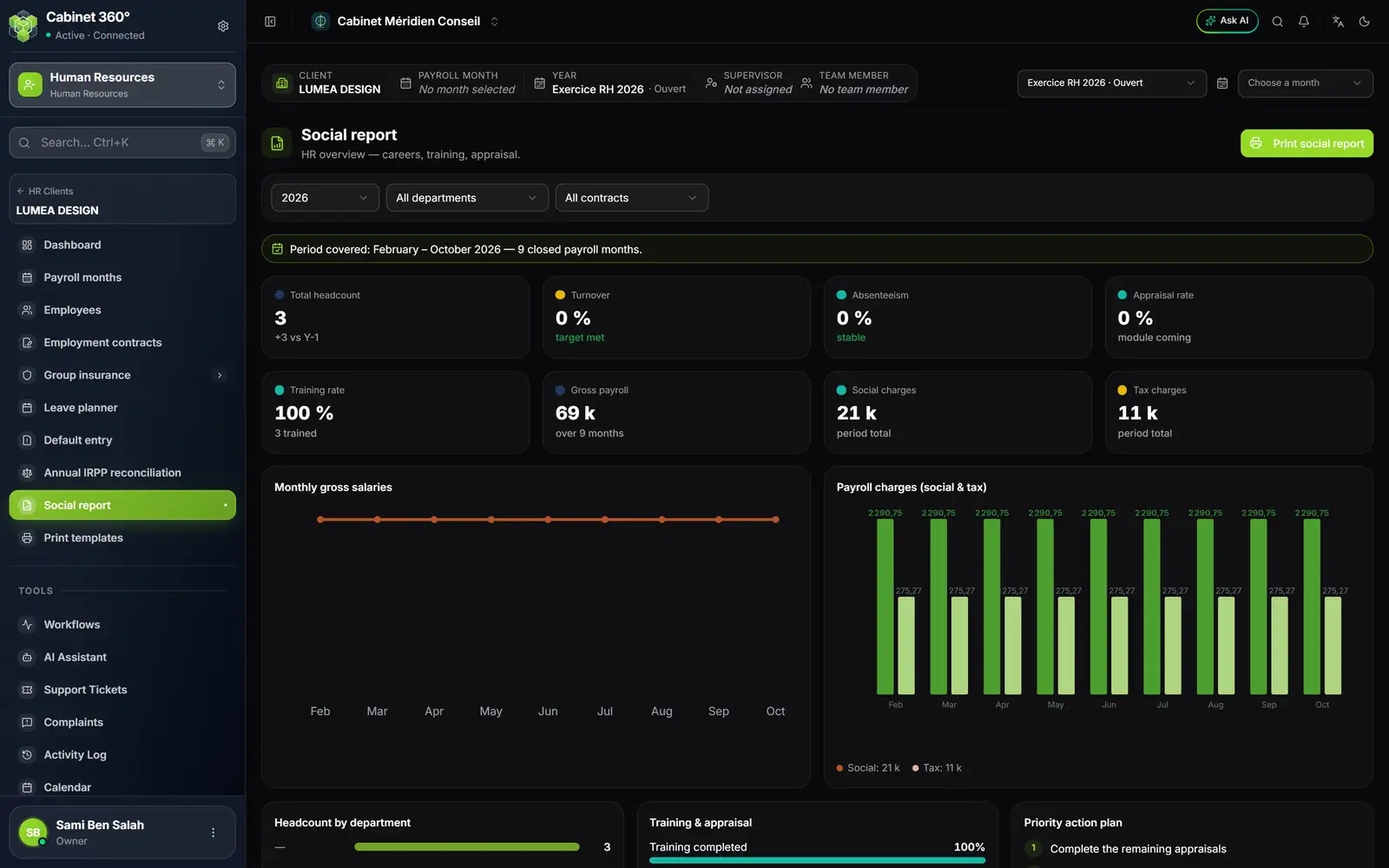
- Every year: withholding certificate, IRPP reconciliation, social report.
Two menus
The module has two levels. The Human Resources menu works across all your clients at once: Dashboard, HR Clients, Social Declarations, Declarations Tracking and Simulators. When you enter a client's file, a second menu takes its place: the menu of the file's workspace.
- 1. The open file: the HR Clients arrow takes you back to your client list.
- 2. The file menu: it grows when you choose a payroll year, then a month.
- 3. The file bar: client, payroll month, year, supervisor and team members.
- 4. Payroll year and month: choose the payroll year here, then the month to process.
The file menu unfolds in three stages:
- Always visible: Dashboard, Employees, Employment contracts, Group insurance (if the option is on for the file) and Print templates.
- As soon as a payroll year is chosen: Payroll months, Leave planner, Default entry, Annual IRPP reconciliation and Social report.
- As soon as a month is chosen: Training, Evaluation, Processing and HR reports. For a closed month, Processing keeps only Payslips: nothing more is entered in a closed month.
What your client does
Your client has a portal. Under Human resources, they see their payroll dashboard, their employees and their documents, and they can enter some of the month's items themselves: leave, absences, bonuses, overtime… What they enter arrives as Pending: payroll counts it only once the firm approves it, and the file team is told in the bell. A few entries are exceptions, because the client is the employer: their advances, loan contracts, mission orders and promotions go straight into payroll. The chapter What your client does on their portal gives the details.
The module's words
| Word | What it means here |
|---|---|
| HR file | The client as payroll sees it: its settings, its employees, its payroll years |
| Payroll year | The file's year of payroll, from January to December; the screens say Fiscal year |
| Payroll month | A month of the payroll year, Open or Closed |
| Pay item | A line of the payslip: bonus, allowance, deduction, benefit in kind |
| Processing | The month's variable items: leave, absences, bonuses, advances, loans… |
| Payslip | An employee's pay statement for one month: Draft, Validated or Locked |
| Close | Shut a month: no more entries or calculation, the next month opens |
| Pending entry | An item entered by the client on their portal, which the firm must approve |