
The HR reports page
HR reports appears as soon as a month is chosen, even a closed one. The page sorts its tiles into two sections: Payroll reports and Monthly reports (Processing). The Search a report field keeps only the tiles whose name or description contains the words typed.
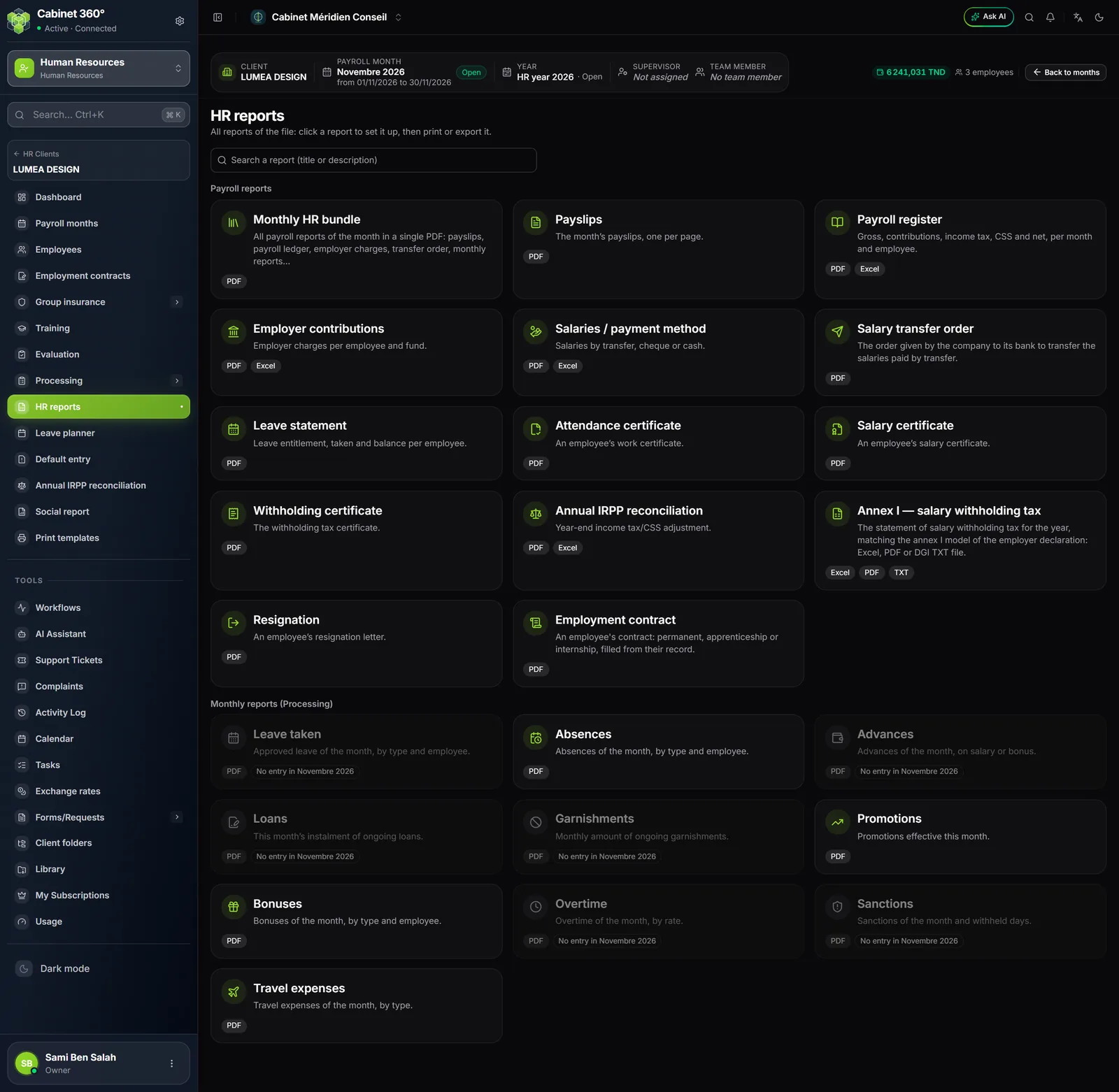
The reports use the payslips already generated: a report with no payslip is empty. The issuer printed is always the employer (the file's client), never the firm.
The month's payroll reports
| Tile | What it prints |
|---|---|
| Payslips | One employee's payslips, a month's or a payroll year's, one per page (Imprimer (print), then Générer le PDF (generate the PDF)); a row's printer icon prints a single payslip |
| Payroll register | One row per month: gross, employee CNSS, taxable salary, IRPP, CSS, net. The eye expands the employees. Imprimer en PDF (print as PDF), Export to Excel (with employer charges and total employer cost) |
| Employer contributions | The employer's charges. The PDF gives one report per month, employees in columns (seven per sheet), charges grouped by fund: CNSS, group insurance, tax office (TFP, FOPROLOS) |
| Leave statement | For one month: balance M-1, entitlement, taken, balance, per employee |
| Monthly HR bundle | The whole month in one PDF (see below) |
The All departments choice limits the payroll register, the employer contributions, the salaries by payment method and the transfer order to the department chosen on the employees' records.
Under Monthly reports (Processing), one tile per kind of entry of the month: leave taken, absences, advances, loans, garnishments, promotions, bonuses, overtime, sanctions, travel expenses. A window asks for the payroll month (the active month by default). A greyed tile flags a report with no entry that month ("No entry in January 2026"); it can still be opened for another month.
The monthly HR bundle
Monthly HR bundle gathers the whole month into a single document: cover page and contents (document, pages, first page), all employees' payslips, payroll register, employer charges, salary reports by payment method, transfer order, leave statement and the month's reports. Documents with no content that month are named on the cover page. At each closing, the month's bundle is also filed in the client's drive.
Paying the salaries
Salaries / payment method: choose the Salary month, the Payment method (Bank transfer, Cheque or Cash) and the Department, then Generate PDF.
- Bank transfer: each employee's ID number, full name, bank, RIB, branch and net pay, the total and the signatures; the sum in words is on the transfer order.
- Cheque and Cash: a signature column and the total stated in words.
Each report also exports to Excel.
An employee with no payment method set is paid by transfer.
Salary transfer order: the company's letter to its bank.
- Choose the Payroll month.
- Under Client bank accounts to debit, tick the bank account(s) on the client's record.
- With several banks, choose each employee's Debited bank; The rest under places the remaining employees under one bank in one click.
- If needed, choose the Department, then Print PDF: one order per bank, each on its own page, with the letter, the list of its transfers, the total in figures and in words, and room for the stamp.
The banks chosen and the split are kept on this payroll month. If no account is offered, add the bank accounts on the client's record.
Certificates, resignation, contract
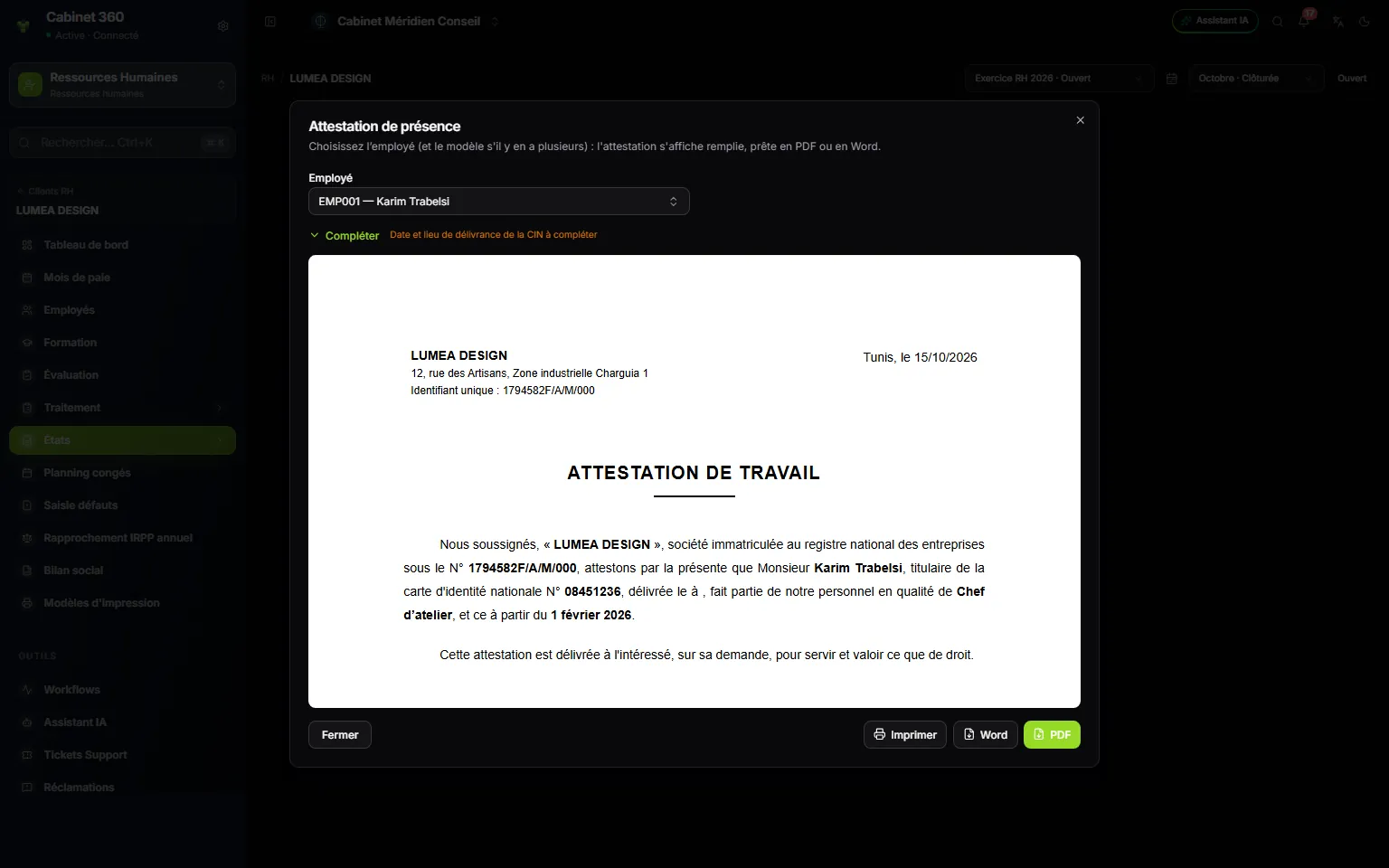
- 1. The employee: the certificate fills in from their record and the employer's.
- 2. Complete: city, date, CIN issue details, or annual salary.
- 3. The document: the firm's template, or the built-in one.
- 4. Print, Word or PDF.
- Attendance certificate (the work certificate) and Salary certificate open in a window. If the firm has several templates, choose the Print template (the one marked "default" is preselected). The salary certificate's Annual gross salary is, by default, the sum of the last twelve payslips.
- Resignation: New resignation, the Employee and the Effective date (required), and, if you have them, the Resignation date and the Resignation file. Print the letter shows the letter without saving anything; Save records the resignation.
- Employment contract: the Contract type (CDI, apprenticeship contract or internship contract) and the Employee; the contract appears filled in. The type must be the one on the employee's record: otherwise "Please check the employee's contract type…".
The employee record also offers these documents, in its Documents menu.
The withholding certificate and the IRPP reconciliation
Withholding certificate: New certificate, the Year (closed) and the Employee, then Print (PDF). A closed payroll year is required. The certificate shows the employer (name, address, tax ID, CNSS number), the beneficiary (name, marital status, address, job, dependent children, identity document), their work period in the year, then the year's amounts taken from the payslips: taxable income, benefits in kind, total taxable gross, IRPP and CSS withheld, net income.
Annual IRPP reconciliation, an entry of the file's menu, compares for each employee the year's tax computed on all their income for the year with the sum withheld on their payslips, and gives the gap to adjust at the end of the payroll year.
Print templates
The HR documents' templates are the firm's, shared by all its files. Each document with no firm template shows as Built-in template, with Customize: the editor takes up the text, with its variables (name, CIN, position, hiring date, salary…). At the top of the page, the Employment contract templates for this client card assigns a template to each contract category.
A template marked Platform template is sent by IntegraSys: it follows IntegraSys's updates as long as you do not change it. Once changed, it no longer follows them; Back to the platform template restores its text. If the firm already had its own template for the same document, the firm's prints by default.