
The employee list
Employees is always in the file menu, even with no payroll year or month chosen. The list shows each employee with their ID, name, contract type and status: green for Actif (active) or En congé (on leave), red for Inactif (inactive) or Archivé (archived). Above it: New employee, Import / Export and Scan (OCR).
The record, section by section
New employee opens the record. Its five sections unfold with a click on their title, one open at a time, in this order: Identity, Social & Payroll, Position, Contract and Pay items. Each section's title counts its filled-in fields; a red dot flags a section to complete. Save is in the bar stuck to the bottom of the screen, always visible.
Identity
- Employee ID: IntegraSys suggests the number that follows the highest one already taken (EMP001, then EMP002…). It can be changed, but stays unique within the file. Deleted employees count: an ID printed on old payslips is never suggested again.
- Last name and First name: required. When you leave the field, the last name turns to capitals and the first name takes a capital initial; a correction made afterwards is kept as it is.
- Marital status: required. Head of household and the Family dependants (Dependent children, Children in education, Children with disabilities, 4 at most each) give the IRPP deductions.
- Active: on No — out of payroll, the employee does not enter the month's payroll.
- Contact: address, phone numbers, e-mail.
- Identity document: the type and the number are required (an ID card needs 8 digits), and so is the copy of the document.
Social & Payroll
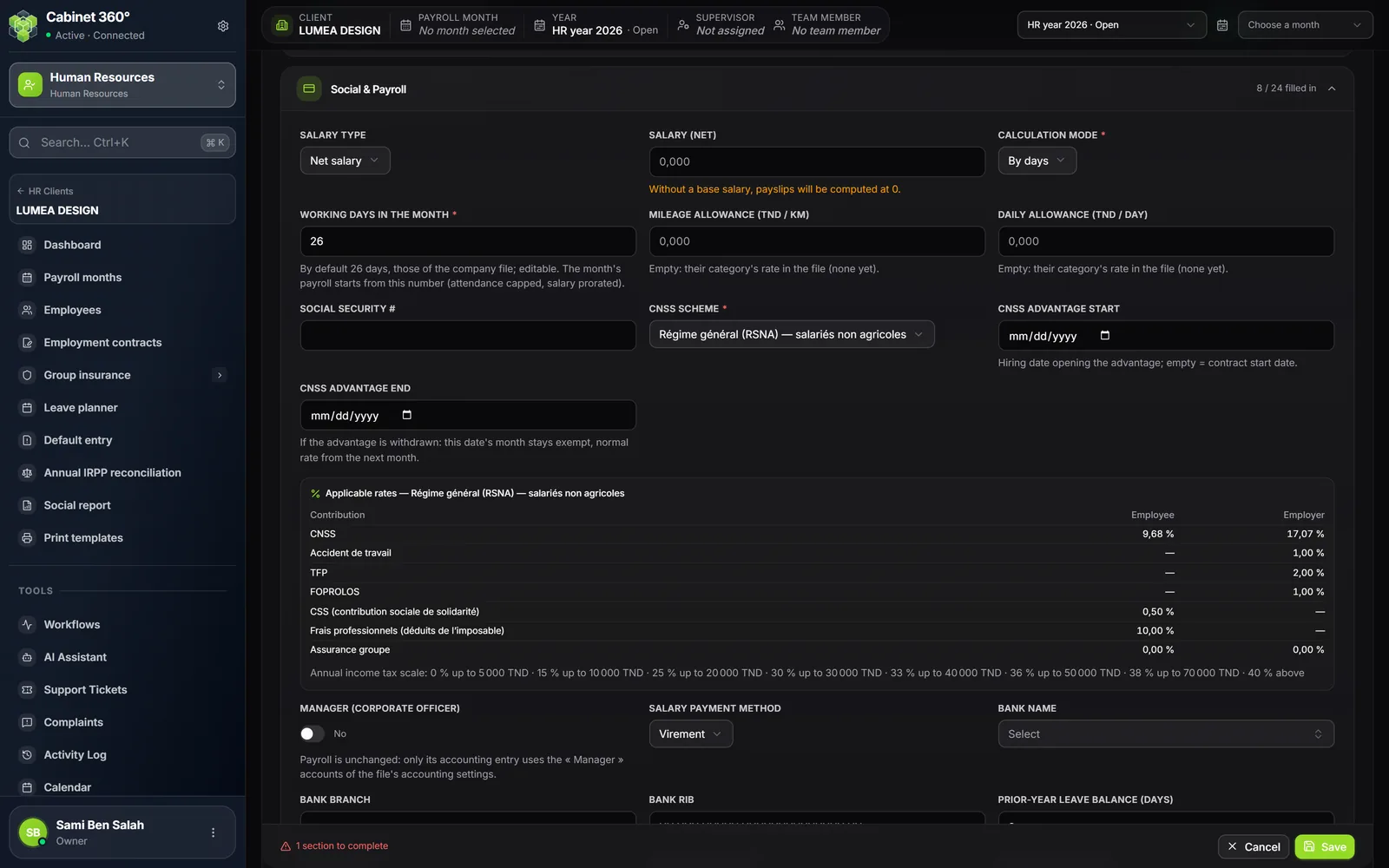
- Salary type and Salary: Net salary (suggested) or Gross salary. Entered net, IntegraSys calculates the gross base salary that gives this net, from the marital status, the CNSS scheme and the number of pays, bonuses excluded; it recalculates it if the family or the scheme changes.
- Salary payment method: transfer, cheque or cash. For a transfer, the bank (list of Tunisian banks and La Poste Tunisienne) and the Bank RIB (20 digits). With no method entered, the employee is paid by transfer.
- Pays per year: the file's, which can be changed (a 13th month, for example).
- Income tax method: the file's (As the file — …), or another one for this employee alone.
- Calculation mode: By days (suggested) or By hour, with the Working days in the month or the Working hours in the month taken from the file. By hour only, the Pay basis can switch to Hourly (rate × hours worked), with a required Hourly rate.
- CNSS scheme: required. The file's scheme is suggested, otherwise the General scheme; the others are CIVP, Karama, Startup, graduates hired in 2026… Below it, the Applicable rates box gives, for that scheme, every rate payroll will apply: employee and employer CNSS after exemption, work accident, TFP, FOPROLOS, CSS, professional expenses, CAVIS, group insurance and the IRPP scale.
- CNSS advantage start: empty, it is the contract's start date. CNSS advantage end stops the advantage: the month of that date stays exempt, the normal rate returns the following month.
- Manager (corporate officer): does not change their payroll, but their accounting entry takes the accounts of the Manager category (see Posting payroll to accounting).
- Mileage allowance and Daily allowance: for mission orders. Empty, they are those of their category in the file's scale.
Annual deductions: LIFE INSURANCE account, CEA account and Housing-loan interest (DT / year), for the current payroll year. They are deducted from the taxable base of the payrolls not yet closed: life insurance and CEA within the annual cap shown (100 000 DT), housing-loan interest on top. Each amount needs at least one supporting document (Add supporting documents). The following year, the amounts start again from zero; the Deduction history table keeps the past years.
Position
Division, Department and Role (the + button creates one), and the employee's Category, read by the mission order scale. The department also serves as a filter in the payroll reports.
Contract
For a new employee, the Contract type and the Start date are required; a fixed-term contract (CDD) has its End date, a permanent one (CDI) has none. Saving creates their employment contract In progress: the employee enters payroll only once this contract is validated (see Employment contracts).
The Monthly leave entitlement (days) is empty and shows the file's in grey. You can save without it, but the file's first payroll asks for it for each employee. The Leave calculation method and Half-day leave take the file's, and can be changed for this employee.
Pay items
The file's active items are ticked, at the client's default amount. Untick those that do not concern the employee, adjust the amounts, choose Fixed or Variable for this employee alone. You do not add items here.
Supporting documents and the personal folder
Each employee has their personal folder in the client's drive, under HR & payroll › Dossiers personnels (personal folders), named "ID last-name first-name". The photo, the copy of the identity document (ID card (CIN), Passport…), the birth certificates, the savings supporting documents (Assurance vie 1-2026, CEA 1-2026…: life insurance, CEA) and the signed contracts are filed there by themselves. The record's Documents block shows this folder: you add, rename or move a file to the trash there. The client sees these files in Documents on their portal.
Creating several employees at once
- Import / Export › Download template, then Import CSV / Excel…. The Salaire de base column (base salary) becomes the base salary ("1 250,000" or "1250.000"); an unreadable value gets the row refused, an empty cell leaves it untouched.
- Scan (OCR) pre-fills a record from an ID card, a passport, a contract or a RIB. Check the reading before saving; the documents read are then filed in the personal folder.
- From Sage Paie, employees are taken over with their leave: see Taking over a file from elsewhere.