
Choose the payroll year and the month
In HR Clients, click the client's row, then a payroll year in Choose a fiscal year: the Payroll months page opens. It lists the payroll year's months with their Status (Open or Closed), the closing date, the number of Payslips and the Net pay.
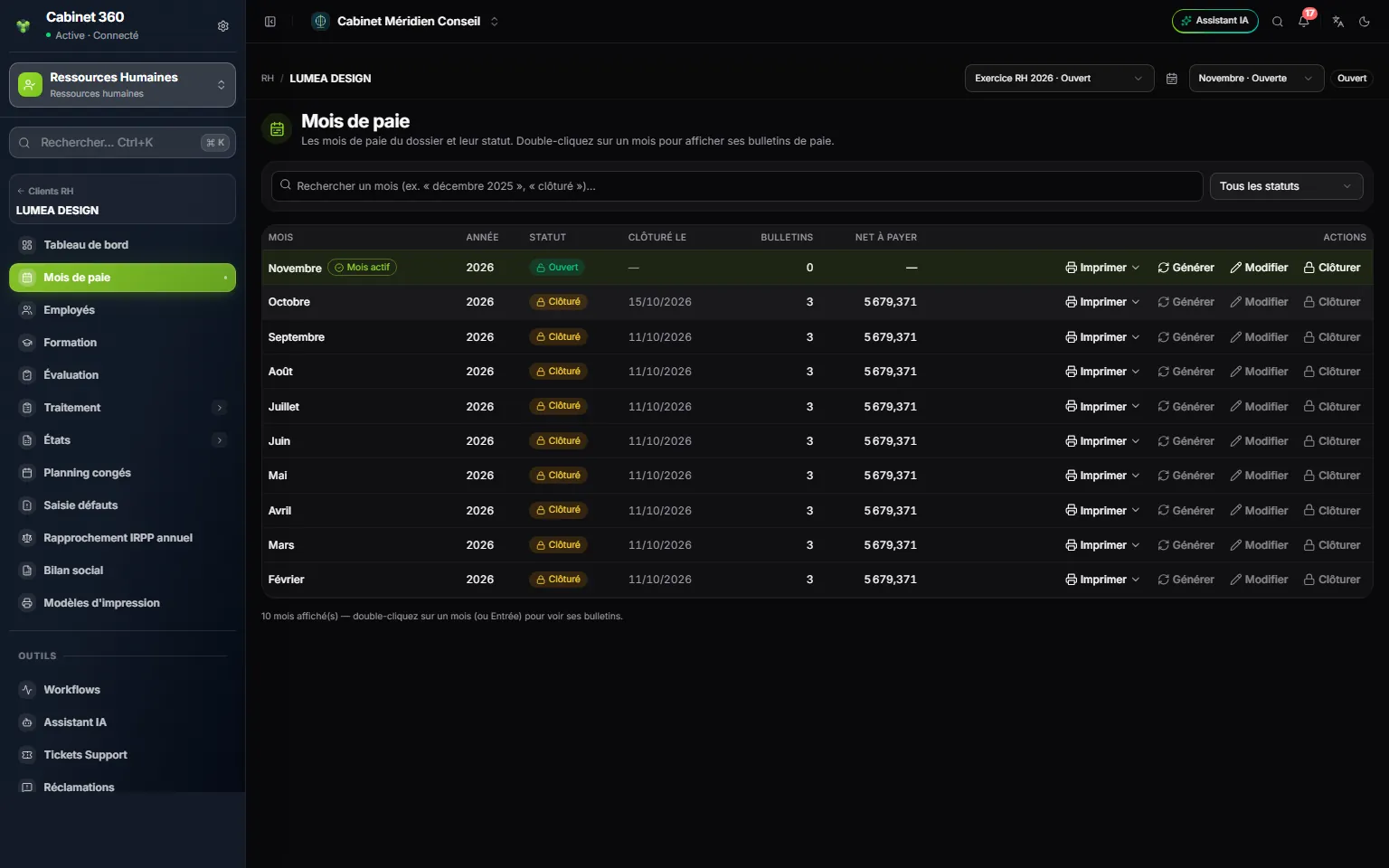
- 1. Active month: one click on a row makes it the working month; a double-click opens its payslips.
- 2. Status: only one month is open, the ones before it are closed.
- 3. Print: the month's payroll ledger, as PDF or Excel.
- 4. Generate: computes the month's payslips for every employee.
- 5. Edit: the grid of the month's payroll data, employee by employee.
- 6. Close: closes the month and opens the next one.
As long as no month is chosen, a banner asks you to click one. Once the month is chosen, the file's menu shows Processing, HR reports, Training and Evaluation, and the top bar becomes the month header: client, month and period, payroll year, supervisor, team members, the month's net, number of employees and of payslips. The other months and the selectors are hidden; Back to months brings back the list.
What to do before generating
- Enter the month's items in Processing (see The month's Processing).
- Decide on the pending entries. Above the chosen month, a line counts them, for example "3 entries await your decision for October 2026: 1 absence, 2 bonuses". Each number opens its page: approve or refuse each entry. Payroll counts only approved entries.
- For the file's very first payroll: record the opening leave balances and each employee's leave entitlement (see Taking over a file from elsewhere).
Generate the payslips
Click Generate at the end of the month's row. The "Generate the payslips of …?" window recalls the entries still pending, or says "No entry awaits a decision for …". Confirm: "3 payslip(s) generated for October 2026" is shown.
Who gets a payslip:
- the file's active employees, covered by a validated contract (or with no contract at all, for payslips from before contracts);
- an employee who resigns: they still get their payslip in the month their resignation takes effect, no longer after that.
Payslips already validated or locked stay as they are: Generate does not touch them. You can generate as many times as needed while the month is open.
Correct with Edit
Edit opens the month's Edit payroll data grid, one row per employee. The column names come from the server in French:
| Column | What it holds |
|---|---|
| Jours de présence (days present), Heures travaillées (hours worked) | The month's working days (or hours) minus the absences withheld |
| Congés pris (leave taken) | The month's days of leave, for the leave counter |
| Salaire de base (base salary) | The month's base |
| Primes cotisables (contributory bonuses), Primes imposables (taxable bonuses) | The month's bonuses |
| Heures supplémentaires (overtime), Frais remboursés (reimbursed expenses) | The month's amounts |
| Avances (advances), Prêts (loans), Oppositions (garnishments), Autres retenues (other deductions) | The month's deductions |
The grey value is the one payroll computes. Typing a value replaces it; clearing the cell returns it to the calculation. Click Save (n): the payslips concerned are recomputed, and a new generation keeps your values.
- Days present make the base of an employee paid by days, hours worked that of an employee paid by hour; the other cell is greyed out. Days are entered to one decimal at most ("22,5"), hours to the hundredth.
- They never exceed the employee's working days (or hours) in the month: above that, the cell turns red, its tooltip gives the maximum and Save stays greyed out.
- Congés pris replaces, for this month, the count of approved leave in the leave counter; it does not change the net.
- Prêts suggests the month's instalment, plus the remainder from previous months; in the month the employee leaves, everything still owed. You can withhold less, or more up to the outstanding balance. The icon next to the cell opens Loan allocation: how the deduction is spread over the instalments, automatic by default (oldest first).
Print offers Payroll ledger — PDF and Payroll ledger — Excel. The Excel adds the employer charges and the total employer cost. The month's other reports are in HR reports (see HR reports and employee documents).
Close the month
Once the month is done, click Close, then confirm: "The month will take no more entries or computation, and November 2026 will be opened automatically." The next month becomes the active month. After December comes January of the next payroll year, created if needed. If no payslip was generated, the window warns you.
When closing, IntegraSys:
- refuses to close if an employee promoted that month does not have the new salary on their payslip: "Veuillez vérifier le salaire brut de … : il a eu une promotion courant ce mois" (please check …'s gross salary: they were promoted during this month). Generate the month again;
- records the loan and garnishment instalments withheld in the repayment table, with this payroll month;
- files the month's payroll bundle in the client's drive, under HR & payroll › Liasses de paie mensuelle (monthly payroll bundles).
Reopen a month closed too early
- Click Back to months, then the calendar icon at the top (Fiscal Years), and expand the payroll year.
- If the next month has just opened and is still empty, first delete it with its bin icon (it acts without asking for confirmation).
- Click Reopen: the icon is active only on the last month.
A posted month cannot be reopened while its entry exists: cancel the posting first.