
The module and the rights
Payroll needs the Human Resources module in the firm's subscription. The owner and the administrators have every right; for other members, rights are given screen by screen.
Tick, for the role, the module's screens: HR Clients, Payroll months, Employees, Leave, the Processing screens, Payslips, HR reports… Each screen has its actions: View, Create, Edit, Delete.
The stubs of the HR documents
Four of the module's documents carry a number taken from one of the firm's stubs.
| Stub | Numbers | To set up? |
|---|---|---|
| Employment contract | CT00001, CT00002… | Yes, mandatory: without it, no new employee or contract can be saved |
| Leave request | DC260001, then DC270001 in 2027 | No: created with the first number |
| Leave permit | TC260001, then TC270001 in 2027 | No: created with the first number |
| Group insurance statement | BORD260001, then BORD270001 | No: created with the first number |
The last three restart from 0001 every year. A number is never given again, even after a deletion.
The firm's pay items
A pay item is a line of the payslip: bonus, allowance, deduction, benefit in kind. The firm keeps a catalogue, copied into each HR file.
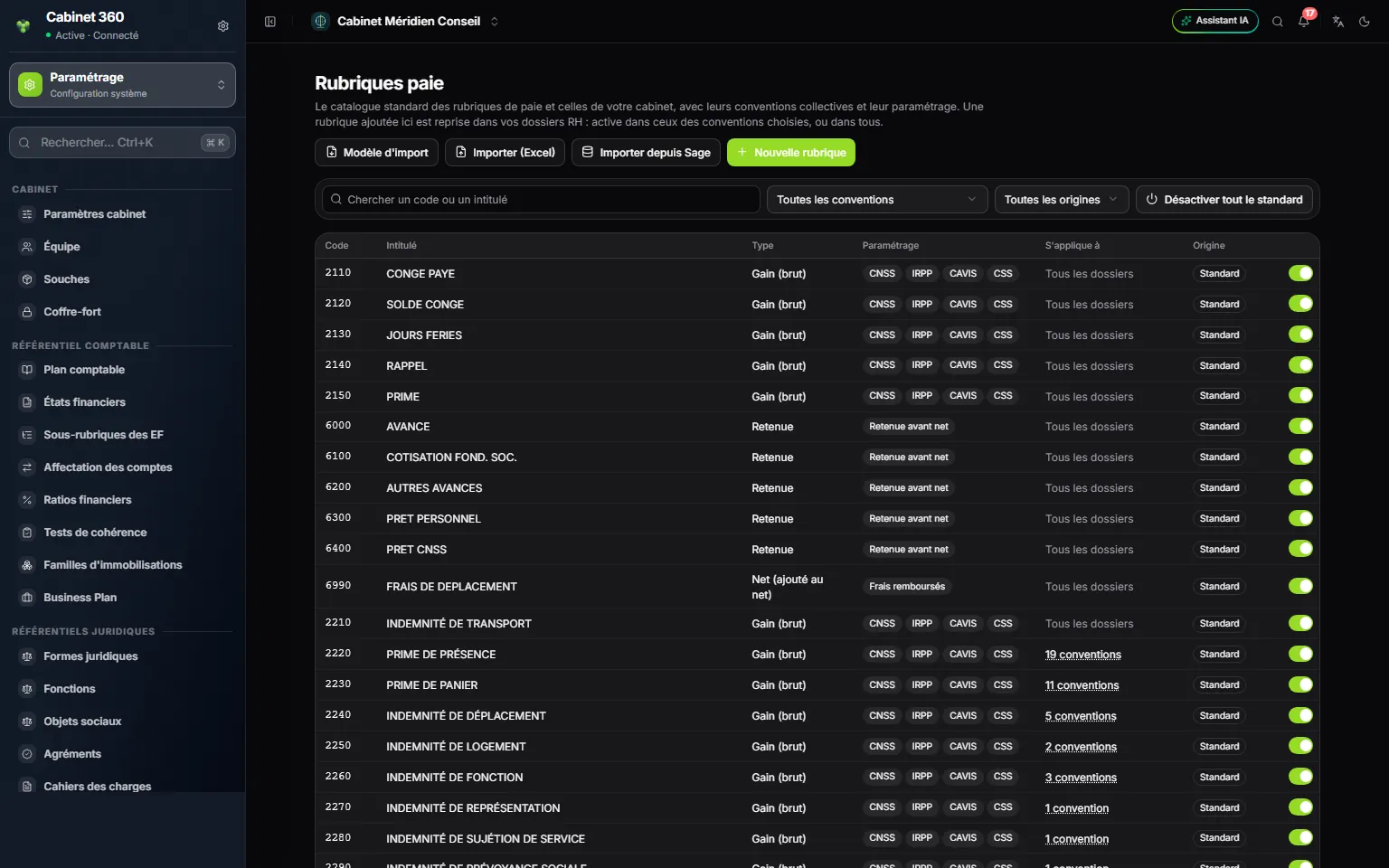
- 1. Import template, Import (Excel), Import from Sage: the annotated template, the workbook import, Sage's pay plan.
- 2. New item: an item of the firm's own.
- 3. Filters: by collective agreement and by origin (standard or firm).
- 4. Deactivate all standard: for the firm that works with its own pay plan.
- 5. Applies to: all files, or the files of certain agreements.
- 6. The switch: turns a standard item on, or sets it aside, for all your files.
The table mixes, in ascending code order, the standard catalogue (origin Standard), kept by IntegraSys, and your own items (origin Firm). Each row gives the type, the contribution and tax bases (CNSS, IRPP, CAVIS, CSS) and the files where the item applies.
Setting a standard item aside
Turn its switch off: it no longer enters your new files, and it leaves the payroll of the files that have it at the next calculation. Deactivate all standard turns them all off, after confirmation. A standard item's settings cannot be edited here.
Creating your own
- Click New item.
- Enter the Code, the Label, the Type — Earning (gross), Net (added to net), Deduction or Benefit in kind — and the Default amount.
- Under Item settings, tick its bases: Subject to CNSS, Subject to IRPP…
- Under Applies to files, choose All files, or Files of the chosen agreements and tick the agreements.
- Click Create: a message gives the number of files where it is added and activated.
A code is refused with its reason: the code or label of a standard item, a code reserved for a line the payslip calculates itself, or a code already taken by another of your items. A gross earning must be subject to CNSS or IRPP: without one of the two bases, payroll would ignore it.
Importing a pay plan
To create several, download the Import template: each column is annotated and the "Notice" sheet gives examples. Fill it in, then click Import (Excel). The file is first analysed without saving anything; one row in error blocks the whole import. For a code that already exists, answer Yes or No to "Replace the existing item …?", then click Import.
Import from Sage takes over the pay plan of a successful Sage Paie extraction (see Taking over a file from elsewhere): codes and labels as Sage writes them.
The lines the payslip calculates
Below the table, Lines calculated by the payslip lists the lines payroll calculates itself: SALAIRE DE BASE (base salary), CNSS, IRPP, NET A PAYER (net pay)… with what calculates each one. They are not pay items and cannot be edited. The Printed column says whether the line shows on the payslip: a line that is not printed is still calculated and counted in the totals. NET A PAYER is always printed.
What reaches the files
Each item enters the HR files as a copy. An item with no agreement is active everywhere; an agreement's item is active only in the files of that agreement. A copy's settings are never rewritten: a file may have adapted it, an employee may have been paid with it. Deleting an item here leaves its copies in the files.
What IntegraSys keeps up to date for you
The other tabs of the Social reference can be read but not edited: Dated CNSS rates, CNSS régimes, CNSS variants, Minimum wage (SMIG), IRPP brackets, Yearly parameters, Work accident, Collective agreements, Self-employed contributions, Conventional premiums and Contract types. IntegraSys keeps them up to date for every firm. When a law changes, a new dated line is added: months already paid keep their rates, the following ones take the new ones.