
The common rules
Processing appears as soon as a month is chosen in Payroll months; for a closed month, it keeps only Payslips. For an open month, it groups Leave, Absences, Advances, Loans, Garnishments, Promotions, Bonuses and commissions, Overtime, Sanctions, Travel expenses and Payslips. Leave has its own chapter (Leave), and so do payslips (Payslips).
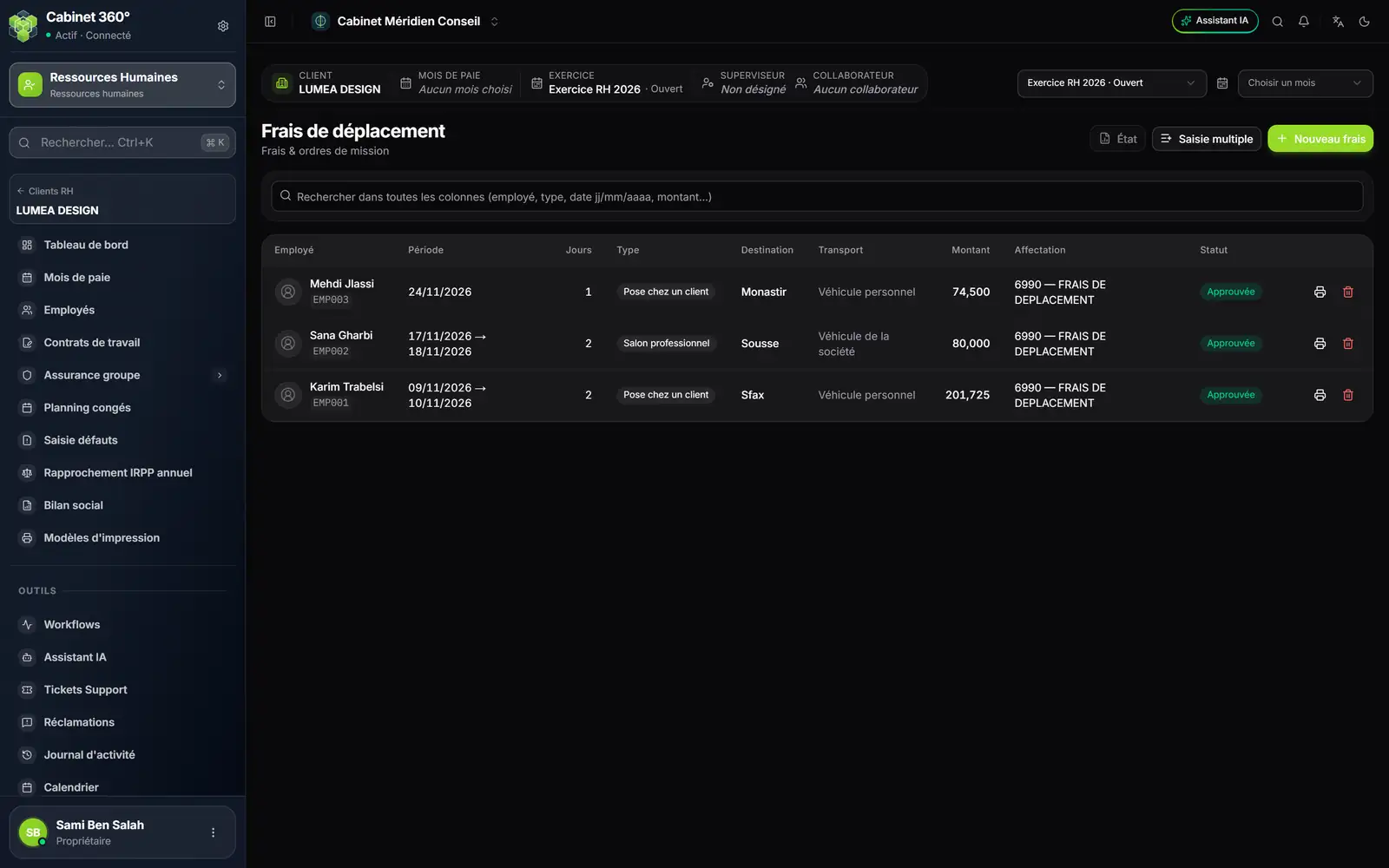
- 1. Report: the month's summary report, as PDF.
- 2. Batch entry: several employees at once.
- 3. New expense: one entry, one employee.
- 4. Search all columns: employee, ID number, type, date as dd/mm/yyyy, amount as shown.
- 5. Allocation: the pay item under which the month's payslip prints the item.
- 6. Status: what payroll counts, what awaits a decision.
- 7. Row actions: print, delete; beyond three, a ⋯ menu.
- The payroll month follows from the entry's date. An absence, an advance, a bonus, overtime or expenses must be dated within the open month; otherwise the entry is refused, with the month to use.
- A closed month is shut: "Le mois de paie 10/2026 est clôturé : aucune saisie n'est autorisée pour ce mois." (payroll month 10/2026 is closed: no entry is allowed for this month). Its entries can no longer be deleted: its payroll has already counted them.
- What the firm enters is approved at once (status Approved) and goes into payroll, except leave entered one at a time, which stays a request to approve.
- No editing: in an open month, delete the row (bin icon) and enter it again.
- To choose the Employee, click the field: each employee is shown with their ID number and position underneath; type their name, ID number or position to find them.
- If the month's payslip is already generated, it is recomputed when you save a bonus, overtime, expenses or a suspension.
Each entry, one by one
Absences
Enregistrer une absence (record an absence): Absence type, From, To, Number of days and Justified absence, with a supporting document if you have one. The number suggested is the number of working days in the period, Sundays and public holidays excluded; you can change it. For a half day, enter 0,5 with the same date in From and To.
- Only an unjustified, approved absence is deducted from the month's days worked. A justified absence withholds nothing.
- An absence spanning two months counts its share of days in each payroll month.
- The Convertir en congé payé (convert to paid leave) icon replaces the absence with paid leave for the same period: nothing is withheld any more.
Advances
Nouvelle avance (new advance): Advance amount (TND), Advance date, Planned repayment. Several advances per month are possible, but their total does not exceed the month's net pay: above that, the refusal says what remains possible. If the employee has a supplementary payslip that month, Deduct from lets you withhold the advance from that payslip rather than from the salary.
Loans
Nouveau prêt (new loan): Amount (TND), Duration (months), Start date. The monthly instalment is withheld each month; the last instalment absorbs the rounding. The button in the Échéancier (schedule) column opens the repayment table, with the Mois de paie (payroll month) of each instalment. A past instalment that was not withheld is withheld in the first open month.
Garnishments
A garnishment (attachment order, alimony, taxes, wage assignment…) withholds a monthly instalment each month for a creditor, chosen from the firm's list (+ adds one). With a total amount, IntegraSys draws up a schedule, the remainder on the last instalment; with no total amount, the deduction continues until the release.
Promotions
A promotion carries its new salary and its Effective date: it applies from the month of that date. Closing the month checks that the promoted employee's payslip does carry the new salary.
Bonuses and commissions
New bonus: Bonus type (including Commission), Amount (TND), Amount basis, Date and, if needed, the Allocation: the pay item under which the payslip prints it.
- Net, suggested by default: payroll works back to the gross that gives this net. The employee's net pay rises by exactly the amount entered.
- Gross: the amount goes into the payslip as it is.
The Enter bonuses and commissions button opens one row per active employee: choose the Type, the Pay item and the Net amount (TND), then click Validate. Rows with no amount are ignored; a row with an amount requires its pay item. The bonuses are dated the 1st of the payroll month.
Overtime
Enregistrer des heures (record hours): Date, Total overtime hours, their Breakdown by premium rate (125%, 150%, 175% for the 48-hour regime, 200%) and Allocation. Enter the day's total, then split it between the rates: their sum must equal the total, otherwise nothing is saved. The list keeps one line per rate. The amount is computed on the hourly rate of the employee's salary.
Sanctions
A sanction carries its type, its decision date and its reason. For a Suspension, enter the Number of days (in half days: 0,5, 1, 1,5…), the Suspension from date and the To date: once approved, it is withheld from payroll like an unjustified absence. The Print the notification icon produces the notification of the decision, as PDF, for every type of sanction.
Travel expenses and mission orders
New expense draws up a mission order: Mission type (the file's list; + adds one), departure and return dates, destination, purpose, means of transport and distance. The Automatic calculation gives:
- the mileage allowance = distance × rate per kilometre, with Personal vehicle only;
- the daily allowance = number of days, departure and return included, × rate per day.
The rates are those on the employee's record, otherwise those of their category in the file's scale. The Total can be changed: an amount typed in is kept as it is. The mission goes into the payroll of the month it starts, as reimbursed expenses, not taxable. The row's printer icon prints the mission order, in the employer's name. Once the month's payroll is generated, the month's orders can no longer be changed or deleted.
Batch entry
On each page, Batch entry opens a grid for the active payroll month.
- Click Add a row, or One row per employee to take them all.
- Fill in the cells. A red cell needs correcting: hover over it to read the reason, for example "Outside the chosen payroll month".
- Click Validate batch (n): "n entry(ies) saved" is shown.
Everything is saved, or nothing: if a row is refused, the message names it; correct it, then validate again.
Your client's entries awaiting your decision
Your client also enters absences, bonuses, overtime, garnishments, sanctions and leave on their portal (their advances, loan contracts and mission orders go straight into payroll). These entries arrive Pending, with an alert in the bell ("Prime à approuver — …": bonus to approve). The Status column shows them; the tick approves, the cross refuses.
The month's report
On each page, Report downloads the summary report of the active payroll month: one table per category (absence type, bonus type, overtime rate…), one row per employee with the number of entries, the days, hours or amounts, a subtotal per category, then the summary and the grand total. For loans, the report gives the month's instalment of the ongoing loans. Only approved entries appear in it.