
The PDF of a document
- In the invoice list (or the quote, pre-invoice or credit note list), open the document's ⋯ menu.
- Click Download PDF. The file, for example Facture_FAC00012.pdf, arrives in your downloads: “PDF downloaded”.
- To print an invoice, choose Print in the same menu: the browser's print window opens on the PDF. Quotes, pre-invoices and credit notes only have Download PDF.
The detail panel of an invoice offers the same actions in its Quick actions: Download PDF, and Print, which opens the PDF in a new tab.
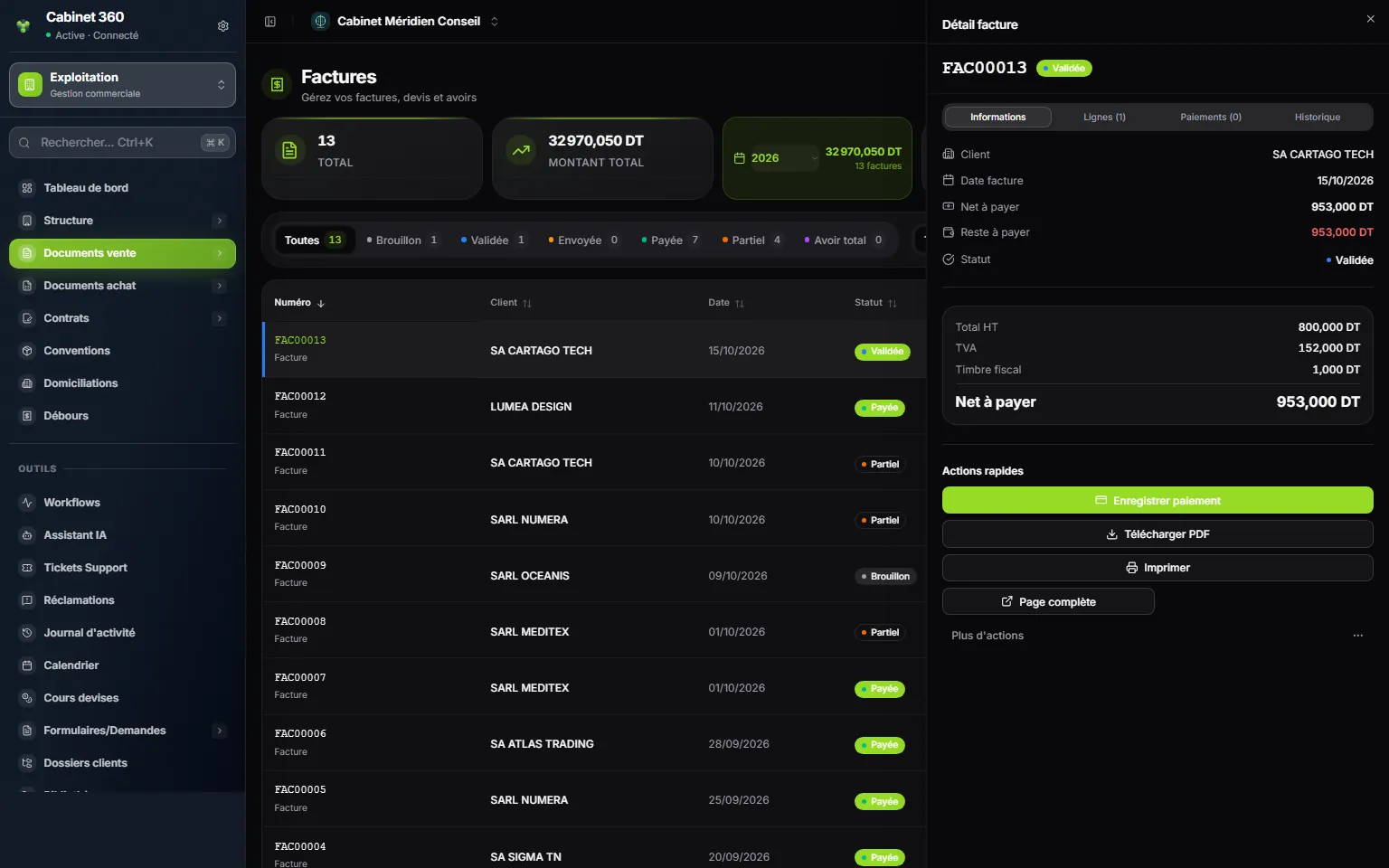
- 1. Invoice detail: Information, Lines, Payments, History.
- 2. The totals of the invoice, down to the net to pay.
- 3. Quick actions: Record payment, Download PDF, Print.
- 4. Full page: the invoice in large.
What is printed
The PDF takes over your firm's identity (chapter 2), the client, the subject, the lines, the VAT detail, the stamp, the total and, depending on your template, the amount in words, the payment terms, the signature and stamp, and your bank details in the footer. The document's Notes are printed; the Attachments and the archiving notes, never.
Its layout follows the template chosen in Settings › PDF Templates: Classic, Corporate, Minimal or Elegant, with your settings. A document printed again takes the template in use on that day.
Watermarks
If Watermark (draft/cancelled) is enabled in your template, the PDF carries across the page:
| Status of the document | Watermark |
|---|---|
| Draft | BROUILLON (draft) |
| Cancelled | ANNULEE (cancelled) |
| Fully credited invoice | SOLDEE PAR AVOIR (settled by credit note) |
On a draft invoice or credit note, “BROUILLON” also replaces the number, watermark or not; a draft quote or pre-invoice keeps its number. The PDF of a draft is therefore not a document to hand over: validate first, then download again.
The download fails?
The message gives the cause. Most often: “Impossible de générer la facture : l'identité de l'émetteur est incomplète…” (the invoice cannot be generated: the issuer's identity is incomplete). Complete your company profile (chapter 2), then try again.
Sending to the client
IntegraSys does not send the invoice by e-mail. Attach the PDF to your own message, then record the sending: ⋯ menu, Mark as sent. The invoice moves to Sent.
Your client has access to the client area? They see their issued invoices and credit notes there, and download the PDFs themselves. Drafts never appear there. See the book Client Portal.
The sales journal
The journal lists the sales documents issued over a period. It is what your accountant asks for.
- In Sales Documents › Invoices, click Journal Ventes, at the top of the list. The button and its window keep their French labels.
- Choose the Date début (start date) and the Date fin (end date).
- Click the format: PDF, Excel or CSV.
Only issued documents appear in it: no drafts. The file is named, for example, journal_ventes_20261001_20261031.pdf. The PDF carries the header and footer of the Operations reports (chapter 15).
Exporting your documents
Each sales list has its Export / Import button. Export tab:
- Export Excel (.xlsx): two sheets, the header of the documents and their lines;
- Export CSV: semicolon separator.
The export takes all documents of the type (all invoices, all quotes…), whatever the list filters, except archived pre-invoices.
Importing your documents
You are taking over the history of other software? The Import tab of the same button offers a template to download, then the upload of your file.
- The number column is required: it is the number the document carried. Your series counter is not used up.
- The client is found by their code, their tax ID or their e-mail.
- An error on a single line (number already present, status, date…) cancels the whole file: correct it, then start again.
Settings › Data Import also offers one card per document type, and the “Header / Lines” template.