
Before you start
- The Invoices › Create right.
- The Invoice series exists (chapter 2). If not, a reminder appears at the top of the page and saving stays blocked.
- The amount of the fiscal stamp comes from your company profile: 1,000 TND by default (chapter 2).
Creating an invoice
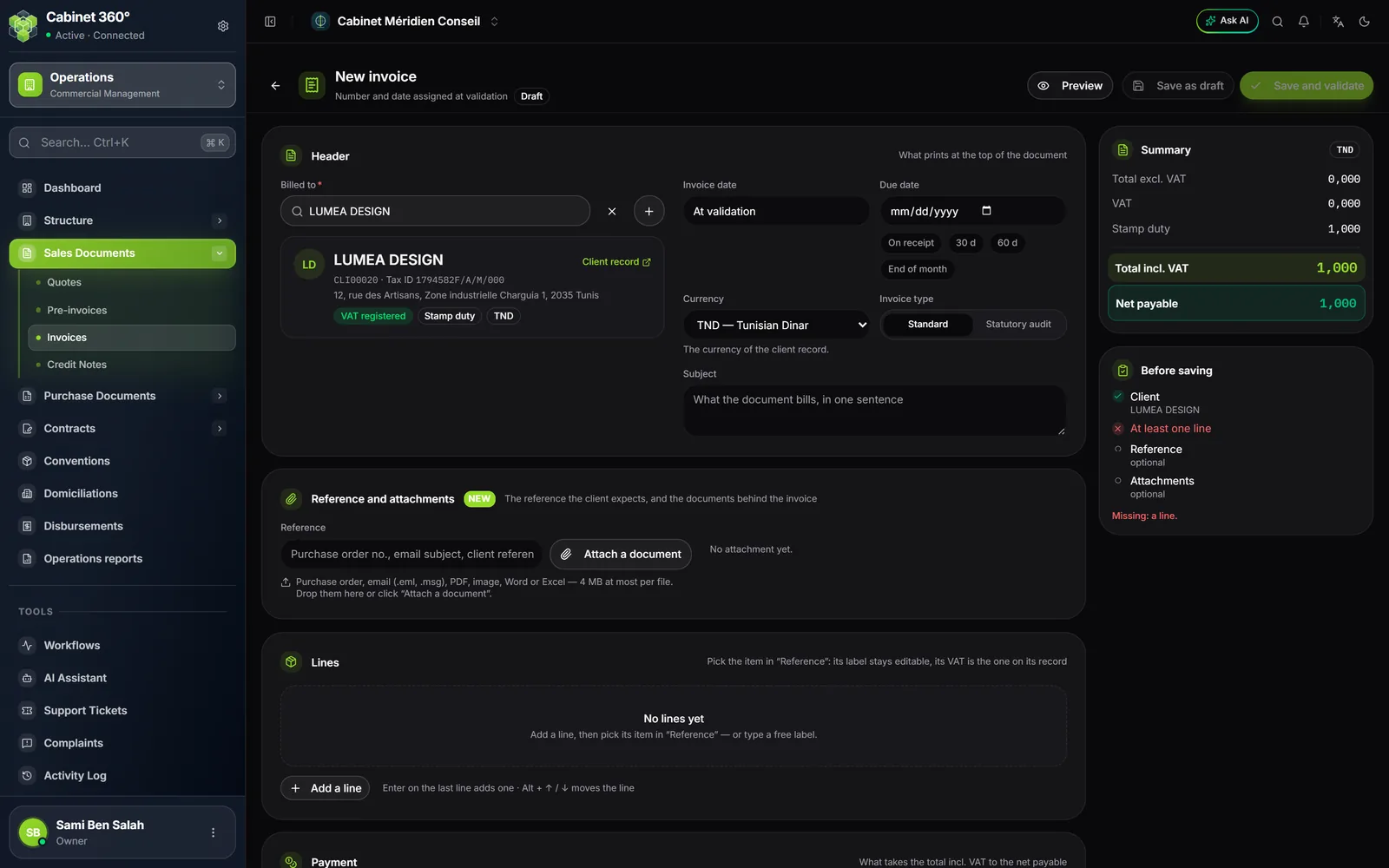
- Click New invoice. At the top, the page announces it: “Number and date assigned at validation”.
- In Billed to, search for the client. If the client does not exist, the + creates them and brings you back here.
- The Invoice date shows “At validation”: it cannot be chosen. Fill in the Due date if needed.
- Keep the Invoice type on Standard. The Statutory audit type (CAC) is for statutory audit fees (below).
- Add the lines: Add a line, Choose an item, then the Qty.
- In Payment, complete the Withholding tax, the Advance received and the Payment terms if needed. The Stamp duty is set by default.
- When Before saving shows “Ready to save.”, click Save and validate. To finish later, click Save as draft.
The entry page is the quote's, block by block: see chapter 7.
The number and the date
A draft invoice has neither a number nor a date. The list shows it with “Draft” in place of the number.
When it is validated, the invoice receives the next number of its series and today's date. The full page reminds you before you validate: “Validate invoice?”, then “This invoice will receive its number and today's date…”.
Two refusals protect this rule:
- The due date has passed: the due date entered on the draft is before the validation date. Correct it, then validate.
- “Check the number sequence against the invoice date”: an invoice with a lower number is dated after today. The message names it: validation waits until its date has passed.
The VAT of each line
The VAT of a line is the one on the article record. It is locked, with a padlock: it is changed in the article record, not on the document. An article that is exempt on its record (0 % or outside VAT) is therefore invoiced without VAT.
A client not subject to VAT still pays the VAT of your articles. Only a client under VAT suspension is invoiced without VAT: an authorization on their record must cover the invoice date. The banner “Client under VAT suspension” then appears above the lines, and each line goes without VAT, marked Suspended.
Outside this case, a line for an article subject to VAT that is invoiced without VAT is refused. Before saving explains it: “Line 1: … is billed without VAT although the client has no valid suspension authorisation on that date”.
The fiscal stamp
The stamp is never entered. It depends on the document and on the client record.
| Document | Fiscal stamp |
|---|---|
| Invoice, quote | Set by default, locked. Only the record of a client not subject to VAT can remove it, by unticking Fiscal stamp. |
| Pre-invoice | A switch, on by default, that you can turn off. |
| Credit note | Never. |
| Conversion (quote or pre-invoice into invoice) | One, or none: the invoice takes over the stamp of its origin. Several pre-invoices combined keep only one. |
The statuses of an invoice
| Status | How it is reached |
|---|---|
| Draft | On saving. It can be edited freely. |
| Validated | Validate: the invoice receives its number and its date. It can no longer be edited. |
| Sent | Mark as sent, after giving it to the client. |
| Partially paid | A first collection. |
| Paid | The remaining amount falls to 0,000. |
| Partial credit note, Full credit note | A validated credit note credits part, or all, of the invoice (chapter 10). |
| Cancelled | A cancelled draft. |
In the list, Partial groups the partially paid invoices and those with a partial credit note.
The invoice list
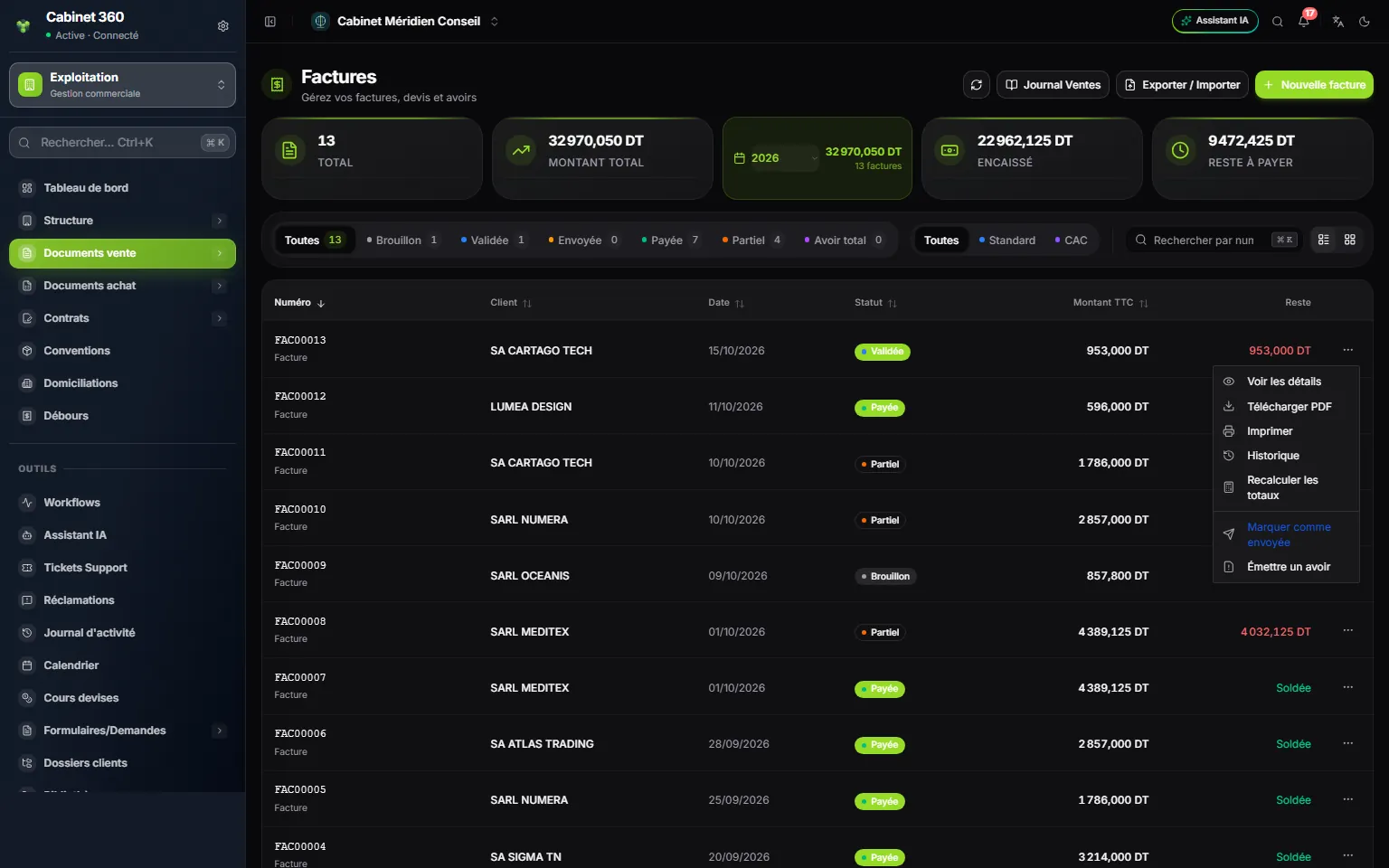
- 1. Journal Ventes (the button keeps this French name): the sales journal of a period, in PDF, Excel or CSV.
- 2. Export / Import your invoices.
- 3. The year: the amount and number of invoices of the chosen year; the list is not filtered.
- 4. Remaining to pay: one click keeps the invoices that have a balance.
- 5. The statuses: All, Draft, Validated, Sent, Paid, Partial, Total credit.
- 6. The ⋯ menu: PDF, printing, sending, credit note…
The cards at the top: Total, Total amount, the year, Collected and Remaining to pay. The Remaining column shows “Settled” when nothing is left.
The ⋯ menu of an invoice:
| Status | What the menu offers |
|---|---|
| All | View details, Download PDF, Print, History, Recalculate totals |
| Draft | in addition: Edit, Validate, Delete |
| Validated | in addition: Mark as sent |
| Validated, Sent or Paid | in addition: Issue credit note |
The panel and the page of an invoice
Click a row: the Invoice detail panel opens on the right, with four tabs: Information, Lines, Payments, History. Its Quick actions: Validate and Edit for a draft, Record payment for a validated or sent invoice that has a balance, Download PDF, Print, Full page.
Full page opens the invoice in large.
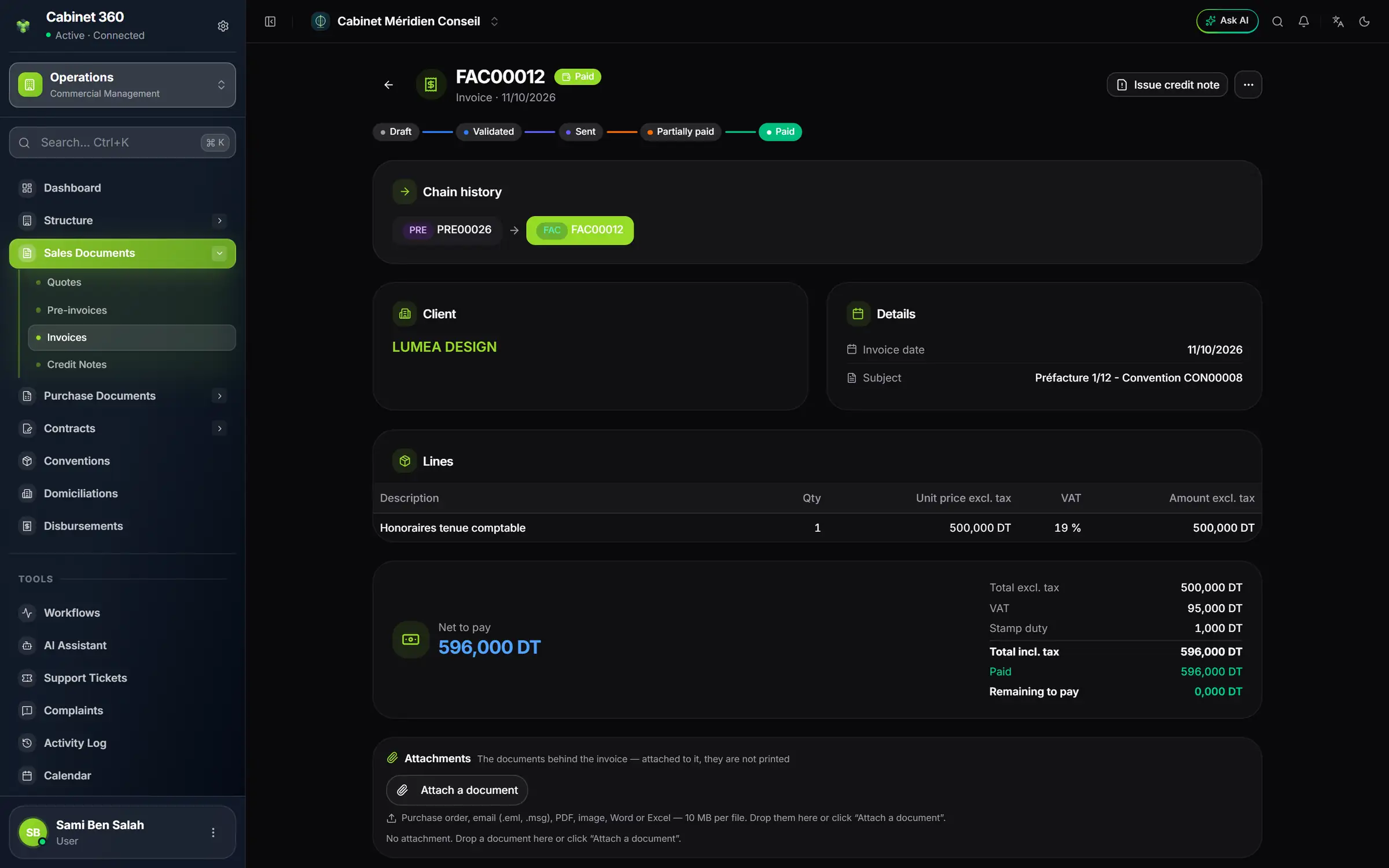
- 1. The status of the invoice.
- 2. Issue credit note: to correct an issued invoice.
- 3. The timeline: Draft, Validated, Sent, Partially paid, Paid.
- 4. Chain history: the pre-invoice this invoice comes from.
- 5. Each line carries its VAT.
- 6. Net to pay, Paid, Remaining to pay.
- 7. Attachments: they are not printed.
Chain history shows the linked documents: the quote, the pre-invoice, the invoice, its credit notes. Each badge opens with a click. It appears as soon as the chain has two documents.
Under the invoice, the Attachments keep its supporting documents. You can add some even after validation; you can only remove them from a draft.
Sending, collecting, cancelling
- Send: IntegraSys does not send the invoice by e-mail. Download the PDF, attach it to your message, then record the sending: ⋯ menu, Mark as sent. This action sends nothing.
- Collect: Record payment in the panel, or Payment on the full page. A draft cannot be collected: validate it first. Collections are described in the book Finance & Cash Register.
- Cancel: a draft is cancelled from More actions (panel) or from the ⋯ menu of its page.
Statutory audit (CAC) invoices
The Statutory audit invoice type (CAC) prepares the fees of a statutory audit engagement. The OECT scale criteria block appears: you enter the client's criteria there, and the fee line is calculated according to the scale of the Order (OECT). A CAC invoice takes its number from the Invoice series, like the others. The details are in the book Audit & Statutory Audit.