
The team's rights
The owner and the administrators of the firm have all the rights. For the other members, everything goes through a role.
In the Roles tab, open the ⋯ menu of a role, then Rights per screen: the page lists the modules. Tick Operations, then each screen the role needs. On a screen, View is included; also tick Create, Edit or Delete.
Three rules avoid surprises:
- Quotes and Pre-invoices have their own rights. Converting them into an invoice also requires Invoices › Create.
- Credit Notes follow the rights of Invoices.
- To validate a purchase document, you need the right to edit it, on top of the right to create it.
Roles are described in detail in the book Firm setup.
The company profile
Your invoices, quotes and pre-invoices print your firm's identity. It comes from the company record.
Check at least these lines before your first invoice:
| Section | What is printed |
|---|---|
| Identity | The name and the Logo (JPG, PNG, WEBP or GIF, 2 MB at most). Without a name, the PDF is refused. |
| Addresses | The address of the head office. |
| Legal and tax | The Tax Identifier and the amount of the Tax stamp, 1,000 TND by default. |
| Banks | The account marked PDF default, printed in the footer of your documents. |
| Signature and stamp | The image of your signature and of your stamp. |
The numbering series
Each Operations document takes its number from a numbering series. The menu calls these series Stubs, and the screen they open is titled Sequences: both words mean the numbering series. In a new company, these series do not exist yet. They are mandatory: as long as a series is missing, its document cannot be saved.
- Open Settings › Stubs. The Mandatory sequences to set up box lists the missing series, each with its button.
- Click Set up “Quote”. The New sequence window opens, already filled in: Document type, Prefix, Start number, Current number, Total size.
- Keep the suggested settings, or adjust them. The Total size counts the prefix: DEV on 8 gives DEV00001.
- Click Create. The message “Sequence created” appears and the series enters the table, marked Mandatory.
- Repeat with each remaining button.
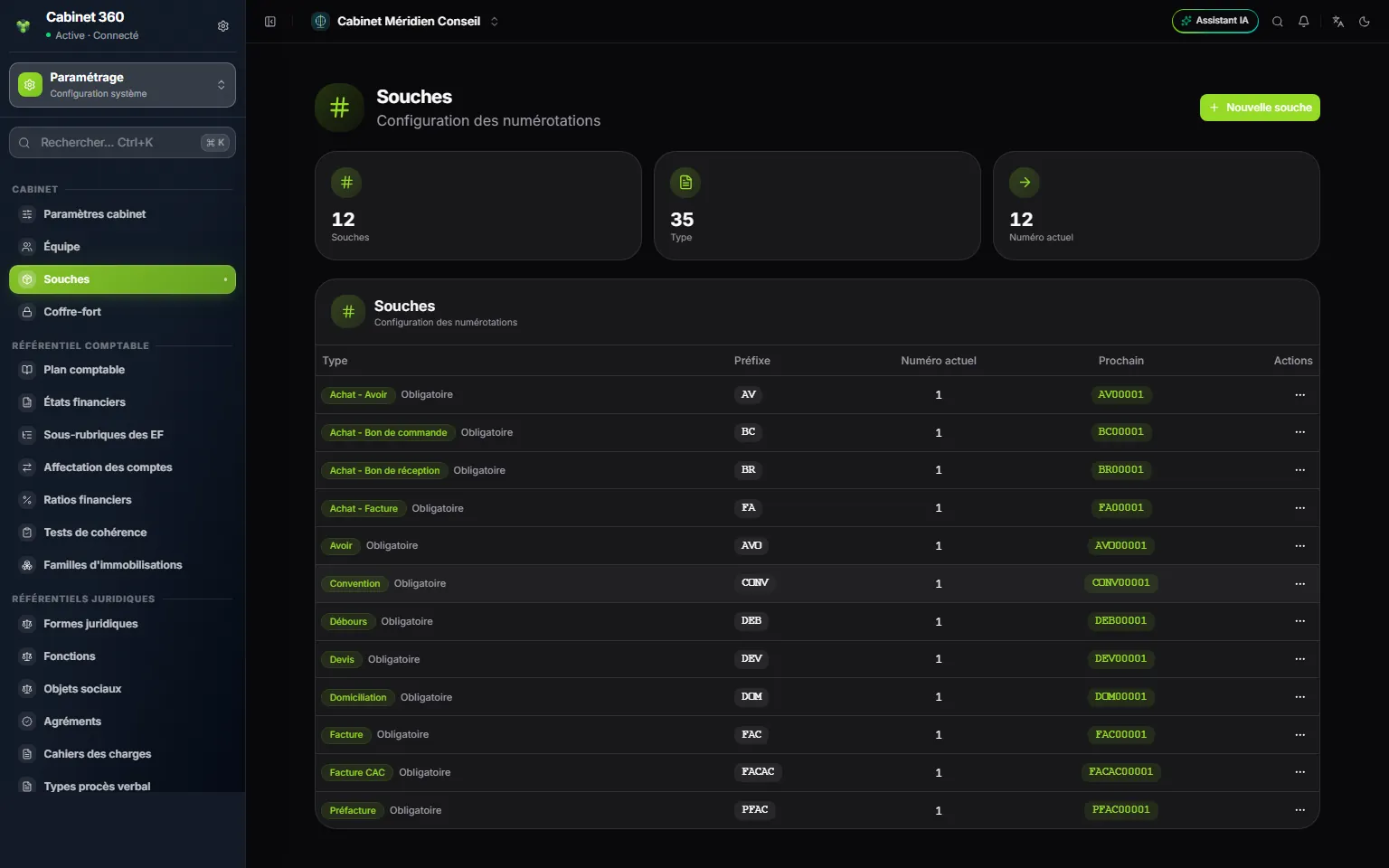
- 1. New sequence: for a series that is not offered.
- 2. Mandatory: a series that an Operations document needs.
- 3. Prefix: the letters placed in front of the number.
- 4. Next: the number the next document will receive.
- 5. ⋯ then Edit: to change a series already created.
The module's eleven series, with the settings the screen suggests in a new company:
| Series | Document | Suggested first number |
|---|---|---|
| Quote | Quote | DEV00001 |
| Pre-invoice | Pre-invoice | PFAC00001 |
| Invoice | Invoice | FAC00001 |
| Credit note | Credit note on an invoice | AVO00001 |
| Purchase - Purchase Order | Purchase order | BC00001 |
| Purchase - Receipt | Goods receipt | BR00001 |
| Purchase - Invoice | Purchase invoice | FA00001 |
| Purchase - Credit Note | Purchase credit note | AV00001 |
| Disbursement | Disbursement | DEB00001 |
| Agreement | Convention | CONV00001 |
| Domiciliation | Domiciliation | DOM00001 |
The twelfth mandatory series, Employment contract, belongs to the HR module; the box offers it too, and only disappears once all twelve exist. The other series (clients, suppliers…) are created on their own with the first document.
If you forget a series, the document tells you. At the top of the form, the reminder “Reminder: the “Invoice” sequence is not set up” appears, with the button Set up the “Invoice” sequence. It opens the creation, then brings you back to the document: “Sequence created: back to the document.”
The PDF template
Your invoices, quotes and pre-invoices come out as PDF following a layout template. The owner or an administrator chooses it.
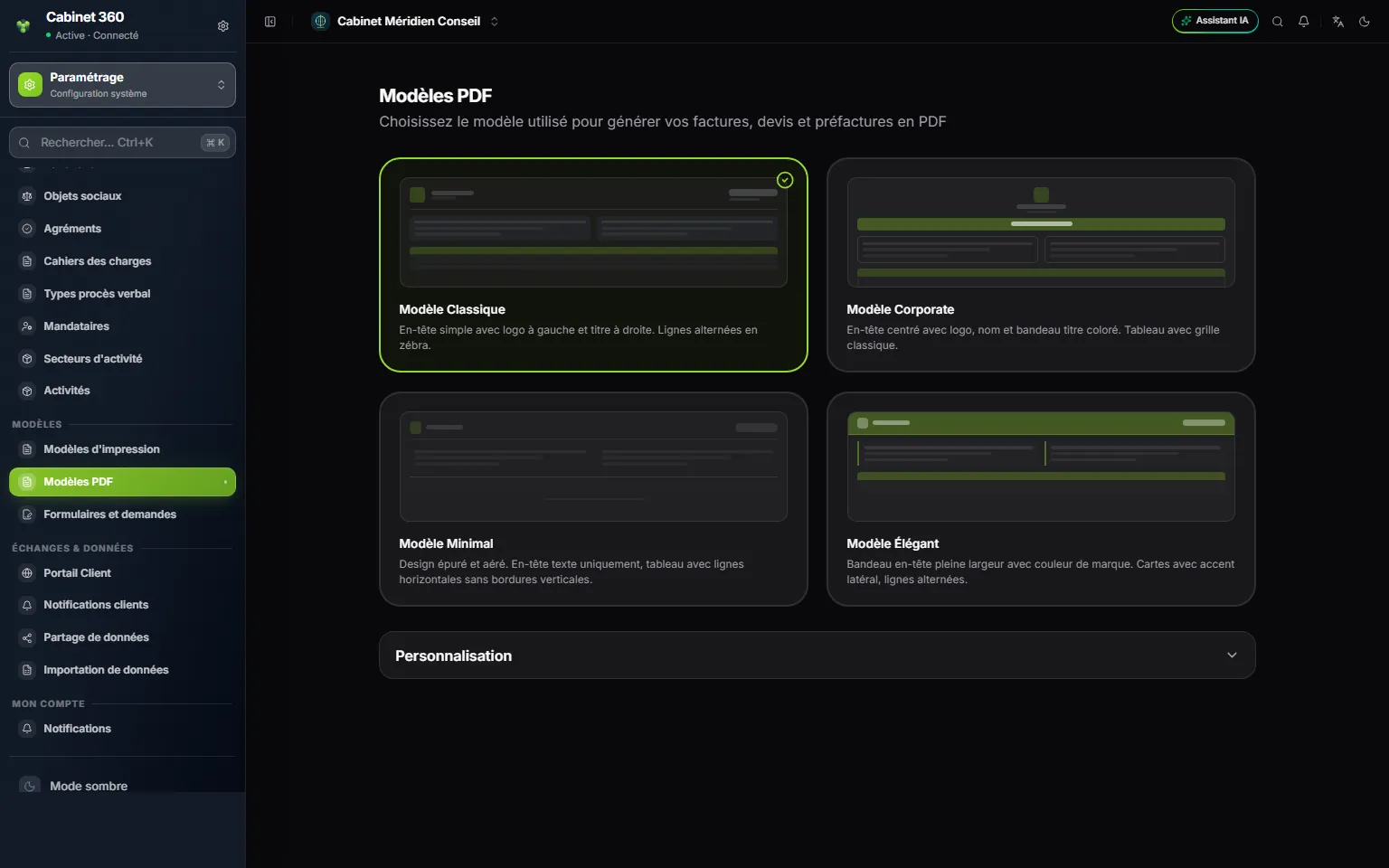
- 1. Four templates: Classic, Corporate, Minimal, Elegant. One click chooses.
- 2. The tick marks the template in use.
- 3. Customization: colors, visible sections, table.
In Customization, three groups of settings:
- Colors: Use logo color, or a Primary color of your choice.
- Visible sections: Discount column, VAT details, Amount in words, Notes, Payment terms, Signature and stamp, Watermark (draft/cancelled), Bank info in footer.
- Table: Alternating rows, Full grid, Table font size from 7 to 11 pt.
Click Save: “The PDF template has been updated”. A document already downloaded does not change; the next time it is printed, it takes the template in use.
VAT rates
VAT rates come from a list kept by the platform. The Tunisian rates are 0, 7, 13 and 19 %. You never enter them on a document: each article carries its own (chapter 5), and the invoice line takes it over.