
Before you start
- The Quotes › Create right. Converting a quote into an invoice also requires Invoices › Create.
- The Quote and Invoice (or Pre-invoice) series exist (chapter 2).
- The client and the articles exist (chapters 4 and 5). If not, the + creates them along the way.
Creating a quote
- Click New quote. The planned number shows at the top: “DEV00001 · number assigned on save”.
- In Quote for, search for the client by name, code or city.
- Check the Quote date, the Due date and the Subject.
- In Lines, click Add a line, then Choose an item in the Reference column. The label, the price and the VAT fill in. Enter the Qty.
- Click Save as draft. The message “Quote DEV00001 saved” appears and the list comes back.
A quote is always saved as a draft: that is its only save button. You then validate it, from the list or from its page.
The entry page
The quote, the pre-invoice, the invoice and the credit note are entered on the same page. What you learn here applies to all four.
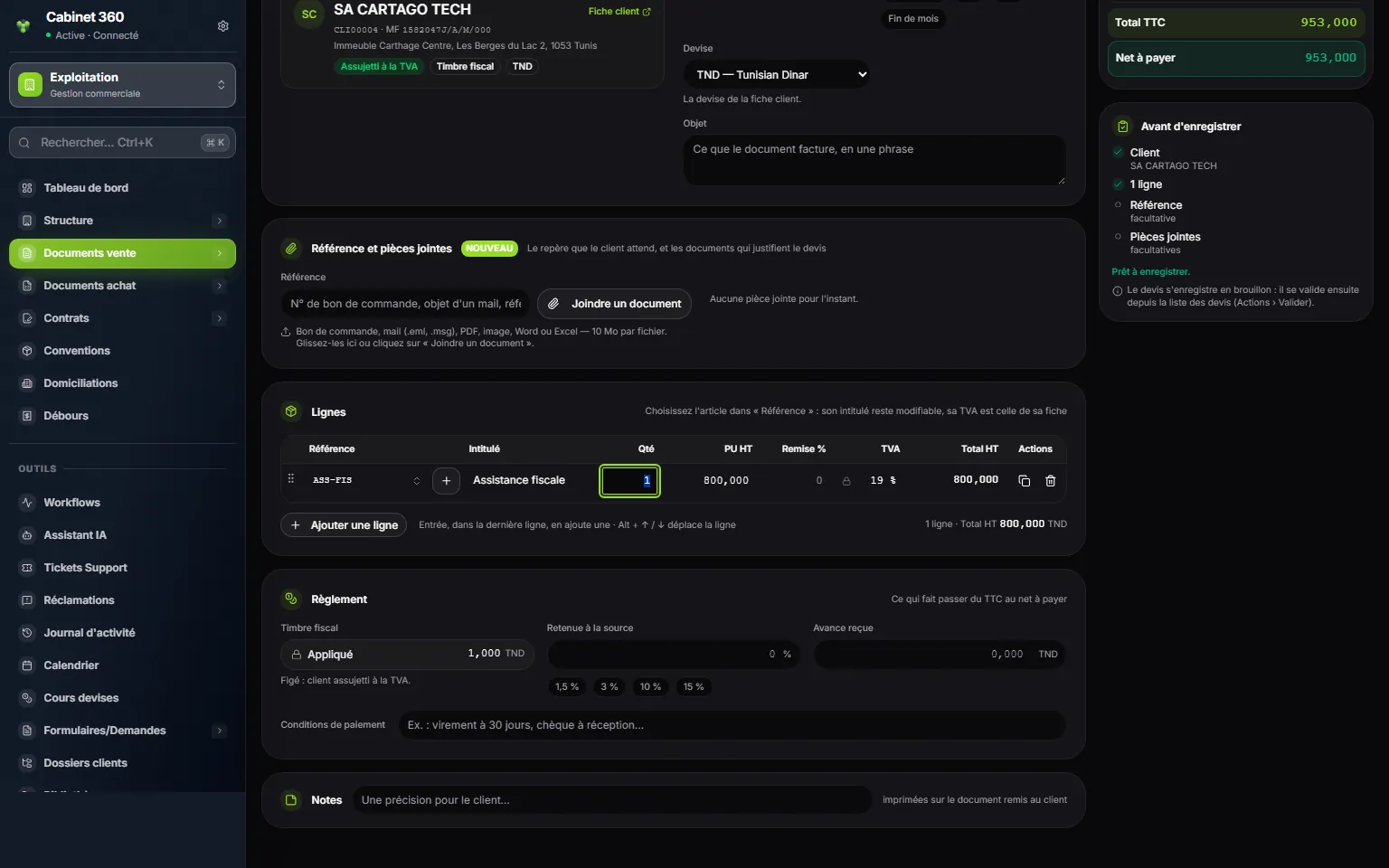
- 1. Reference: the reference the client expects, for example their purchase order number.
- 2. Attach a document: a supporting document, which is not printed.
- 3. Choose an item: it fills in the label, the price excl. VAT and the VAT.
- 4. +: create the missing article, then come back here.
- 5. The padlock: the VAT is the one on the article record.
- 6. Stamp duty: set by default, it is not entered.
- 7. Before saving: what is ready, and what is missing.
The page has six blocks, from top to bottom.
Header: what prints at the top of the document.
- The client: search by name, code or city. If the client does not exist, the + next to it opens New client, then brings you back here with the client chosen, without losing your entry. Their card recalls their tax ID, whether they are VAT registered, and whether they carry the stamp duty.
- The date and the Due date, with shortcuts: On receipt, 30 d, 60 d, End of month.
- The Currency: the one on the client record.
- The Subject: what the document bills, in one sentence.
Reference and attachments
- Reference: the client's purchase order number, the subject of an e-mail… 100 characters at most. Optional.
- Attach a document: purchase order, e-mail (.eml, .msg), PDF, image, Word or Excel. Drop them in the box, 20 files per upload, 4 MB at most per file for now. They stay attached to the document and are not printed.
Lines: each line requires an article. Columns Reference, Label (editable), Qty, Unit price excl. VAT, Discount %, VAT, Total excl. VAT. On the last line, Enter adds a new one; Alt + ↑ / ↓ moves the line.
Payment: what takes the total incl. VAT to the net payable.
- Stamp duty: locked, with a padlock (chapter 9).
- Withholding tax, with a few common rates in one click.
- Advance received and Payment terms.
Notes: a note for the client, printed on the document.
On the right, the Summary gives the Total excl. VAT, the VAT per rate, the stamp duty, the Total incl. VAT and the Net payable. Below it, Before saving ticks what is ready: the client, the date, at least one line, every line correct. When everything is right: “Ready to save.” Otherwise, hover over the greyed-out button: it says what is missing, for example “Missing: the client, a line.”
Validating the quote
In the list, open the quote's ⋯ menu, then Validate. The message “Quote validated successfully” appears. A validated quote can no longer be edited.
The quote list
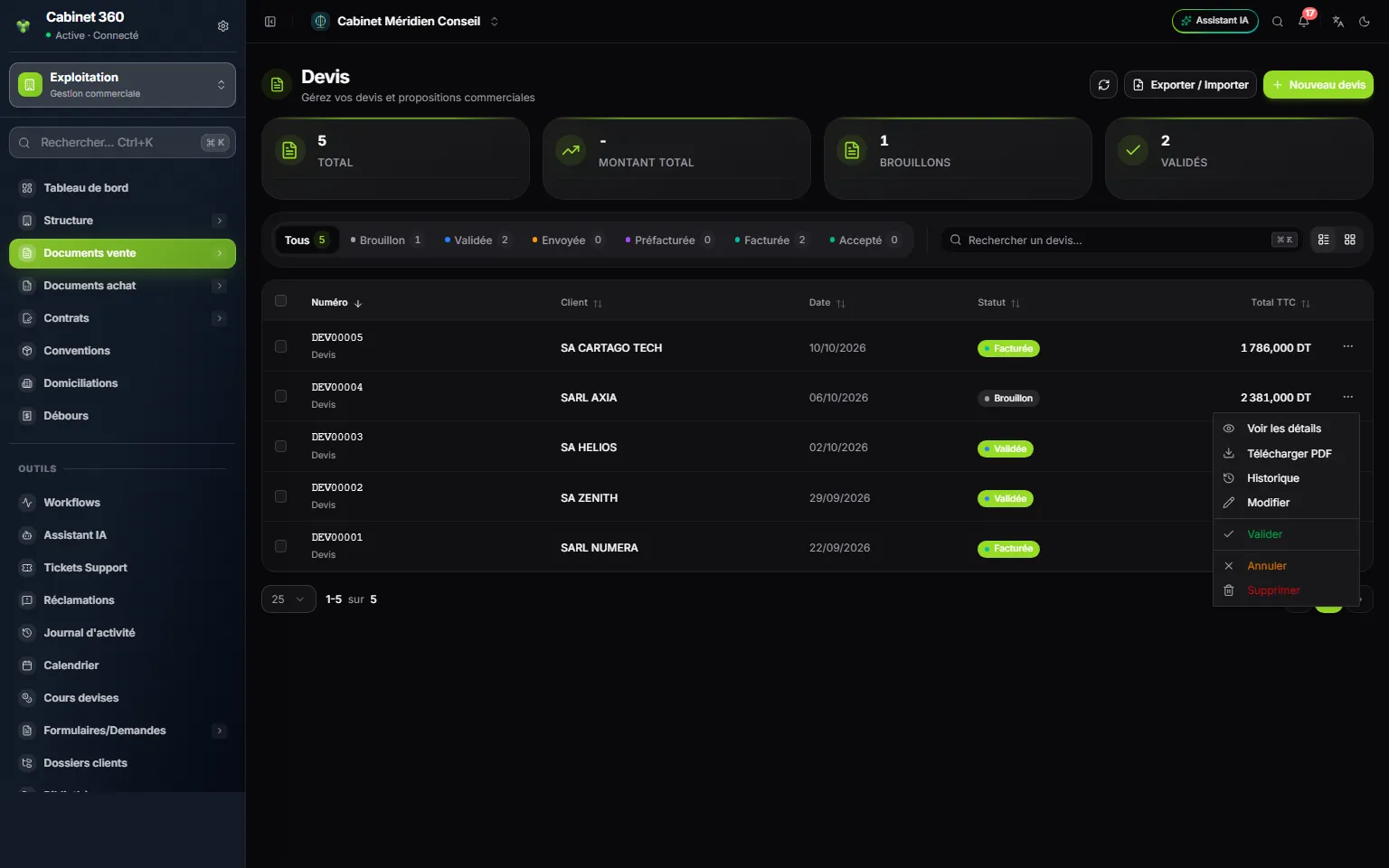
- 1. Export / Import your quotes.
- 2. New quote.
- 3. The cards: total, amount, drafts, validated.
- 4. The statuses: one click filters the list.
- 5. Invoiced: the quote has become an invoice.
- 6. Validate: in the menu of a draft.
The ⋯ menu of a row offers what the status allows:
| Status of the quote | What the menu offers |
|---|---|
| All | View details, Download PDF, History |
| Draft | in addition: Edit, Validate, Cancel, Delete |
| Validated | in addition: Convert to pre-invoice, Convert to invoice |
A quote goes from Draft to Validated, then to Pre-invoiced or Invoiced when you convert it. A draft can also be Cancelled.
Converting the quote
The client accepts. Transform the quote, without retyping anything.
- Open the ⋯ menu of the validated quote, then Convert to invoice (or Convert to pre-invoice).
- The Convert quote to invoice window takes over the client, the subject, the lines and the payment terms. Check them.
- Click Generate invoice (or Generate pre-invoice).
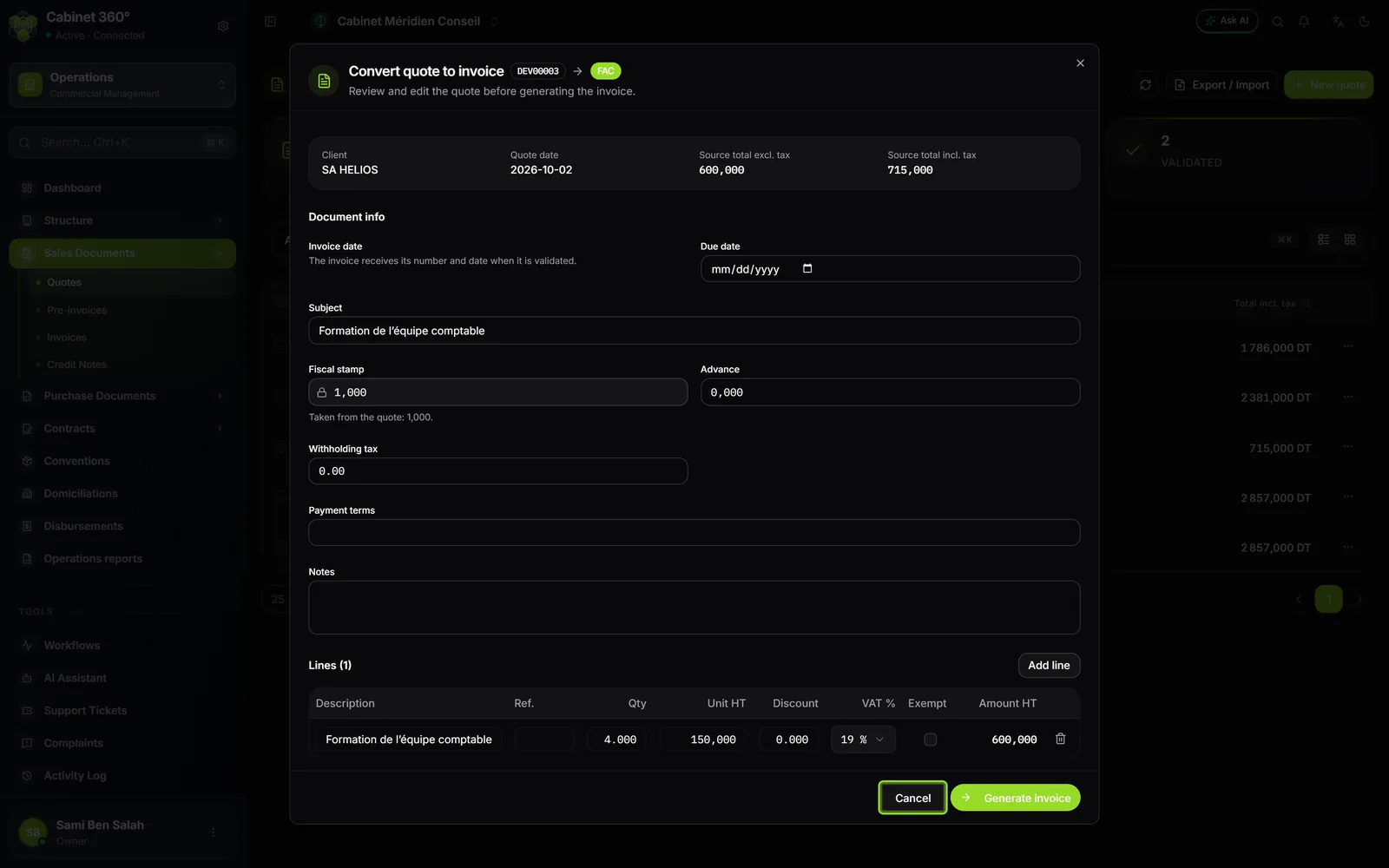
The invoice opens, as a draft, and the quote moves to Invoiced. The invoice has neither a number nor a date yet: it receives them when it is validated (chapter 9). A pre-invoice created from a quote, on the other hand, keeps a date that you choose.
The conversion takes over the currency, the reference and the attachments of the quote.
Several quotes from the same client
Tick the quotes in the list. The bar that appears offers Bulk → Pre-invoice and Bulk → Invoice. A single invoice (or pre-invoice) is created for all of them. Choose quotes from the same client and in the same currency, neither cancelled nor already invoiced: otherwise the screen warns “Multiple clients — select quotes from a single client.”
Printing a quote
The ⋯ menu of the row offers Download PDF. On the quote's full page, Print prints the screen, not the PDF: for the official document, use Download PDF. The PDF follows the template chosen in Settings › PDF Templates (chapter 11).