
The client list
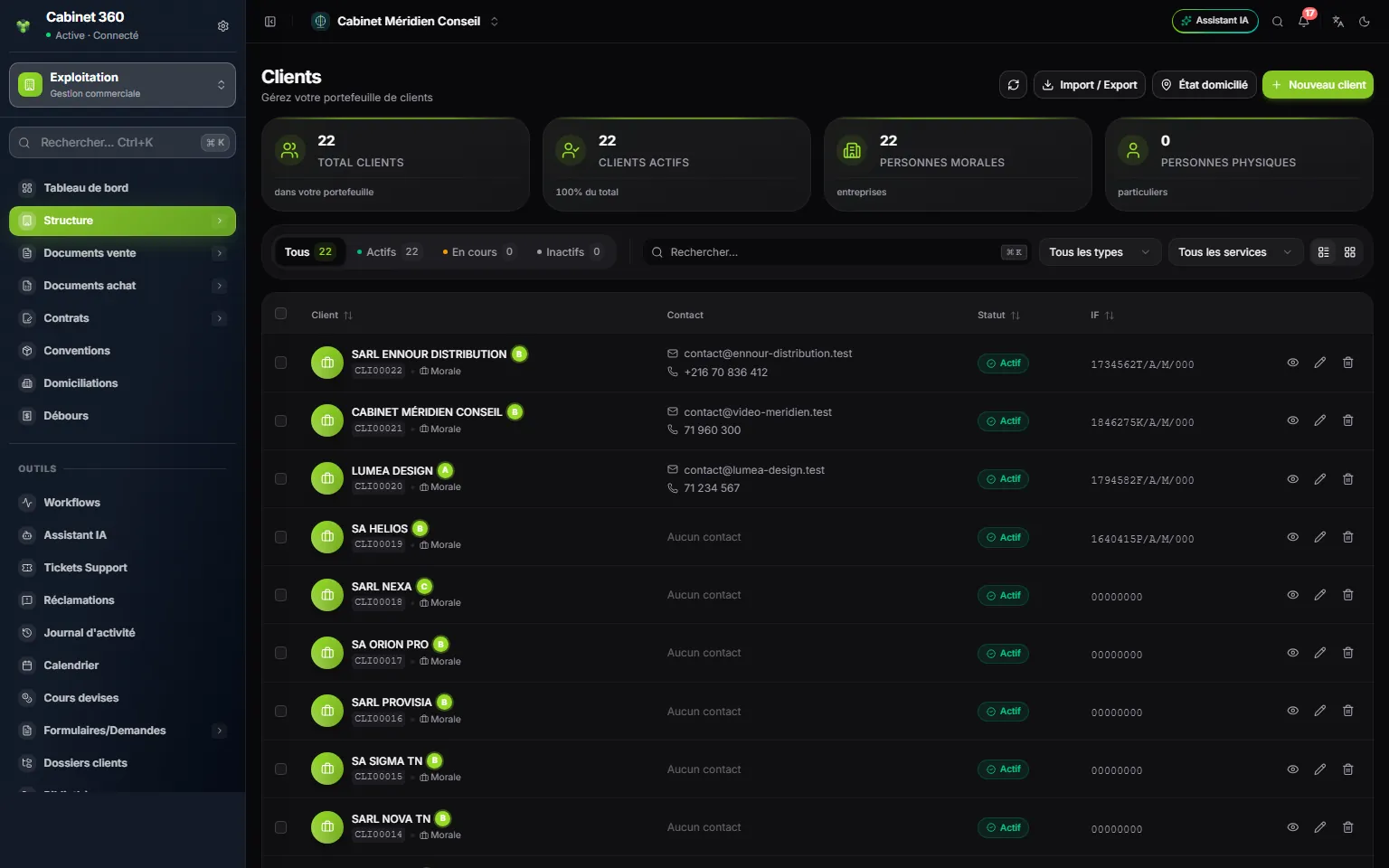
- 1. Import / Export: an Excel file to create or update your clients.
- 2. Domiciled: keep only the clients domiciled with you.
- 3. New client.
- 4. The cards count the whole firm, whatever the filters.
- 5. All, Active, In progress, Inactive: the client's status.
- 6. The filters: type, account manager, service.
- 7. The letter: the client's health score, A, B, C, D or F.
- 8. View, Edit, Delete.
The search covers the name, the number, the tax ID, the trade name, the e-mail and the phone. The lists All types, All account managers and All services narrow the list; Reset clears them.
If you are a member of several companies, one more icon appears on each row: Duplicate to another company (later in this chapter).
The detail panel
Click a row: the Client details panel opens on the right, without leaving the list. It has three tabs.
- Information: the identity, the legal form, the tax ID and the contact details.
- Finances: their latest invoices, with View all.
- History: what has been done on the record.
Its Quick actions go straight to the point: New invoice, Edit, Open record. More actions offers New convention and Full record.
Creating a client
- Click New client. The record opens on the Operations tab.
- Fill in the cards one by one. A click on a card's title opens it and closes the others.
- For a bank account, a manager or an associate, go to the Legal tab.
- Click Save, in the bar fixed at the bottom of the screen. The message “Client created successfully!” appears.
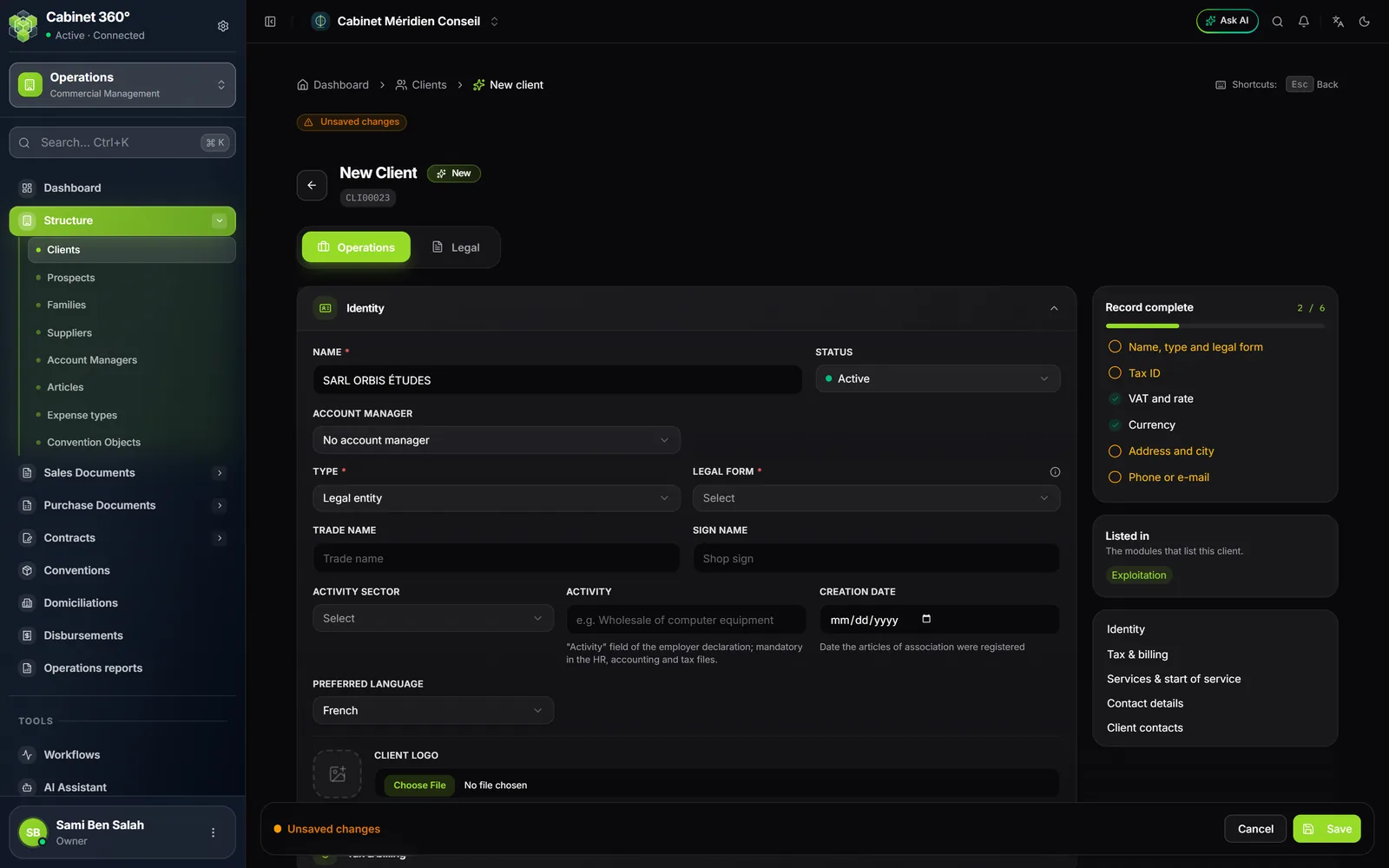
The Operations tab has five cards.
Identity
- Name: the company name, or the full name of an individual. Required.
- Type: Legal entity, Individual or Association. Required.
- Legal form: required for a company or an association (SARL, SA, SUARL, Association, Cooperative…).
- Status: Active, In progress or Inactive.
- Account manager: the member of the firm who follows this client, or No account manager.
- Then the trade name, the sign name, the activity sector, the creation date and the preferred language. For an individual: the National ID and the legal representative.
- Client logo: PNG, JPG, WEBP or GIF, 2 MB at most.
Tax & billing
- Tax ID: 7 digits and 1 letter, for example 1234567R. Without a tax ID, click No tax ID? Enter 00000000. A green tick or a red mark says whether the check letter is right, once the 8 characters are entered.
- CNSS No.
- VAT: Subject to VAT, its VAT rate (%), and the Fiscal stamp box (below).
- VAT exemptions › Add: each suspension authorization, with its Authorization No., its dates and the scan of the purchase order.
- Currency: TND by default, or EUR, USD, GBP, MAD. Their invoices, pre-invoices and quotes take it over.
- The usual Payment method.
Services & start of service
Each activated service makes the client appear in a module. With no service, the client stays in Operations: a one-off client, to whom you invoice a simple consultation.
| Activated service | The client appears in |
|---|---|
| Bookkeeping | Accounting and Ratios |
| Taxation | Tax |
| Human resources | HR · Payroll |
| Audit | Audit |
| Business plan | Business plan |
| Valuation | Valuation |
| Legal | Legal clients |
For Bookkeeping and Human resources, enter the start-of-service date on the service's line, once it is activated.
Contact details and Client contacts
- Contact details: the country, the postal code (it fills in the city and the district), the full address, the phone and the e-mail. The Domiciled switch takes over your company's address.
- Client contacts › Add a contact: the people you deal with at the client, with their Last name (required), first name, Position, phone and e-mail.
The Legal tab
- Share capital: the capital, the nominal value; the number of shares is calculated.
- Managers › Add: all fields are required, except the e-mail and the end of the mandate. The validity of a national ID card (10 years) or a passport (5 years) is calculated from its issue date.
- Associates, with the share distribution.
- Bank accounts › Add: the bank's name and a 20-digit RIB. A counter shows the digits entered.
The “Record complete” guide
On a large screen, a column on the right follows your entry: Record complete, with what is left to do (name, type and legal form; tax ID; VAT and rate; a dated start of service, for bookkeeping or payroll; currency; address; phone or e-mail), then Listed in, the modules that will list this client. The guide blocks nothing: it helps you forget nothing.
If a required field is missing, the message “Cannot save” names the card and the field.
VAT and the fiscal stamp on their invoices
The record decides two things for all of the client's invoices.
| Client record | VAT on their invoices | Fiscal stamp |
|---|---|---|
| Subject to VAT | The VAT of each article | Always. The switch is on and greyed out: “Always applied: the client is subject to VAT”. |
| Not subject to VAT | The VAT of each article | According to the Fiscal stamp switch: when it is off, their invoices carry none. |
| Suspension authorization valid on the invoice date | No VAT | According to the two rows above |
A client's page
The eye on a row opens the detail panel; Open record, in that panel, opens the client's page. At the top: Edit, and the shortcuts New invoice, New convention, New quotation, Schedule.
Its tabs: General, Legal, Managers, Associates, Contacts, Financial, Commission, Drive, then Tasks and Portal depending on your rights. The Financial tab shows their recent invoices, their payment methods and their Health Score.
The score is a letter: A, B, C, D or F. It weighs payment speed (40 %), unpaid amounts (30 %), active conventions (15 %) and overdue invoices (15 %).
The Commission tab calculates what you owe the client's account manager for the year: it starts from the year's invoices, excluding drafts and cancelled ones, minus validated credit notes.
Importing your clients
- In the list, click Import / Export, then the Import tab.
- Click Download import template. The Excel file has an Instructions sheet and a Lists sheet (your account managers, the legal forms).
- Fill in one row per client. Only the name is required. The example row is never imported.
- Drop your file in the box, or click Browse files, then Import.
- If some clients already exist, the question Do you want to update your client data? appears: Yes updates their records, No leaves them as they are, Cancel the import imports nothing.
The result counts the clients Imported, Updated and Skipped, and lists the Errors with their row number. Correct them in the file, then import it again: the clients already created are recognised, with no duplicates. Up to 10 000 rows per file.
Duplicating a client to another company
You follow the same client in two of your companies? Click Duplicate to another company, then choose the Destination company. The record, the managers, the associates, the bank accounts, the exemptions and the contacts are copied. Invoices and documents stay in the original company.
Deactivate rather than delete
A client who already has activity (invoices, pre-invoices, a convention, documents, accounting entries…) cannot be deleted. The message “Ce client ne peut pas être supprimé” (this client cannot be deleted) says what the client already has.
Set the client to Inactive instead: they leave the lists of the other modules, their portal access closes, and their history can still be viewed in Operations.
Prospects
A prospect is a possible client: someone who has asked you for a price without being a client yet.
Click New prospect and enter the Name / Title (required), the e-mail, the phone, the city, the Status and the Prospect manager. Add your notes.
When they accept, open the ⋯ menu of their row, then Convert to client. A client is created with their name, e-mail, phone and city; their notes move to the client's record. The message gives the new client's number.
Full commercial follow-up (leads, opportunities, campaigns) is done in the CRM module: see the book CRM & E-mailing. A former prospect taken over in the CRM can no longer be deleted from here: the message names its lead.