
Where pre-invoices come from
A pre-invoice is created in four ways:
- a convention or a domiciliation, at each due date: book Conventions & Domiciliations;
- a disbursement, when you save it (chapter 14);
- a quote that is converted (chapter 7);
- by hand, with New pre-invoice.
Whatever its origin, it then follows the same path: draft, validated (sometimes paid), then invoiced.
The pre-invoice list
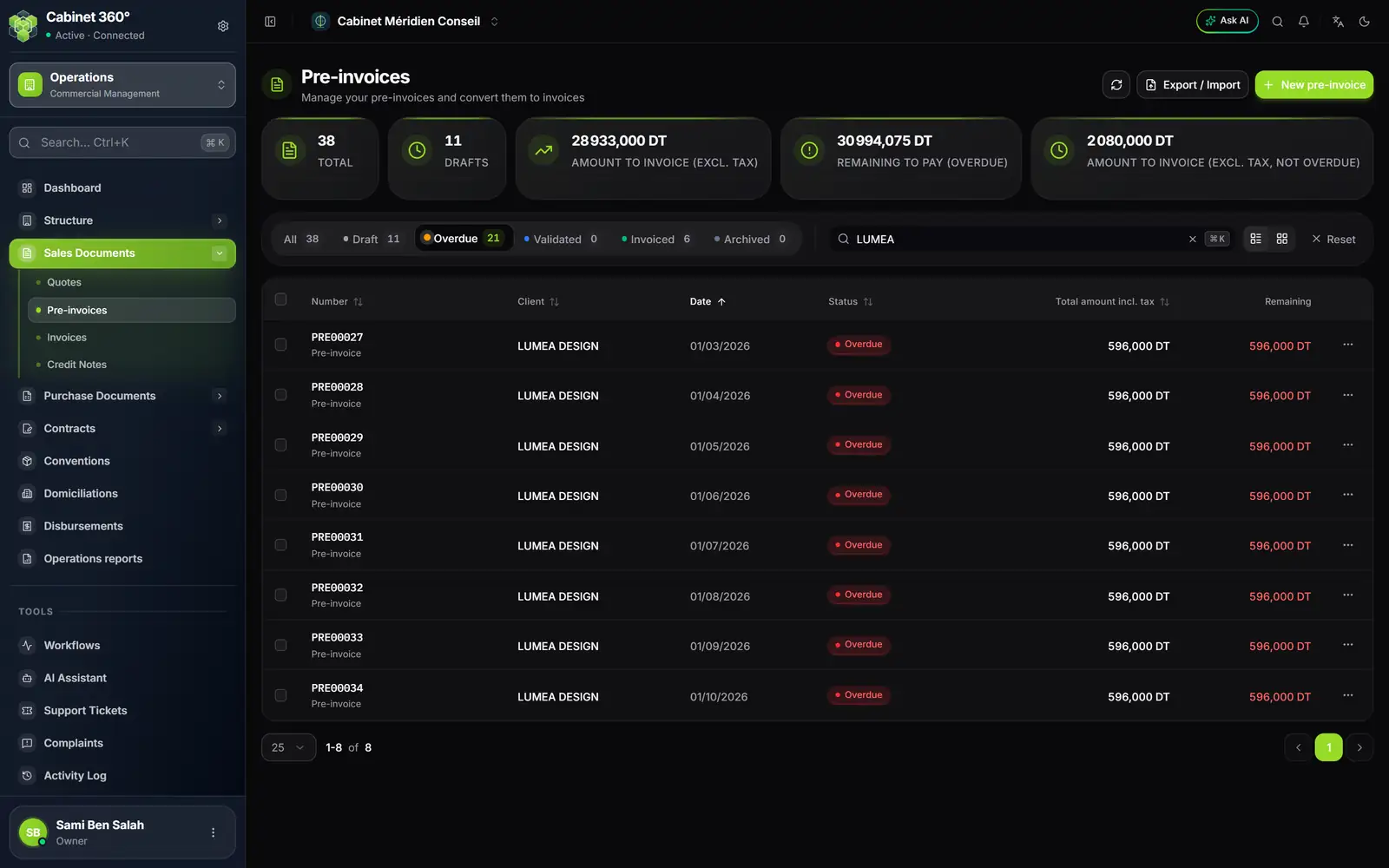
- 1. Export / Import your pre-invoices.
- 2. New pre-invoice.
- 3. Amount to invoice (excl. tax): what has not produced an invoice yet.
- 4. Remaining to pay (Overdue): what the overdue drafts still owe.
- 5. Amount to invoice (excl. tax, not overdue): the part whose date is still to come.
- 6. The tabs: All, Draft, Overdue, Validated, Invoiced, Archived.
- 7. Remaining on each pre-invoice.
The three amount cards can be clicked: they filter the list on what they count.
| Card | What it counts |
|---|---|
| Amount to invoice (excl. tax) | The amount excl. tax of all pre-invoices that do not have an invoice yet, whatever their date. Cancelled ones are left out; paid ones stay in. |
| Remaining to pay (Overdue) | What is still owed on the overdue drafts (below). |
| Amount to invoice (excl. tax, not overdue) | The part of the “to invoice” amount whose date is still to come. |
Archived pre-invoices count in no card.
Two words of the list need an explanation:
- Overdue is not a status: it is a draft dated the day before yesterday or earlier, waiting to be validated.
- Paid is a status: the cash register sets it when the pre-invoice is fully settled. The list also shows it as soon as nothing is left to pay.
Creating a pre-invoice
- Click New pre-invoice.
- In Billed to, choose the client. Check the date and the subject.
- Add the lines, as on a quote (chapter 7).
- In Payment, only the Stamp duty is set here. The withholding, the advance and the payment terms are set on the invoice that will come from this pre-invoice.
- Click Save as draft, or Save and validate.
The pre-invoice receives its number as soon as it is saved, drafts included.
The menu of a pre-invoice
| Status | What the ⋯ menu offers |
|---|---|
| All | View details, Download PDF, History |
| Draft | in addition: Edit, Validate, Cancel, Delete |
| Validated or paid, without an invoice | in addition: Convert to invoice |
| Not archived | Archive |
| Archived | Unarchive |
A pre-invoice goes from Draft to Validated, then to Paid if it is settled at the cash register, and to Invoiced when it becomes an invoice. A validated pre-invoice can already be collected at the cash register: book Finance & Cash Register.
Converting into an invoice
- Open the ⋯ menu of a validated pre-invoice, then Convert to invoice.
- Check the conversion window: client, lines, payment.
- Generate the invoice.
Several pre-invoices from the same client? Tick them in the list, then click Convert to invoice in the bar that appears. They must belong to the same client and be in the same currency. A single invoice is created, with a single stamp.
The invoice starts as a draft, with no number or date, and the pre-invoice moves to Invoiced. The invoice takes over the currency, the reference and the attachments of the pre-invoice.
Archiving a pre-invoice
A pre-invoice that will never be invoiced clutters the list. Archive it rather than delete it: it can still be viewed.
- Open the ⋯ menu, then Archive.
- In the Archive pro-forma invoice window, fill in the Notepad: the reason for archiving and your remarks. It is required, 4 000 characters at most.
- Confirm. The pre-invoice moves to the Archived tab.
Its status does not change. On its page, the Archived pro-forma invoice block recalls the notes of the last archiving, with an Unarchive button. These notes do not appear on the PDF given to the client.
Archiving requires the Delete right on pre-invoices (or invoices); unarchiving, the Edit right.
Cancelling a pre-invoice
On the pre-invoice's page, the ⋯ menu offers Cancel pre-invoice, as long as it is a draft or validated. A pre-invoice already invoiced can no longer be cancelled.