
Before you start
- The rights on Contracts: create and edit. Generating invoices also requires Purchases - Create, since the generation creates purchase invoices. Without this right, the button is greyed out and the screen names the two rights required: “Supplier contracts - Update” and “Purchases - Create”.
- The supplier exists (chapter 6), and so does the Purchase - Invoice series (chapter 2).
- A purchase article, not tracked in stock, that describes what you pay: “Rent”, “IT maintenance”… (chapter 5).
Creating a contract
- Click New contract.
- Choose the Supplier and write the Purpose, for example “Office rent”.
- Choose the Billing article: it is taken over on every generated invoice. If it is missing, the + next to it creates it, then brings you back to the contract without losing anything.
- Enter the Amount excl. tax of one single due date: the month's rent, not the total of the contract.
- Choose the VAT. Add Other taxes if needed: a fixed amount per due date, without VAT. The Amount incl. tax is calculated: excl. tax + VAT + other taxes.
- Fill in the Start date, the End date (optional: without it, the contract runs until further notice) and the Payment periodicity.
- Click Save: “Contract created”, and the contract's page opens.
The Payment periodicity offers Monthly, Bimonthly (every two months), Quarterly, Semi-annual, Annual and Other (custom). With this last choice, add each date with Add a due date: the dates must fall within the duration of the contract.
Choosing the article suggests its VAT rate. The contract nevertheless keeps its own: a difference with the article is flagged under the field, never corrected for you.
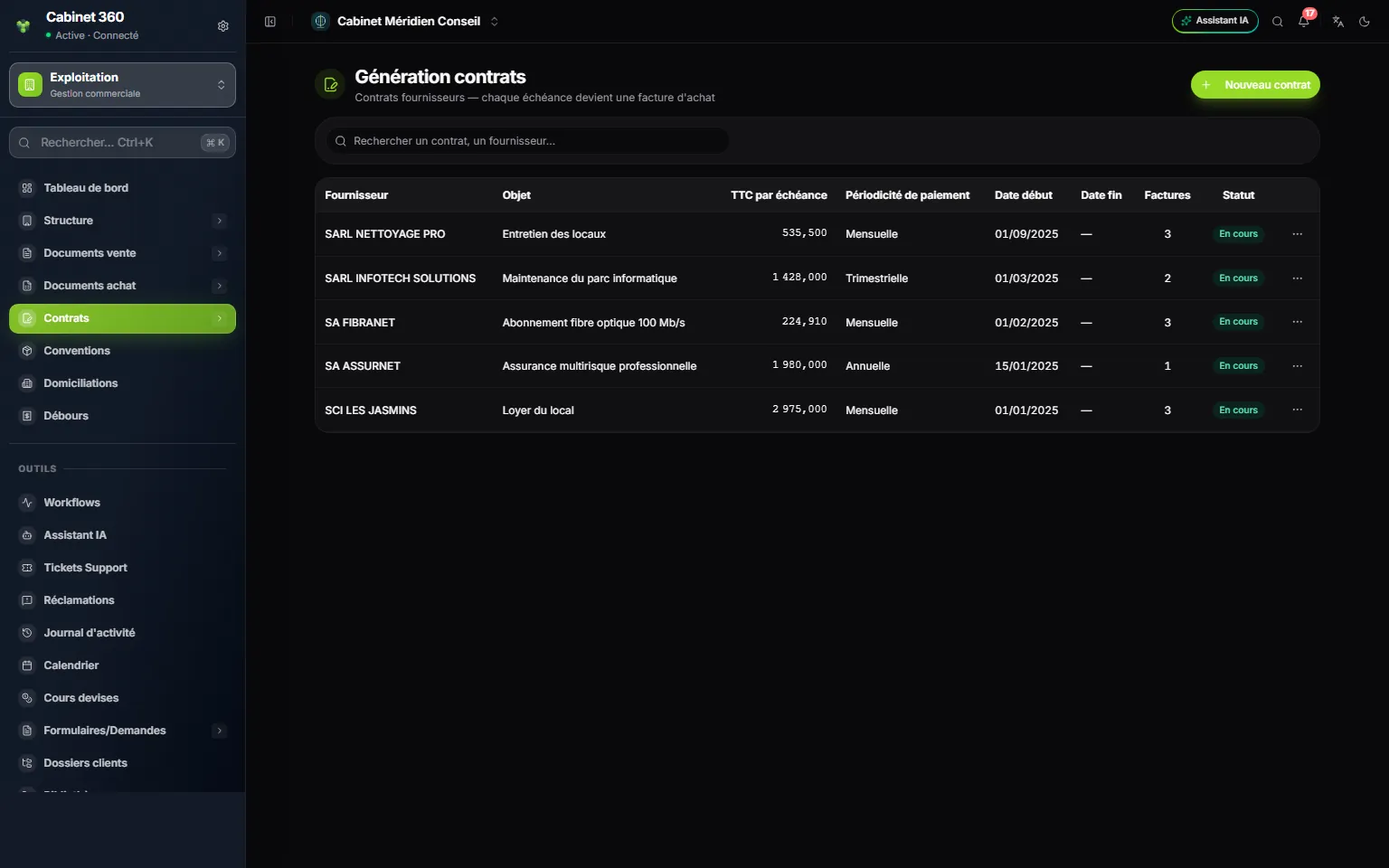
- 1. New contract.
- 2. Incl. tax per due date: the amount of one invoice of the contract.
- 3. Invoices: how many have already been generated.
- 4. Status: Upcoming, Ongoing, Ended.
- 5. ⋯: Open, Generate purchase invoices, Delete.
Generating the purchase invoices
- On the contract's page, click Generate purchase invoices. In the list, the same choice is in the row's ⋯ menu.
- The Generate purchase invoices window offers the due dates of the current fiscal year: the calendar year. The Fiscal year list gives the previous or the next year.
- Check the ticked boxes. A due date already generated shows the number of its invoice and can no longer be ticked.
- Click Generate: the button announces the number of invoices, for example “Generate 2 invoices”.
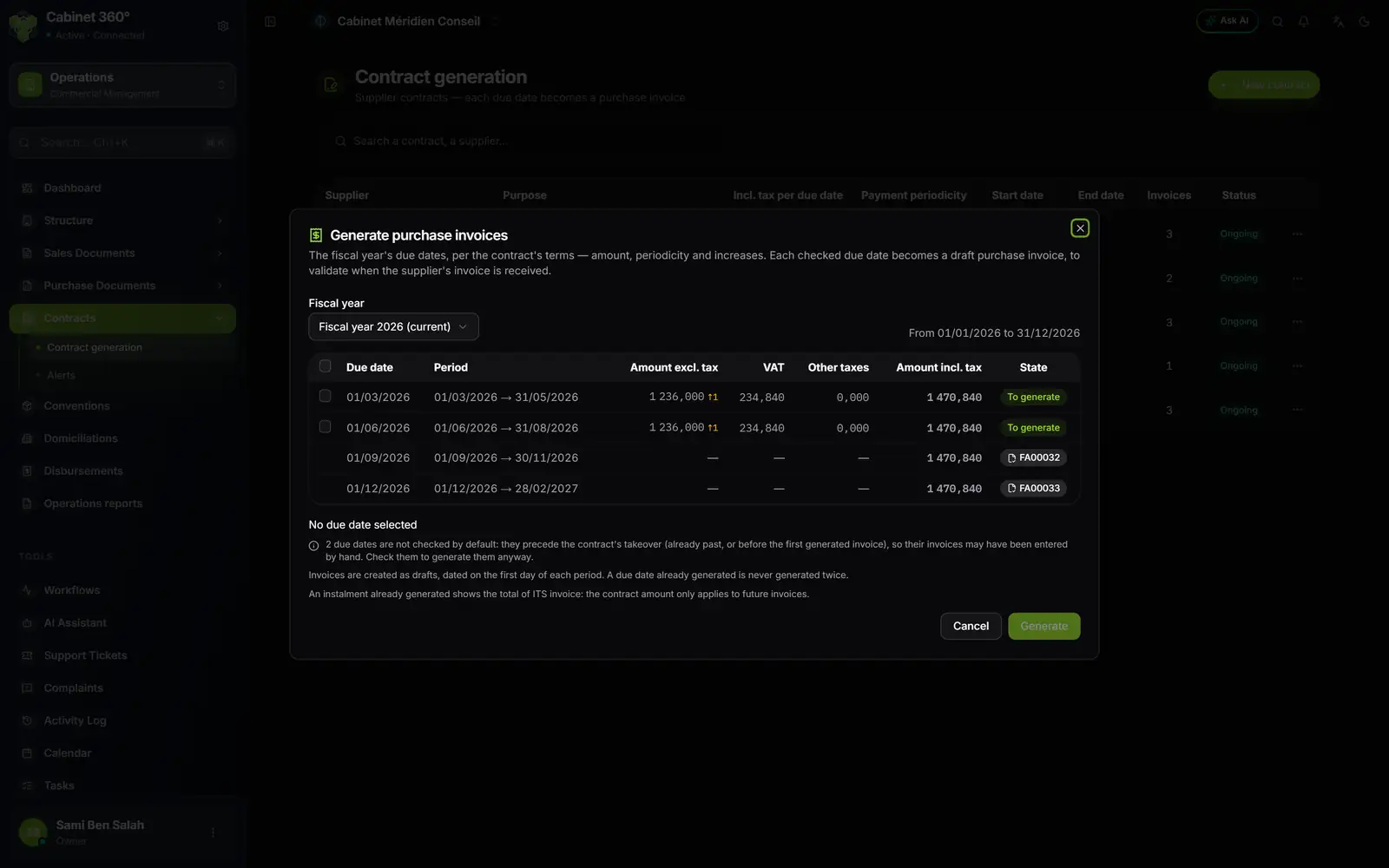
- 1. Fiscal year: the calendar year, the current one by default.
- 2. The boxes: a ticked due date becomes an invoice. The arrow “↑1”, next to the amount, flags an applied increase.
- 3. To generate: no invoice yet.
- 4. FA00032: already generated, with the total incl. tax of ITS invoice.
- 5. Why two due dates are not ticked by default.
Each ticked due date becomes a Draft purchase invoice, dated the first day of its period. It carries the contract's article and, if there are any, an “Other taxes” line. It has neither a stamp nor a withholding.
A due date is never generated twice: opening the window again invoices nothing again. When the supplier's real invoice arrives, open the draft in Purchase Documents › Purchase Invoices, adjust it if needed, then validate it (chapter 12).
What gets locked
As soon as the first invoice is generated, the Supplier, the Start date and the Payment periodicity can no longer be changed: the screen says so under Locked. The amount, the VAT and the taxes can still be changed: they apply to future invoices.
A contract that has generated invoices can no longer be deleted. To stop it, fill in its End date.
Validating the fiscal year in January
On 1 January, the invoices of the contracts still running are not created on their own. A banner at the top of the list announces it, for example: “Fiscal year 2027: 5 running contracts are awaiting the generation of their purchase invoices.” A notification also warns those who can validate.
- Click Review and validate. The Opening of fiscal year window lists the contracts running on 1 January, with their due dates for the year and their total incl. tax.
- Untick the contracts to leave out. A blocked contract (inactive supplier or article) is listed with its reason and cannot be ticked.
- Click Validate generation. Nothing is created before this click.
An unticked contract keeps its due dates: you generate them later from its page. A contract entered during the year always generates from its own Generate purchase invoices button.
Watching for invoices not received
A forgotten STEG or SONEDE invoice can cost you a service cut. The alert makes sure it arrives.
- Click New alert.
- Choose the Supplier. A supplier can have only one alert.
- Enter the Invoice frequency (days): the usual interval between two invoices, for example 60 for the STEG.
- Fill in the Alert start date and choose the Users following the alert: at least one.
- Leave Alert enabled ticked, then save: “Alert created”.
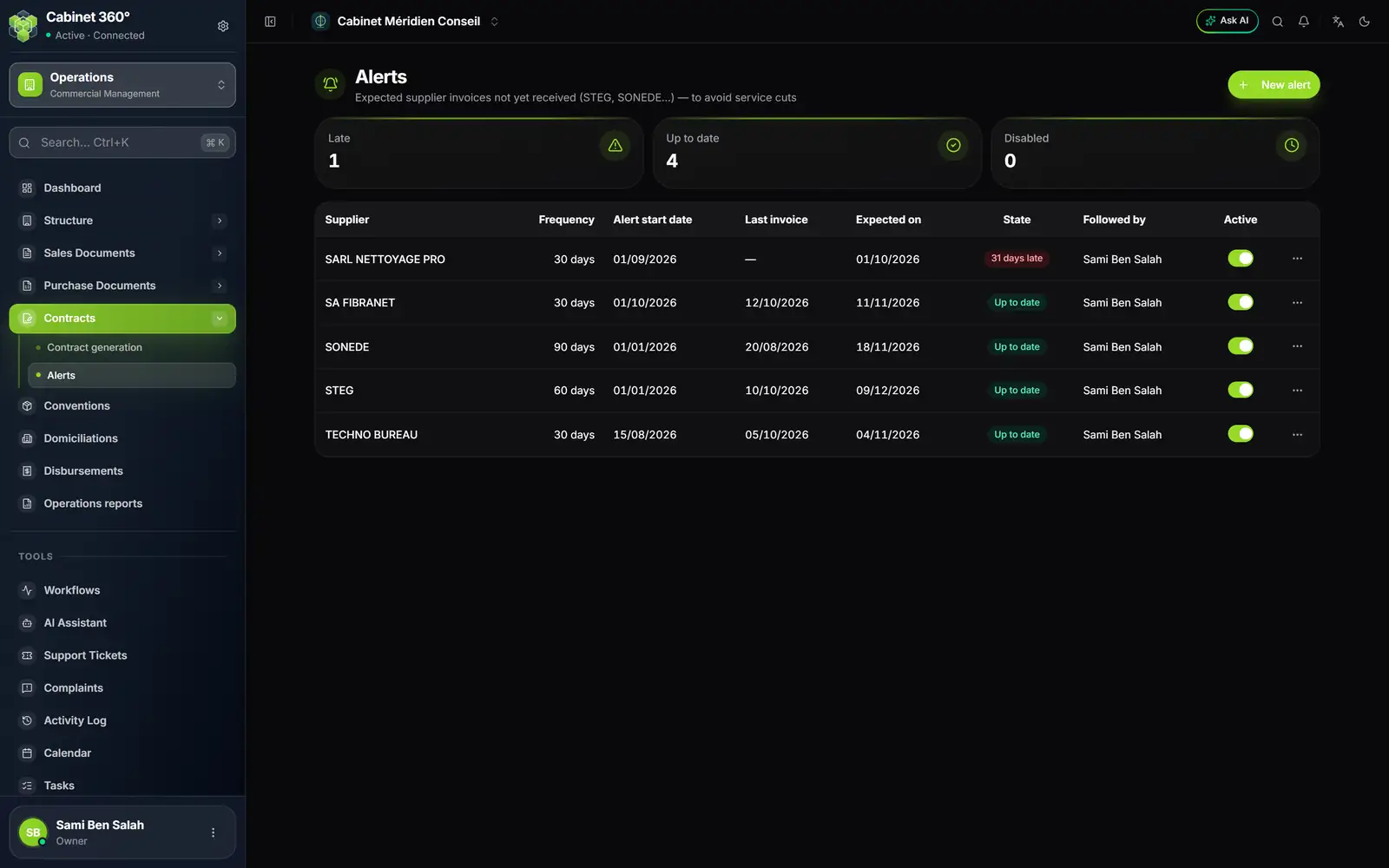
- 1. New alert.
- 2. The cards: Late, Up to date, Disabled.
- 3. 31 days late: the expected invoice (column Expected on) has not arrived.
- 4. Active: when disabled, the alert goes quiet but stays saved.
The expected date starts from the more recent of two dates: the last invoice received, or the alert's start date; the frequency is added to it. The alert is Upcoming until its start date arrives, then Up to date. As soon as the expected date has passed, it becomes Late and shows under the bell in the top bar, in Supplier invoices not received, for each user who follows it. The ⋯ menu of an alert offers Edit and Delete.