
The supplier list
At the top: Refresh, Export / Import and New supplier. The cards count the Total suppliers, the Legal entities, the Individuals and the others. The tabs All, LE, Ind. and Other filter by type.
The columns: Supplier (name, code and type), City, Country, Contact. Each row carries three icons: View details, Edit, Delete.
Click a row: the Supplier detail panel opens on the right, with its badges (VAT registered, Subcontractor) and two tabs, Information and Finances. Its Quick actions: New purchase, Edit, Full page.
Creating a supplier
- Click New supplier.
- In Identification, check the Entity type (Legal Entity, Individual or Association) and enter the Name / Company name. These are the only two required fields.
- Choose the Legal form if you know it. Enter the Tax ID as it appears on their invoices, and the Unique identifier if they have one.
- Leave VAT registered on if they charge you VAT. Turn on Subcontractor if they are one. Choose their Preferred currency if they invoice in a foreign currency.
- Complete the Contact (phone, e-mail) and the Address. The country is Tunisia by default.
- In Bank details, click Add account: the Bank, the RIB, the Agency and the Currency of the account.
- Click Create. The message “Supplier created successfully!” appears.
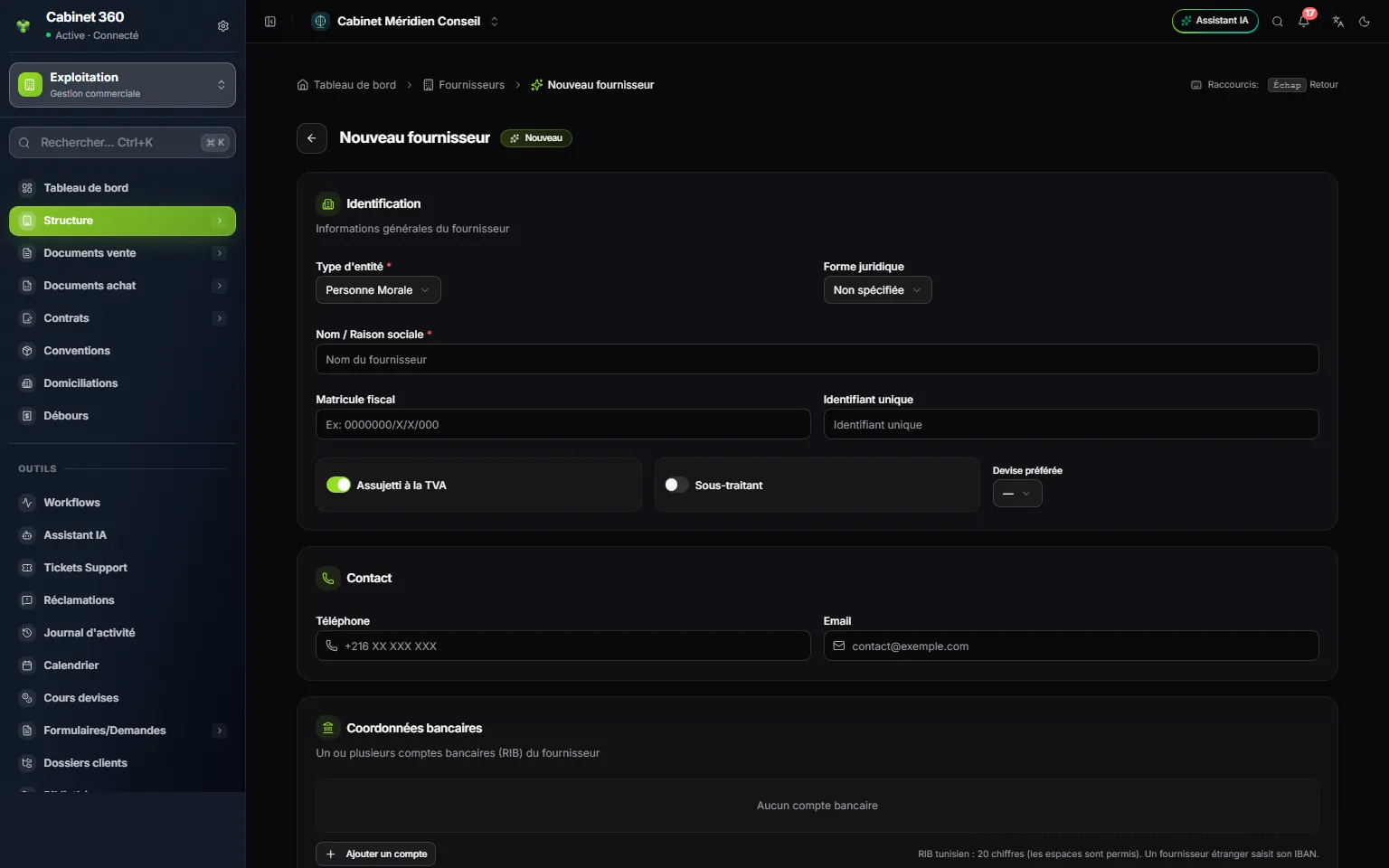
- 1. Entity type: required.
- 2. Name / Company name: required.
- 3. Tax ID: unique, a duplicate is refused.
- 4. VAT registered, and Subcontractor.
- 5. Preferred currency: for a foreign supplier.
- 6. Add account: their bank and their RIB.
The supplier's code (FOU00001, FOU00002…) is assigned automatically: its series creates itself with the first supplier, nothing to set up beforehand.
The tax ID
A tax ID belongs to one supplier only: a duplicate is refused. The unique identifier follows the same rule.
A supplier not registered for VAT
Turn off VAT registered: the VAT exemptions card appears. Add exemption records its Authorization no., its Start date and its End date.
Bank accounts
In Bank, type a few letters to find the bank in the list of Tunisian banks (BIAT, BNA, STB…). The RIB has 20 digits, spaces allowed: the counter above the field turns green at 20/20.
For a foreign supplier, choose their Country. In Bank, type the name of their bank, then click Use “…”. In RIB, enter their IBAN: no length rule applies. Fill in their Preferred currency: Finance needs it for a foreign payment.
Importing your suppliers
In the list, click Export / Import, Import tab. The Simple template and the Full template follow the record; the Code column is required for a new supplier.
If the file contains suppliers you already have (same code, same tax ID or same name), the question Do you want to update your supplier data? appears. Yes keeps each record's code and takes the other values from the file; an empty cell changes nothing. No leaves them as they are. New suppliers are created in both cases.
Ordering from the record
In the supplier's panel, New purchase opens a purchase order with this supplier already chosen (chapter 12).
Deleting a supplier
The bin on its row deletes it, after confirmation. If purchase documents mention it, deletion is refused.