
Before you start
- The Invoices › Create right: credit notes follow the rights of invoices.
- The Credit note series exists (chapter 2). Credit notes have their own sequence (AVO00001, AVO00002…), separate from that of invoices.
- The invoice is issued: Validated, Sent or Paid. A draft is corrected directly.
Issuing a credit note from the invoice
- In Sales Documents › Invoices, open the invoice's ⋯ menu, then Issue credit note. The same button is at the top of the invoice's full page.
- The Issue a credit note window shows the Credit available: what the invoice can still give back.
- Choose the Credit note type (below).
- Write the Reason, for example “Partial return” or “Commercial discount”.
- Choose the Status: Draft, or Validated (credits the invoice immediately).
- Click Create credit note. The message “Credit note created successfully” appears.
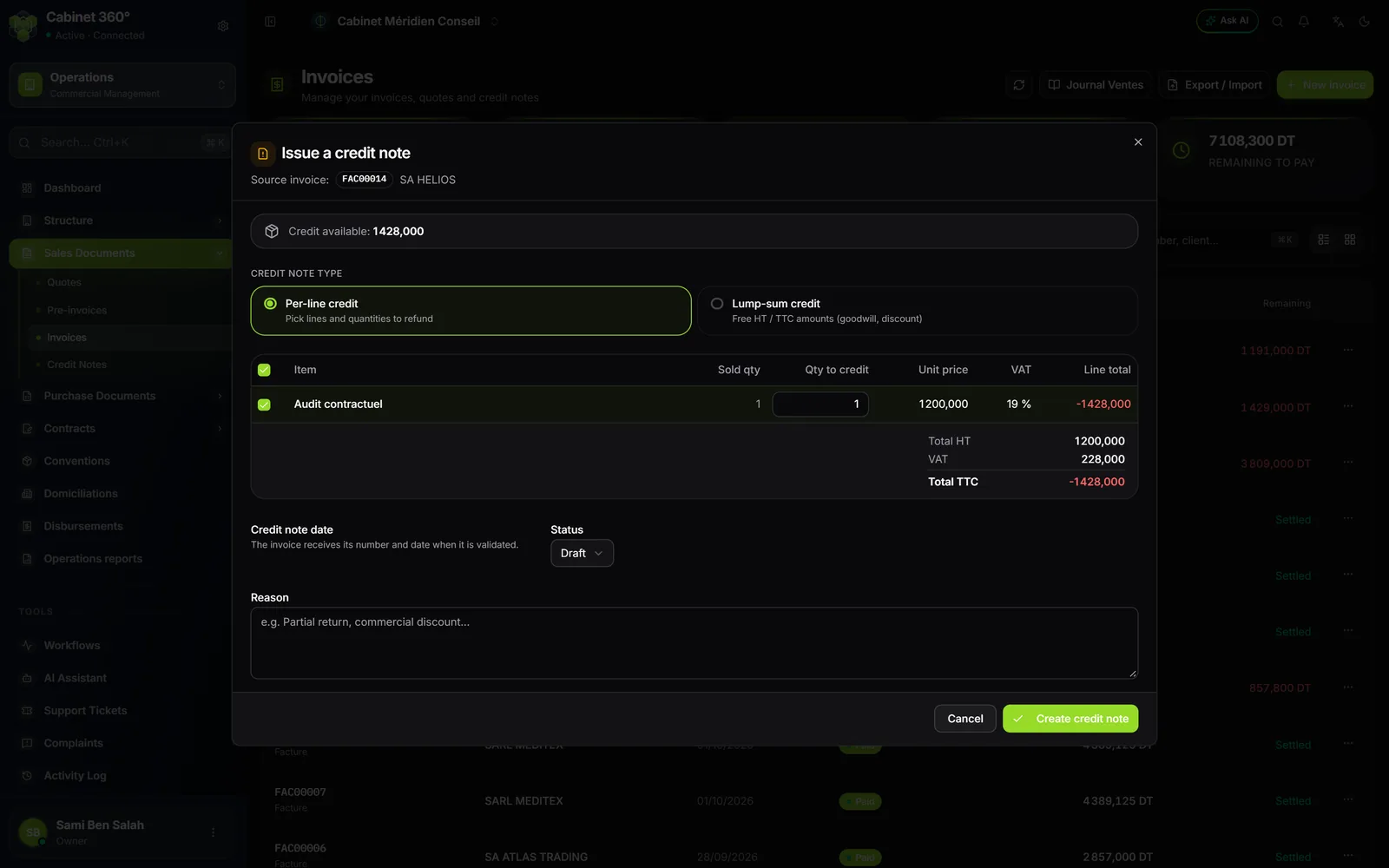
The two types of credit note:
- Per-line credit: tick the lines to credit and enter the Qty to credit, which starts at 0. For returned goods, or a service invoiced in excess.
- Lump-sum credit: enter an Amount HT and an Amount TTC, the TTC amount at least equal to the HT amount. For a goodwill gesture or a discount.
Starting from the credit note list
Click New credit note. The entry page is the quote's (chapter 7), with three differences:
- Credited client, then Original invoice: choose the client first, then the invoice. Its lines arrive with what is left to credit, written under each line: “Sold 3 · already credited 1 · left 2”.
- Credit note form: By lines, or Lump sum.
- Reason for the credit note: required.
A credit note carries no fiscal stamp, no withholding tax and no advance: the page does not offer them.
What a credit note can credit
A credit note never credits more than what is left.
- By line: the quantity does not exceed the quantity sold, minus what validated credit notes have already credited.
- By amount: the credit note does not exceed the amount excl. VAT + VAT of the invoice, minus its validated credit notes.
The withholding tax and the advance on the invoice do not reduce this ceiling: an invoice with withholding is credited in full. The fiscal stamp, on the other hand, is not credited.
The number and the date
Like an invoice, a draft credit note has neither a number nor a date. It receives both when it is validated, and it is dated that day. If a credit note with a lower number is dated later, validation is refused and the message names it.
What the credit note changes on the invoice
When the credit note is validated, the original invoice changes status and its remaining amount goes down by as much:
| What is credited | Status of the invoice |
|---|---|
| A part | Partial credit note (shown as Partial in the list) |
| All of it | Full credit note |
If the watermark is enabled in your PDF template, the PDF of a fully credited invoice carries “SOLDEE PAR AVOIR” (settled by credit note) across the page.
The credit note list
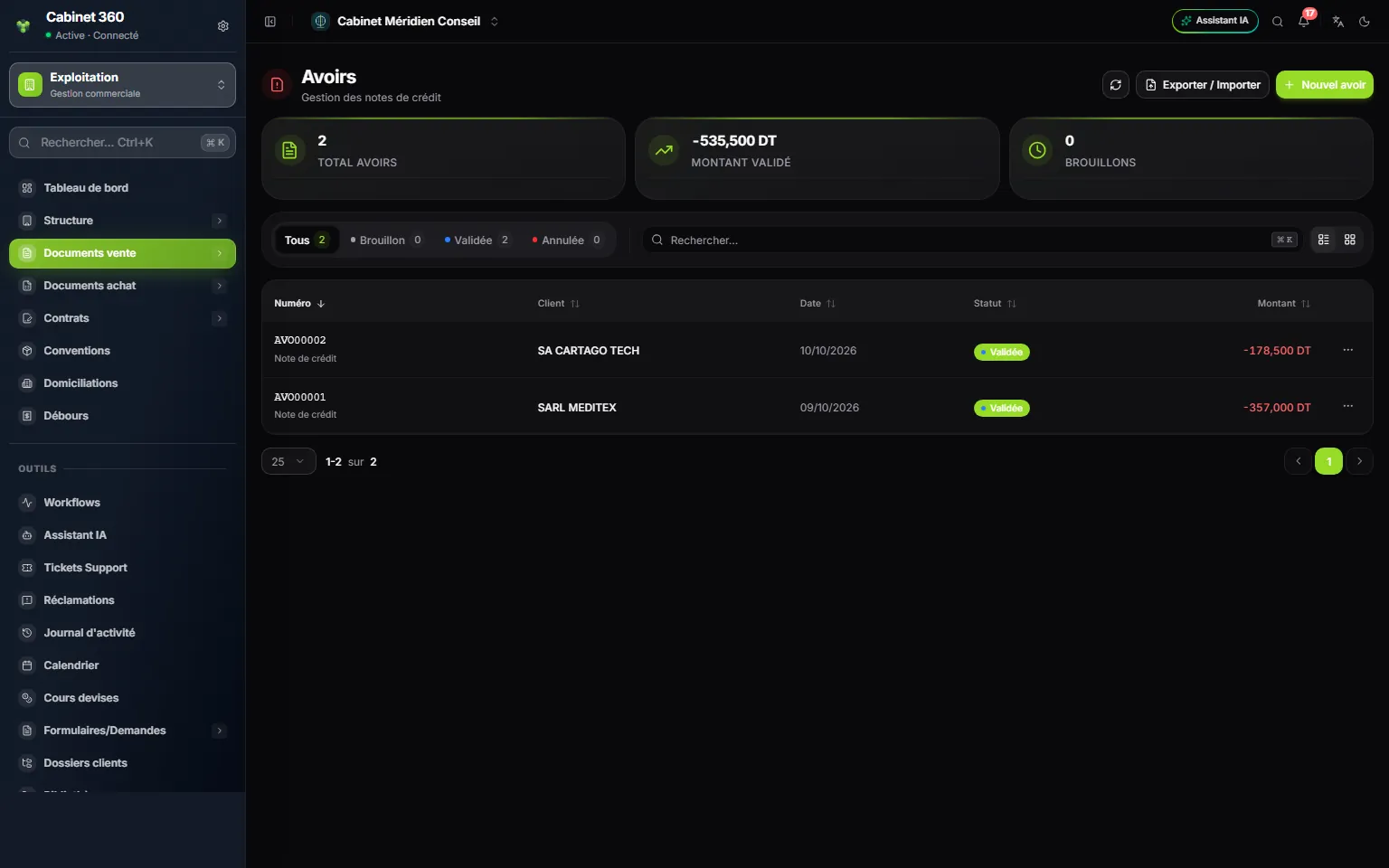
- 1. Export / Import your credit notes.
- 2. New credit note.
- 3. Validated amount: the total of the validated credit notes.
- 4. All, Draft, Validated, Cancelled.
- 5. The amount of a credit note is shown as a negative figure.
The ⋯ menu of a credit note:
| Status | What the menu offers |
|---|---|
| All | View details, Download PDF, History |
| Draft | in addition: Edit, Validate, Delete |
| Validated | in addition: Cancel credit note |
Cancel credit note makes the amount available again on the original invoice.
Printing a credit note
The credit note's PDF is downloaded from the ⋯ menu of the list or from its detail panel: Download PDF. Your client also finds it in their client area, with their invoices.