
The Structure group follows this order: Clients, Prospects, Families, Suppliers, Account Managers, Articles, Expense types, Convention Objects. Clients and prospects are in chapter 4, suppliers in chapter 6. Convention objects are in the book Conventions & Domiciliations.
Families
A family groups articles of the same kind: accounting fees, legal fees, supplies… It suggests a usage and accounting accounts to them; the VAT rate is chosen on each article.
- Click New family.
- Enter the Designation.
- Choose the VAT (%) and the Article usage: Sales, Purchases or Sales and Purchases. Both are required, and nothing is chosen in advance.
- In Accounting allocation, choose the accounts the family will suggest to its articles. The block shows those of the chosen usage: the four sales accounts (Taxable sales, Exempt sales, Sales under VAT suspension, Export sales), the two purchase accounts (Local purchases, Foreign purchases), or all six.
- Save.
The list shows for each family its Designation, its number of Items, its Usage, its VAT and its Status. A click on a row opens the family: its Articles section lists the attached articles, each with its rate (“19,00 %”) or Exempt.
Account managers
An account manager is a member of the firm who follows clients. Declaring them serves three purposes: filtering your client lists by account manager, in every module; calculating their commission; assigning a prospect.
Each account manager has a Last name, a First name, an Email and a Phone: all four are required. You then choose them on the client record, Identity card, Account manager field. Their commission is set client by client, in the Commission tab of the record.
Articles
The list
At the top: Import / Export, Conversions (unit conversions) and New article. The cards count the Total articles, the Active articles, the Products and the Services, according to the chosen filters. Filter by status (All, Active, Inactive), by type and by usage.
The columns: Article, Family, Usage, Sale price excl. tax, Purchase price excl. tax, Stock, VAT and Status. Double-click a sale price to change it in place.
The ⋯ menu of a row offers View details, Edit, Duplicate, Archive and Delete.
Creating an article
- Click New article.
- In General information, enter the Code and the Designation, both required. Choose the Type: Service or Product. A product turns on stock tracking by itself.
- Choose the Family. Its usage is taken over, and a note says so: “Usage taken from the family: Sales — you can change it.”
- In Pricing, enter the Sale price excl. tax, the Purchase price excl. tax (optional) and the Unit: Unit, Hour, Day, Month, Year or Flat rate.
- Leave VAT applicable on Yes and choose the VAT rate (%). It is required: without it, the article is not saved. For an exempt article, turn the switch off: it shows VAT exempt.
- Check Accounting allocation: the family's accounts are taken over there, and can be changed.
- Leave Active article on, then click Save: “Article created successfully”.
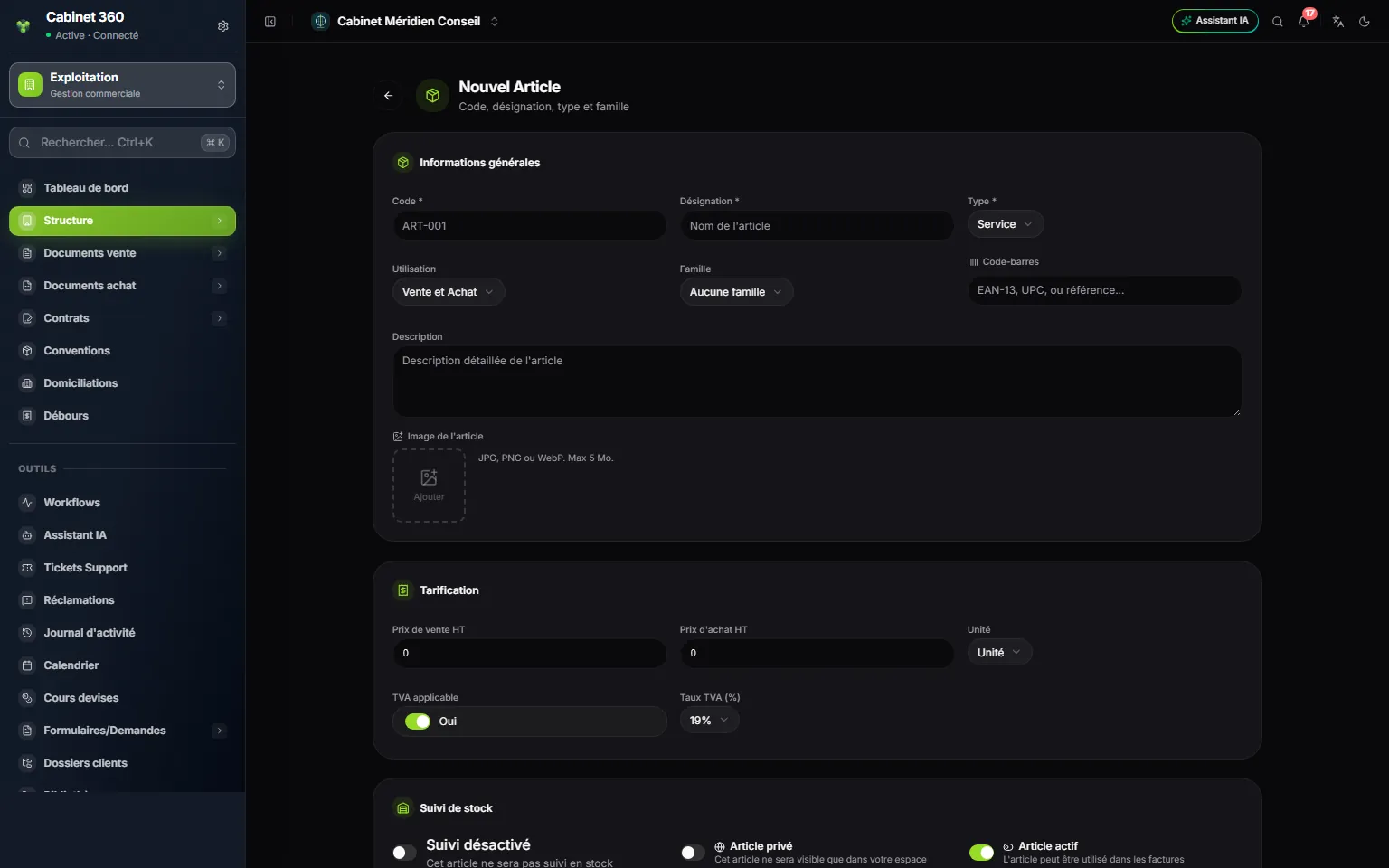
- 1. Code and Designation: required.
- 2. Type: Service or Product.
- 3. Usage: Sales, Purchases or Sales and Purchases.
- 4. Family: it suggests the usage and the accounts.
- 5. Sale price excl. tax: always excluding taxes.
- 6. VAT rate (%): required, from the platform's list.
The list of rates follows the article's usage: the rates open to sales for a Sales article, to purchases for a Purchases article, to both for a Sales and Purchases article. The Tunisian rates are 0, 7, 13 and 19 %.
An article's VAT on your documents
On a quote or invoice line, the VAT is the one on the article record, and it is locked there. To change a rate, edit the article: a reopened draft takes the new rate, a validated document keeps its own.
The price is always excluding taxes. VAT and the fiscal stamp are added on the document. An article's page shows its Price incl. tax, calculated, its margin and its price history.
Creating an article without leaving your invoice
On an invoice or quote line, the + next to Reference opens New article, with the Sales usage already chosen. After Save, you come back to your document as you left it, with the article placed on the line. Without the right to create articles, the + is greyed out.
Importing or exporting your articles
Import / Export exports the list to Excel or CSV, filters included. On import, a Preview first counts the new, updated and erroneous articles, row by row. Nothing is written before Start import.
Expense types
Expense types classify money going out that is neither a supplier nor a disbursement: supplies, bank charges, social charges… The cash register (New expense › Miscellaneous) and Finance › Other disbursements read them.
Click New expense type. The Name, the Category and the Ledger account are required: the expense is posted to this account. The categories: Staff, Partners, State and social bodies, Overheads, Bank charges, Other.
An expense type already used by other disbursements cannot be deleted: deactivate it. How they are used is described in the book Finance & Cash Register.