
What the act does, and what it does not
The precision act records a correction and its follow-up. It does not change the original document, and it is not printed. Once validated or registered, it enters the company's event timeline.
Have at hand the number of the document to correct (for example STAT260001) and the faulty passage.
Entering an act
Click New deed. The "New precision act" page announces its number: "Assigned number: PREC260002".
- In Reference document, choose the Client and the Act date (today by default).
- Under Original document, choose the Document type: Articles, Minutes, Share transfer, Summons or Other document. Add, if you have them, the Document number, the Document date and the Article concerned.
- In Correction, choose the Error type: Material error, Involuntary omission, Clarification needed, Typographical error, Missing information, Date error, Amount error, Identity error or Other. Copy the faulty passage into Original text (erroneous), then enter in Corrected text the text that must replace it.
- In Additional information, explain the Correction reason. The Internal notes are seen only by your team.
- Click Create act: "Act PREC260002 created successfully", and the record opens as a Draft.
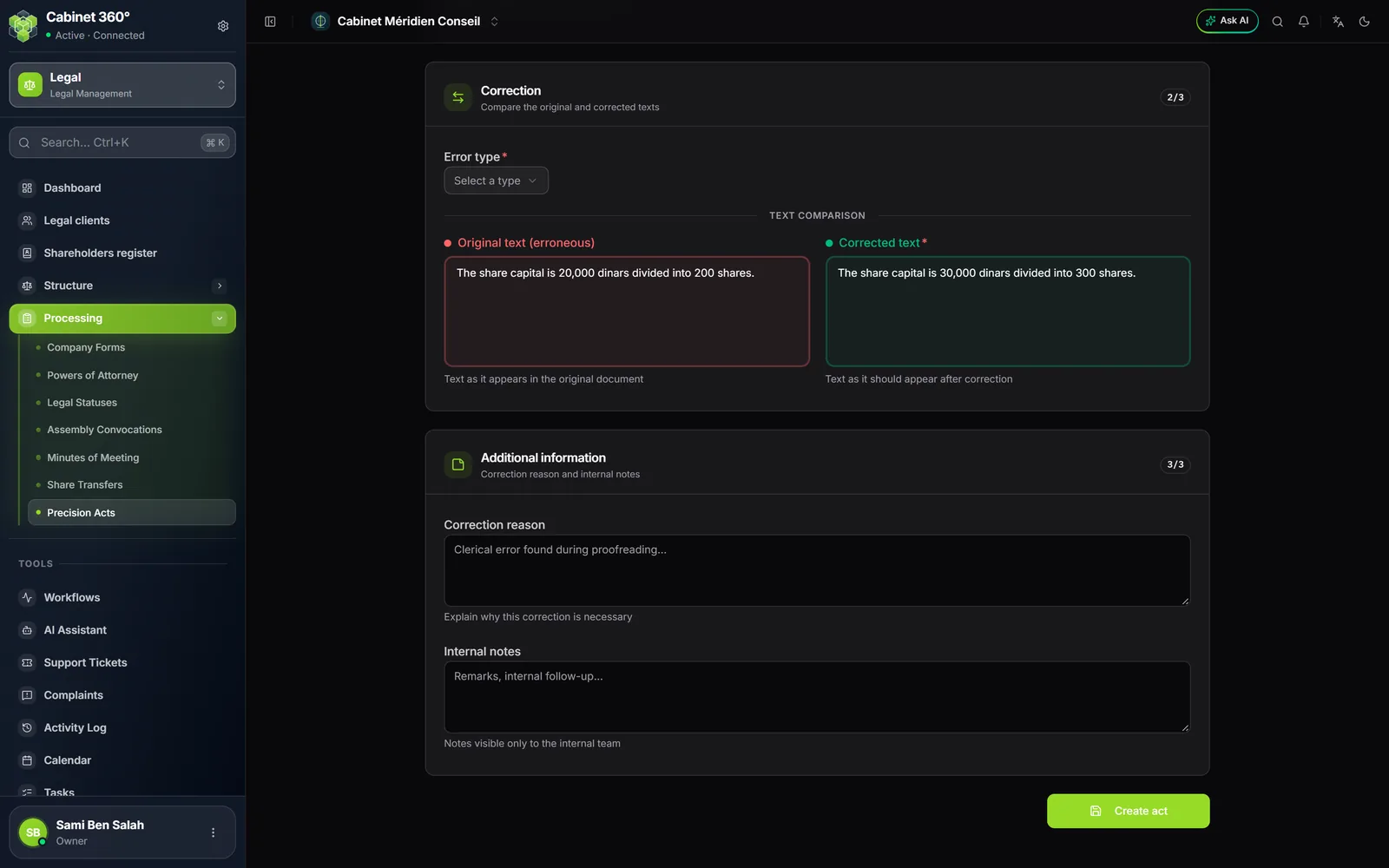
The required fields are the Client, the Act date, the Document type, the Error type and the Corrected text. If one is missing, a "Validation errors" box names it.
The act's cycle
| Action | From | To |
|---|---|---|
| Validate, then Confirm validation | Draft | Validated |
| Register, then Confirm registration | Validated | Registered |
| Reopen | Validated | Draft |
Only a draft can be edited or deleted; the server applies the same rule. A registered act can no longer be reopened. Validating, registering and reopening need the Edit right on the Precision Acts screen.